Global Layout Settings for Elementor
Foxiz pages are 1280px wide: 1240px of content and 20px of padding at each edge. Give Elementor the same 1280 before you start building a homepage, and the page content lines up with the header and footer.
The number the theme actually stores is the outer one. Theme Options > Theme Design > Container Width holds 1280, and its own description says that includes 20px of padding on each edge. Elementor pages do not follow that setting. The panel says so in as many words, which is exactly why this article exists: if you ever change the theme's container width, come back here and change Elementor's to match.
Setting up the page exactly as the below
-
From any Elementor page or post editor, click the Elementor Logo at the far left of the bar across the top of the editor, then navigate to Site Settings > Settings > Layout. Older Elementor had this menu behind a hamburger icon at the top of the left panel. Ctrl + K on Windows or Command + K on macOS skips straight to Site Settings.
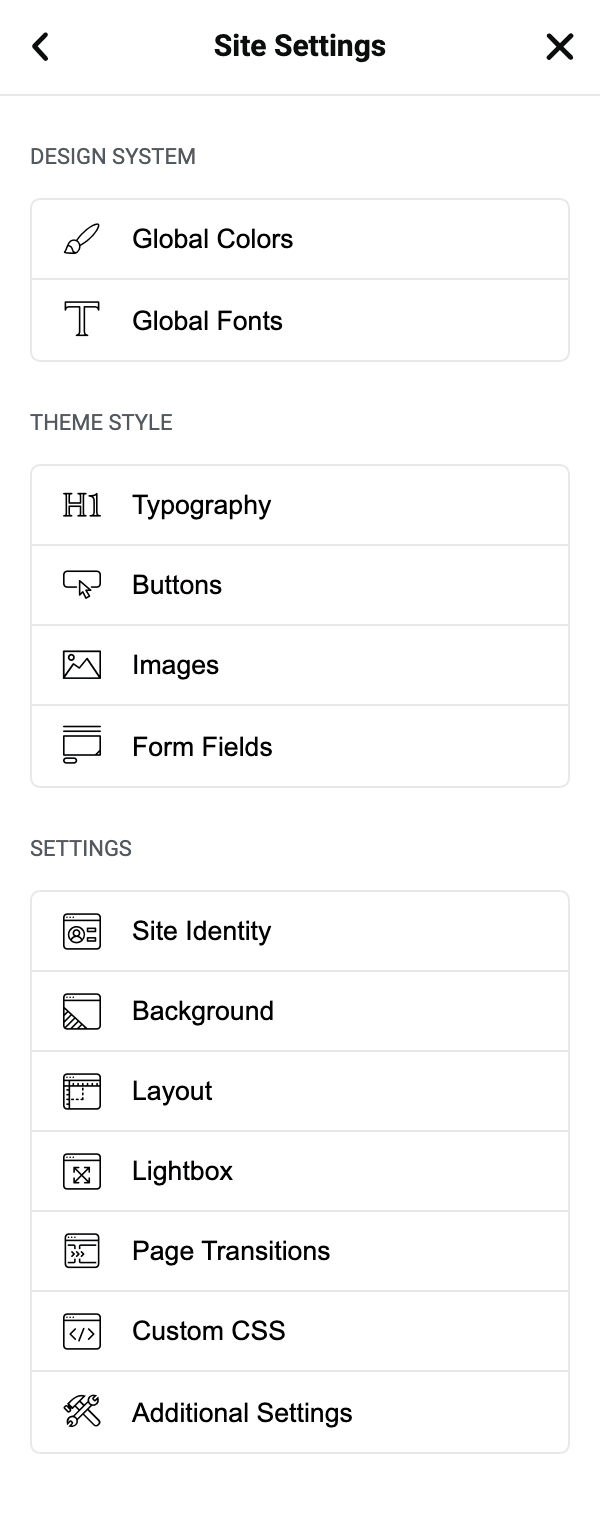
The Site Settings panel groups its tabs under Design System, Theme Style and Settings. Layout is in Settings, third in that group after Site Identity and Background.
-
Under the "Content Width" input this value 1280 and the "Widgets Space" input this value 20.
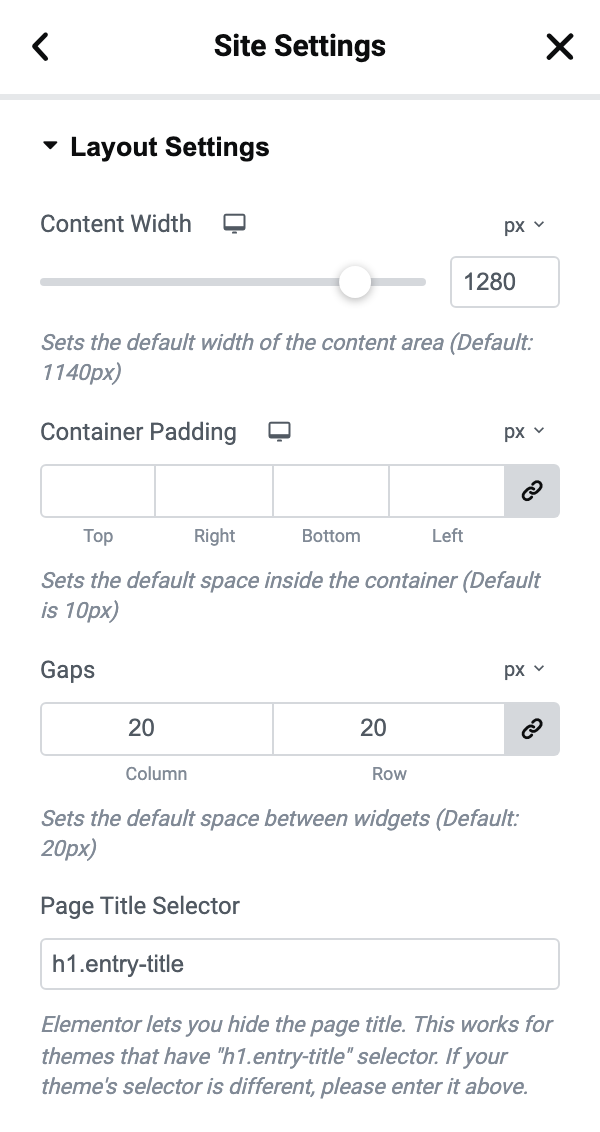
Both fields are in the tab's Layout Settings section. Content Width is a slider that also accepts a typed number, from 300 to 1500 in steps of 10. Elementor's own default is 1140, and that 140px gap is what makes an Elementor homepage look narrower than the header above it.
Widgets Space is labelled Gaps on newer Elementor, where it asks for a row value and a column value instead of a single number. Both already start at 20, so this half of the step usually changes nothing.
-
Set Elementor's global fonts to Default, so the site keeps the fonts you chose in Foxiz:
- Go back to the Site Settings menu and open Global Fonts, the second item under Design System.
- Under System Fonts there are four fonts: Primary, Secondary, Text and Accent.
- For each one, click the pencil icon beside it and set Family to Default.
Elementor sets these four to Roboto and Roboto Slab, and it loads both fonts on every page of the site, including pages you did not build with Elementor. Foxiz already ticks Disable Default Fonts in Elementor's settings for you, but that box does not stop these two downloads. Set to Default, they stop, and your pages keep the fonts from Theme Options > Typography (Typography Options).
Disable Google Fonts in Elementor walks the same screens with pictures.
-
Click "Save Changes" to save your changes.
That button is at the bottom of the Site Settings panel, and it is disabled until you have changed something.
-
After that, add your containers and blocks: How to Build your Homepage with Elementor Builder? walks it step by step.
This is global in the literal sense: the values live on the site's Elementor kit, not on the page you happen to have open, so every Elementor page and every Ruby Template on the site picks them up and you only do this once.
Total 1280px : content width 1240px and edge padding 20px
For further information, You can refer to the plugin documentation here: https://elementor.com/help/global-layout-settings/
Did this answer your question?