Quickly Create a Page as Hompage with Elementor Templates
Templates are pre-designed Pages and Blocks that are available after importing pages, making it easy for you to insert them into any page with just one click.

How to Find Saved Templates?
After Importing Demo Content, Homepages designs are Saved in the Templates Section of Elementor's Library.
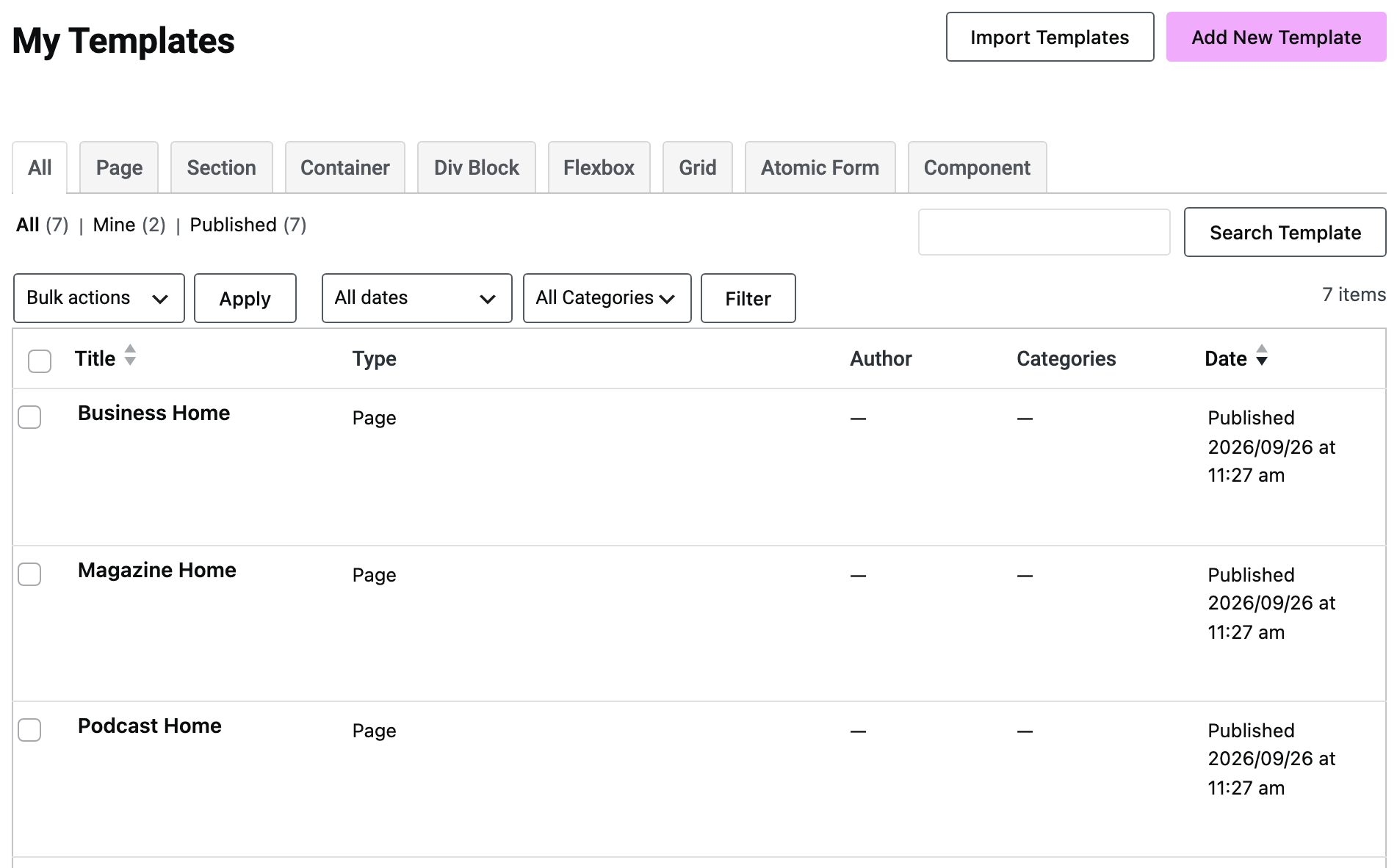
All saved templates can be found in Templates in your WordPress admin dashboard (Please navigate to Templates > Saved Templates)
If you did not import a demo, this list is empty and there is nothing to insert. You can fill it yourself: open any page in Elementor, and save the whole layout as a template from the arrow beside the Publish button, then Save as Template. It then appears here and in the library popup below.
To insert the template, please follow the steps below:
-
Navigate to Pages > All Pages.
-
Select a page you would like to edit or add a new page, and click on the "Edit with Elementor" link.
-
From the editing screen, click on the icon as shown in the screenshot below.

-
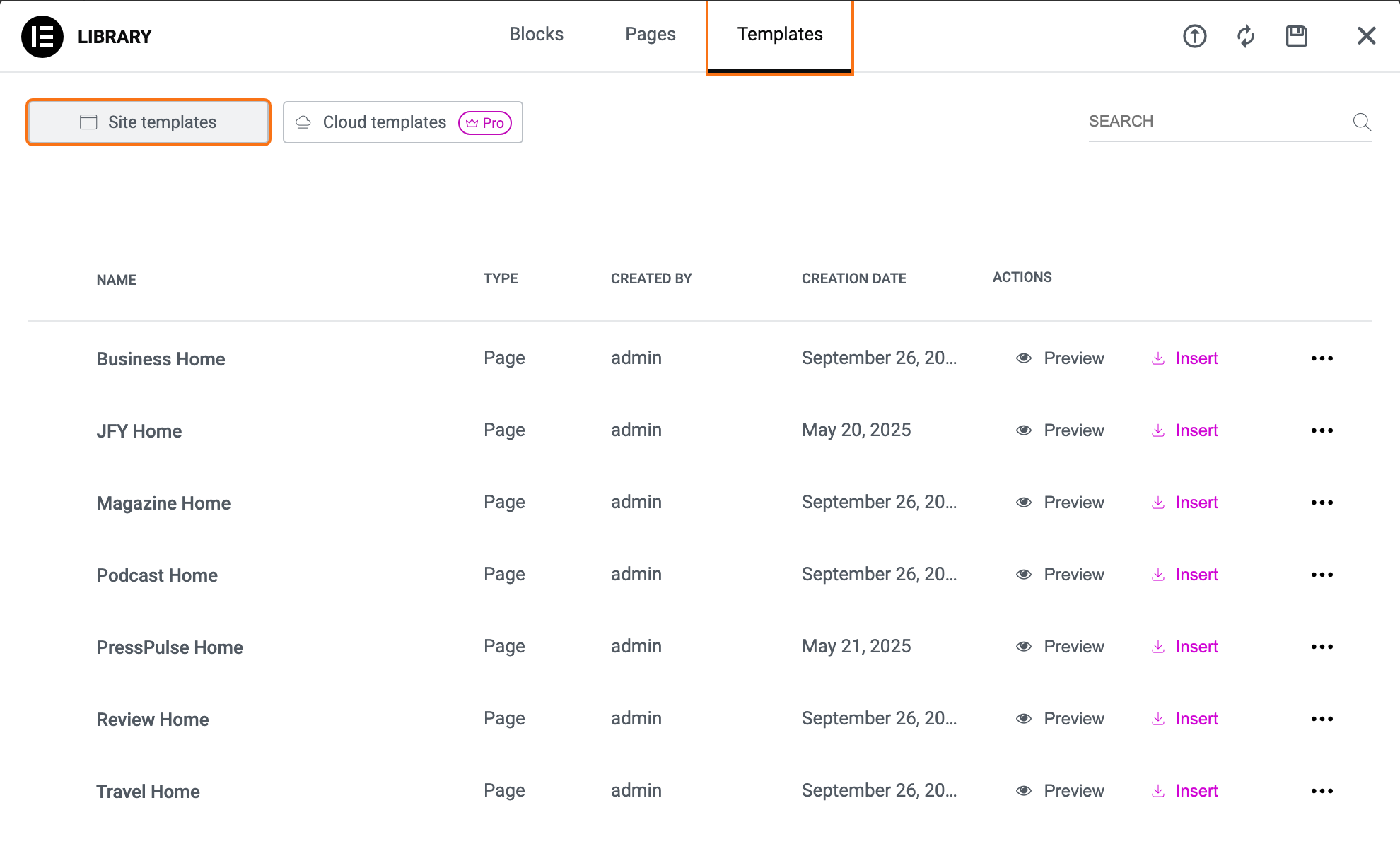
When the template library pops up, open the Templates tab. There are three: Blocks, Pages and Templates, and the one holding what you saved is the third. Older guides call this tab My Templates. The popup no longer uses that name; it survives only as the heading of the Templates > Saved Templates screen.
At the top of the Templates tab, pick Site templates. That is the list of templates saved on this site. Cloud templates beside it, marked Pro, is Elementor's online library for your Elementor account, and the templates saved on this site are not there. The tab opens on whichever of the two you picked last, so check that Site templates is selected. Only published templates are listed; one saved as a draft appears under Templates > Saved Templates but not here.
 note
noteThe Templates tab can sometimes sit on its loading animation and never list anything, while Blocks and Pages fill normally. If that happens, your saved templates are still safe: they are listed at Templates > Saved Templates in the WordPress admin, shown earlier on this page. Open the one you want there, copy its contents, and paste them into the page.
-
Find the template you want in the list and click Insert on its row. Preview, beside it, opens the design first if you want to check it.
Inserting a template puts the design into the page. It does not make that page your homepage, which is a separate WordPress setting.
To make the page your homepage
-
Navigate to Settings > Reading.
-
Under Your homepage displays, choose A static page (select below).
-
Pick your page in the Homepage dropdown, and save.
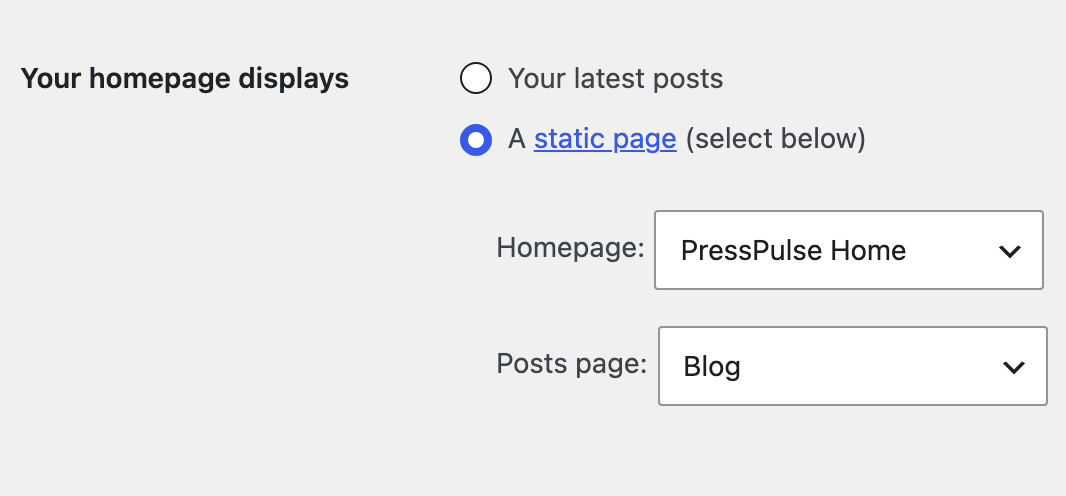
Do this after importing a demo, not before. The importer sets the front page itself and overwrites page_on_front, show_on_front and page_for_posts, so a homepage chosen first is replaced without warning.
Alternative method: to Clone a Homepage
The easiest way to duplicate pages is to use the Duplicate Page plugin. Please follow the steps below:
-
In the left-hand menu, click on Plugins, then Add Plugin. Older screenshots and guides call this entry Add New; it is the same screen.

-
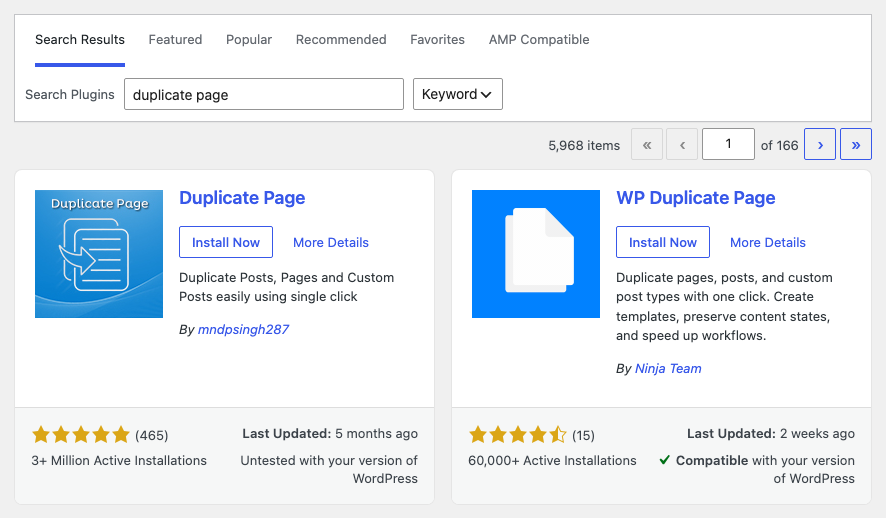
In the search field at the top right of the screen, enter "Duplicate Page"
-
Find the "Duplicate Page" plugin and click "Install Now" immediately.
-
Once it has installed, click "Activate".
-
Navigate to Pages > All Pages and hover over the name of the page you want to copy. A new link, "Duplicate This", appears among its row actions.

-
Click "Duplicate This". After that, you can edit the new duplicate page as needed.
Did this answer your question?