How to Make the Last Widget Sticky in Elementor
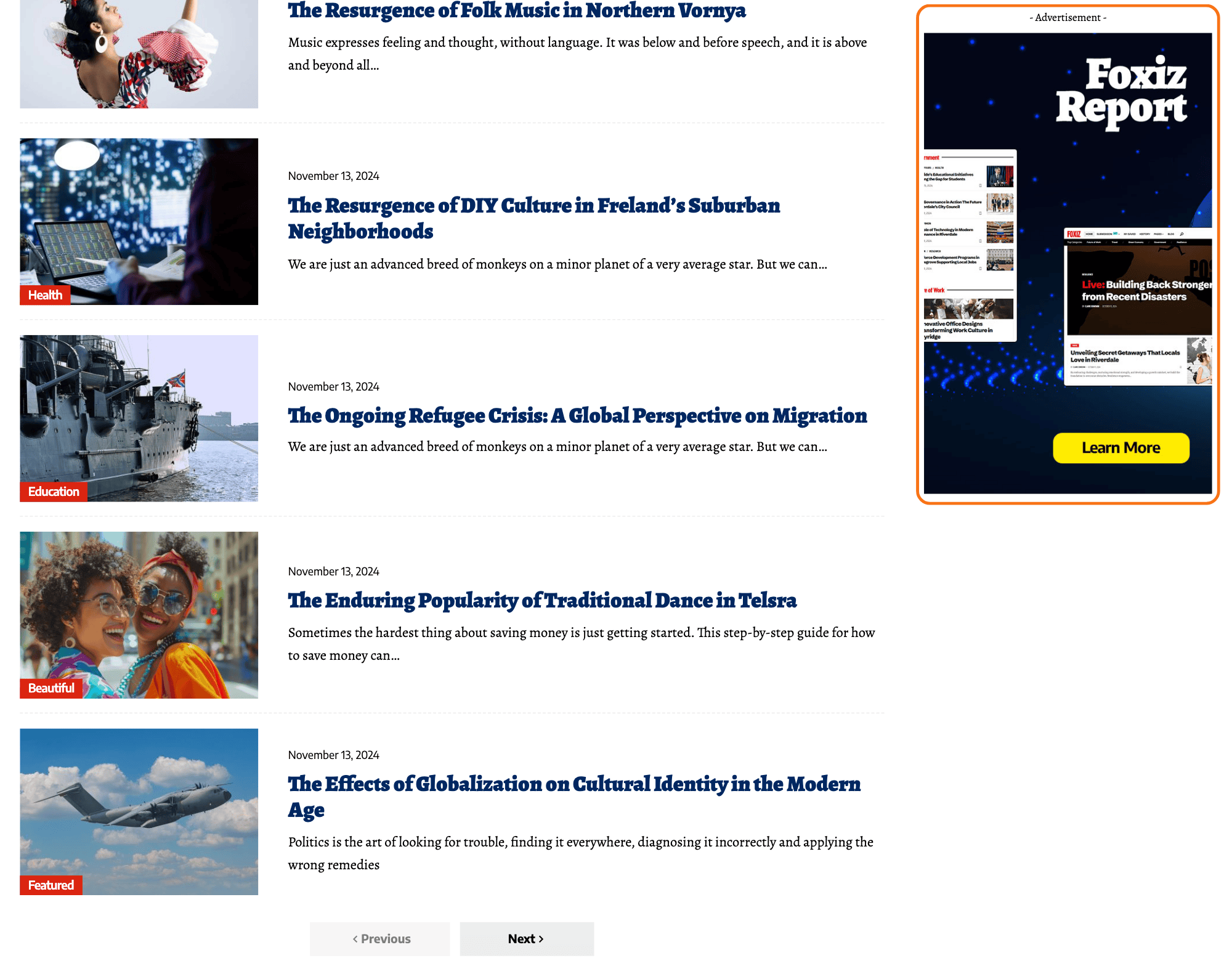
The theme can stick the last widget inside a container while the rest of the sidebar scrolls.
It is the alternative to making the whole sidebar sticky. A long sidebar stuck in one piece scrolls off the top and most of it is never seen; sticking only the last widget keeps one thing, usually an advert, on screen while everything above it scrolls normally.
It's important to note that this feature only applies to the new Elementor feature, specifically the Flexbox Container, and is not available for columns in Elementor.
If your sidebar is an Elementor column rather than a container, use rb-sticky on it instead. That sticks the whole column.
To get started, follow the steps below:
-
Select Edit Container for your sidebar, the narrow container beside your posts that holds the sidebar blocks. If your page has no sidebar yet, build one first: Create a section has a sidebar.
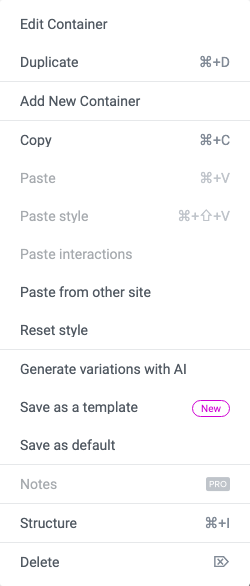
That is the first item in the container's right click menu, and clicking the container in the editor does the same thing.
-
In the settings panel, navigate to Advanced > CSS Classes
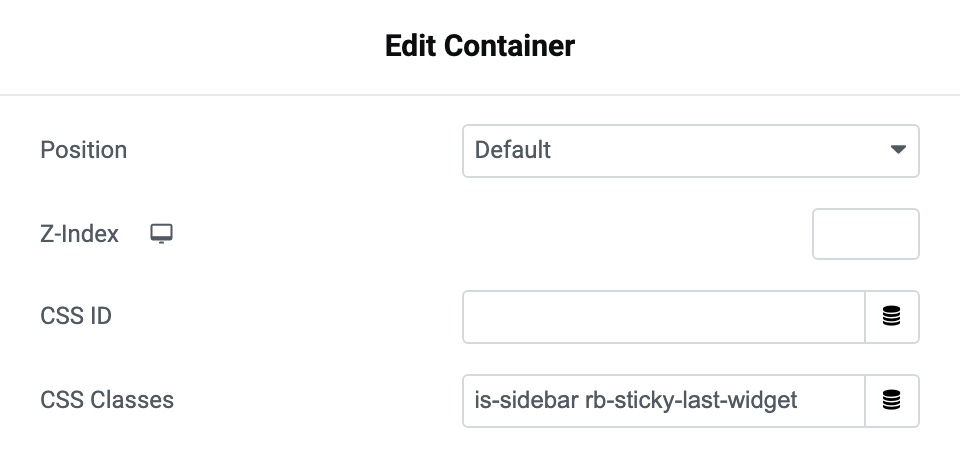
It is in the Layout section at the top of that tab, under CSS ID.
-
Input the text here:
is-sidebar rb-sticky-last-widgetTwo classes doing two jobs.
is-sidebarcaps the column at 420px between 768px and 1024px so it sits tidily under the content on a tablet, andrb-sticky-last-widgetdoes the sticking.The sticking only happens at 1025px and wider. It comes to rest 12px from the top of the window, 44px with the admin bar showing, and below the site header when that header is sticky.
It is the last widget in the container that sticks, whichever one that is, so the widget you want kept on screen has to be at the bottom.
-
Click "Publish".
That is the button's label whether or not the page is already live.
Did this answer your question?