How to Display Centered Blocks at the Top on Mobile & Tablets Devices
This builds a row of three blocks with the big one in the middle on desktop. On tablets and phones the big one moves to the top, with the other two under it:
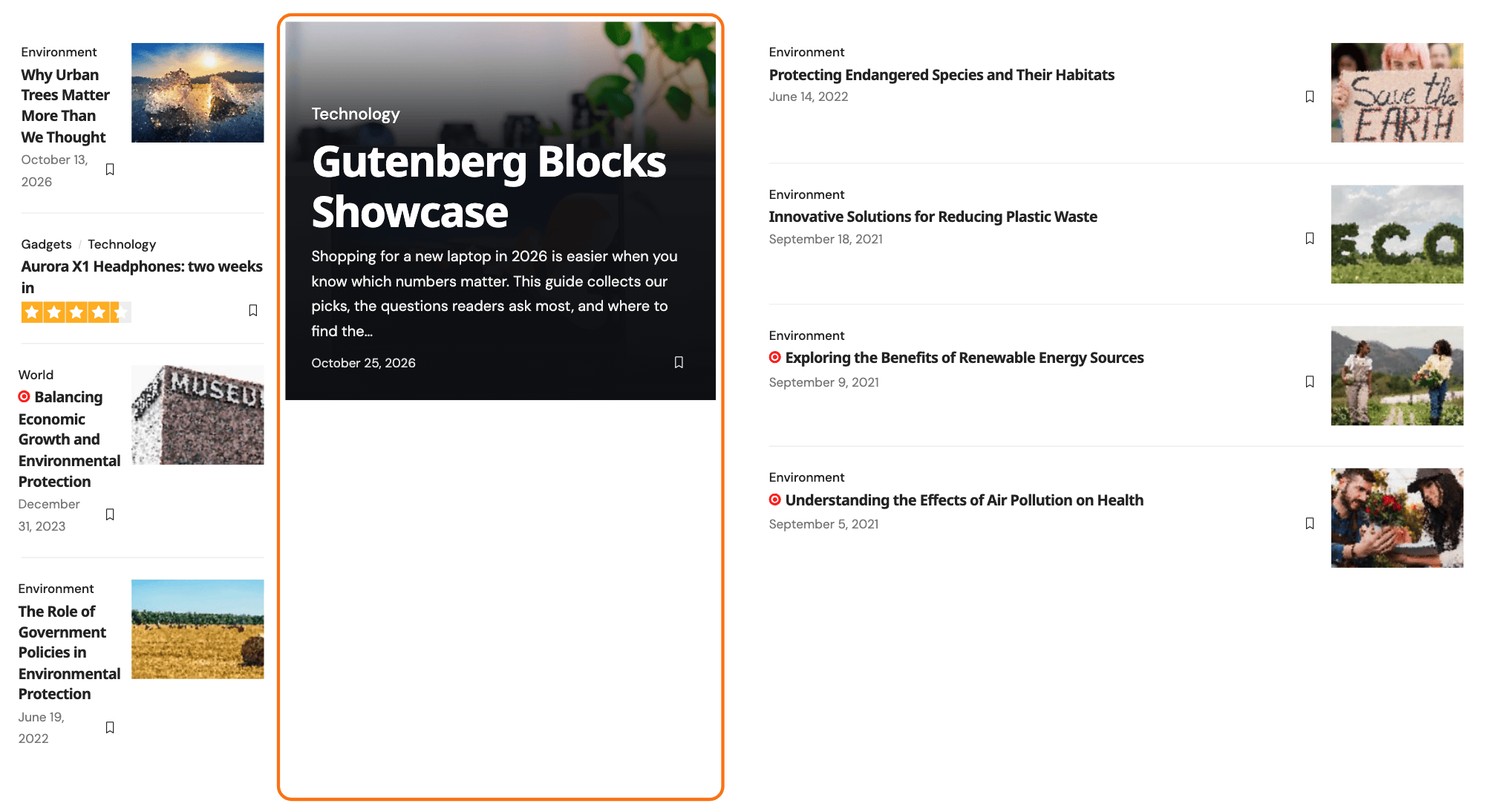
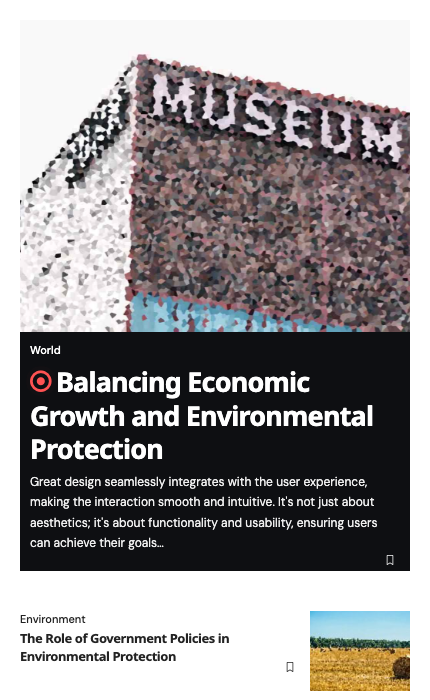
The trick is the Direction control on an Elementor container. It is a responsive control, so the same container can run one way on desktop and another way on a phone, and reversing it on desktop while leaving it stacked on mobile is what moves the middle block to the top.
To get started, follow the steps below:
-
Begin by creating a flex container with a structure that includes two inner containers.
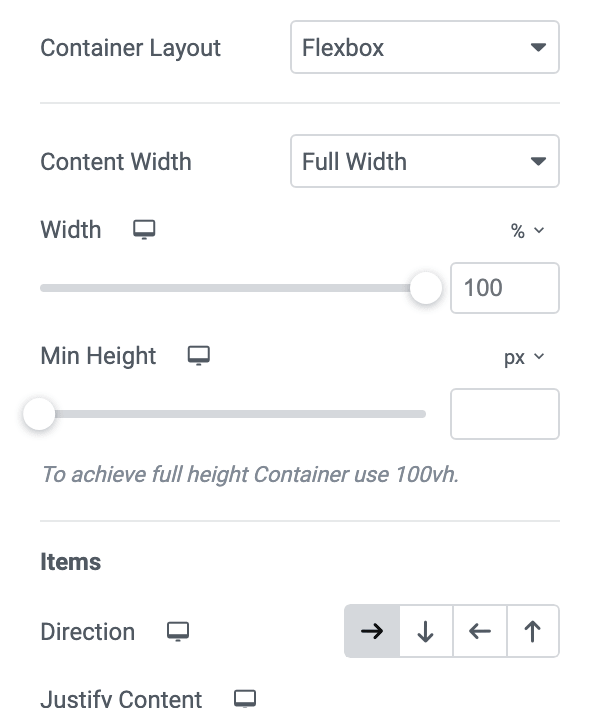
The element is called Container, and a new one is a flex container already: its Container Layout control is set to Flexbox by default, with Grid as the other choice. All of the flex controls in this article are in the Layout tab, in the section named Container, and they disappear if you switch that control to Grid.
Picking a two column structure when you add the container gives you the two inner containers side by side. The two halves structure gives each of them half the row. For a wider pair, select the first inner container and, on its Layout tab with Content Width on Full Width, set Width to about 66%, then give the second about 34%. If you build them by hand instead, set the outer container's Direction to Row - horizontal first, because a flex container stacks its children in a column until you tell it otherwise.
-
Inside the flex container, put two blocks in the first inner container and the remaining block in the second.

-
For the first block within the first inner container, allocate width percentages suitable for the layout. For instance, consider a larger grid block with a width of 64% and a smaller grid block with a width of 36%
The big block must be the first of the two in that container: it is the one that moves to the top on mobile. On desktop step 4 shows it on the right of the pair, which puts it in the middle of the row.

Width for a block sits on the block itself, not on the container. Select the block, open Advanced > Layout, set Width to Custom, and a Custom Width slider appears below it. That slider is in percent to start with, and it is responsive too, so a desktop width of 64% does not follow the block to mobile once you set a mobile value.
-
Access the properties of the first inner container and choose the "Row - reversed" flex option. This ensures that the central block is shifted to the right within this container on the desktop.

Direction is a row of four icons rather than a dropdown, and the name only shows on hover: Row - horizontal, Column - vertical, Row - reversed and Column - reversed, in that order. Reversing the row flips the two blocks on screen without moving either of them in the page source, which is the whole reason this works later on.
-
Choose the 'Column - vertical' flex option for the first inner container on the Mobile/Tablets. This choice is crucial to shift the central block to the top when displayed on both mobile and Tablets.

Switch device with the responsive icons at the top of the settings panel before you touch Direction, or you will overwrite the desktop value you just set in step 4.
One device is usually enough for both. Tablet Portrait and Mobile Portrait are the two breakpoints active out of the box, at 1024px and 767px, and both of them are max width rules, so a value set on tablet already applies on a phone unless you give the phone its own value. Set it on tablet, check mobile, and only set mobile separately if you want something different there.
Did this answer your question?