Disable Google Fonts in Elementor
Elementor comes with its Default Kit, with four global fonts already set: Primary, Text and Accent on Roboto, Secondary on Roboto Slab. Every font in use is collected into one request to fonts.googleapis.com, so those four values alone keep a Google Fonts request on every page, even on a site where you picked all your fonts in the Foxiz typography panels. Clearing them is what stops it.
Set the global fonts in the Elementor settings to the default
Please follow the steps below:
-
Open any page with Edit with Elementor, click the Elementor Logo at the far left of the editor's top bar, choose Site Settings, and carry on from step 4. This reaches the same kit in three clicks.
Or go through the kit from the dashboard, the rest of this step and steps 2 and 3: navigate to Dashboard > Templates > Saved Templates.
Current Elementor opens that screen filtered to your saved templates: its first tab reads Saved Templates instead of All, and the kit is left out of the list. To reach the full list, type
/wp-admin/edit.php?post_type=elementor_libraryafter your own domain in the address bar. That is the screen the next step describes. -
Afterward, click on the "All" tab, and you will see a template named "Default Kit". That is the site wide kit Elementor creates for you, and there is only ever one.
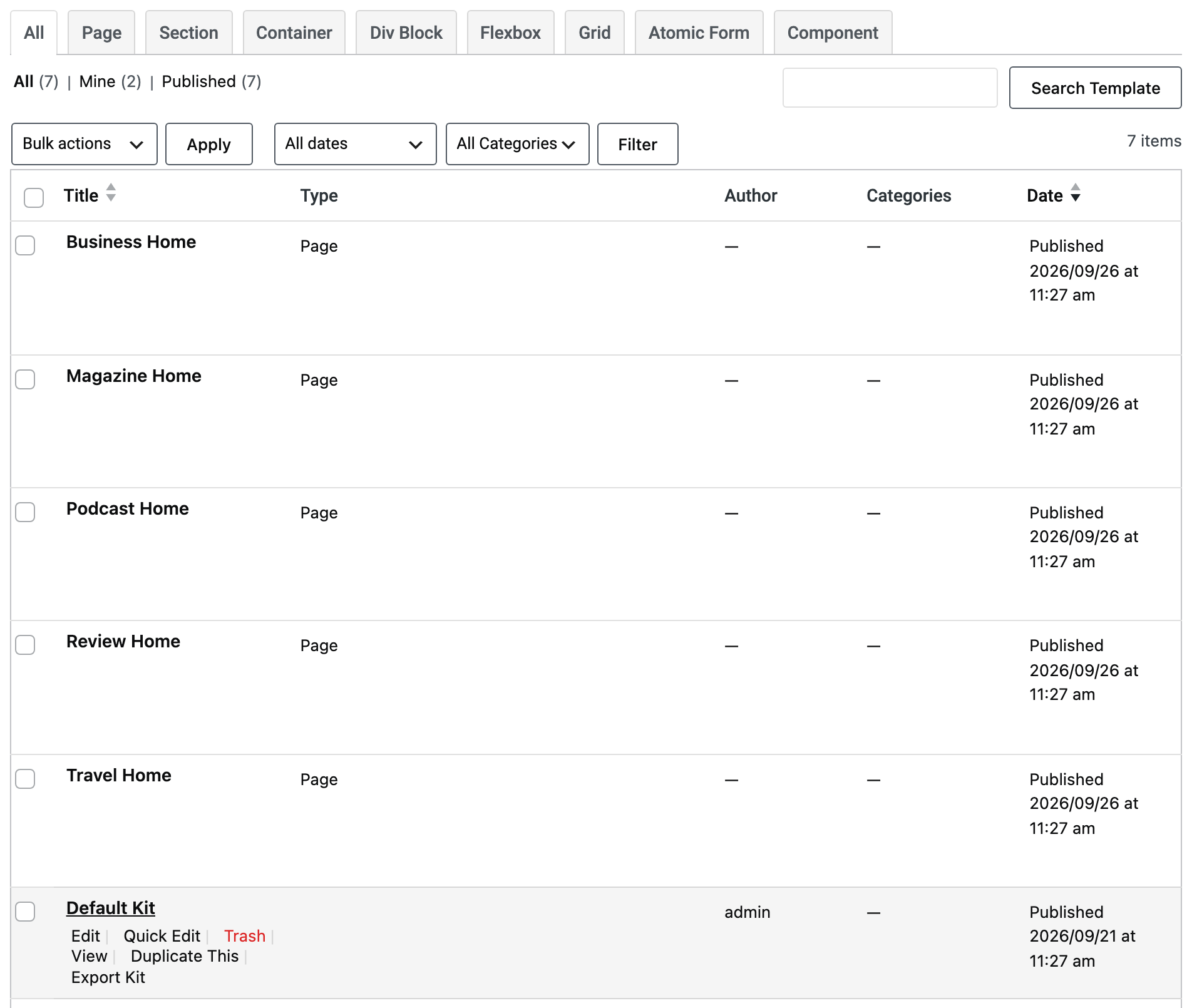
-
Click "Edit" under Default Kit, then click the "Edit with Elementor" button on the screen that opens. The kit row itself has no Edit with Elementor link, only Edit.
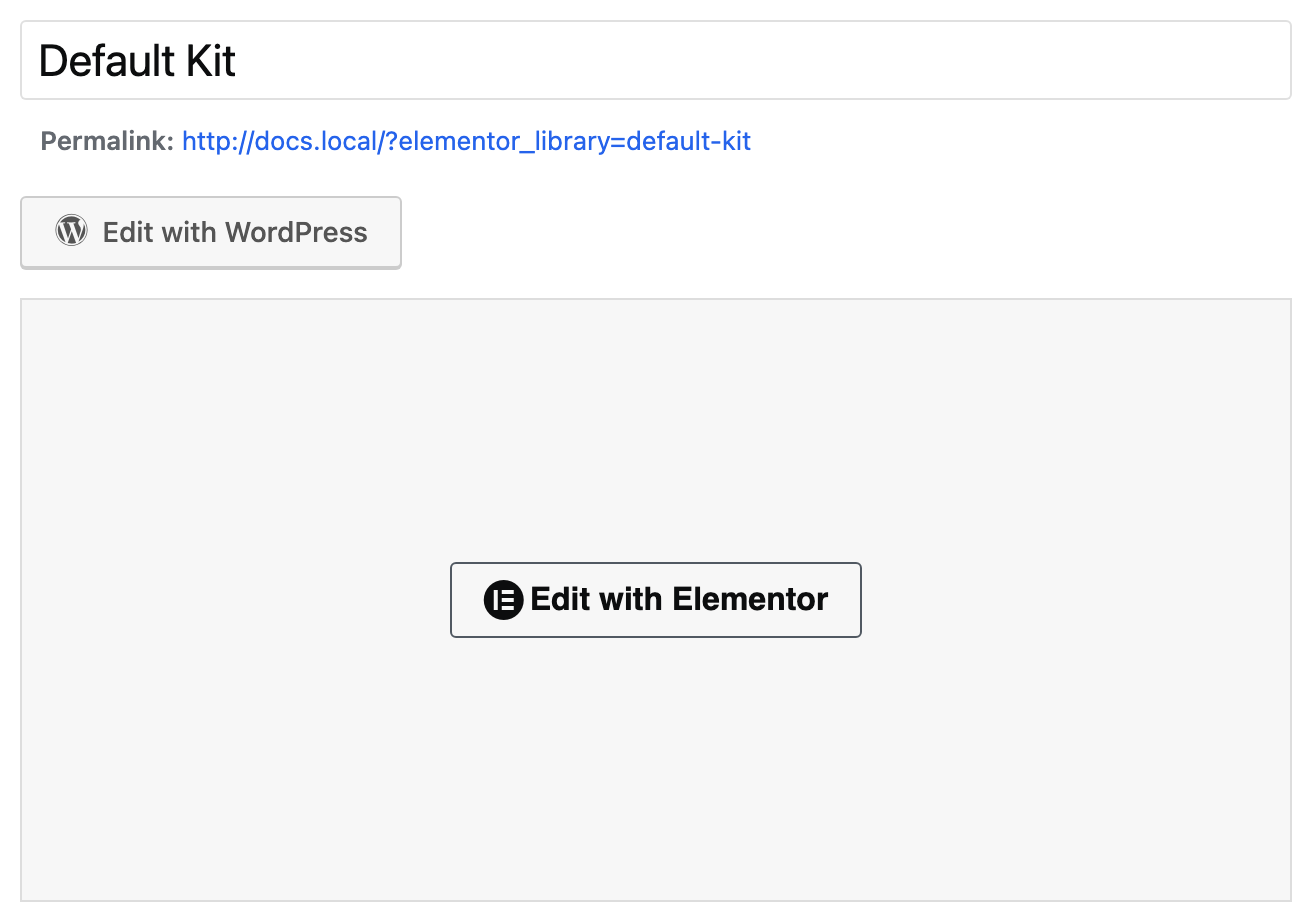
-
Go to Site Settings > Global Fonts
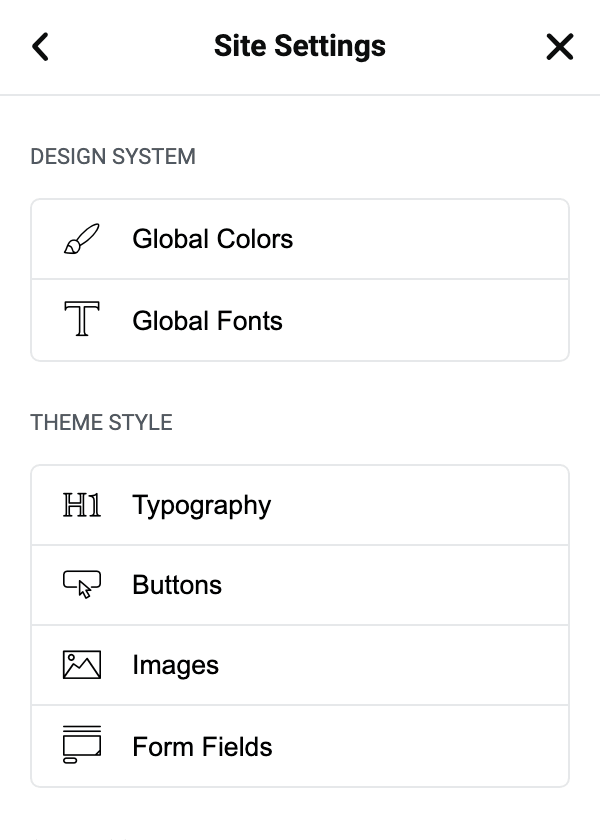
-
There are four default groups of fonts: Primary, Secondary, Text, and Accent.
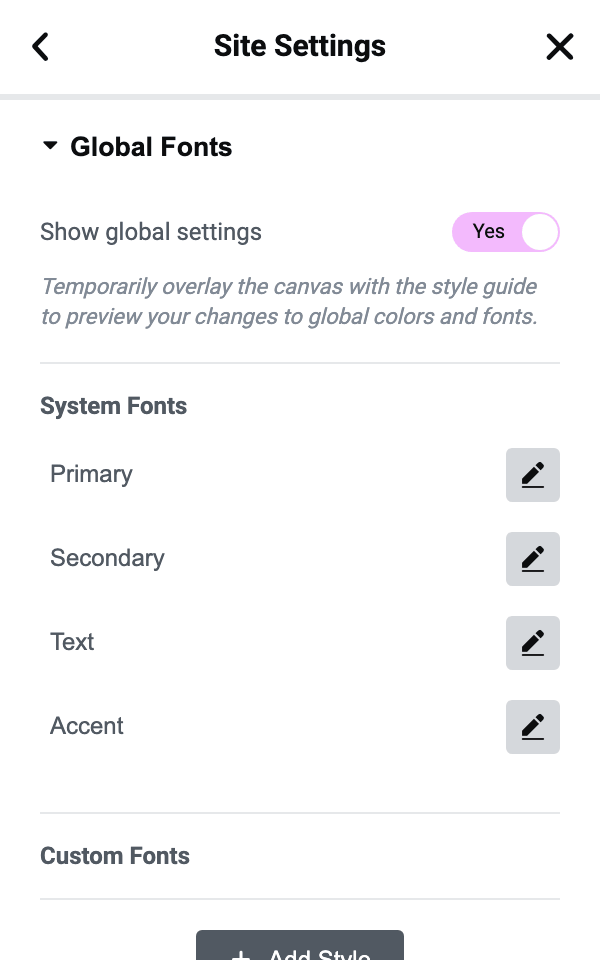
-
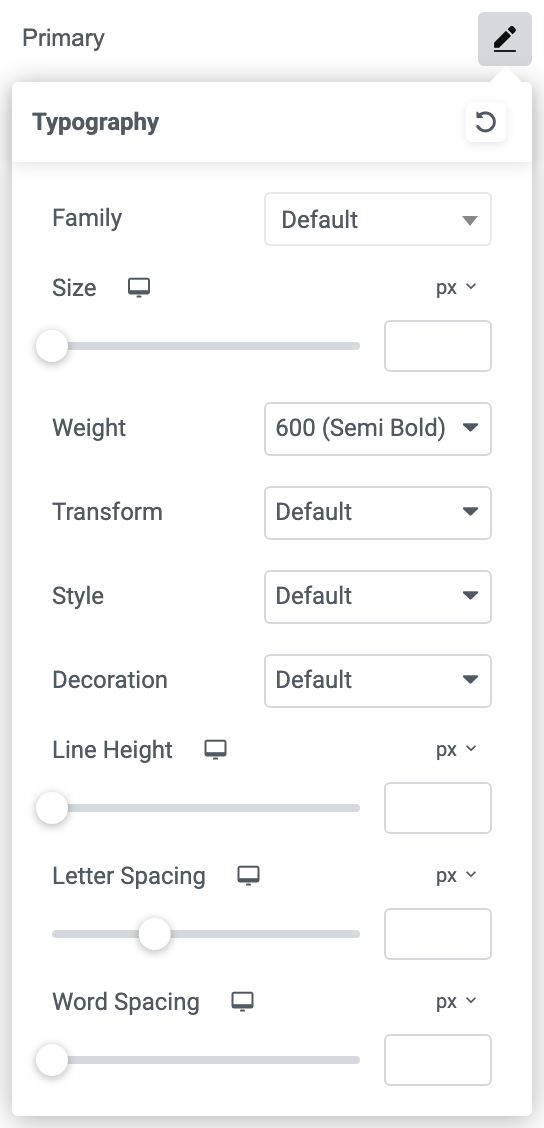
Click the pencil icon for these fonts (Primary, Secondary, Text, and Accent). Then set each of these fonts back to the default: open the Family dropdown and choose Default, its first entry. What you are after is an empty Family on each of the four, so that Elementor has no font name to send to Google. Leaving size or weight set is fine; it is the family that triggers the request.
-
Click "Save Changes"
That button is at the bottom of the Site Settings panel, and it stays greyed out until you have changed something.
Do this alongside the two checkboxes in Optimizing Elementor Settings. The two jobs are different and you want both: those checkboxes stop Elementor applying its own default fonts and colours, while the steps above empty the global font values that make it fetch Roboto.
This is Elementor's Google Fonts, not the theme's. Foxiz loads its own from Theme Options > Typography, and the switches for those are at Theme Options > Performance > Fonts. If a Google request survives after you finish here, that is where to look next.
Did this answer your question?