How to Edit Columns for a Elementor Block?
Set the columns and the gap
To change the number of columns on a post block, follow the steps below:
-
In the Live builder editor, select the block you would like to edit.
The Live builder editor is the Elementor editor. Click the block on the canvas and its controls open in the left panel.
-
Select the Layout tab.
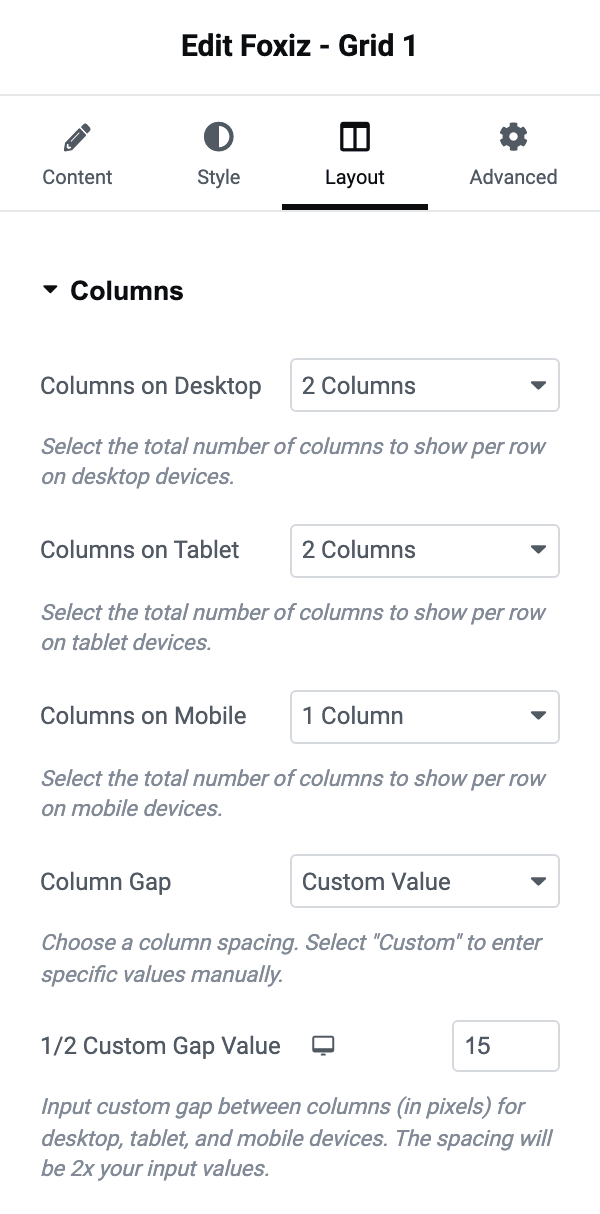
Everything in this article is in the Columns section of that tab.
-
Then select the columns for each device: desktop, tablet and mobile
They are three separate dropdowns rather than one responsive control: Columns on Desktop, Columns on Tablet and Columns on Mobile.
Desktop and tablet run from 1 Column to 7 Columns. Mobile stops at 2 Columns, because more than two on a phone is unreadable, so a five column desktop grid cannot be carried straight down.
All three default to - Default -, which is not a number. It adds no column setting at all and leaves the block laid out the way the theme draws that block, so you only need to touch the devices you actually want to change.
-
Select a column gap for the layout. Select Custom Value and enter your own values if you would like a different gap for each type of device.
The dropdown is Column Gap. Its presets are already stated as the finished spacing:
- The block's usual spacing: - Default -.
- Columns touching: No Gap.
- A fixed gap for every device: 10px to 70px: 10, 14, 20, 30, 40, 50, 60 or 70 pixels.
- Your own number, or one per device: Custom Value, the last entry.
Choosing Custom Value reveals a field called 1/2 Custom Gap Value, and that one is responsive, so the desktop, tablet and mobile icons above it each hold their own number.
If the gap looks twice as wide
The gap will be x2 of your input value. For example: it will be 20px if you input 10.
That is why the field is named 1/2 Custom Gap Value: your number becomes the padding on each side of a column, so the space between two of them is twice what you typed. The preset list in the dropdown does not work this way. Its labels are the real spacing already.
Did this answer your question?