How to Set Up Query Filters in Elementor Blocks
Query filters let you choose which posts a block shows and in what order. You can filter by categories, tags, authors, post types and more.
To get started, please follow the steps below:
-
Navigate to Pages > All Pages.
-
Select a page you would like to edit, and click on the "Edit with Elementor" link.
-
In the Elementor editor, click the block you would like to edit
-
In the block's settings panel, navigate to Content > Query Settings
Everything from step 5 to step 16 is in that one section, in the order the article gives them.
For most blocks you need only two of them: pick one category in Category Filter and set Number of Posts. Leave the rest empty and the block lists that category's latest posts, newest first.
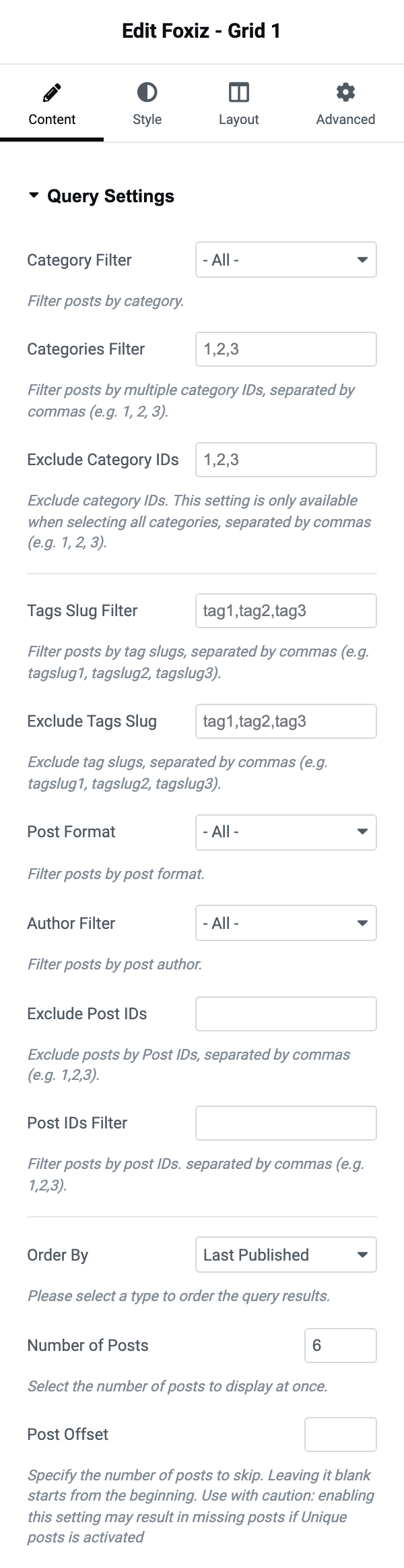
Steps 5 to 7 are three ways to choose categories, and the block uses only one of them, in this order:
- Categories Filter (step 6), when it holds any category IDs.
- Category Filter (step 5), when Categories Filter is empty.
- Exclude Category IDs (step 7), only when both of the others are empty.
-
Category Filter: Filter posts by category.
A single category from a dropdown of the ones your site has. By default it shows all of them. Inside a Ruby Template the same dropdown gains dynamic choices, so a template can follow whichever category is being viewed.

-
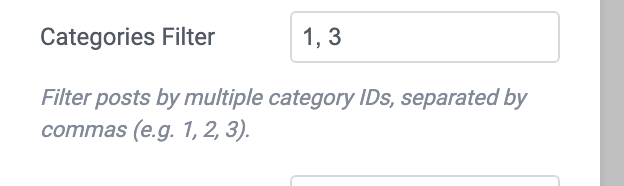
Categories Filter: the option allows you to display posts from specific categories using their respective category IDs. Simply separate the category IDs with commas. For example, if your website has categories such as "Technology" "Travel" and "Food" and you want to display posts from both the "Technology" and "Food" categories, you would input the corresponding category IDs, separated by commas, like this: 1, 3.
Not sure of a category's ID? See Where to find a category or post ID.
-
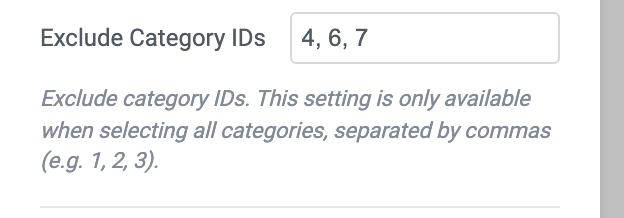
Exclude Category IDs: the option enables you to remove specific categories from being displayed in your content. If you want to exclude certain categories from your posts, simply input their category IDs separated by commas in the provided field. This setting is only available when selecting all categories. For example, if you want to exclude categories such as "Fashion" "Travel" and "Lifestyle" you would input the corresponding category IDs, separated by commas, like this: 4, 6, 7.
"Only available" means ignored rather than hidden: the field stays on screen, and the theme only applies it when both Category Filter and Categories Filter are empty.
-
Tags Slug Filter:The option allows you to sort and display posts based on specific tag identifiers on your website. By utilizing this filter, you can easily select and showcase posts associated with particular tags. Simply input the tag slugs, which are keywords identifying the tags, separated by commas in the provided field. For example, if your website has tags such as "summer-vacation" "travel-tips" and "food-recipes" and you want to display posts associated with the "travel-tips" and "food-recipes" tags, you would input the tag slugs accordingly, separated by commas, like this: travel-tips, food-recipes.
Slugs, not names. The slug is the lower case hyphenated form in the tag's own URL, which is why the example reads
travel-tipsand notTravel Tips.
-
Exclude Tags Slug:the option allows you to exclude specific tags from being displayed in your content. If you want to exclude certain tags from your posts, simply input their tag slugs separated by commas in the provided field. For example, if you want to exclude tags such as "featured" "news" and "promotions" you would input the corresponding tag slugs, separated by commas, like this: featured, news, promotions.

-
Post Format: Filter posts by post format.
Five choices: - All - (the default), Post Only, Gallery, Video and Audio. Post Only is the one that removes every formatted post and leaves plain articles.

-
Author Filter: Filter posts by post author.

-
Exclude Post IDs: the option allows you to prevent specific posts from being displayed on your website. If you wish to exclude particular posts, simply input their Post IDs separated by commas in the provided field. For example, if you want to exclude posts with the IDs 5, 8, and 12, you would input the Post IDs accordingly, separated by commas, like this: 5, 8, 12.

-
Post IDs Filter: the option allows you to specifically display posts based on their individual post identifiers on your website. By utilizing this filter, you can easily select and exhibit posts with particular IDs. Simply input the post IDs separated by commas in the designated field. For example, if you want to display posts with the IDs 1, 4, and 7, you would input the corresponding post IDs, separated by commas, like this: 1, 4, 7.

-
Order By: Select a sort order type for the query.

The list is long. Its default is Last Published, and the rest fall into families:
- Latest activity: Last Updated and Popular Comment.
- Most viewed: Popular (by Post Views), then Popular Published Last 24 Hours through Popular Published Last Year.
- Best reviewed: Top Review (All Time), then Top Review Published Last 3 Days through Top Review Published Last Year, and Latest Review.
- Random: Random, then Random last 3 Days through Random last 12 Months.
- Live posts: Last Published Live, Last Updated Live, Last Live (Archived Included) and Last Updated Live (Archived Included).
- Alphabetical: Title DESC and Title ASC.
- The rest: Post Type, Latest Sponsored and Author.
- Your own order: by input IDs Data (Post IDs filter) honours the order you typed the IDs into step 13.
Regarding the popular filter: it needs a view counter installed, because it sorts on a
post_viewsvalue that WordPress does not keep by itself.Use Light Views Counter. It is in Essential Plugins on Dashboard > Foxiz with an Install button, and it answers the
post_viewssort. -
Number of Posts: Select the number of posts to display at once.
A block you have just dropped in shows 3.

-
Post Offset:the option allows you to specify the number of posts to skip over when displaying your content. If you want to skip a certain number of initial posts, simply input the desired numerical value in the provided field. For example, if you want to skip the first 3 posts and start displaying content from the 4th post onwards, you would input the number "3" in this option.

The block shows no posts after you set the filters? See An Elementor Block Shows No Posts.
Where to find a category or post ID
Every category, tag and post has a number, its ID, and WordPress shows it in the address of its edit screen.
- Go to Posts > Categories (or Posts > Tags for a tag).
- Click the category's name to open it.
- Look at the address bar. The number after
tag_ID=is the ID: interm.php?taxonomy=category&tag_ID=12&post_type=post, the ID is12.
A post works the same way. Open it from Posts > All Posts, and the number after post= in the address is its ID: post.php?post=345&action=edit is post 345.
You do not have to open each one: hover a name in the list and your browser shows the same address at the bottom of the window.
The intro also promises post types, and that is the one filter not in this section. It is in Query for Post Type & Taxonomies, the next section down on the same Content tab. That section holds Custom Post Type, Define Taxonomy and Term Slugs. Choosing a custom post type there switches the two category filters off, because categories belong to posts; the taxonomy fields are how you narrow a custom post type instead.
To use Jetpack Top Posts, follow the steps below:
-
Navigate to Pages > All Pages.
-
Select a page you would like to edit or add a new page, and click on the "Edit with Elementor" link.
-
The website will redirect to another URL and the panel will appear on the page. Then click the block you would like to edit.
cautionThe whole section only exists while the Jetpack plugin is active. Foxiz checks for Jetpack before it registers any of these controls, so if the section is missing from a block that should have it, Jetpack is what is missing.
-
In the “Content” tab, you will find the option "Jetpack Top Posts".
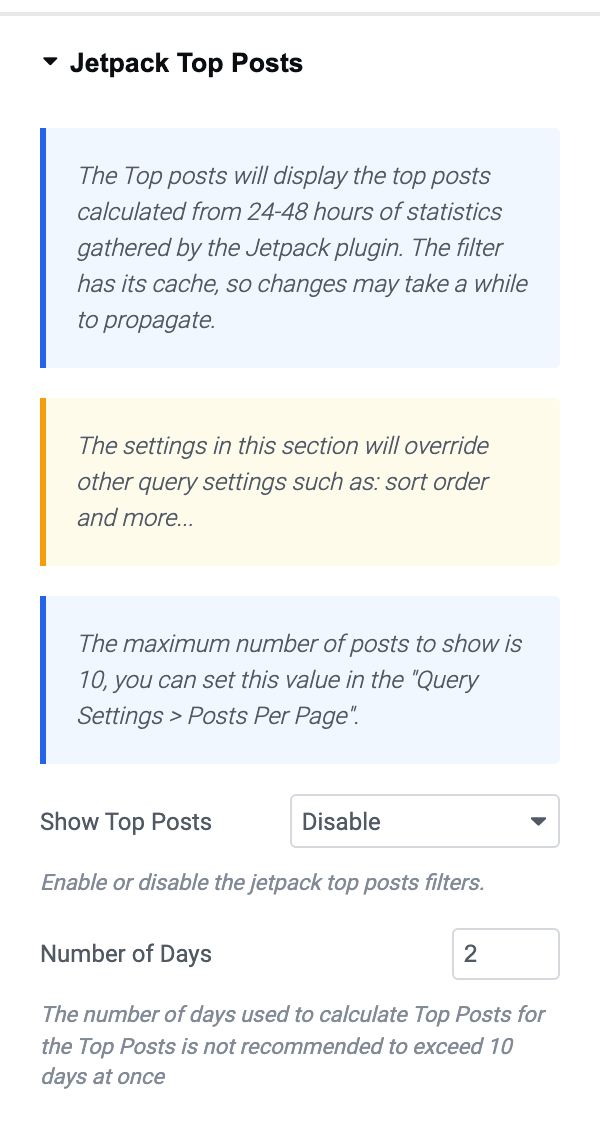
The section reaches further than it used to. Twenty six Elementor blocks carry it, which is every grid, every list, every overlay, Foxiz - Classic, Foxiz - Breaking News and the three Foxiz - Hierarchical blocks, plus three podcast blocks. Jetpack Top Posts lists every one of them.
 note
noteThe settings in this section will override other query settings such as: sort order and more…The maximum number of posts to show is 10, you can set this value in the “Query Settings > Posts Per Page“.
That last sentence is the panel's own, and the field it names is called Number of Posts on the Query Settings section, not Posts Per Page.
-
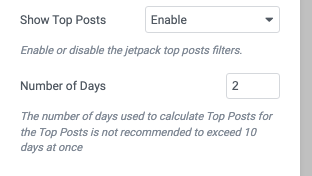
In the “Jetpack Top Posts” section, you will find the option for “Show Top Posts“. Then select “Enable”
Its default is Disable, and the only other choice is Enable.

-
Number of Days: The number of days used to calculate Top Posts for the Top Posts is not recommended to exceed 10 days at once
It starts at 2, which matches the 24 to 48 hours of statistics the section's own notice describes. Jetpack caches the result, so a change here does not show up immediately.
-
Click “Publish“
Did this answer your question?