How to edit Style and Layout of a Block in a Elementor Page?
Block Style Settings
Foxiz allows you to manage block style and layout via Elementor settings. To get started, follow the steps below:
-
Navigate to the Live Editor and select a block you would like to edit
The Live Editor is the Elementor editor. Click the block on the canvas and its controls open in the left panel.
-
Select the Style tab, then find the setting you would like to edit.
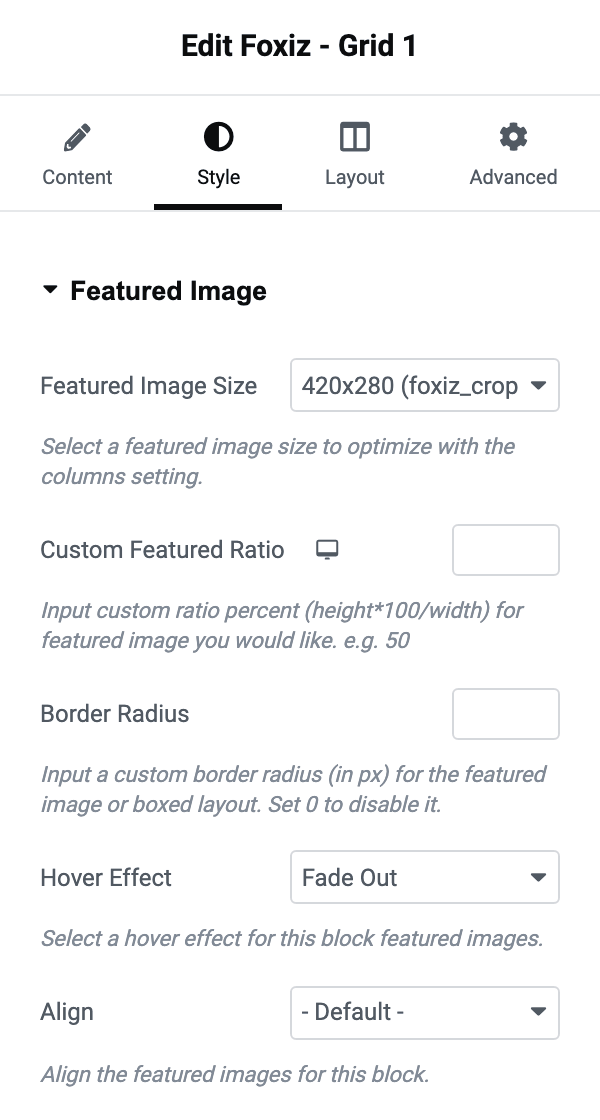
The tab is divided into one section per part of the post card, which is the quickest way to find a setting. On Foxiz - Grid 1 they are:
- Featured Image
- Entry Category
- Post Title
- Entry Meta
- Bookmark
- Post Format
- Excerpt
- Read More
- Index Counter
- Pagination
- Text Color Scheme
Other blocks carry the subset that applies to them.
A block's style is set in two places:
- Theme Options sets the global design for every block of that kind. To edit the global settings, please read this documentation.
- The block's own Style tab, from step 2, changes that one block.
When both are set, the block wins. Its dropdowns start on - Default -, or Default from Theme Option on a few such as Entry Category and Entry Meta, and a dropdown left there follows the global design. So set the global design first, then change only the blocks that should look different.
Post Entry Meta
To choose the entry meta for one specific block, follow the steps below:
-
Navigate to the Style tab > Entry Meta
-
Select Custom Below under the Entry Meta setting.
The section and the setting inside it share the name. The dropdown has three entries:
- Default from Theme Option: the default. The block follows the global setting.
- Custom Below: the block shows the keys you type into Entry Meta Tags in the next step.
- Disable: removes the meta line from this block entirely.
-
In the Entry Meta Tags box, enter the meta keys to show, separated by commas. For example:
avatar,author,dateThe order you type them in is the order they appear.
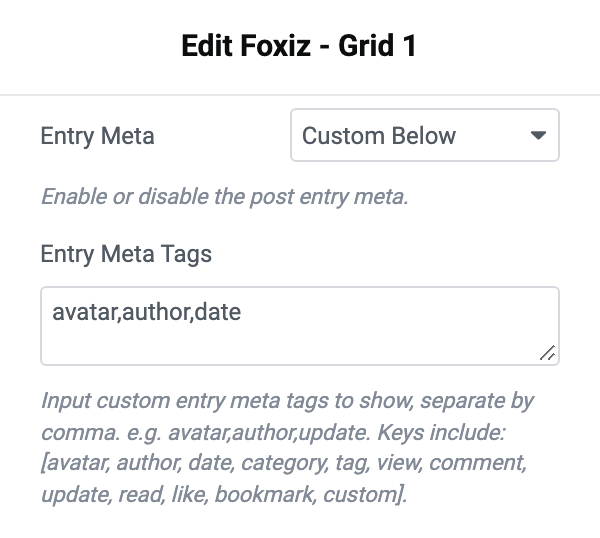
Meta keys including: avatar, author, date, category, tag, view, comment, update, read, like, bookmark, custom
A key the theme does not recognise is not an error. It is read as a taxonomy key or a custom field id and the value is printed, which is how you put a custom taxonomy into a post card.
The field also takes a prefix and a suffix around a key, written as prefix {key} suffix, so Categories: {category} prints the word before the list.
Block Layout Settings
To get started, follow the steps below:
-
Navigate to the Live Editor and select a block you would like to edit
-
Select the Layout tab, then find the setting you would like to edit.
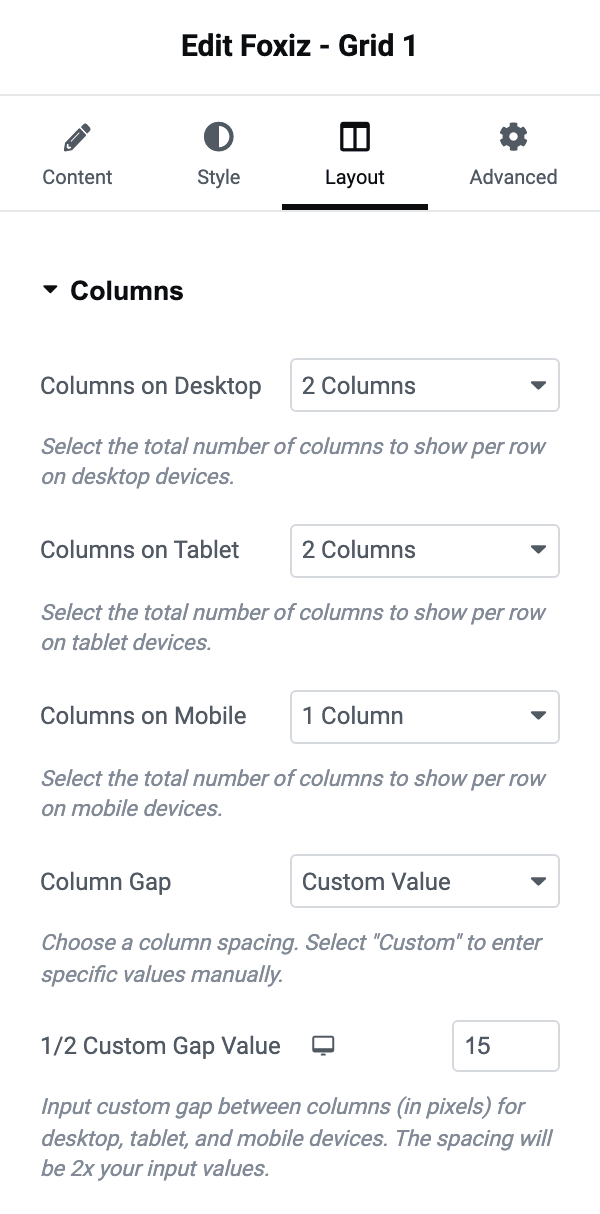
This tab is sectioned too. On Foxiz - Grid 1:
- Columns
- Grid Borders
- Spacing
- Centering
- Responsive Layouts
- Carousel Mode
- Tablet/Mobile Horizontal Scroll
Please note: If you see a desktop or mobile icon beside a setting, it is a responsive setting: you can set separate values for desktop, tablet and mobile devices.
Not every setting that sounds responsive is. Columns on Desktop, Columns on Tablet and Columns on Mobile are three ordinary dropdowns with no icons, because the device is in the label instead.
Every Foxiz block, control by control
These cover the blocks themselves: where each one lives in the panel, every control it offers and what its default is.
- The Foxiz Archive Title, Description and Featured Image Blocks in Elementor
- The Foxiz Authors List 2 Block in Elementor
- The Foxiz Call to Action Block in Elementor
- The Foxiz Custom Field Meta Block in Elementor
- The Foxiz Gallery Blocks in Elementor
- The Foxiz Heading Block in Elementor
- The Foxiz Image Block in Elementor
- The Foxiz Rotating Words Block in Elementor
- The Foxiz Search Taxonomies Block in Elementor
- The Foxiz Sidebar Menu Block in Elementor
- The Foxiz Social Follower Block in Elementor
- The Foxiz Tax-based Accordion Posts Block in Elementor
- The Foxiz Taxonomies List Blocks in Elementor
- The Foxiz Weather Block in Elementor
Did this answer your question?