How to Manage Assigned Meta Input Keys
Choose which details show with a post's title: the author, the date, the reading time and more, for one block in Elementor or for every single post in Theme Options. You can also show a custom field or a custom taxonomy there.
How to Configure Meta Information for blocks in Elementor?
-
Navigate to Pages > All Pages.
-
Select a page you would like to edit or add a new page, and click on the "Edit with Elementor" link.
-
The website will redirect to another URL and the panel will appear on the page. Then click the block you would like to edit.
-
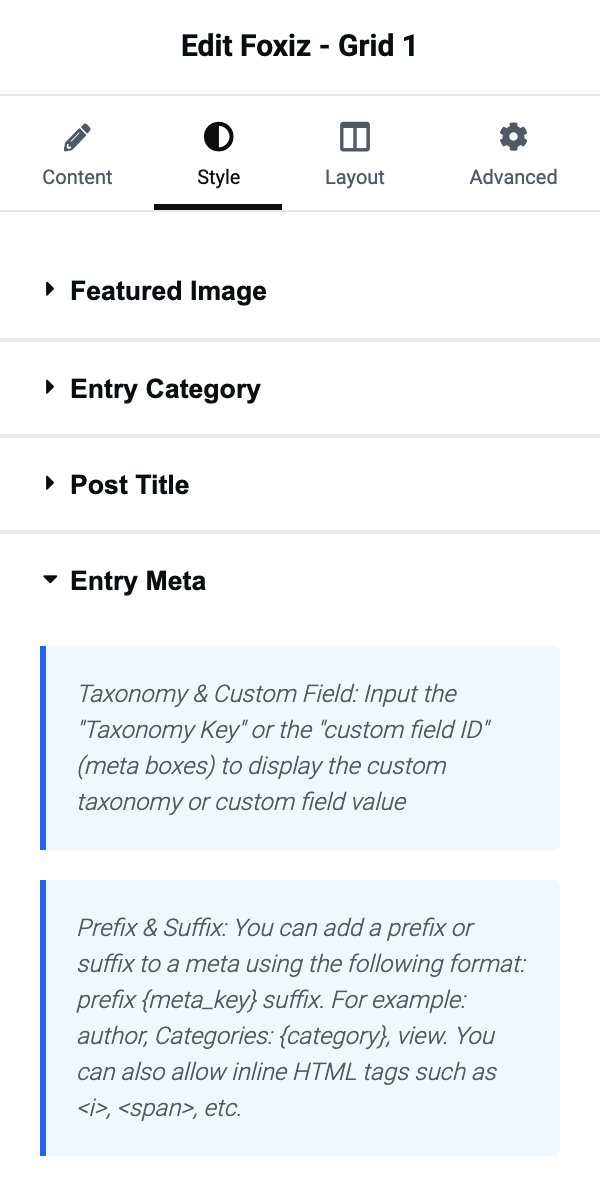
Select the "Style" tab, then find "Entry Meta"
-
In the "Entry Meta" section, you will find the option for "Entry Meta Tags".
Before you type anything into it, set the dropdown directly above it. It is also called Entry Meta, and it offers Default from Theme Option, Custom Below and Disable. Its default is Default from Theme Option, and while it stays there the block ignores Entry Meta Tags completely and uses the Theme Options value instead. Custom Below is what makes this block's own keys count.
-
Input custom entry meta tags to show, separate by comma. e.g. avatar,author,update. Keys include: [avatar, author, date, category, tag, view, comment, update, read, like, bookmark, custom].
What each key shows, by the theme's own names for them:
avatar: the author's picture.author: the author's name.date: the publish date.update: the last updated date.categoryandtag: the post's categories and tags.view: post views.comment: the comment count.read: the reading time.like: the like and dislike buttons.bookmark: the bookmark button.custom: the text you type into Custom Meta Value in that post's own settings.
Spacing does not matter. The field is split on commas and each key is trimmed, so
avatar, author, updateandavatar,author,updatedo the same thing. Order does matter: the metas print in the order you list them. -
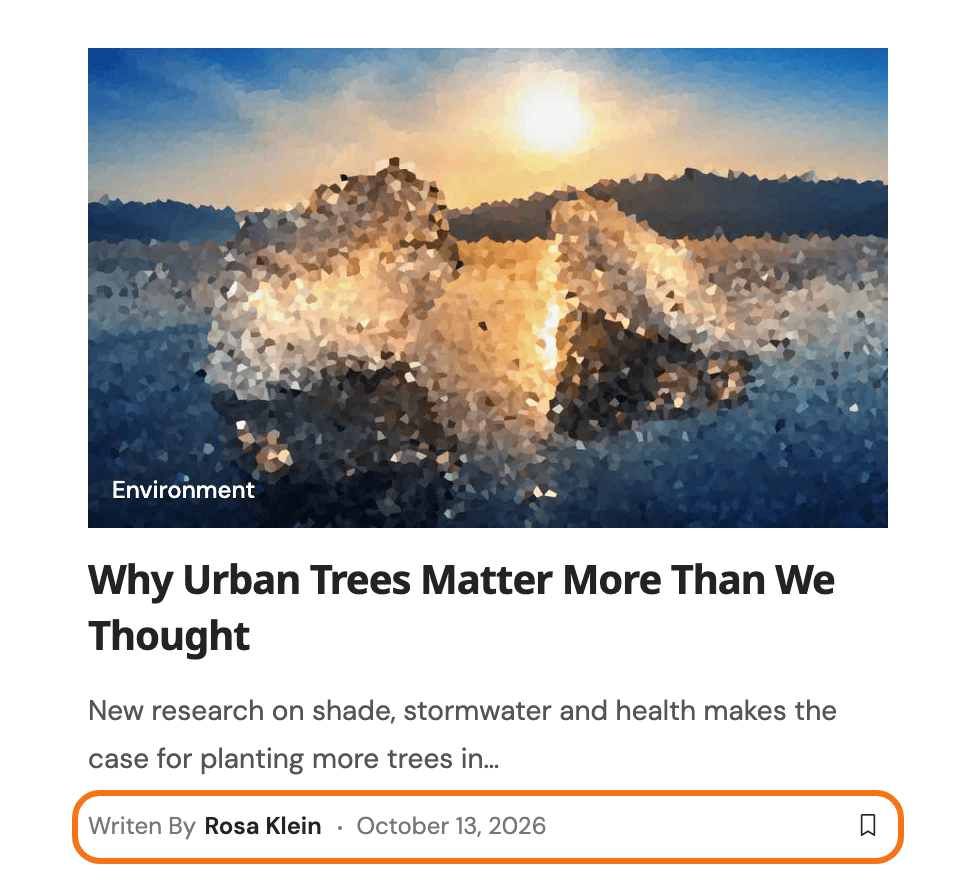
For example, if you enter these meta keys: "Writen by
{author}, update" please refer to the screenshot below for the results.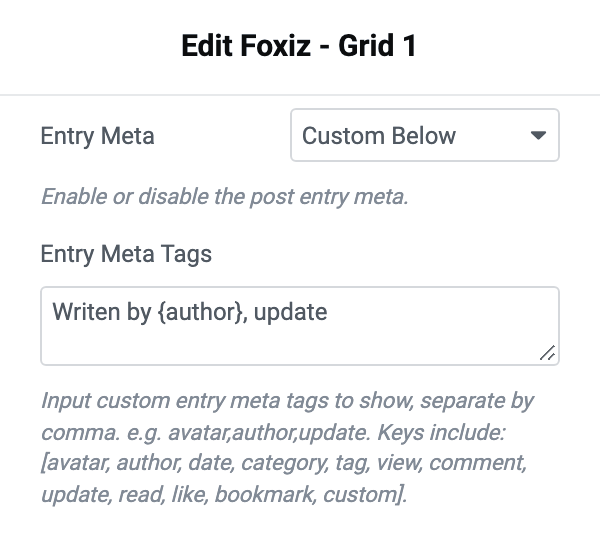
 note
noteTaxonomy & Custom Field Meta: You can input "Taxonomy name/slug" or custom field ID (meta boxes) if you want to display custom taxonomy or custom field value.
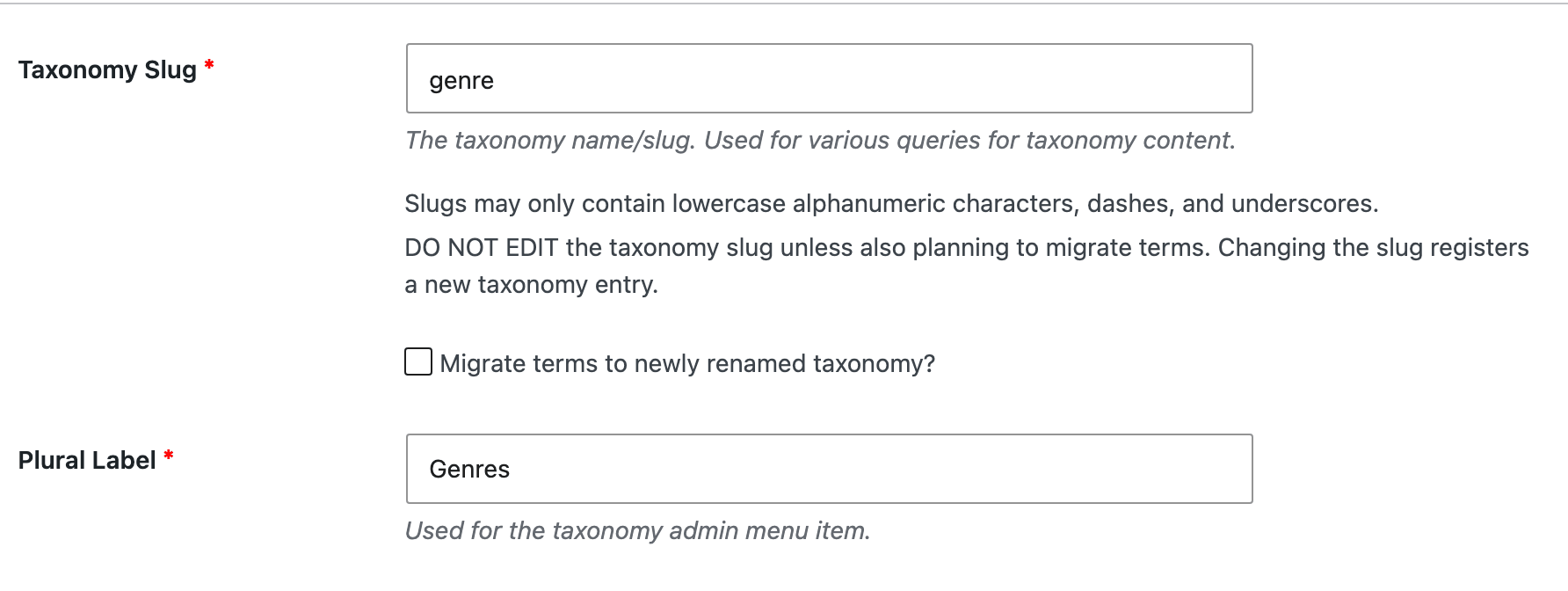
Which of the two you get is decided per post, and the custom field is tried first: the theme reads a post meta field of that name, and only if the post has no value there does it treat the key as a taxonomy. So one key can show a field on posts that have it and a taxonomy on posts that do not. An array value counts as no value and prints nothing.
Three more keys work here that the list above does not name:
duration,indexandpost_type, the last of which prints the singular name of the post's type.Prefix & Suffix: You can add your prefix or suffix to a meta via the format: prefix
{meta_key}suffix. Example: author, Categories:{category}, viewWhatever sits before the braces becomes the prefix and whatever sits after becomes the suffix, so the braces have to go round the key and nothing else. Inline HTML such as
<i>or<span>is allowed in either.
How to Configure Meta Information in Single Post?
-
Navigate to Your Dashboard > Theme Options > Single Post > Entry Meta.
-
Find the "Entry Meta Tags" option and "or Custom Key Input" option.
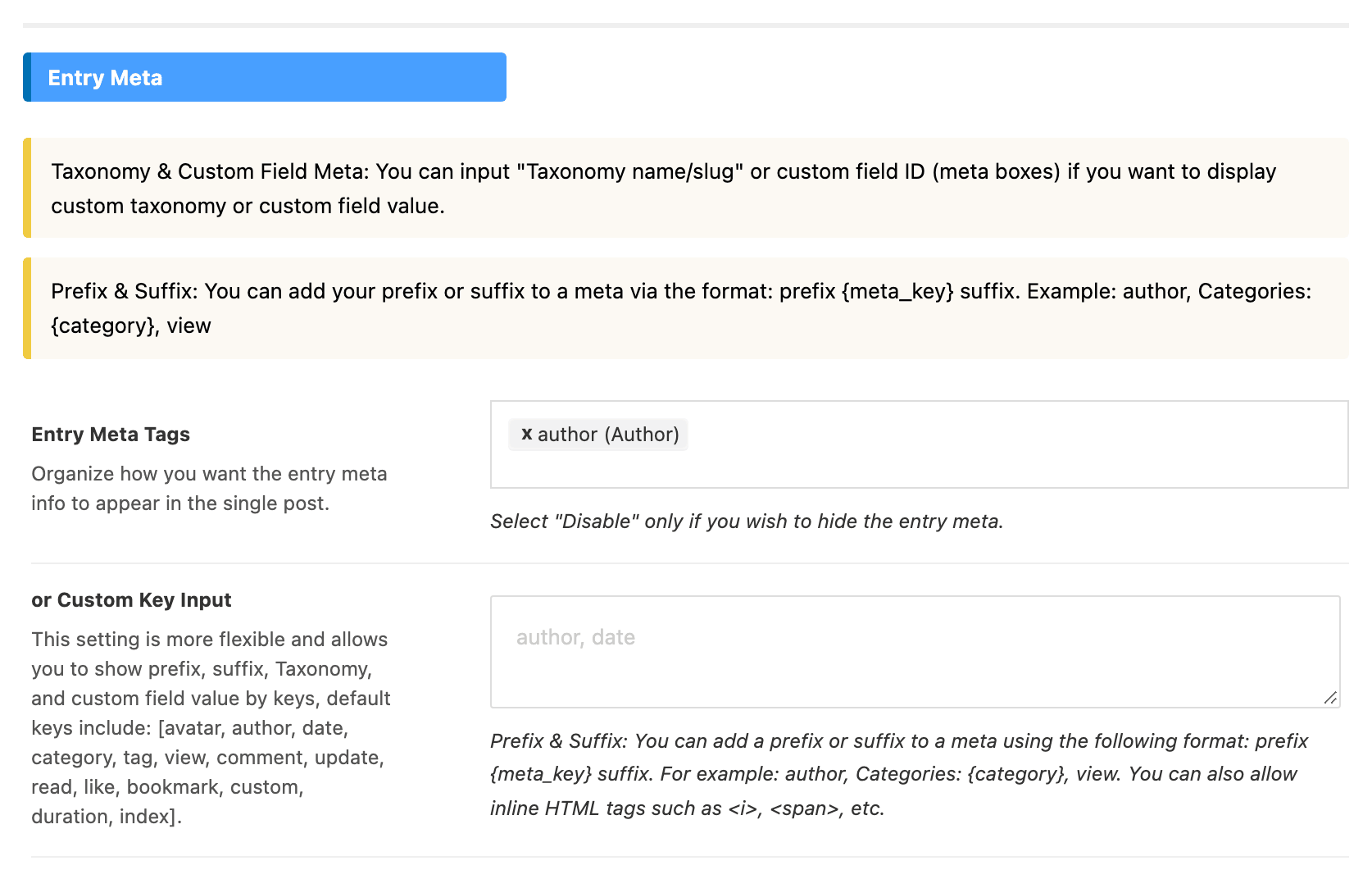
Both are in the Entry Meta group, the second of the two groups on this screen. The first, Layout, is about the bar rather than its contents.
Use one or the other. Anything in or Custom Key Input wins outright, and Entry Meta Tags is only read when that box is empty.
-
In the "Entry Meta Tags" option, click on this field and select your meta information.
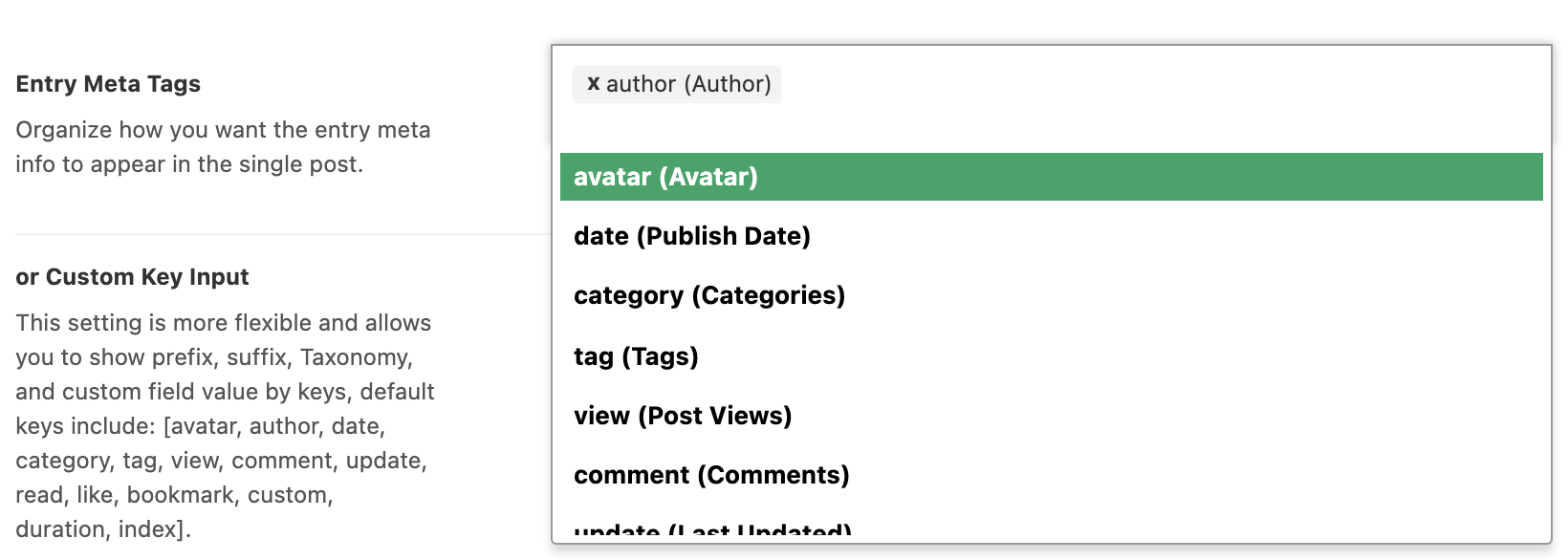
It is a multi select, so pick as many as you want and drag them into the order you want them printed. It starts out holding author alone. The last entry in the list is Disabled, and selecting it hides the whole bar.
-
or Custom Key Input: This setting is more flexible and allows you to show prefix, suffix, taxonomy, and custom field value. Leave it blank if you use the "Entry Meta Tags" setting.
Its own key list is slightly longer than the block's:
avatar, author, date, category, tag, view, comment, update, read, like, bookmark, custom, duration, index. -
For example, if you enter these meta keys: "Written by:
{author}, update" please refer to the screenshot below for the results.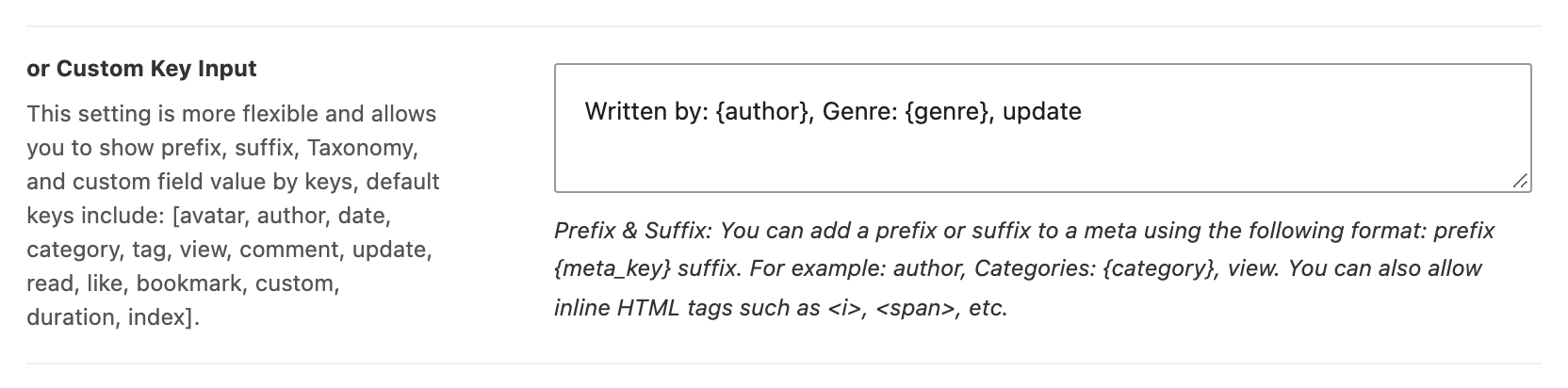
 note
noteTaxonomy & Custom Field Meta: You can input "Taxonomy name/slug" or custom field ID (meta boxes) if you want to display custom taxonomy or custom field value.
Prefix & Suffix: You can add your prefix or suffix to a meta via the format: prefix
{meta_key}suffix. Example: author, Categories:{category}, view -
Click on the “Save Changes”.
Did this answer your question?