How to create a Slider or Carousel in the Homepage?
Foxiz offers a carousel/slider mode on most of its post blocks. It turns the block into a carousel/slider.
First decide which of the two you want:
- One big post at a time, the usual slider at the top of a homepage: drop Foxiz - Highlight Overlay, open Layout > Slider Mode and set Slider to Enable. It is off by default. Then raise Number of Posts on the Content tab: it starts at 1, and the slider only runs with two posts or more, one slide each.
- A row of several posts that slides sideways: use one of the twelve blocks below and its Carousel Mode. The rest of this page walks it.
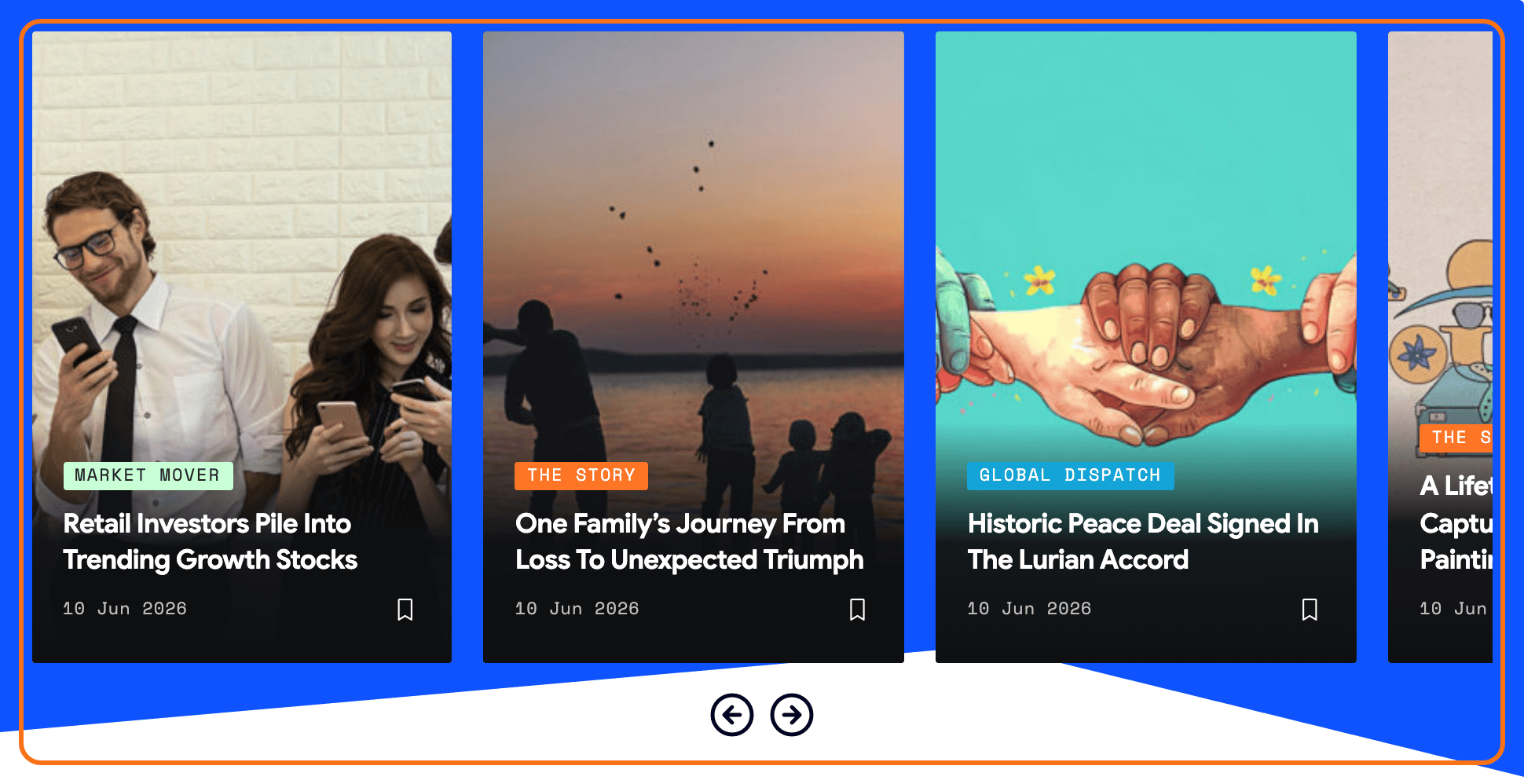
Twelve blocks carry the Carousel Mode section, and they are the post listing ones:
- Foxiz - Grid 1
- Foxiz - Grid 2
- Foxiz - Boxed Grid 1
- Foxiz - Boxed Grid 2
- Foxiz - Flex Grid 1
- Foxiz - Flex Grid 2
- Foxiz - Small Grid
- Foxiz - Flex List
- Foxiz - Small List 2
- Foxiz - Small List 3
- Foxiz - Overlay
- Foxiz - Flex Overlay
If a block is not in that list, its panel has no Carousel Mode section to find.
To get started, follow the steps below:
-
Open the page in the Live Editor and select the block (a grid, an overlay...) you want to turn into a carousel.
The Live Editor here is the Elementor editor. Select the block on the canvas so its settings open in the left panel.
-
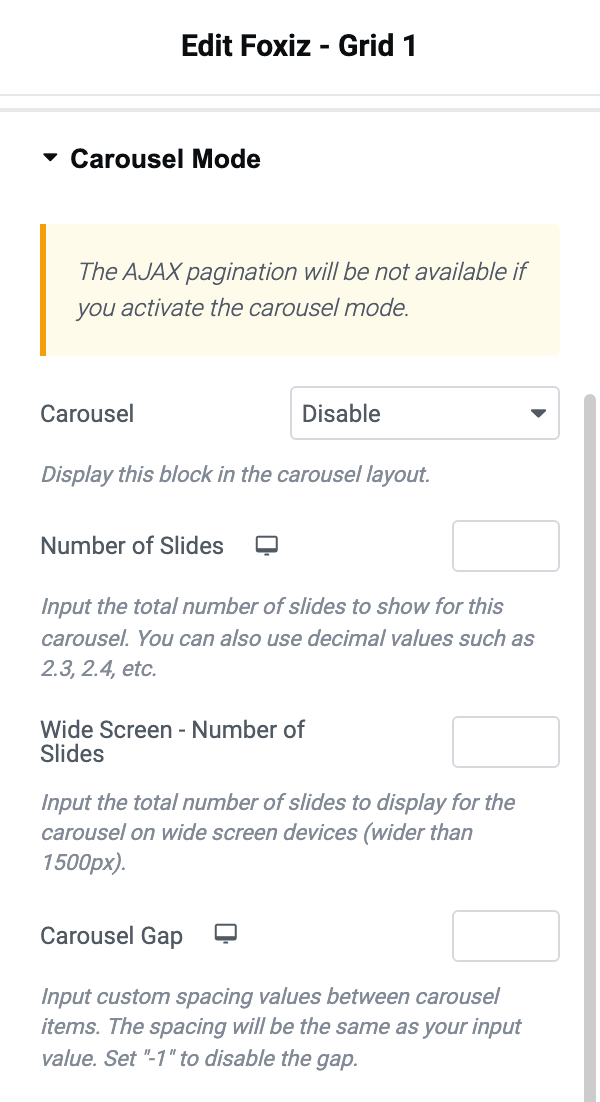
Select the Layout tab > Carousel Mode
-
Then select "Enable" option in the carousel settings
The field itself is called Carousel, and it is the first control under the section's warning notice. It offers Enable and Disable only, with no inherit option. Its default is Disable.
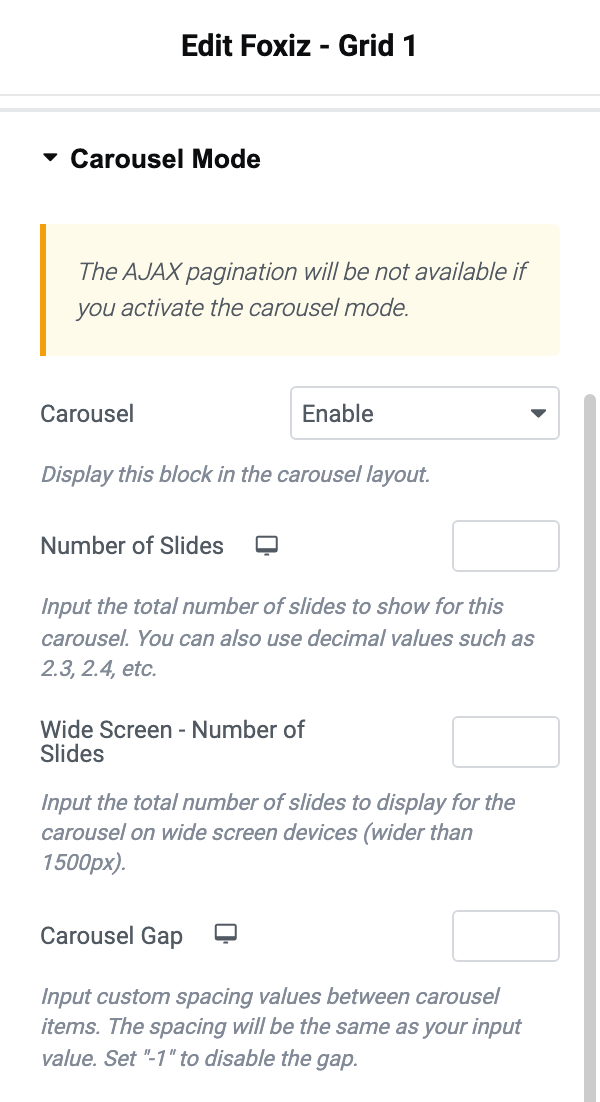
The notice above it is worth reading before you commit: a block in carousel mode loses its AJAX pagination, so a block set up to load more posts on click cannot also be a carousel.
Carousel Settings
-
Number of Slides : this is a responsive setting, so you can set a number of slides for desktop, tablet and mobile devices. It allows decimal values, for example: 1.5
Leave it blank and the carousel falls back to the block's own column count, and if that is unset too, to 3 on desktop, 2 on tablet and 1 on mobile.
Most sites can leave it blank. To let the edge of the next post peek in, type a decimal such as 1.5 and turn on Centered Sliders below.
-
Wide Screen - Number of Slides: the number of slides on screens wider than 1500px. It allows decimal values
The 1500px is exact, and it comes from the field's own description. This one is not responsive, because it already describes a single breakpoint, and leaving it blank makes it match the desktop count.
-
Carousel Gap: spacing between slides. Input -1 if you would like to disable the gap.
It is responsive like Number of Slides, so tablet and mobile take their own gap, and each of the three accepts -1 separately.
-
Centered Sliders: aligns the slides to the middle. This helps when Number of Slides is a decimal value
It offers Enable and Disable only, with no - Default - option. Its default is Disable.
The rest of the section, in the order it appears:
-
Pagination Dot and Next/Prev: turn the two navigation controls on or off. They offer Enable and Disable only, and both default to Enable.
-
Nav Spacing: the gap in pixels between the carousel and that navigation.
-
Auto Play Next Slides: offers - Default -, Enable and Disable. Its default is - Default -, so a block with nothing set follows the site wide value.
-
Auto Play Speed: the pause in milliseconds. Blank follows Auto Play Speed in Theme Options, and with that blank too, it is 5000.
-
Free Mode: offers - Default -, Enable and Disable. Its default is - Default -, so a block with nothing set follows the site wide value.
-
Nav, Dots Color and Dark Mode - Nav, Dots Color: colour the navigation for the two schemes.
Three of the settings above also have a site wide version under Theme Options > Theme Design > Slider Animation. To set them for every carousel at once, please read this documentation.
- Auto Play Next Slides on the block is Auto Play Next Slides in Theme Options.
- Auto Play Speed on the block is Auto Play Speed in Theme Options.
- Free Mode on the block is Carousel Free Scroll in Theme Options.
When both are set, the block's own value wins, for that block only. A block left on - Default -, or with Auto Play Speed blank, follows Theme Options. So set the site wide values first, then change only the blocks that should be different.
Everything else in the section exists on the block alone: the four settings described first, from Number of Slides to Centered Sliders, plus Pagination Dot, Next/Prev, Nav Spacing and the two navigation colours.
Did this answer your question?