How to Create a Gallery Post?
Foxiz supports the gallery post format. It is perfect if you want to show a gallery slider at the top of your post.
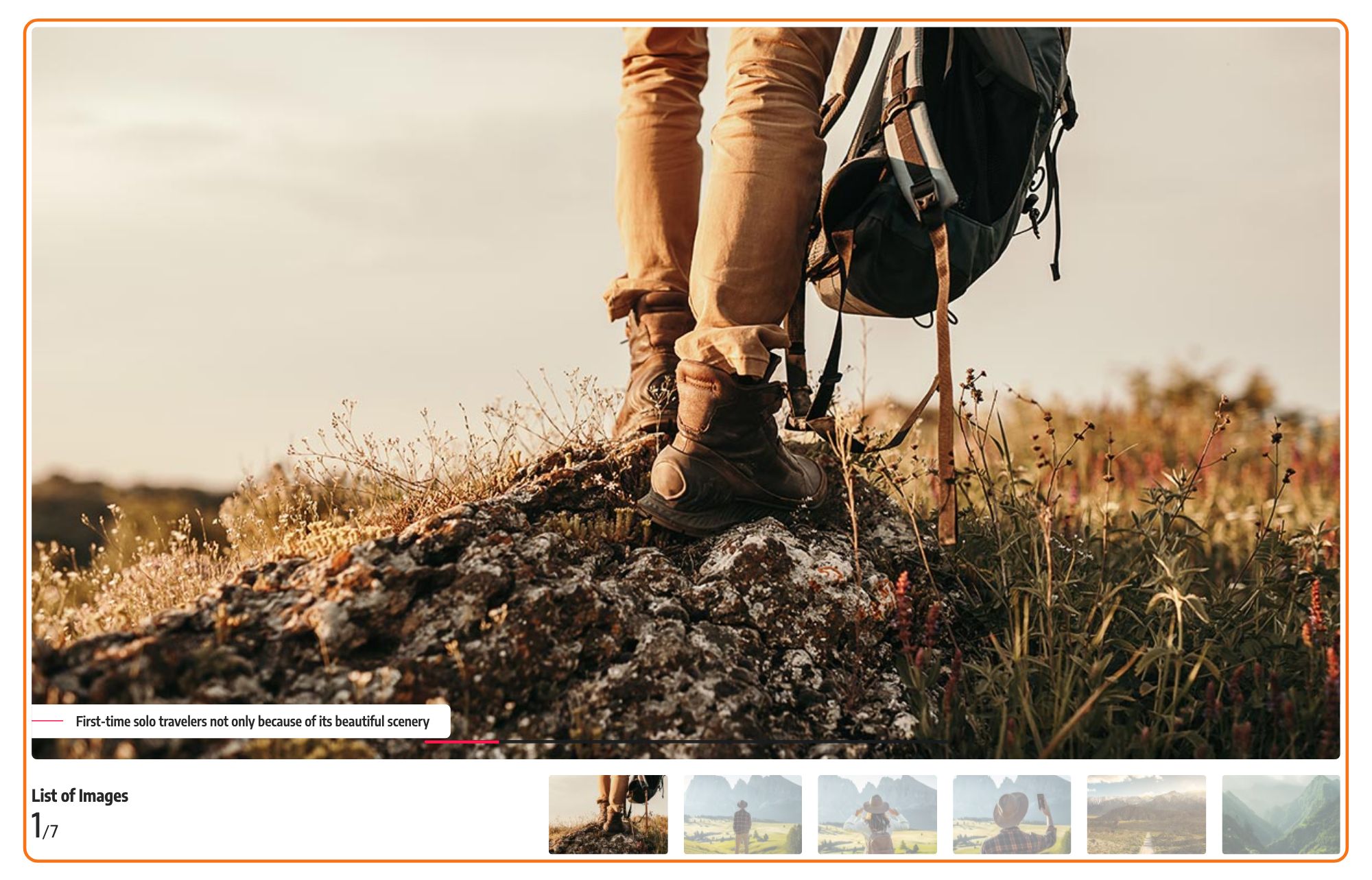
Create the gallery post
Creating a gallery post works like creating a video or audio post. Follow the steps below:
-
Navigate to Posts > Add Post. Older versions of WordPress label it Add New.
-
In the Post sidebar on the right, set Format to Gallery.
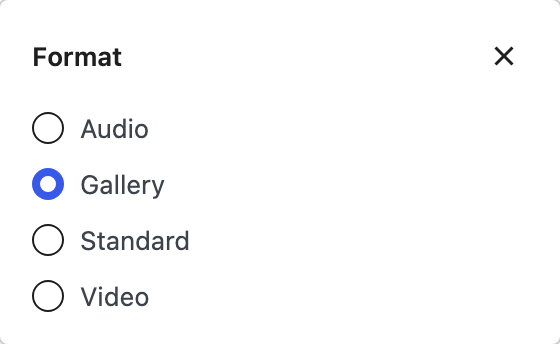
This is the step everything else depends on. The gallery slider is only drawn for posts whose format is Gallery; filling the tab in step 4 without setting the format leaves the images stored and unused.
-
Upload a "Featured Image" for this post. The gallery replaces it at the top of the post, so the featured image is what your blog listings and social shares use rather than what readers of the post see first.
-
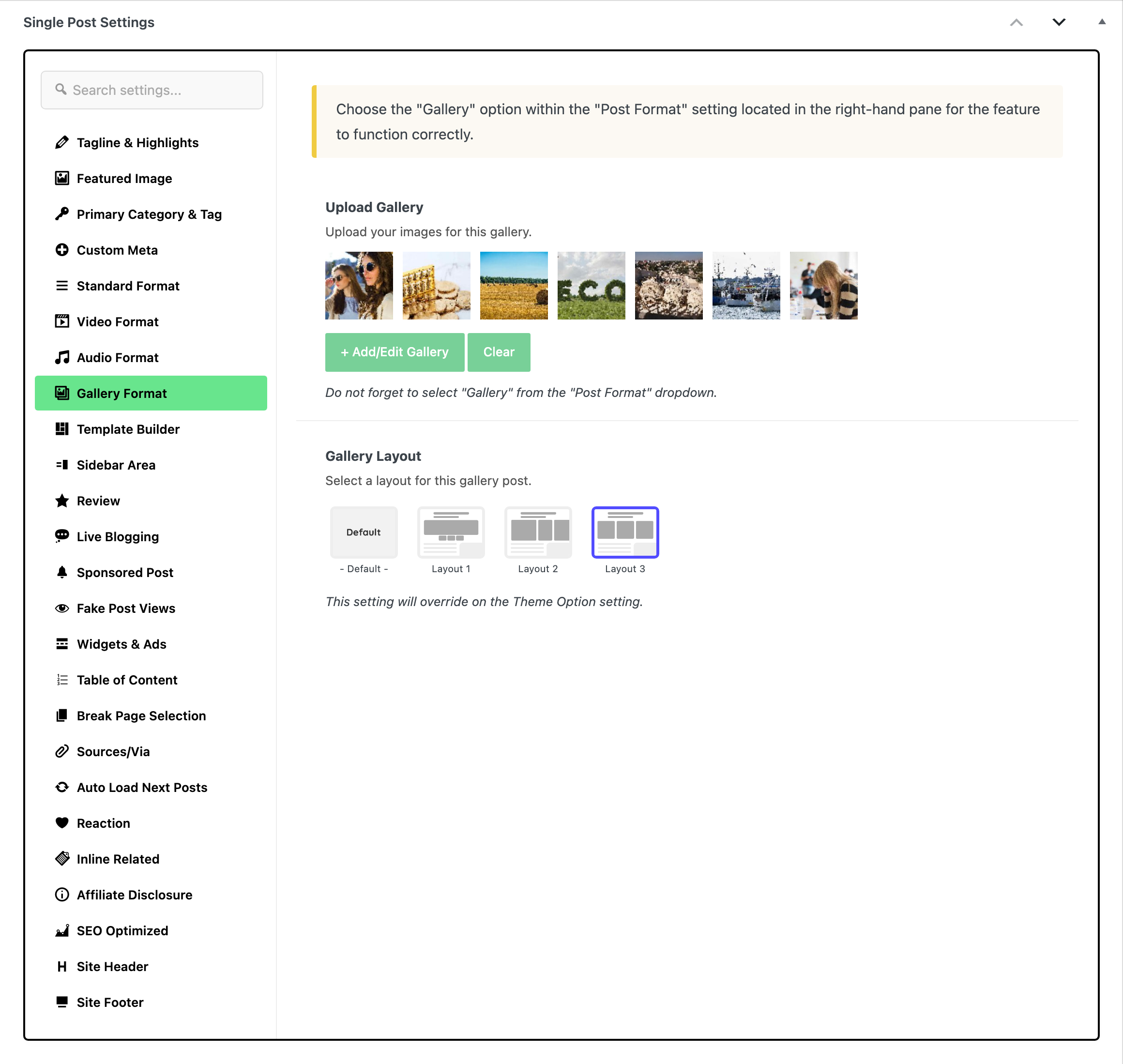
At the bottom of the editor, open the Meta Boxes bar, find the Single Post Settings box and select its Gallery Format tab.
-
Select images to display for the gallery, under the "Upload Gallery" option. Leave it empty and the slider is skipped entirely, with nothing in its place.
-
Select a gallery layout under the "Gallery Layout" option, below Upload Gallery. There are three, Layout 1, Layout 2 and Layout 3, plus - Default -, which is what a new post carries and which hands the choice back to Theme Options. Layout 1, the site default, is one large slide at a time; Layout 2 is a carousel with a scroll bar under it; Layout 3 is a coverflow wider than the text. Keep Layout 1 unless you prefer the look of another.
-
Click Save, or Publish on a new post, to save the changes.
Set the default gallery layout for every post
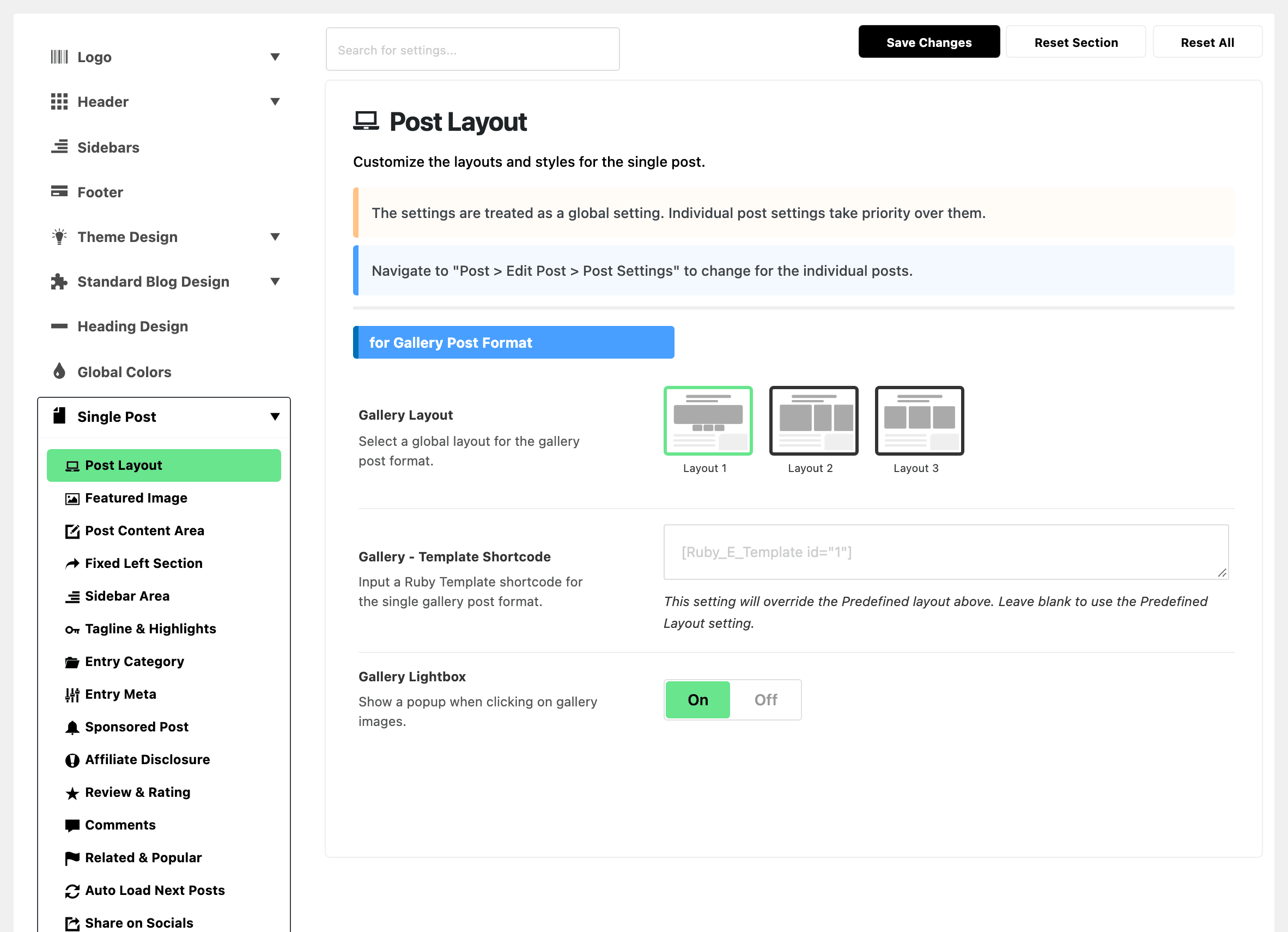
The site wide defaults for this format are at Theme Options > Single Post > Post Layout, in the section headed for Gallery Post Format. Gallery Layout there defaults to Layout 1 and is what - Default - on the post falls back to. Beside it are Gallery - Template Shortcode, which replaces the whole layout with a Ruby Template, and Gallery Lightbox, on by default, which is what makes a gallery image open in a popup when clicked.
What can replace the gallery layout
The Template Builder tab of the same Single Post Settings box replaces the gallery layout for this post, whatever else is set. A Ruby Template set on the post's primary category under Foxiz Category Settings > Single Post Layout replaces it only while the post's own Gallery Layout is left on - Default -: pick Layout 1, Layout 2 or Layout 3 on the post and that layout is used instead of the category's template. The category's Single Post Layout select never applies to a gallery post, because that one only applies to standard format posts.
Did this answer your question?