How to Create a Live Blog Post?
A live blog is one post that you keep adding short updates to while an event happens: a match, an election night, a product launch. Readers see the new updates appear without reloading the page.
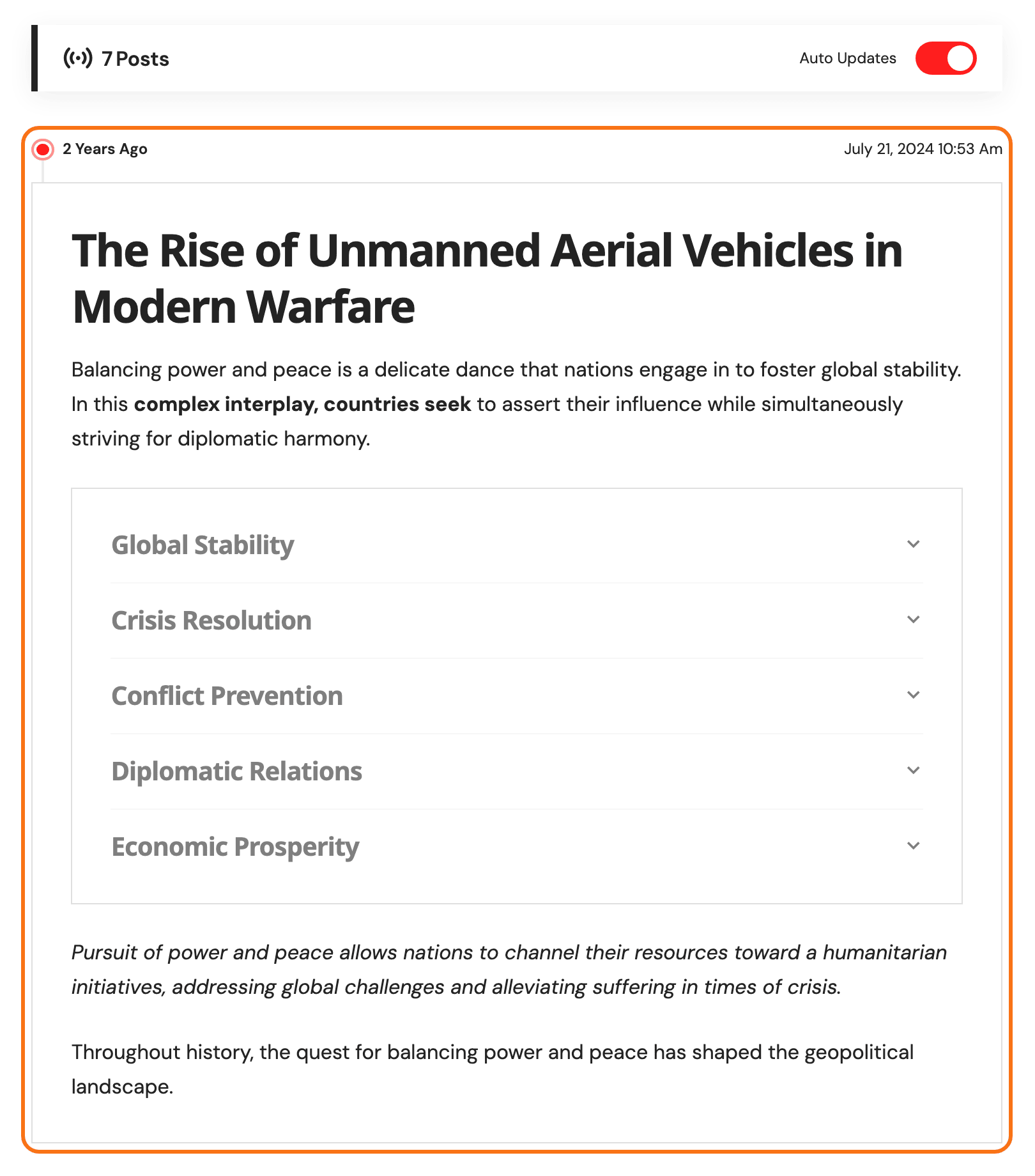
How it works:
- You turn on Live Blog for a post.
- You add each update as a Live Blog - Ruby block, with the time it happened. Inside it goes any block: text, photos, videos, lists.
- Readers with the post open get new updates automatically, without refreshing their browser.
Any post can be a live blog, including one you already published.
How to Create a Live Blog Post
To get started, please follow the steps below:
-
Navigate to Posts > Add Post, or open an existing post: any post can become a live blog.
-
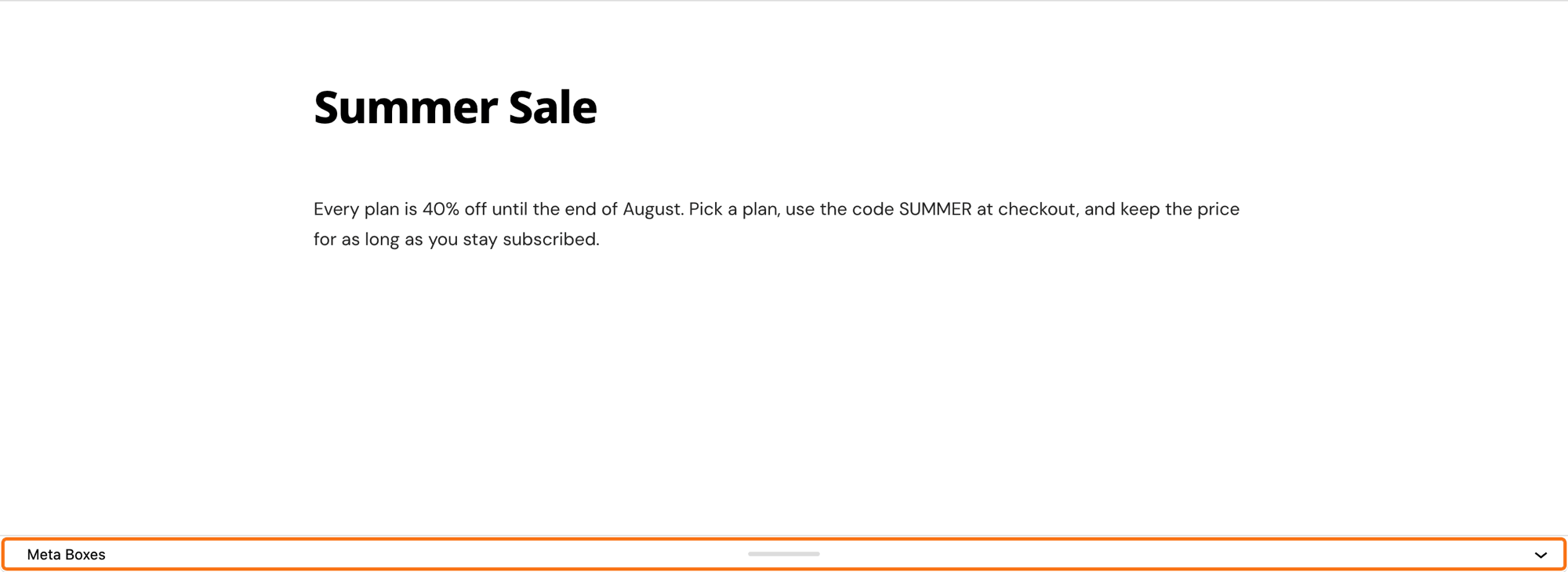
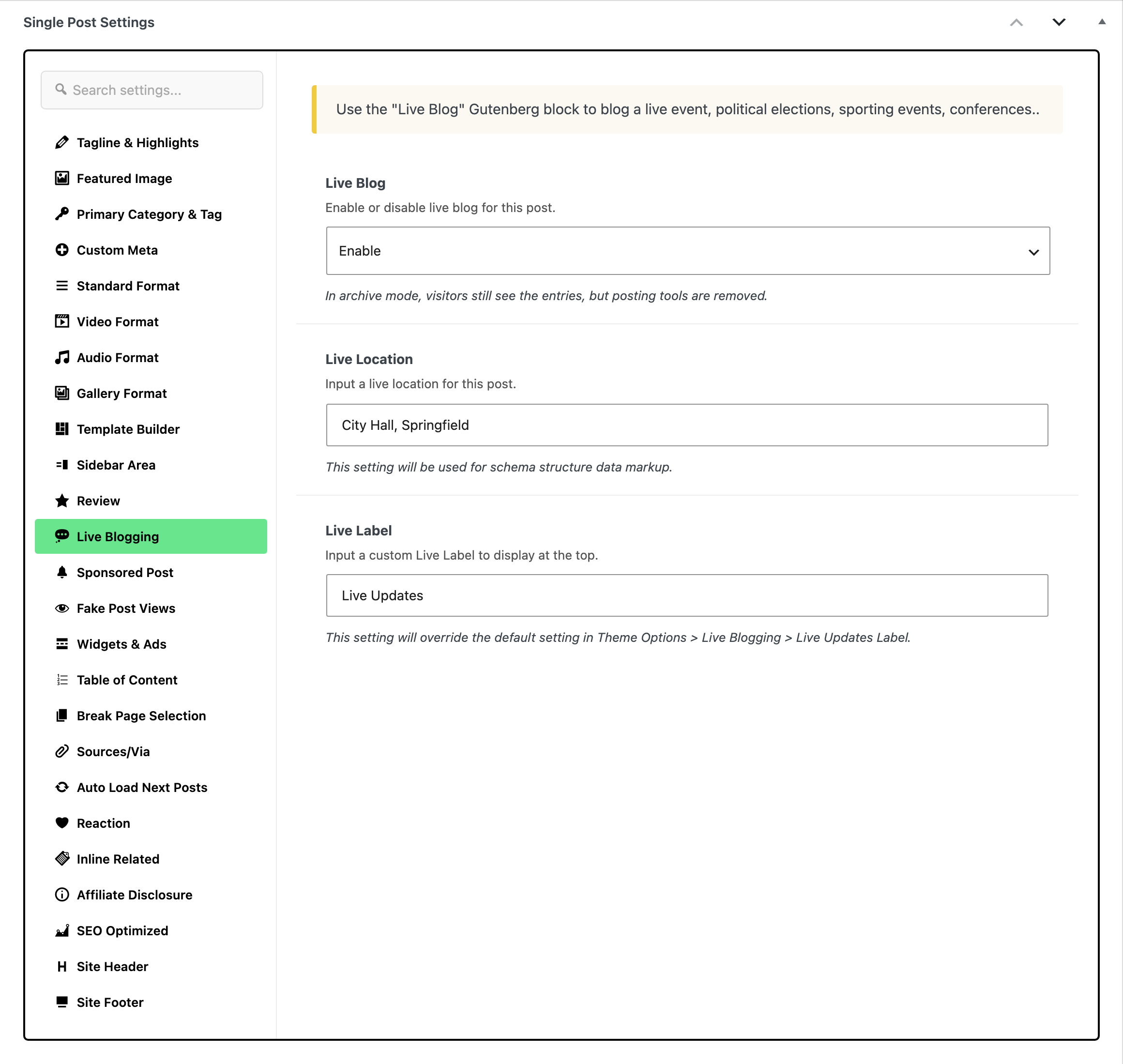
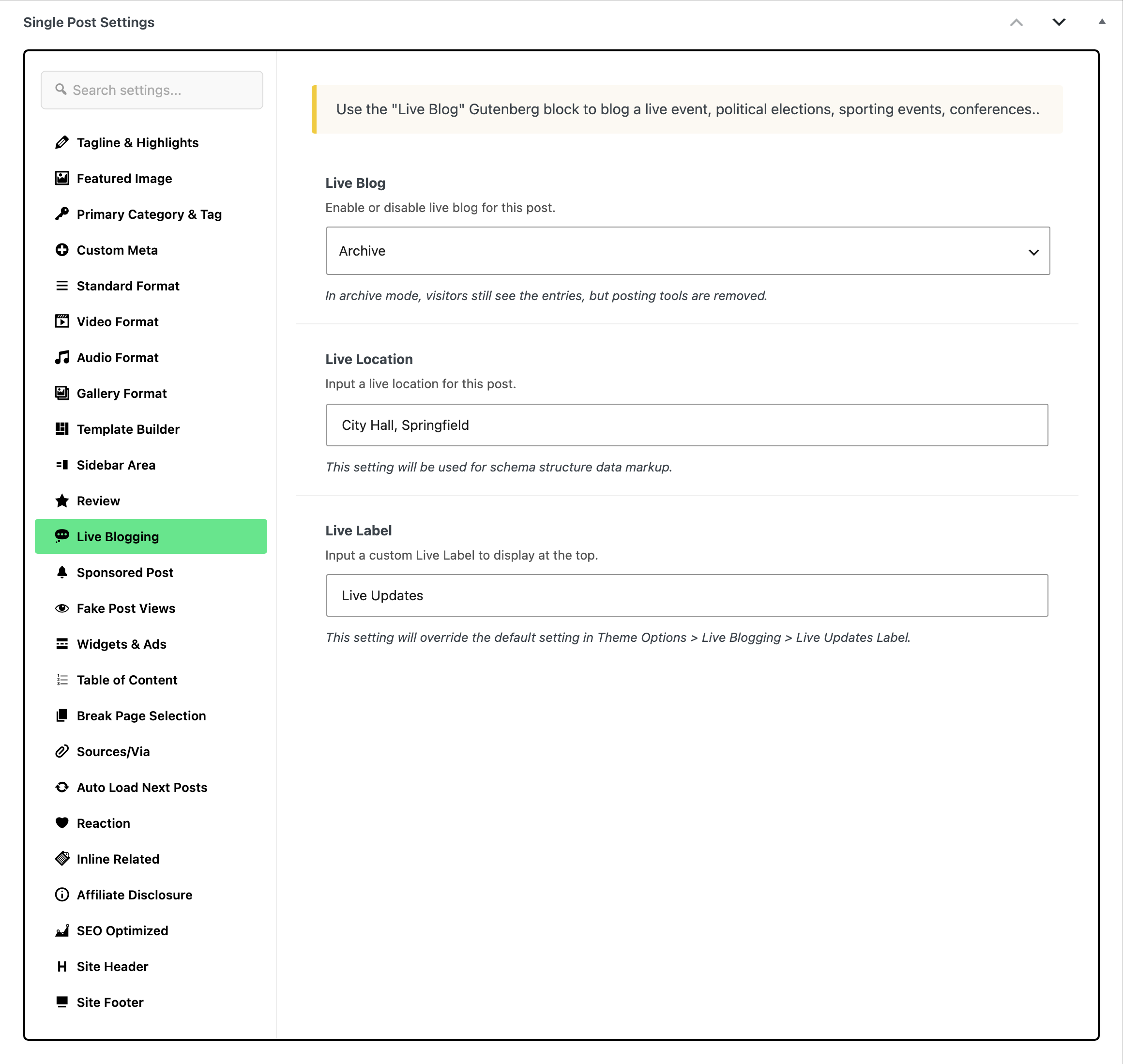
At the bottom of the editor, open the Meta Boxes bar, find the Single Post Settings box and select its Live Blogging tab.
-
Set Live Blog to Enable. Every post starts on - None -. The three values:
- - None -: a normal post.
- Enable: the event is on. The post shows the update counter and the Auto Updates switch, and refreshes by itself for readers.
- Archive: the event is over. Every update stays visible, without the counter, the switch or the refresh. See step 11.
-
Optional: fill in the other two fields on the tab.
- Live Location: where the event takes place, such as
Times Square, New York City. Search engines read it; it does not show on the page. - Live Label: the words at the top of this post, in place of Live Updates. This post's Live Label wins over Live Updates Label in Theme Options; leave it empty to use the Theme Options text.
- Live Location: where the event takes place, such as
-
In the editor, click the + block inserter at the top left and type Live Blog in the search box. Click Live Blog - Ruby.

-
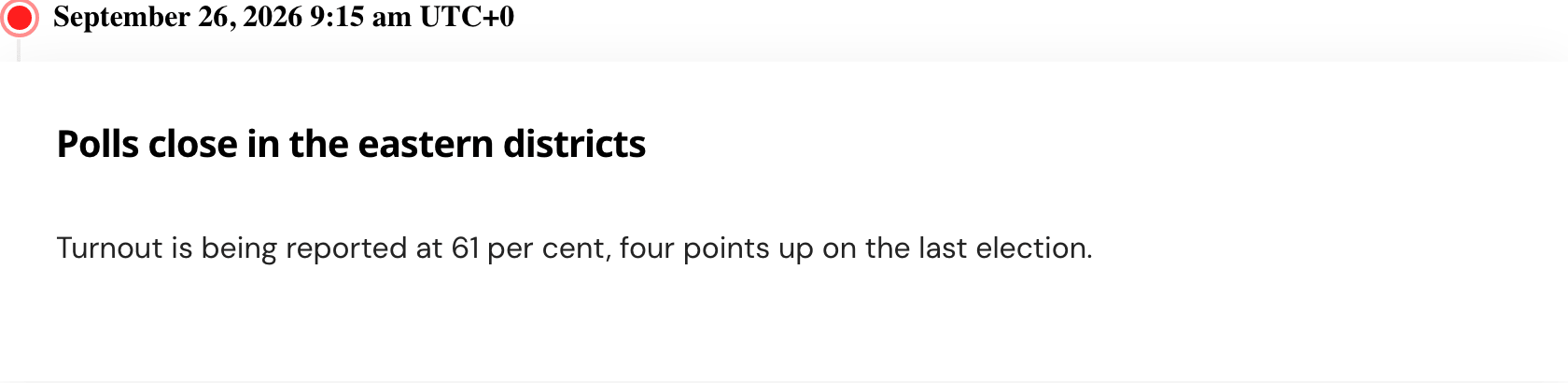
Type the update inside the block. Start with a heading and a paragraph, then add any other blocks you need. Search engines take the first heading as the update's headline and the first paragraph as its text.
-
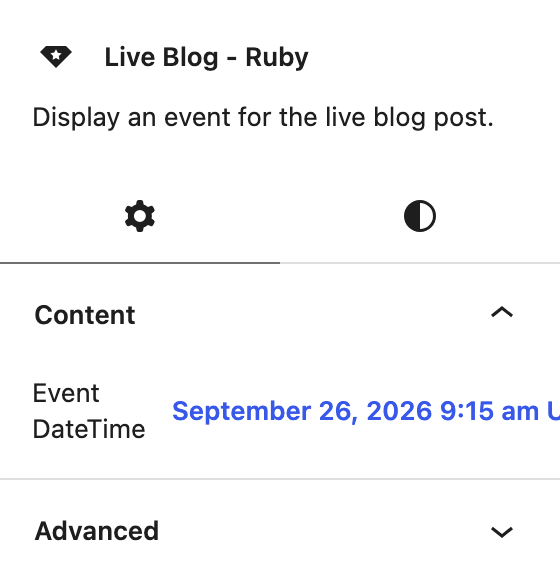
Check the time of the update in Event DateTime, in the Content panel of the block settings on the right. It starts at the moment you added the block; change it to match when the event really happened. Do not clear it: a block with no date shows nothing on the front end.
-
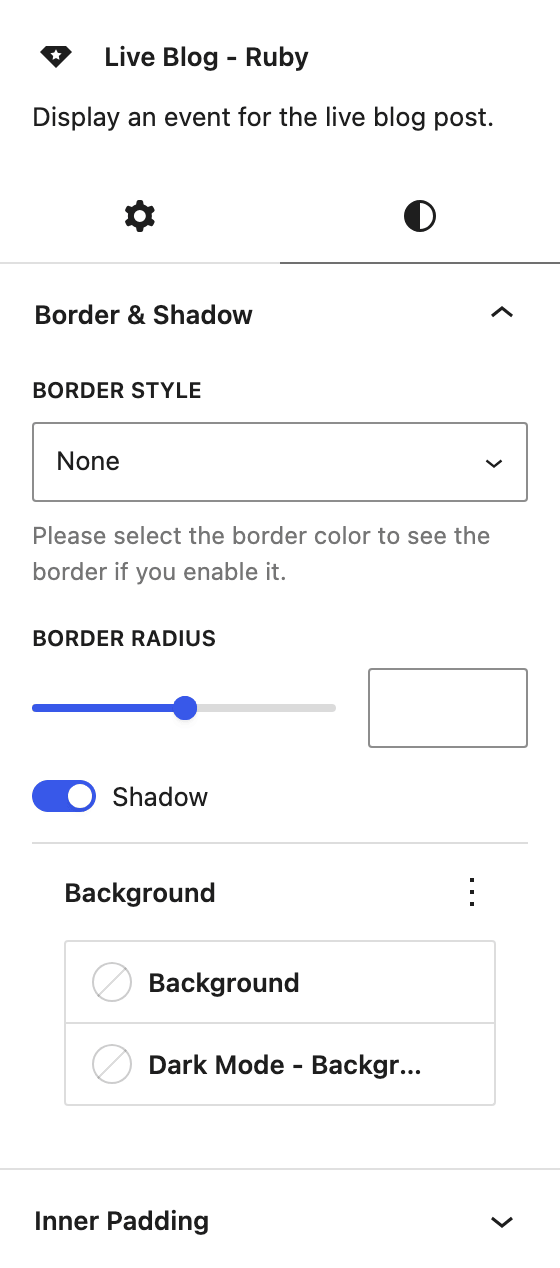
Optional: change how the update's card looks in the block's Styles tab. It has two panels:
- Border & Shadow: the border, rounded corners, shadow and background colour, each with a dark mode colour.
- Inner Padding: the space inside the card.
Every setting is explained in How to Use the Live Blog Block.
-
Publish the post, or click Save on a published one. Readers see the update at their next refresh.
-
For each new update, add another Live Blog - Ruby block and save again. Updates show in the order they sit in the post, so put each new block above the previous one to keep the newest on top.
-
When the event ends, set Live Blog to Archive and save. Every update stays visible; the counter, the Auto Updates switch and the automatic refresh go away.
Global Live Blogging Settings
One Theme Options panel sets the labels and the refresh interval for every live post on the site:
-
Go to Foxiz > Theme Options > Theme Design > Live Blogging.
-
Set the fields below, then click Save Changes.
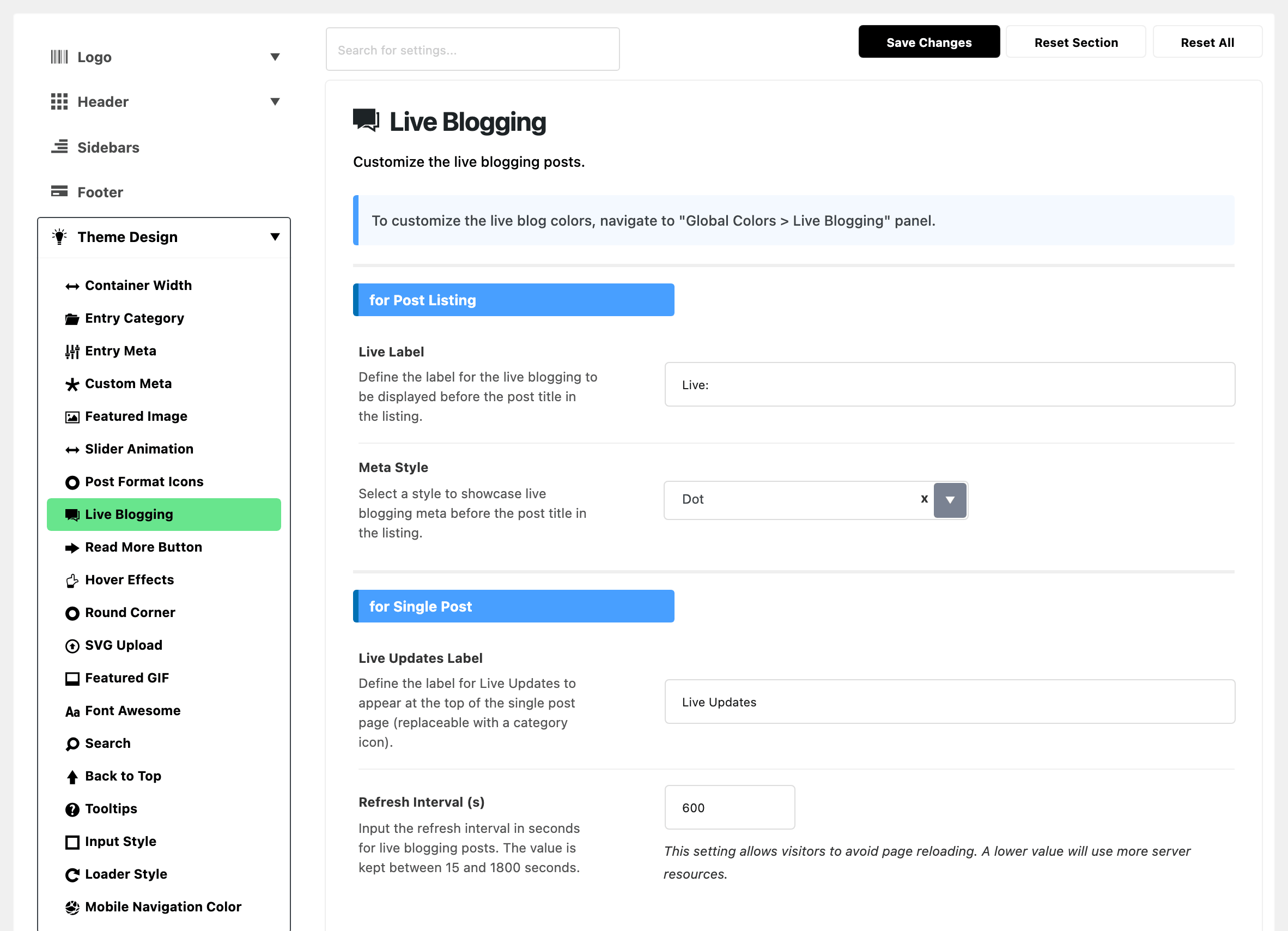
The panel has two groups. for Post Listing changes how a live post looks in blocks and archives:
-
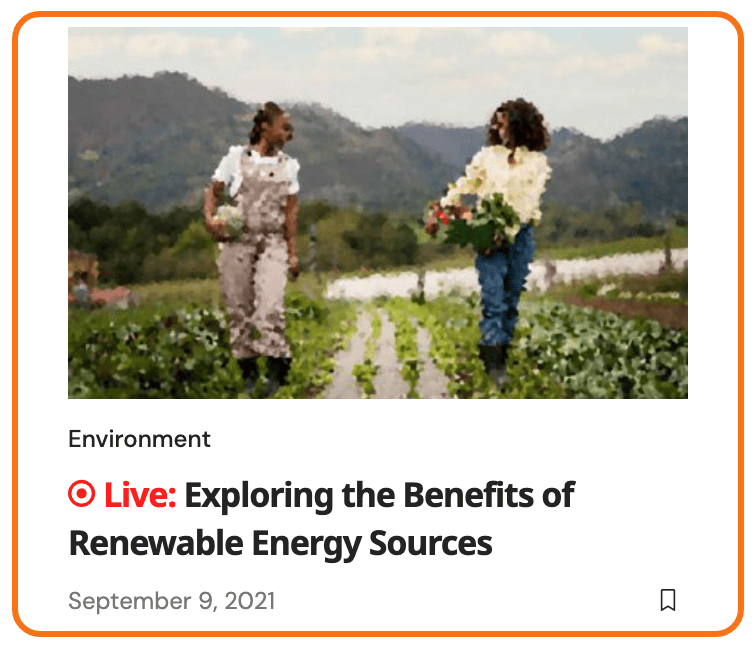
Live Label: the words printed before the title of a live post in a listing, when Meta Style is Text Only or Dot & Text. Default:
Live:. -
Meta Style: Dot, Text Only or Dot & Text. Default: Dot.
On the default Dot, only the red dot shows and Live Label is not printed. For most sites, pick Dot & Text so readers see the word as well; the picture below uses it.
for Single Post changes the live post itself:
- Live Updates Label: the words at the top of a live post. Default:
Live Updates. - Refresh Interval (s): how often an open live post checks for new updates, in seconds. Default: 600, which is 10 minutes. Any value is kept between 15 and 1800; an empty field means 1800. A lower value shows updates sooner but uses more server resources.
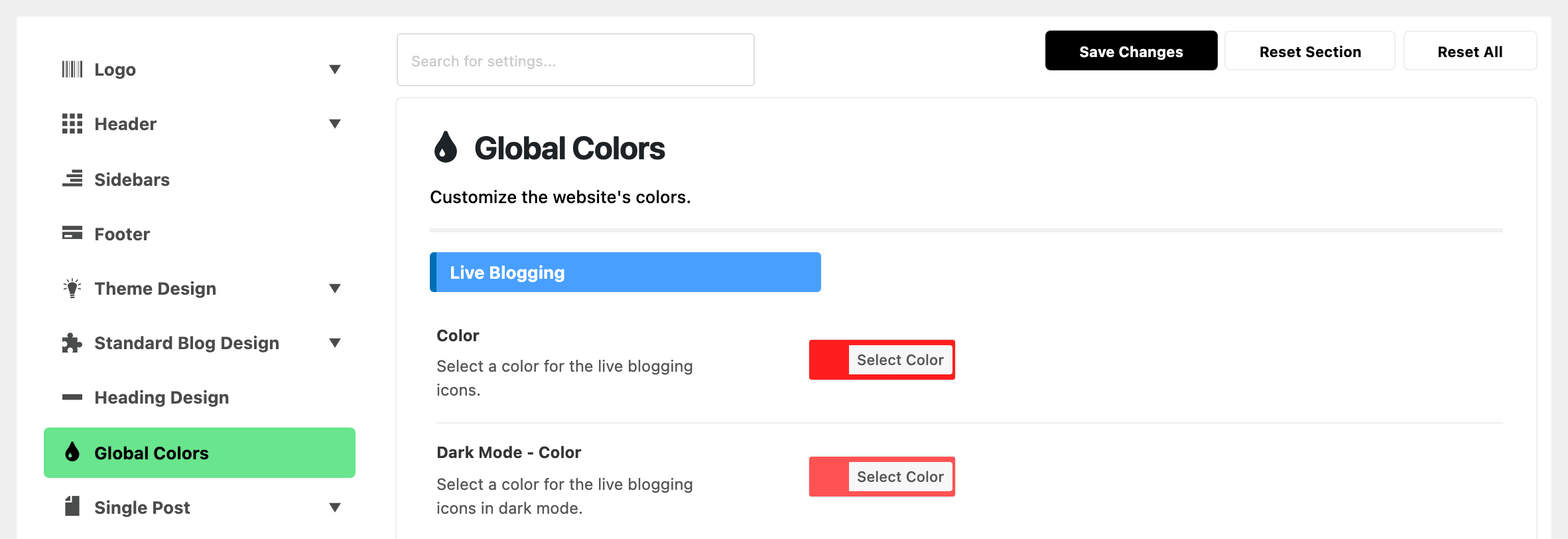
The live dot and label colours are not in this panel. Set them in Foxiz > Theme Options > Global Colors > Live Blogging.
-
Will a short refresh interval overload my server?
Less than you might think. Foxiz keeps a cached copy of the live updates for five hours and clears it every time you save the post. Most refreshes get that cached copy, until you publish a new update.
Can readers stop the automatic refresh?
Yes. Each live post has an Auto Updates switch above the updates. It is on by default, and the reader's browser remembers whichever way they leave it.
How to Display Your Live Blogging Posts on the Homepage and Post Listings?
To achieve this, please follow the steps below:
-
Navigate to Pages > All Pages and click Edit with Elementor under the page's title.
-
Select the block where you want to display live blogging posts or add a new posts block.
-
In the block's Content tab, open Query Settings and choose a live filter in Order By.

Four values show live posts only:
- Last Published Live and Last Updated Live: posts on Enable.
- Last Live (Archived Included) and Last Updated Live (Archived Included): posts on Enable or Archive.
These values filter, not just sort: until you have a live post, the block shows nothing.
-
Click Publish in Elementor to save the page.
Did this answer your question?