How to Enable Sponsored Content for the Post
Mark a post as sponsored and its meta bar under the title reads Sponsored by with the sponsor's name or logo, in place of the author line. Post cards in listings can show the same line.
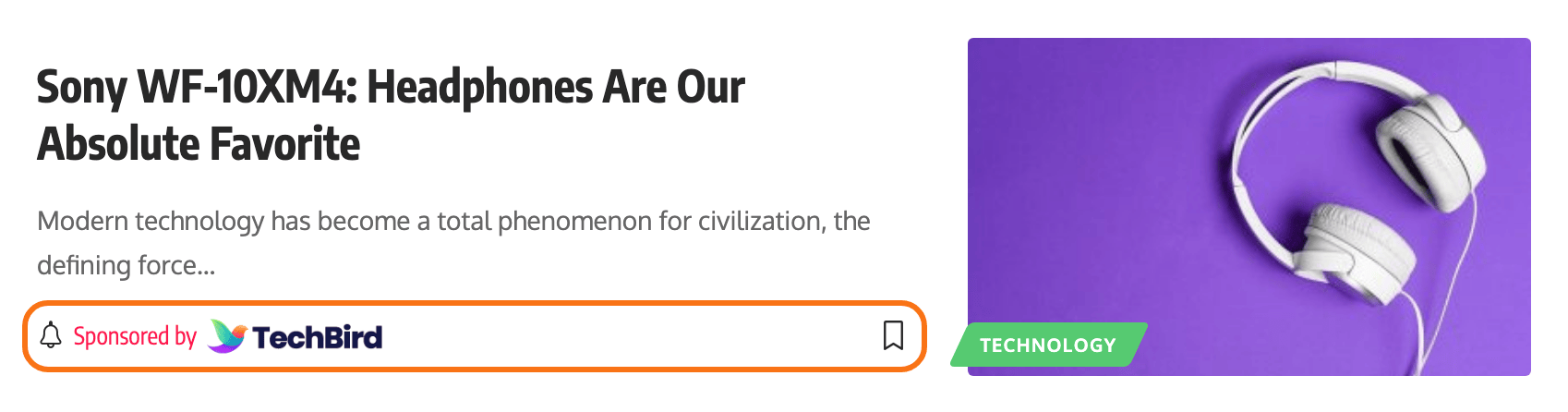
To get started, follow the steps below:
-
Navigate to Posts > All Posts, then select and edit the post you would like.
-
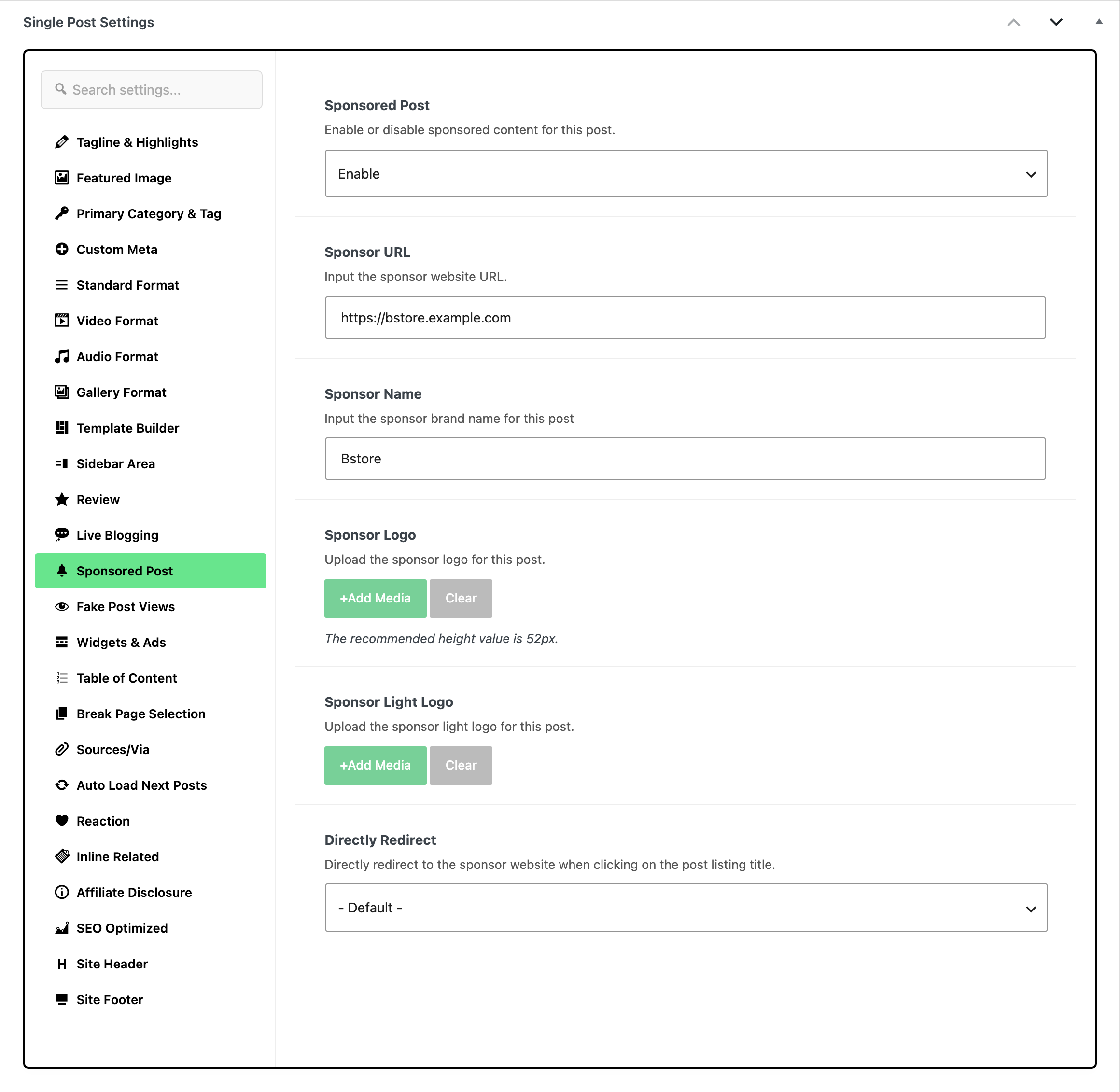
At the bottom of the editor, open the Meta Boxes bar, then find "Single Post Settings" and its "Sponsored Post" tab. It is one of the tabs down the left of that box, marked with a bell icon. A custom post type has the same tab in its Single Post Type Settings box, so everything below works there too.
-
Sponsored Post Option: Select "Enable" to activate the sponsored content feature for this post. Its default is - Disable -, and nothing in the five fields below is read until it is set to Enable.
-
Sponsor URL: Enter the URL of the sponsor's website. Leave it empty and the sponsor line still renders, linking to
#. -
Sponsor Name: Enter the brand name of the sponsor for this post.
-
Sponsor Logo: Upload the logo of the sponsor for this post. The field's own note recommends a height of 52px.
-
Sponsor Light Logo: Upload the sponsor's light logo for this post when in dark mode. If you upload only this one and leave Sponsor Logo empty, the theme uses the light logo in both modes rather than showing nothing.
-
Directly Redirect: Automatically redirect to the sponsor's website when clicking on the post listing title. This one starts on - Default -, which defers to the global setting in the next section. Set it to Enable or Disable here to override that for this post alone.
Global Settings
-
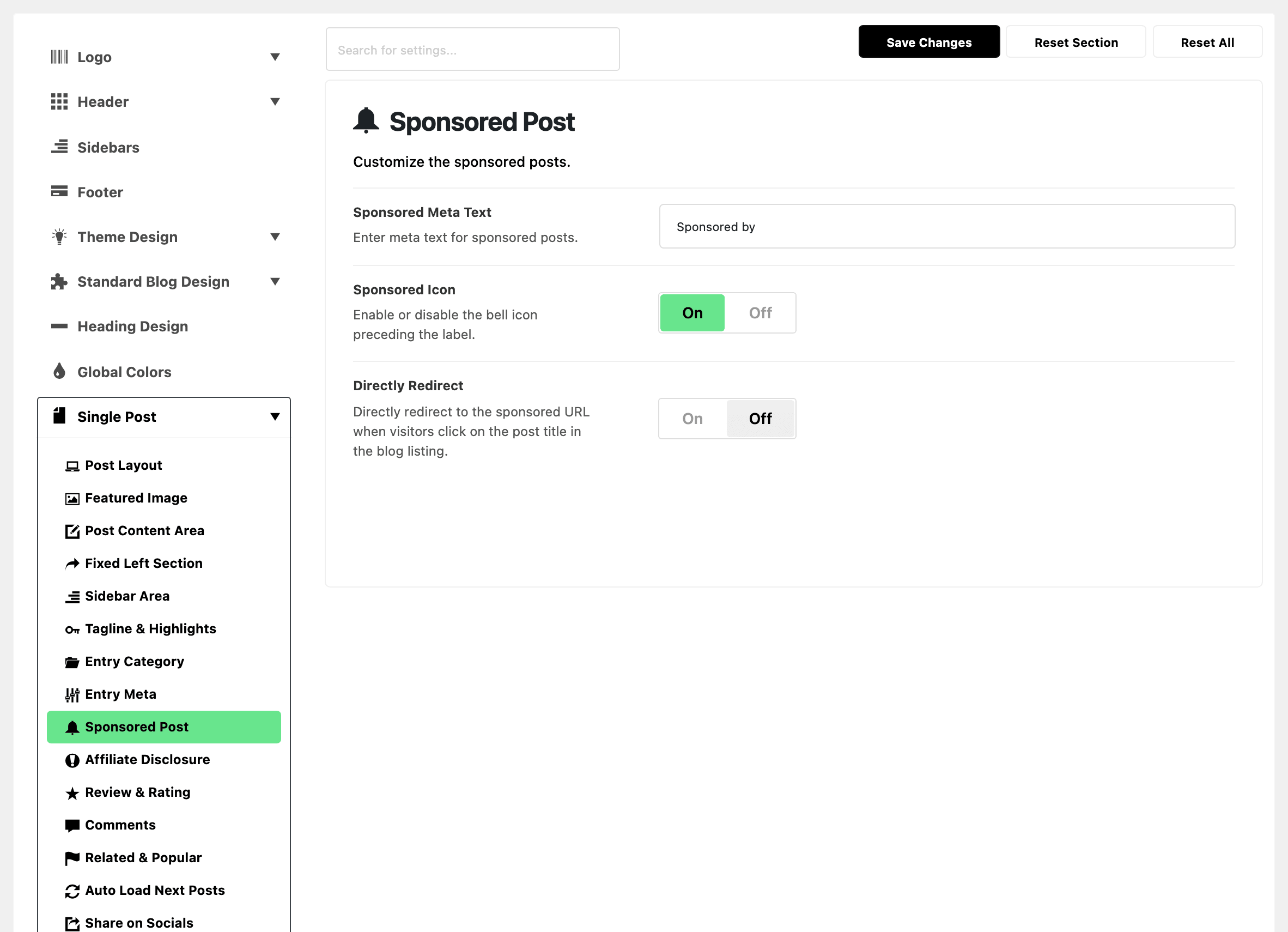
To get started, navigate to Foxiz > Theme Options > Single Post > Sponsored Post. It is a subsection of the Single Post panel.
-
Sponsored Meta Text: Enter a meta text for the sponsored posts. Its default is Sponsored by, and if you clear the field the theme falls back to that same string rather than printing nothing.
-
Sponsored Icon: A switch between Sponsored Meta Text and Directly Redirect that draws a bell icon in front of the label. It is on by default.
-
Directly Redirect: Automatically direct visitors to the sponsored URL when they click on the post title in the blog listing. It is off by default, so a sponsored post's title keeps going to the post until you turn this on here or on the post itself.
Did this answer your question?