Connection & usage
Look here first when the editor gives you a prompt to copy instead of an answer. The box shows whether the AI Assistant can reach your AI provider, and how many tokens and requests the site has used this month.
Where: Foxiz > AI Assistant > Connection & usage, the first box on the page.
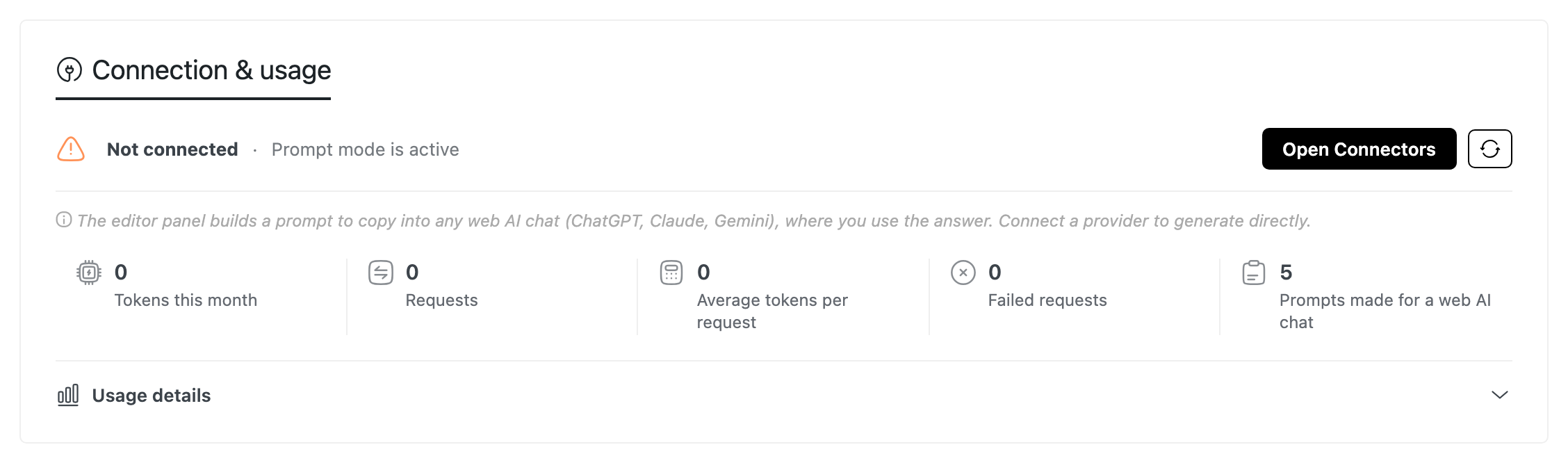
This box has no settings to save. Its buttons act at once.
The connection line
Connected, with your provider's name beside it, means tasks run straight from the editor.
Any other state adds "Prompt mode is active". The editor then builds a prompt for you to run in a web AI chat instead of answering. A note under the line says why.
What to do for each state:
- Not connected: add a provider and its API key in Settings > Connectors, or keep using Prompt mode.
- Provider not responding: the provider did not answer, or refused the key. Check the key in Settings > Connectors, then refresh.
- Waiting for approval: the WordPress AI plugin asks you to approve Foxiz Core first. Approve it in Tools > Connector Approvals, then refresh.
- WordPress 7.0+ needed: update WordPress to generate directly. Prompt mode works until then.
- AI is switched off: something on your site turns WordPress AI features off, and the note names it. Prompt mode still works.
- Switched off: Enable Foxiz AI Assistant is off. Turn it on and click Save Changes.
The buttons beside it
Which buttons show depends on the state. None show when WordPress is older than 7.0 or AI is switched off for the site.
- Open Connectors, or Add provider once you are connected: opens Settings > Connectors, where you add a provider and its API key.
- Test connection: sends a small check to the provider. "Connection works: the provider answered." means it is ready. It also shows while the assistant is switched off and a provider is set up, so you can check the key before you turn it on.
- Open Connector Approvals: opens the approval screen, when the state is Waiting for approval.
- The round arrow, Refresh connection status: checks the connection again and reloads the page. Click it after you add or change a key.
This month's counters
Five counters for the current month. Check them to see how much AI the site uses.
- Tokens this month: tokens used by every request, failed ones included.
- With a Monthly Token Limit set, it shows how much of the limit is used, with a bar that changes colour at 90%.
- Requests: answers the provider returned.
- Average tokens per request: counts failed requests too.
- Failed requests: requests the provider did not answer.
- Prompts made for a web AI chat: prompts built in Prompt mode. They use no tokens from the site.
The counts include the reader summaries of Summarize with AI in Connector API Mode.
Usage details
Click Usage details to open the history. It is closed by default.
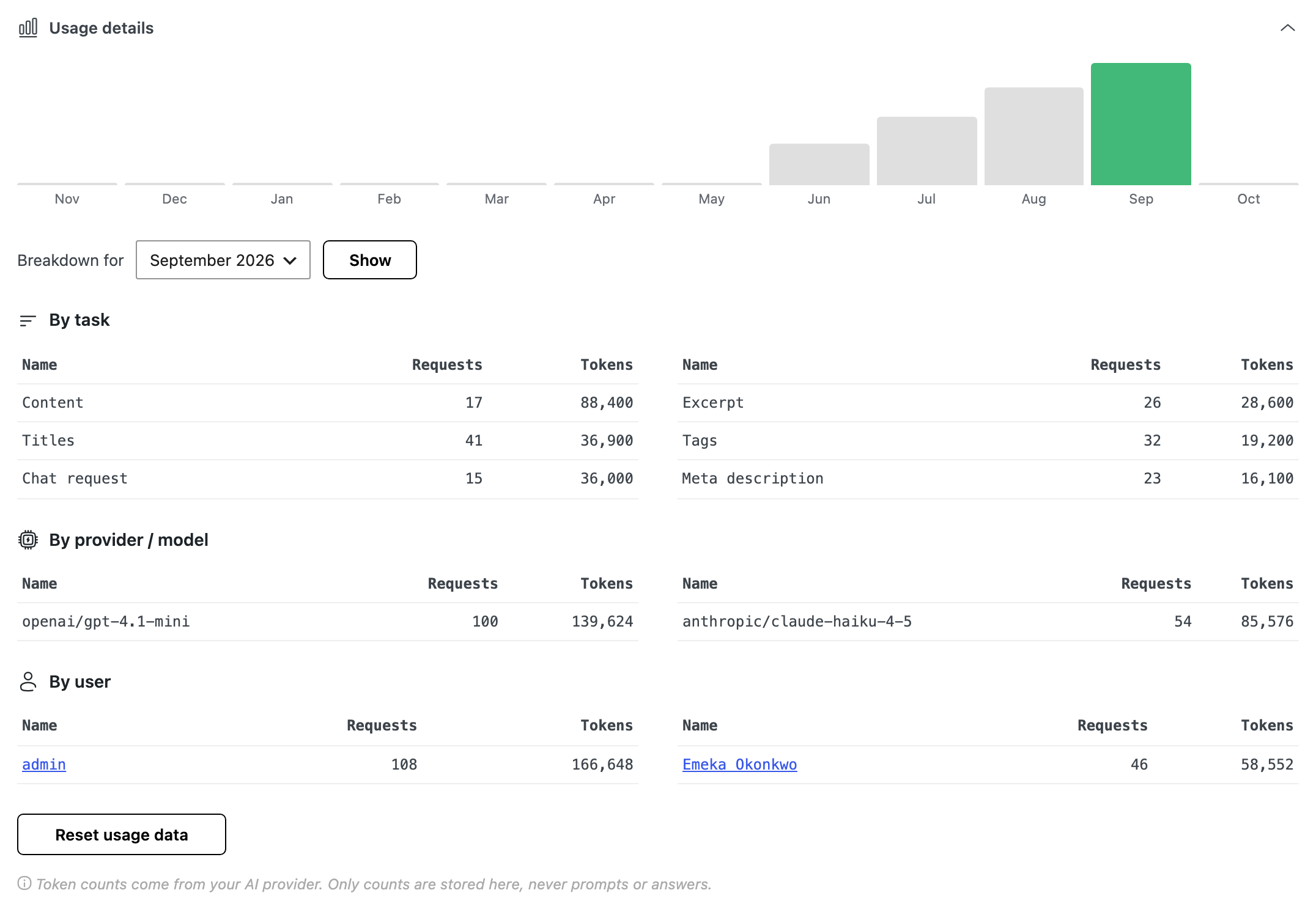
- The chart: tokens used in each of the last 12 months. Point at a bar to read its month and total.
- Breakdown for: the month the three tables below show. Pick one and click Show. Default: the current month. The list holds the current month and every month with usage. The site keeps 12 months.
The three breakdowns
Each table lists Name, Requests and Tokens, the most tokens first. A month with no usage reads "No requests yet."
- By task: one row per kind of request, such as Titles, Chat request or Article summary for readers.
- By provider / model: one row per provider and model that answered.
- By user: one row per user, linked to their profile.
- Visitors is the reader summaries, made for logged out readers.
By provider / model and By user show the top 10. The rest add up in one Other row.
Reset usage data
Use it to start the count over, for example after testing. It deletes every month of usage data, this month included, and restarts the Monthly Token Limit count. It cannot be undone.
- Click Reset usage data. A warning opens under it.
- Click Yes, reset usage data.
The page then says "Usage data was reset."
Token counts come from your AI provider. The site stores only the counts, never the prompts or the answers.
Related
- How to Connect an AI Provider: connect a provider in Settings > Connectors.
- Tips for Better Results with AI: what to do when the assistant is missing or a writer hits a limit.
- Access & Limits: the Monthly Token Limit these counters measure.
Did this answer your question?