Something Broke After Updating Foxiz
You updated Foxiz and now the layout looks wrong, a feature stopped working, or the site shows an error. Most of the time one of the first three steps fixes it in a minute. Go back to the previous version only if none does.
1. Update Foxiz Core as well
Foxiz and Foxiz Core are released together and expect each other's version. An updated theme with an old Foxiz Core is the most common cause of a broken layout or missing blocks after an update.
Go to Plugins > Installed Plugins, update Foxiz Core, and check that it is active. See Ensure to Update the Foxiz Core Plugin After Theme Update.
2. Clear the caches and save Theme Options
- Clear your cache plugin, your host's cache and Cloudflare if you use them. Foxiz Core already clears Elementor's style files after its own update.
- Open Theme Options and click Save Changes, which rebuilds the theme's colour and font styles.
- Reload the page in a private window.
Changes Not Showing on the Site has the details for each cache.
3. Check your child theme
A child theme that copies a function from the parent theme keeps the old copy after the update. The one that matters most is foxiz_register_script_frontend(): an old copy leaves Summarize with AI, Auto Load Next Posts, live blog updates, the AdBlock detector and the WooCommerce buttons without their scripts.
To test, switch to the parent Foxiz theme in Appearance > Themes for a minute. If the problem is gone, copy the current version of the function from the parent's functions.php into your child theme and reapply your change. See Using Child Theme.
4. The site shows a critical error or a white page
Follow There Has Been a Critical Error on This Website. After an update, the usual causes are the Foxiz Core version (step 1) and a PHP version below 8.0, which Foxiz needs.
5. Go back to the previous version
Only when the steps above did not help, and you need the site working while support looks at it.
-
You took a backup before updating: restore it with your host's tool or All-in-One WP Migration. See Backup & Restore Website Data. Anything posted since the backup is lost, so note it first.
-
You kept the previous
foxiz.zip: go to Appearance > Themes > Add Theme > Upload Theme, upload it, and click Replace installed with uploaded on the comparison screen. Then put back the Foxiz Core of the same version: it is inside that theme zip, asplugins/foxiz-core.zip. Upload it on Plugins > Add Plugin > Upload Plugin and click Replace current with uploaded. Your settings and content stay.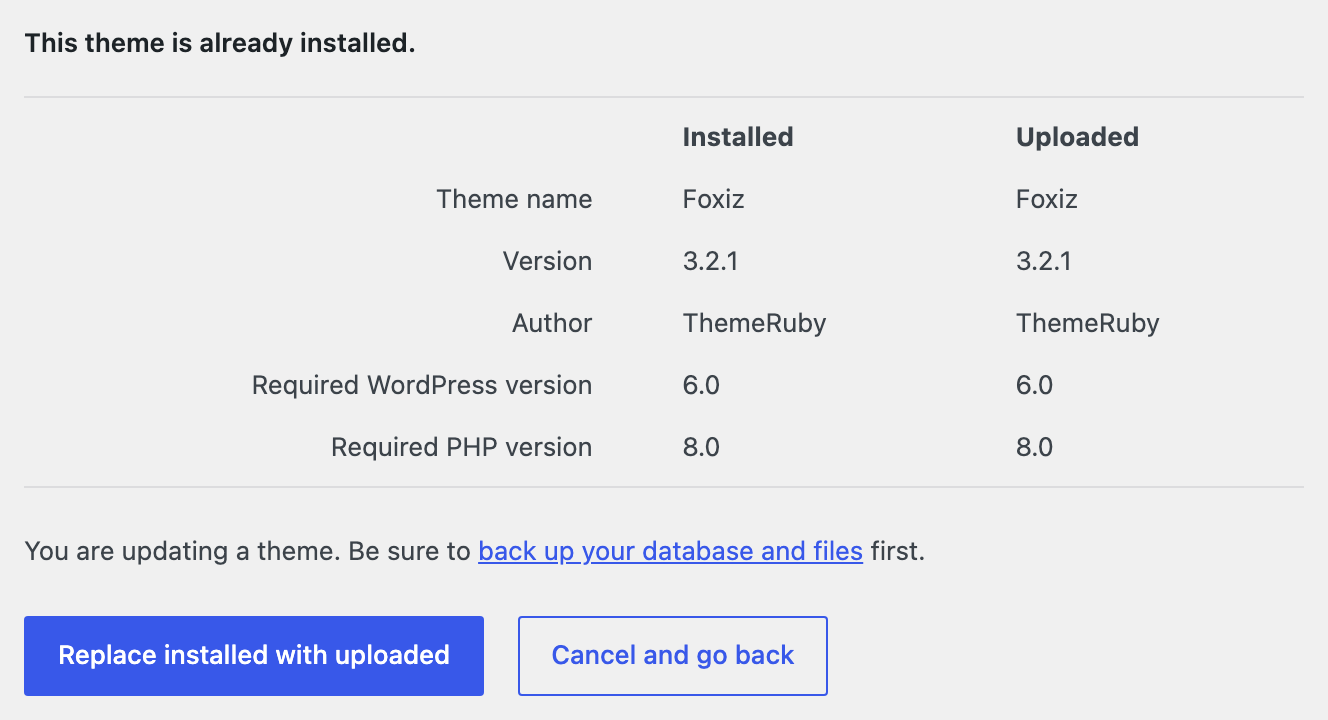
-
Neither: open a ticket with your Foxiz version, what broke, and what you have tried.
Next time
Before each update, take a backup and download a copy of your Theme Options at Theme Options > Backup/Restore. On a busy site, try the update on a staging copy first. How do I Update the Theme? walks the update itself and the checklist after it.
Did this answer your question?