How to Use the Live Blog Block
Live Blog - Ruby is one entry of a live blog post. A live post is a run of these blocks, one per update.
Start with How to Create a Live Blog Post?. It walks the whole job: turn on the post's Live Blog setting, add the entries, and archive the post when the event ends. This page is the reference for the block itself.
Each entry prints a red dot, how long ago the event happened and its full date and time. Below that is a card holding whatever blocks you put inside: a heading and a paragraph, an image, an embed.
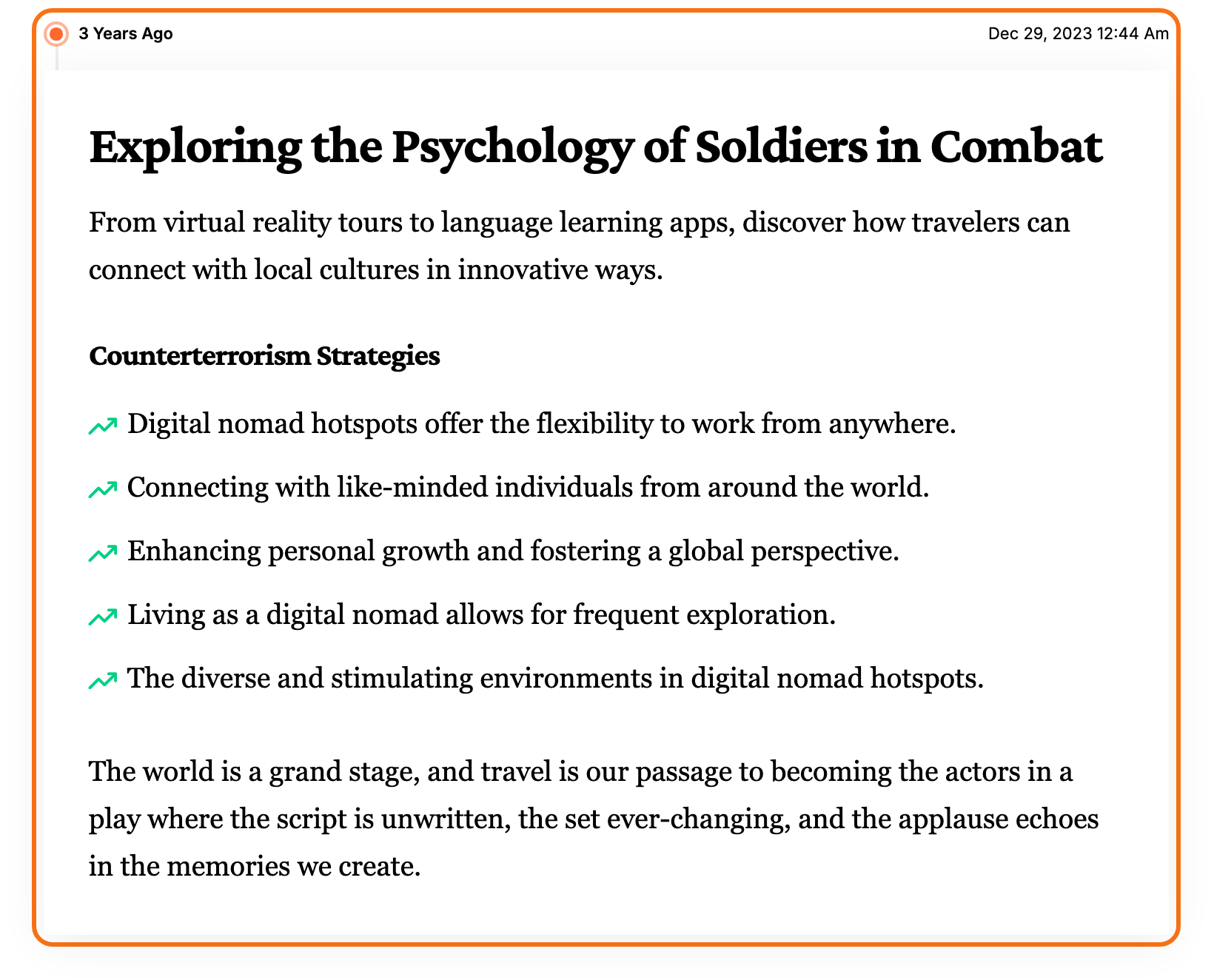
The block prints on any post, but only a live post gets the rest. Once the post's Live Blog setting is on Enable, it shows the entry counter and the Auto Updates switch, and it refreshes by itself for readers. How often it refreshes, and the labels it shows, are set in Theme Options > Theme Design > Live Blogging.
Add the block
-
Open the live post in the editor. Its Live Blog setting should already be on Enable; if not, do that first, as How to Create a Live Blog Post? shows.
-
Click the + button at the top left of the editor to open the block inserter.
-
Type Live Blog in the search box.
-
Click Live Blog - Ruby to insert it. It arrives with an empty heading and paragraph inside, and its Event DateTime already set to the moment you inserted it.
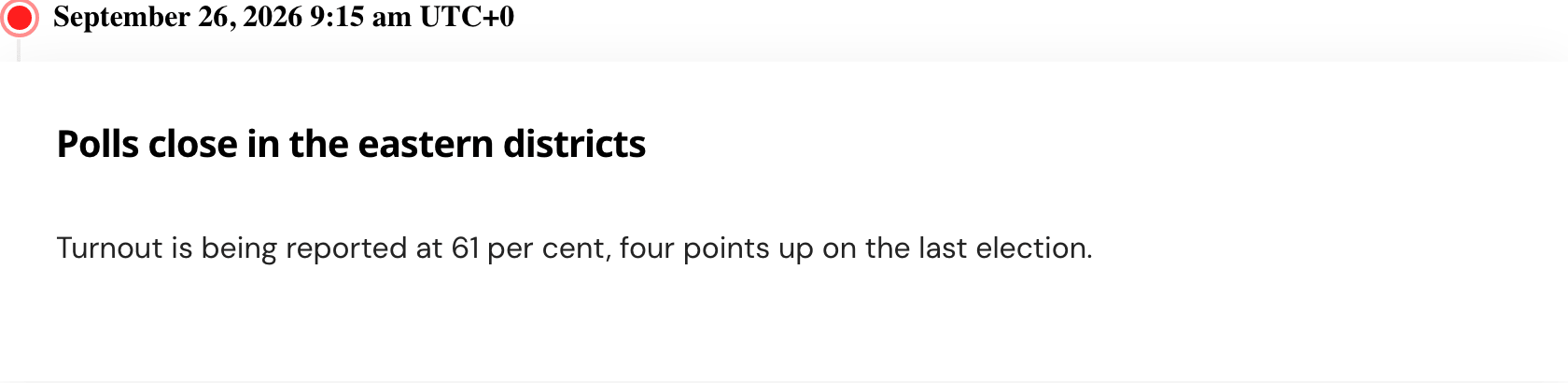
-
Type the update. Start it with a heading and a paragraph, then add any other blocks you need.
-
Save the post.
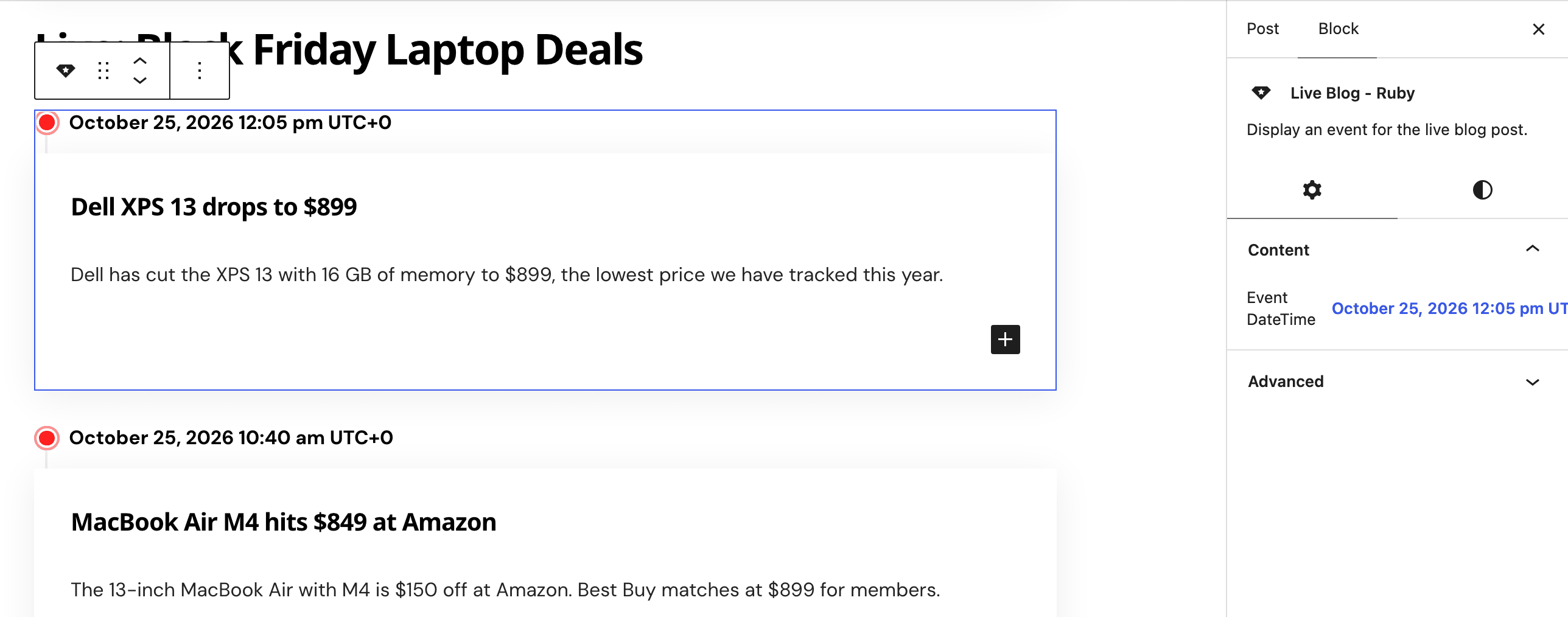
Entries print in the order they sit in the post. For the newest update at the top, insert each new block above the previous one.
Why a heading and a paragraph first: search engines get each entry as a separate update of the live post. The first heading in the block becomes the update's headline and the first paragraph its text.
The counter at the top of a live post counts the Live Blog blocks in it, including those inside a synced pattern. It updates when you save the post.
Settings
The Settings tab (the gear icon) holds the Content panel. The Styles tab (the half filled circle) holds Border & Shadow and Inner Padding.
Content
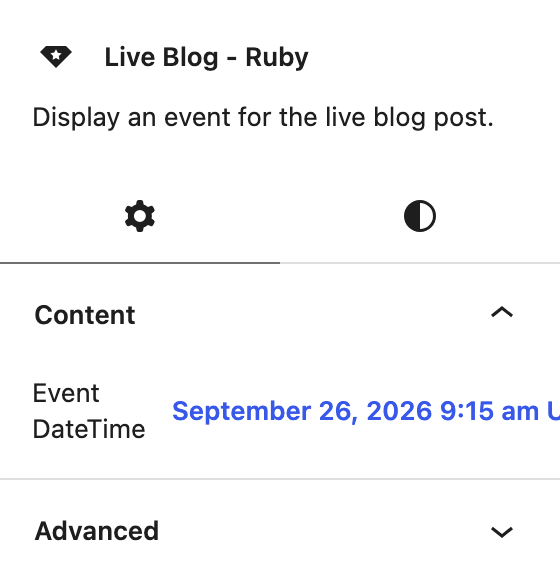
- Event DateTime: when this update happened. Click the date to open a calendar and a time picker. It starts at the moment you insert the block, so change it only to back date an entry or match an event's real time. A block whose date is cleared prints nothing on the front end.
On the front end the entry shows its age, such as "5 min ago" or "2 hr 10 min ago", then the full date and time. The full date follows Date Format in Theme Options > Single Post > Entry Meta, in the Secondary Meta Line group. That field shows only while Last Updated Date is on. Leave it empty and the entry uses your WordPress date and time formats from Settings > General.
Border & Shadow (Styles tab)
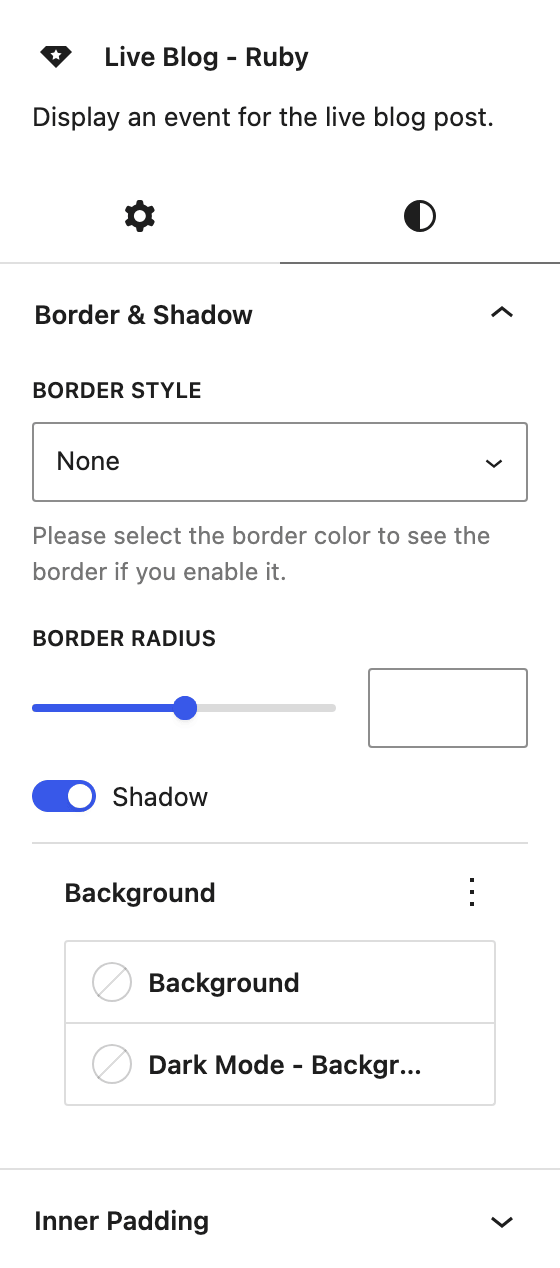
- Border Style: None, Solid, Dashed, Dotted or Double. Empty by default, so the card has no border.
- Border Width and Border Color (with its Dark Mode - Color): these appear once Border Style is set to anything but None. Pick a colour too, or the border will not show.
- Border Radius: rounds the card's corners, from 0 to 100 pixels. Empty by default.
- Shadow: a soft shadow around the card. On by default.
- Background and Dark Mode - Background: the card's fill colour in light and dark mode. Empty by default.
These style one entry. To give every entry the same look, set them on the first block and copy it for the next update, then change its Event DateTime and text.
Inner Padding (Styles tab)
The space between the card's edge and its content, set side by side for Desktop, Tablet and Mobile. The defaults are 30px on every side on desktop, 25px on tablet and 20px on mobile. The canvas shows a new value once you click outside the panel.
Did this answer your question?