Text in Your Language Shows in a Different Font
Your site is in Hindi, Tamil, Bengali or another language with its own script, and that text looks wrong: it comes out in a plainer font than the English words around it, the headings and the body look the same, or the vowel signs sit oddly. The browser is filling in letters your font does not have, from a system font.
There are two causes, and the fix is in Theme Options > Typography for both.
1. The font has no letters for your script
A Google font only covers the scripts its designer drew. Of the 1,959 Google fonts in the Foxiz list, 63 include Devanagari (Hindi, Marathi, Nepali), 17 Tamil, 11 Bengali and 27 Telugu. Popular choices without any Indian script include Inter, Roboto, Open Sans, Montserrat, Lato and DM Sans.
Neither of the theme's own default fonts has one either: Oxygen for body text and Encode Sans Condensed for headings. So a Hindi site that never set its fonts shows exactly this problem everywhere.
To pick a font that covers your script:
-
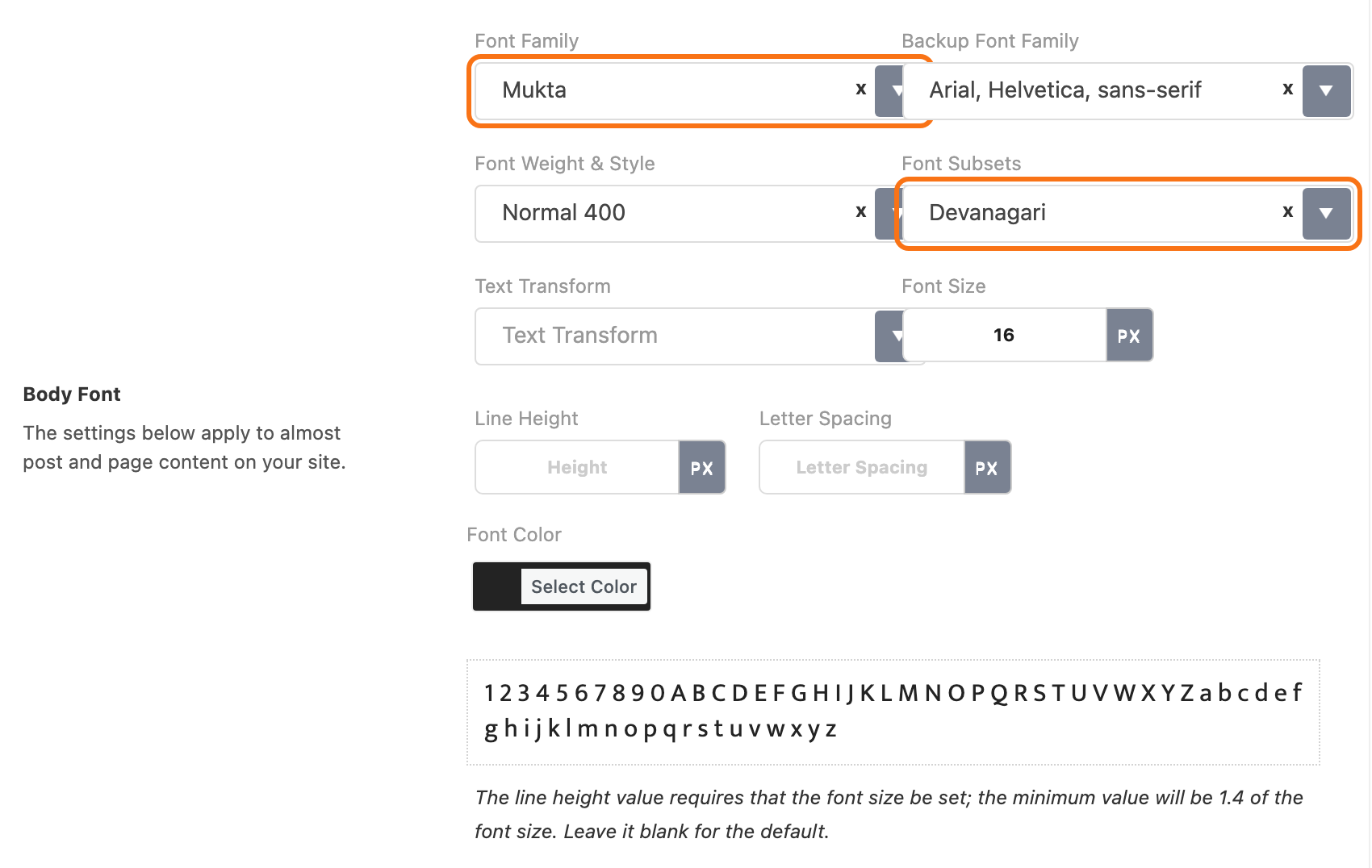
Go to Theme Options > Typography and open the panel for the text that looks wrong, such as Website Body for the body text.
-
In Font Family, choose a Google font.
-
Open Font Subsets beside it. It lists the scripts that font covers. No Devanagari in the list means the font cannot show Hindi: pick another font.
-
Click Save Changes.
Fonts that cover each script and are safe choices for most sites:
- Hindi and other Devanagari languages: Poppins, Mukta, Hind or Noto Sans.
- Tamil: Noto Sans Tamil, Hind Madurai or Mukta Malar.
- Bengali: Noto Sans Bengali or Hind Siliguri.
- Telugu: Noto Sans Telugu or Hind Guntur.
Do the same for every Font Family you set, headings and menus included.
2. Font Subsets leaves your script out
A font can cover Devanagari and still not load it. Font Subsets decides which scripts the site downloads. With a script chosen there, the font files for other scripts are left out, apart from basic Latin.
- In each Font Family that uses a different Google font, set Font Subsets to Devanagari (or your script).
- Click Save Changes.
You do not have to repeat it on every field with the same font: Foxiz combines the subsets of all fields that share a family.
If you host the fonts yourself
Fonts downloaded at Foxiz > Fonts (GDPR) keep the subsets they had when you downloaded them. After changing a font or its subsets, that page marks the font Outdated. Click Download & Self-Host again. See How to Host Google Font Locally.
Then clear your cache plugin, as in Changes Not Showing on the Site, and reload the page.
Fonts that are not from Google
- Adobe Fonts: check the font's language support on its Adobe page, and add the language in your Adobe project. See How to Use Adobe Fonts (Typekit).
- A font you uploaded: it only has the letters inside its file. Upload a version that includes your script. See Upload Your Own Font with Local Fonts Uploader.
- Fonts inside Elementor blocks are Elementor's own, set on each block's Style tab. Check the same way there.
Every typography field is described in Typography Options.
Still stuck? Open a ticket with the address of a page that shows the problem, your language, and the Font Family and Font Subsets you set.
Did this answer your question?