for Header 1,2,3
The width, height and colours of the desktop header when Header Layout is set to layout 1, 2 or 3.

Where: Theme Options > Header > for Header 1,2,3.
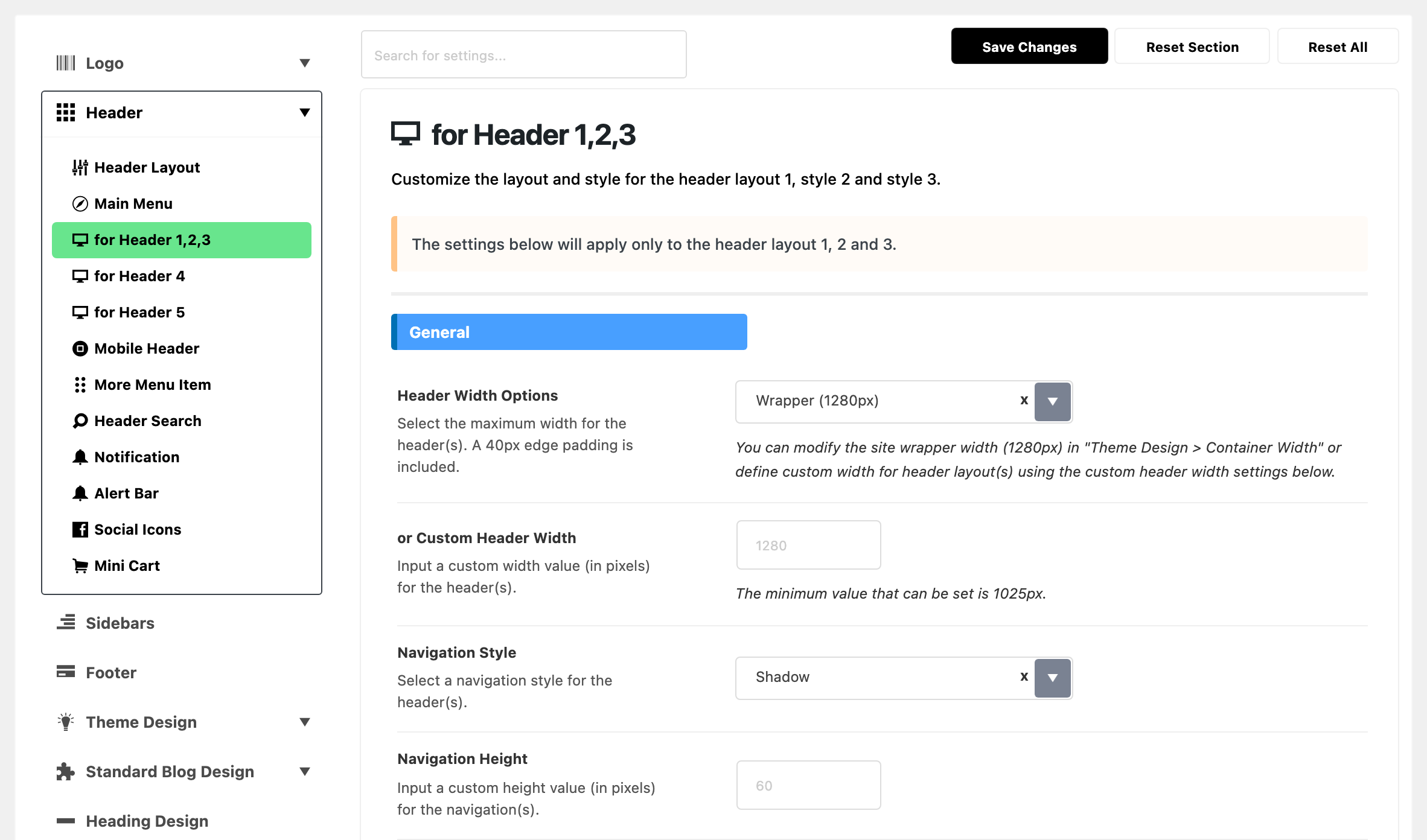
Why this subsection exists
Foxiz has five predefined desktop headers. You pick one in Header Layout, then style it in the for Header subsection that matches it. The panel says so in a note at the top of Header Layout.
The layouts are not built the same way, so they do not share one set of settings:
- Layouts 1, 2 and 3 put the logo, the menu and the icons in one bar. They differ only in where the menu sits, so they share one subsection: for Header 1,2,3.
- Layout 4 and Layout 5 have two rows: a logo row on top and a menu bar under it. Each has its own subsection, for Header 4 and for Header 5, with fields the one bar layouts do not need.
Check Header > Header Layout first, then:
- Layout 1 (Left Menu), Layout 2 (Right Menu) or Layout 3 (Center Menu): for Header 1,2,3.
- Layout 4 (Border): for Header 4.
- Layout 5 (Center Logo): for Header 5.
- Use Ruby Template: none of them. A template header is styled in Elementor.
Changes in the other subsections do nothing on your site. A post, a category or another narrower setting can pick a different layout for its pages, so one site can use two of these subsections.
Layouts this subsection styles
These settings reach six layouts, and only those:
- Layout 1 (Left Menu)
- Layout 2 (Right Menu)
- Layout 3 (Center Menu)
- Transparent - Layout 1, 2 and 3: the same three layouts, laid over the top of the page.
These settings style the predefined headers only. A header built as a Ruby Template takes its width and colours from the template, in Elementor.
They also style the desktop header only. Phones and tablets get the Mobile Header. It borrows the colours of the Menu group below while its own colour fields are blank.
General
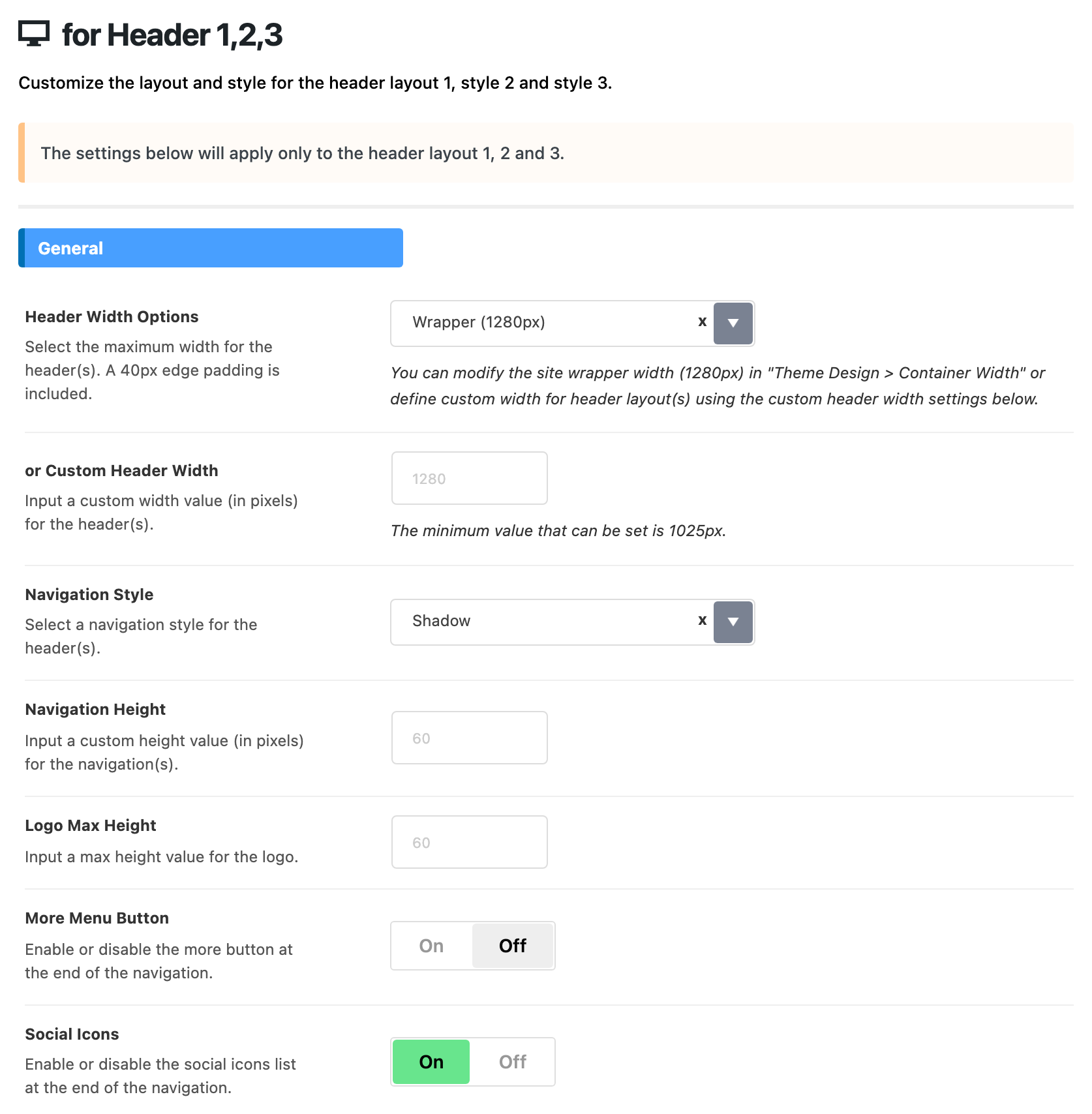
- Header Width Options: how far the logo and the menu spread across the screen.
- Wrapper (1280px) keeps them inside the width of your content. This is the default.
- Full Width (100%) spreads them to the edges of the screen.
- The 1280px follows the site width you set in Container Width.
- or Custom Header Width: a width in pixels for the header alone, in place of the site width. Default: empty, which follows the site width.
- A number under 1025 is raised to 1025.
- It works with Wrapper (1280px). With Full Width (100%) the bar spreads to the screen edges whatever you type.
- Use it when you want the header wider or narrower than the content under it.
- Navigation Style: the line or shadow under the bar, where it meets the page.
- Shadow: the default.
- Bottom Border
- Dark Bottom Border
- None
- A post, a page and some archive panels can pick another style. See What overrides it.
- Navigation Height: the height of the bar, in pixels. Default: empty, which is 60.
- Logo Max Height: the tallest the desktop logo may be, in pixels. A taller logo image is scaled down to fit. Default: empty, which is 60.
- Raise it when your logo looks too small in the header.
- The phone logo has its own field: Mobile Logo Height, in Mobile Header.
- More Menu Button: adds a button with three dots at the end of the menu. It opens a dropdown that shows the widgets in Appearance > Widgets > More Menu Section. Off by default.
- The dropdown's columns and footer are set in Header > More Menu Item.
- Walked through in how to add more button menu to the main navigation.
- Social Icons: a row of social icons at the right end of the bar. On by default.
- It shows one icon for each profile filled in Theme Options > Social Profiles. With none filled, nothing shows.
- The icon size is Icon Size, in Header > Social Icons.
Menu
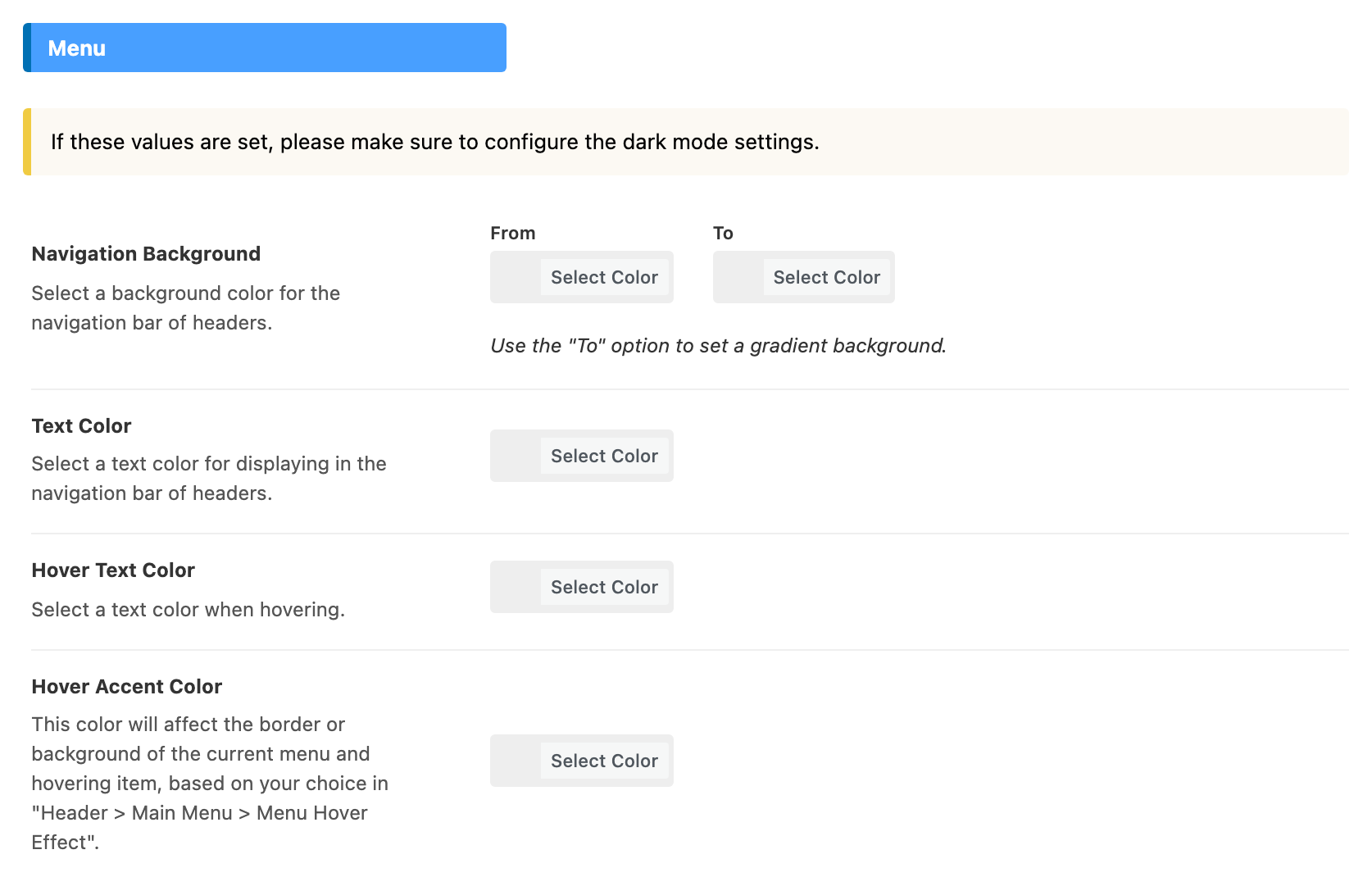
The colours of the bar in light mode. All four are empty by default, which keeps the theme's own colours. The dropdowns under the menu take their colours from Header > Main Menu.
Set a colour here and set its partner in Dark Mode - Menu too. A colour set here also shows in dark mode while the dark field is blank. The group's own note warns about this.
- Navigation Background: the colour of the bar. Default: empty, which is white.
- Fill the second colour, To, for a gradient from left to right. Fill only one and the bar is a solid colour.
- The bar uses it while it sticks to the top on scroll too. With Glass Effect on in Header > Main Menu, the colour turns partly see through there.
- Text Color: the colour of the menu items and the rest of the text in the bar.
- Hover Text Color: the colour of a menu item under the mouse.
- Hover Accent Color: the colour of the mark on the current menu item and on the one under the mouse. What it colours depends on Menu Hover Effect in Header > Main Menu:
- Default (Color Border): the line under the item.
- Style 2 (Opacity): not used. This effect only fades the item.
- Style 3 (Background): the shape behind the item. Blank is light grey.
- Style 4 (Underline): the underline.
- Blank uses Global Highlight Color, from Global Colors.
Dark Mode - Menu
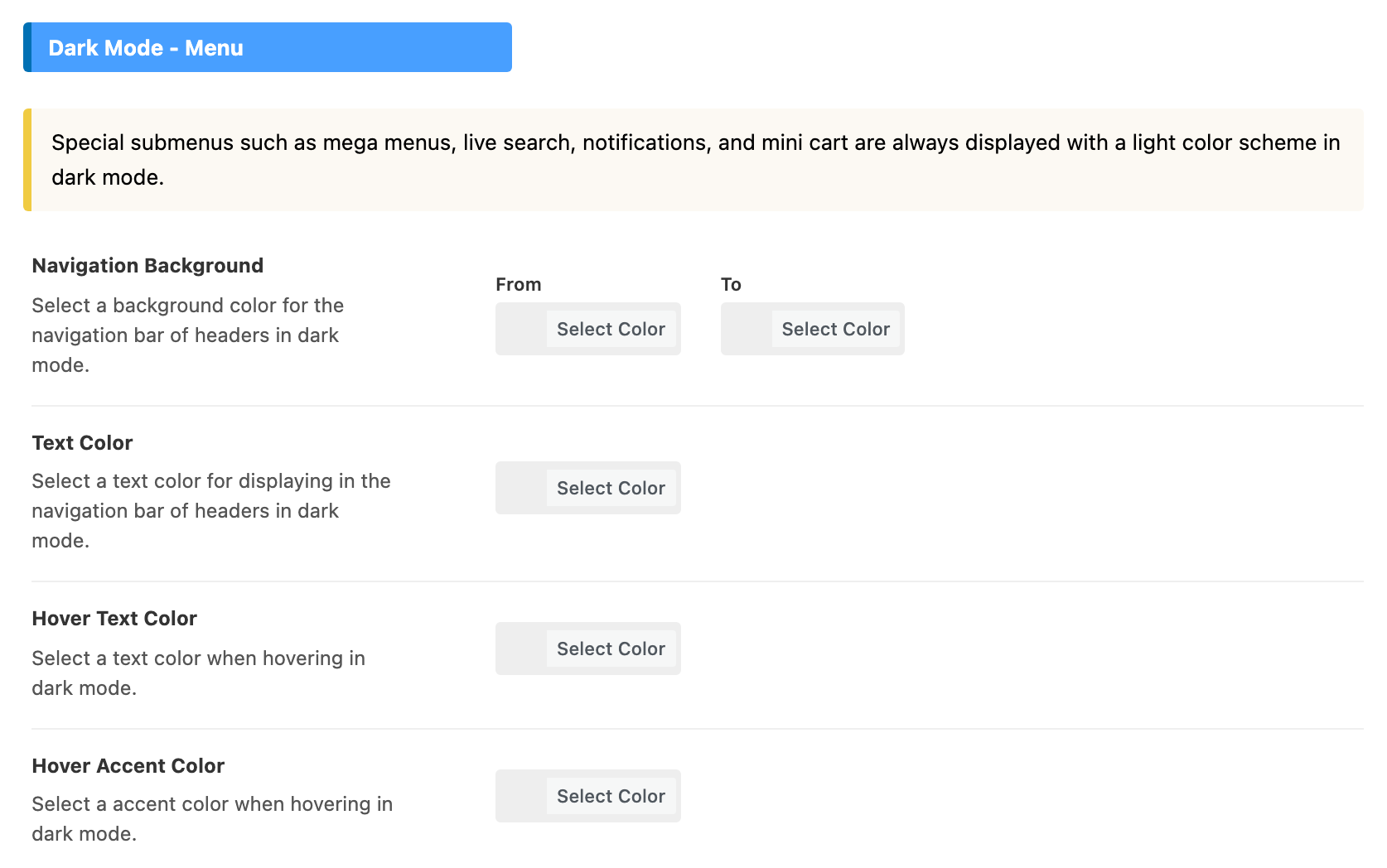
The same four colours, used when a visitor is in dark mode. All four are empty by default. Blank keeps the theme's dark colours, unless you set the matching colour in Menu.
- Navigation Background: the bar in dark mode. Blank is a near black, #131518. A second colour in To makes a gradient.
- Text Color: the menu items and text in the bar, in dark mode.
- Hover Text Color: a menu item under the mouse, in dark mode.
- Hover Accent Color: the hover mark, in dark mode. It follows Menu Hover Effect the same way as in Menu.
In dark mode, mega menus, live search, notifications and the mini cart always show light text on their dark dropdown, whatever you set here. The panel calls this their light colour scheme; it means light text, not a white dropdown.
Transparent Headers
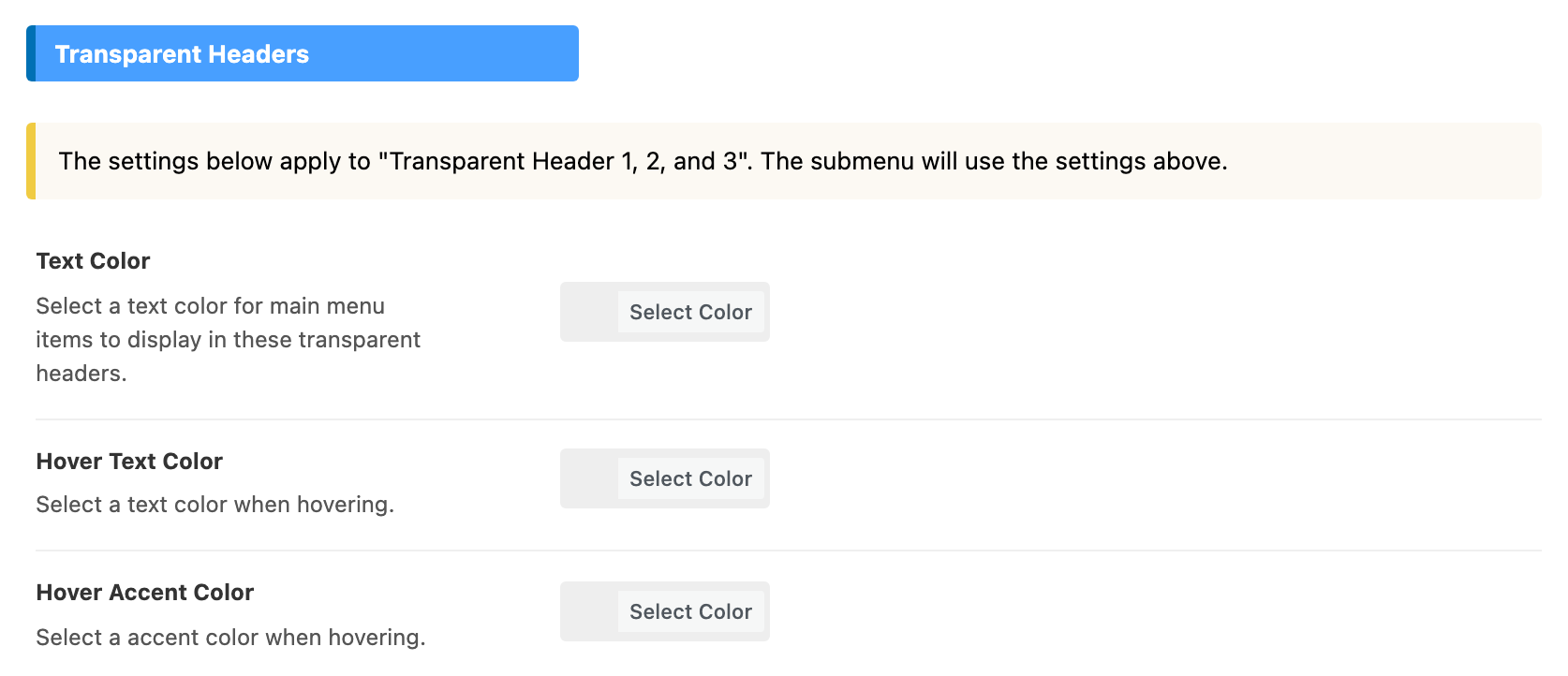
A transparent header has no bar behind it. Its menu sits over the top of the page, usually over a wide featured image. These three fields colour that menu.

You pick a transparent layout for a post, a page or an archive, not in Header Layout: see header layouts. Its logo comes from Logo > Transparent Logos.
- Text Color: the menu items over the page. Default: empty, which is white. Change it when your top image is light and white text disappears on it.
- Hover Text Color: a menu item under the mouse. Empty by default, which keeps the text colour.
- Hover Accent Color: the line under the current item and the one under the mouse. Default: empty, which uses Hover Accent Color from Menu above. It is used with the hover effect Default (Color Border).
When a transparent header sticks to the top on scroll, it gets a bar again, coloured by Navigation Background in Menu.
What overrides it
Navigation Bar Style wins over Navigation Style wherever it is set:
- One post: the Site Header tab of the Single Post Settings box, under the editor.
- One page: the Site Header tab of the Single Page Settings box.
- One item of another post type: the Site Header tab of the Single Post Type Settings box.
- Category pages: Theme Options > Category, in the Site Header group.
- The blog page: Theme Options > Blog Index.
- Search results: Theme Options > Search Page.
- Podcast shows: Theme Options > Ruby Podcast > Show.
Left on - Default -, each of them uses the style set here.
Related
- How to config the header: the whole header, from top to bottom.
- Header layouts: a different layout, or a transparent one, for posts, pages and archives.
- How to add more button menu to the main navigation
- How to enable the menu sticky: the bar that follows the reader down the page.
- Your site social profiles: the links behind the social icons.
- Container Width: the site width that Wrapper (1280px) follows.
Did this answer your question?