How to Use the Call to Actions Block
Call to Actions - Ruby puts a call to action box in your post: a heading, a short description, an optional image and one or more buttons. Use it to send readers to a sign up page, a product, a download or another article.

On phones the image sits above the text. From 768px wide the text and the image sit side by side, with the image on the right unless you move it left.
Add the block
- Open a post in the editor: Posts > All Posts, then the post's title, or Posts > Add Post.
- Click where the box should go, then click the + block inserter at the top left of the editor.
- Type Call to Action in the search box.
- Click Call to Actions - Ruby. It arrives with a sample heading, "Ready to Take the Next Step?", a sample description and one Get Started button.
- Click the heading and the description in the canvas to replace the sample text, or type them in the Content panel of the block settings sidebar.
- Open CTA Buttons in the sidebar and give the button its label and link.
- To change sizes and colours, switch the sidebar to its Styles tab.
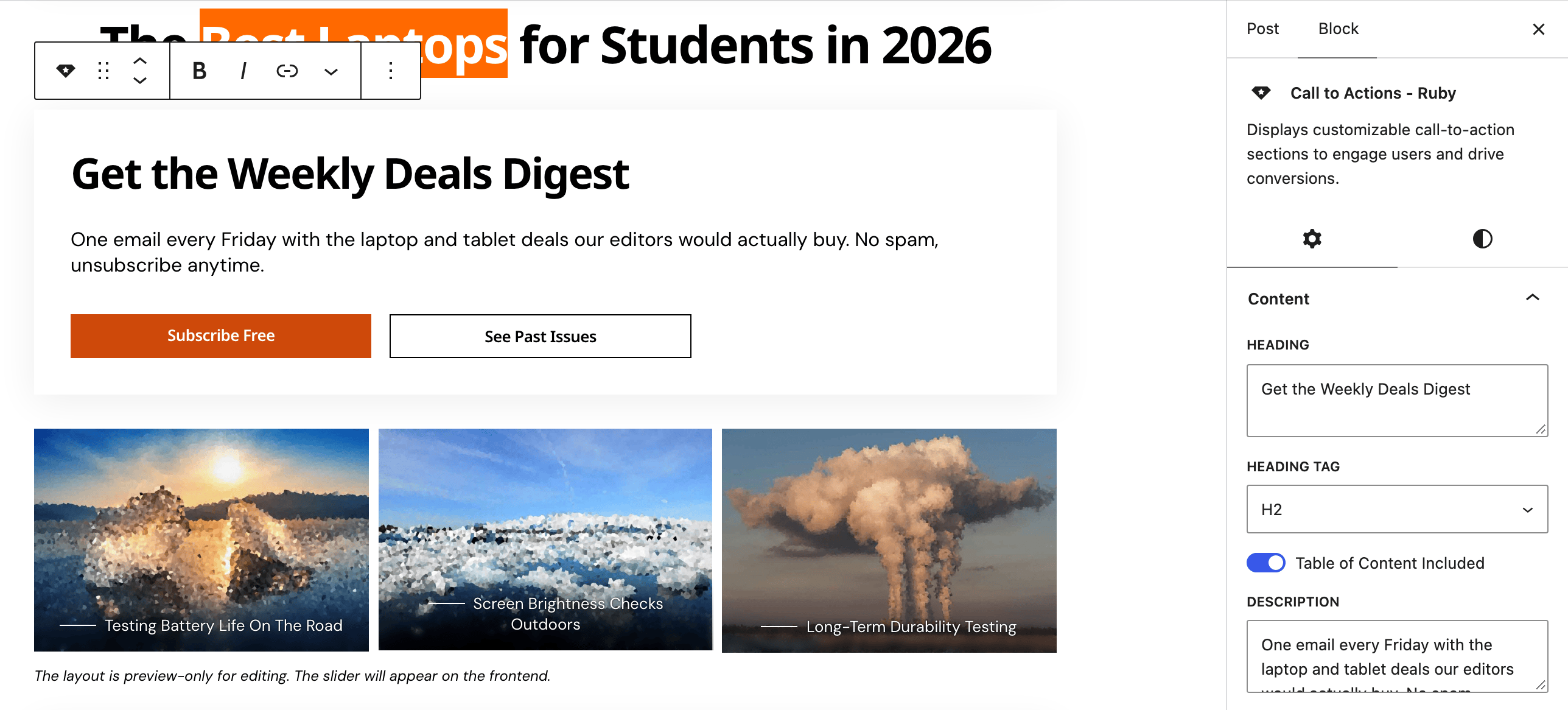
Settings
The block splits its panels across the two tabs of the block sidebar. The Settings tab holds Content and CTA Buttons. Every other panel is on the Styles tab.
Content
- Heading: the box's title. Default: "Ready to Take the Next Step?". Clear it to show no heading.
- Heading Tag: the HTML tag of the heading: H2 to H6, p or Div. Default: H2.
- Table of Content Included: lists the heading in the post's table of contents. Default: on. Turn it off so a promotional heading stays out of the contents box.
- Description: the text under the heading. Default: a sample sentence. Clear it to show none.
- Featured Image: an image from the media library, added with Add Image and taken off with Remove Image. None by default.
- or Enter Custom Link: the web address of an image hosted elsewhere. It is used only when Featured Image is empty.
CTA Buttons
Each button has its own collapsible row, titled with its label. Click Add New Button for another; Delete inside a row removes that button. Delete them all and the box shows no buttons.
- Label: the button text. Left empty, the button reads Get Started.
- URL: where the button goes. Left empty, it links to
#and goes nowhere. - Open in new tab: opens the link in a new tab. Default: off.
- No Follow: adds
nofollowto the link, which tells search engines not to follow it. Use it for sponsored and affiliate links. Default: off. - Outlined Style: draws the button as an outline instead of a filled button. Use it for a second, quieter button beside the main one. Default: off.
Styles tab: Heading
- Font Size: the heading size in pixels, with one box each for Desktop, Tablet and Mobile. Empty by default, which uses the theme's size for the chosen Heading Tag.
- Bottom Margin: the space below the heading, in pixels, per device. Empty by default.
- Color and Dark Mode - Color: the heading colour. Empty by default, which keeps the theme's heading colour.
Styles tab: Description
- Font Size: the description size in pixels, per device. Empty by default, which is 1rem.
- Bottom Margin: the space below the description, above the buttons, per device. Empty by default, which leaves 20px on phones, 25px on tablets and 30px on desktops.
- Color and Dark Mode - Color: the description colour. Empty by default, which keeps the text colour.
Styles tab: Image
- Image Width: the image width in pixels, per device. Empty by default, which is 150px on desktops, 120px on tablets and 100px on phones.
- Left Image Position: moves the image to the left of the text, and the buttons to the right. Default: off, image on the right.
- Border Radius: the image's corner rounding, from 0 to 2000 pixels. Empty by default, which uses the theme's rounded corners.
Styles tab: CTA Buttons
- Font Size: the button text size in pixels, per device. Empty by default, which uses the theme's button size.
- For Filled Buttons: Color, Background, Dark Mode - Color and Dark Mode - Background. Empty by default, which gives white text on the theme's button colour.
- For Outlined Buttons: Color, Border Color, Dark Mode - Color and Dark Mode - Border Color, for buttons with Outlined Style on. Empty by default, which draws the outline in the text colour on a transparent background.
Styles tab: Border & Shadow
- Border Style: None, Solid, Dashed, Dotted or Double. No border by default.
- Picking a style other than None shows Border Width and Border Color (Color and Dark Mode - Color). Set a width and a colour as well, or the border stays invisible.
- Border Radius: the box's corner rounding, from 0 to 100 pixels. Empty by default, which uses the theme's rounded corners.
- Shadow: a soft shadow around the box. Default: on.
- Background and Dark Mode - Background: the fill behind the box. Empty by default, which is transparent.
Styles tab: Inner Padding
- Desktop, Tablet and Mobile: the space between the box's edge and its content, set per side. Default: 30px on every side on desktops (from 1025px wide), 25px on tablets (from 768px) and 20px on phones.
Did this answer your question?