How to Collect Email Lists When Using the Gutenberg Subscribe to Download Block
This block allows you to offer free downloads in exchange for email subscriptions. Connect it to Mailchimp and every address a reader enters joins your Mailchimp list.
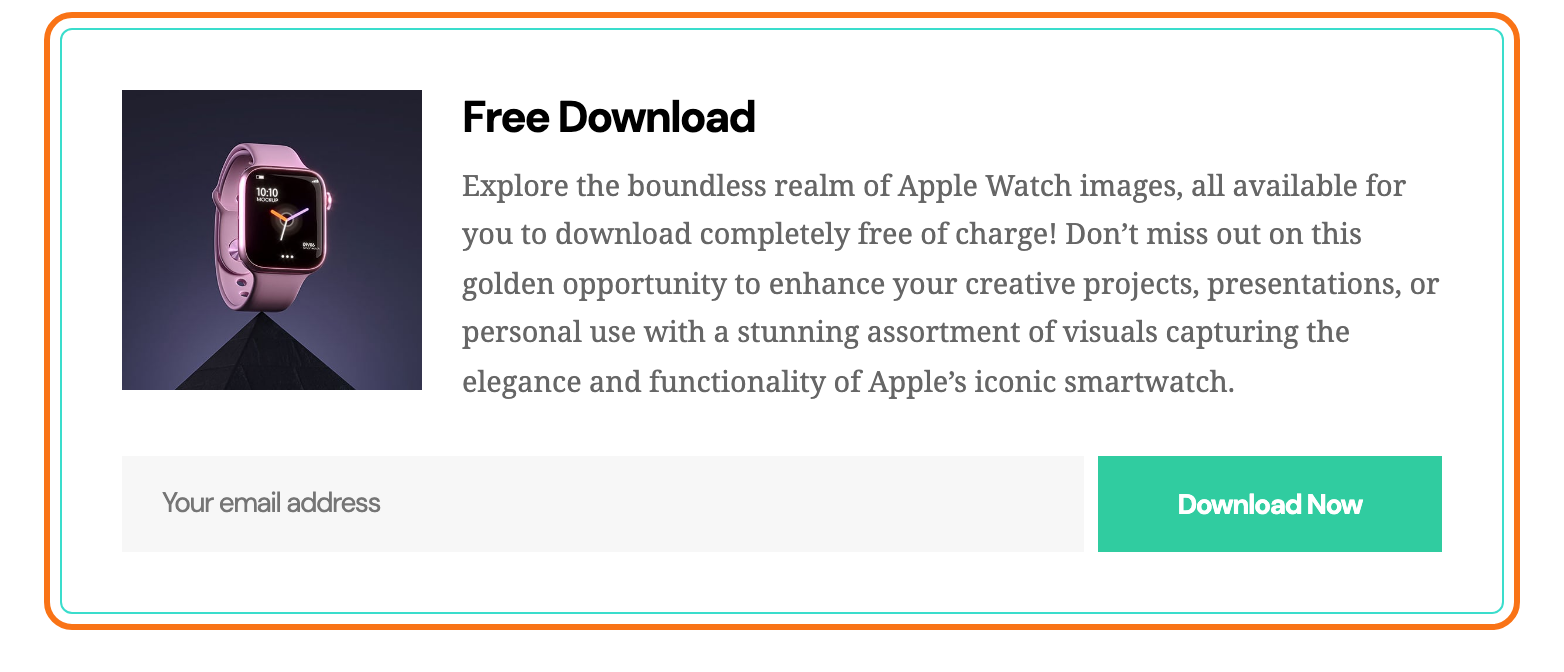
In the block inserter it is called Subscribe to Download - Ruby, and it comes from Foxiz Core rather than from Mailchimp.
Install the Mailchimp plugin first
To collect a list of subscribing emails, please ensure that you have installed the MailChimp plugin for WordPress: https://wordpress.org/plugins/mailchimp-for-wp/
Without it the block still works: a visitor who enters an address gets the file. The address simply goes nowhere, because Foxiz fires a subscribe event and it is the Mailchimp plugin that listens for it.
For adding Gutenberg blocks, you can refer to this documentation: https://help.themeruby.com/foxiz/how-to-use-gutenberg-blocks/
Choose the Mailchimp audience
After installing the Mailchimp for WordPress plugin, to select a list on Mailchimp when a user subscribes for download, please follow the steps below:
-
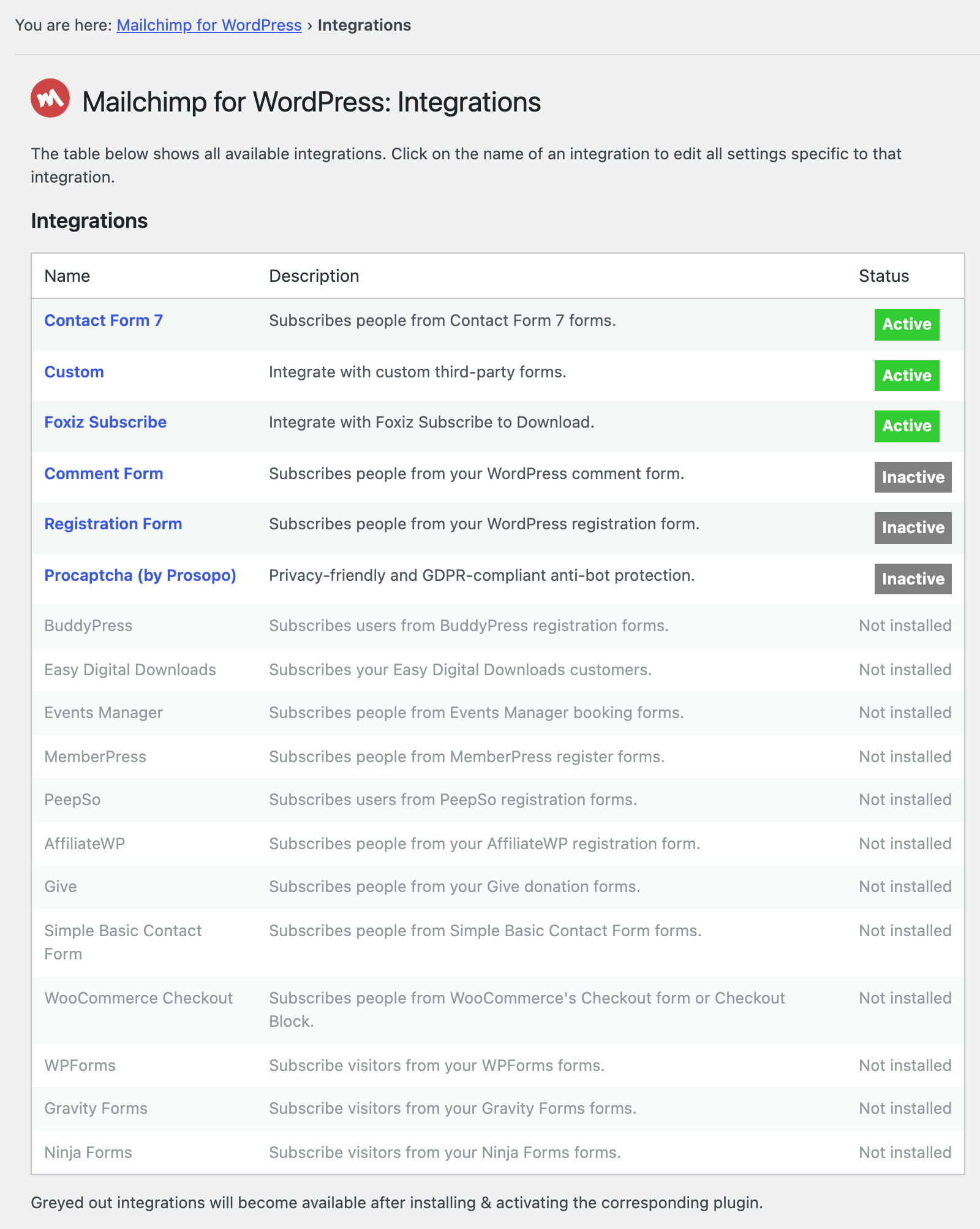
Navigate to MC4WP > Integrations > Foxiz Subscribe. MC4WP is the top level menu the plugin adds, and Foxiz Subscribe is enabled from the moment both plugins are active, so there is nothing to switch on first.
-
Once you've reached this section, you can simply click on "Foxiz Subscribe"
-
The browser will redirect to the Foxiz Subscribe page. Look at the Mailchimp audiences row to see if you already have a list connected to Mailchimp. If it reads "No audiences found, are you connected to Mailchimp?", as in the screenshot below, click are you connected to Mailchimp to connect your account first.
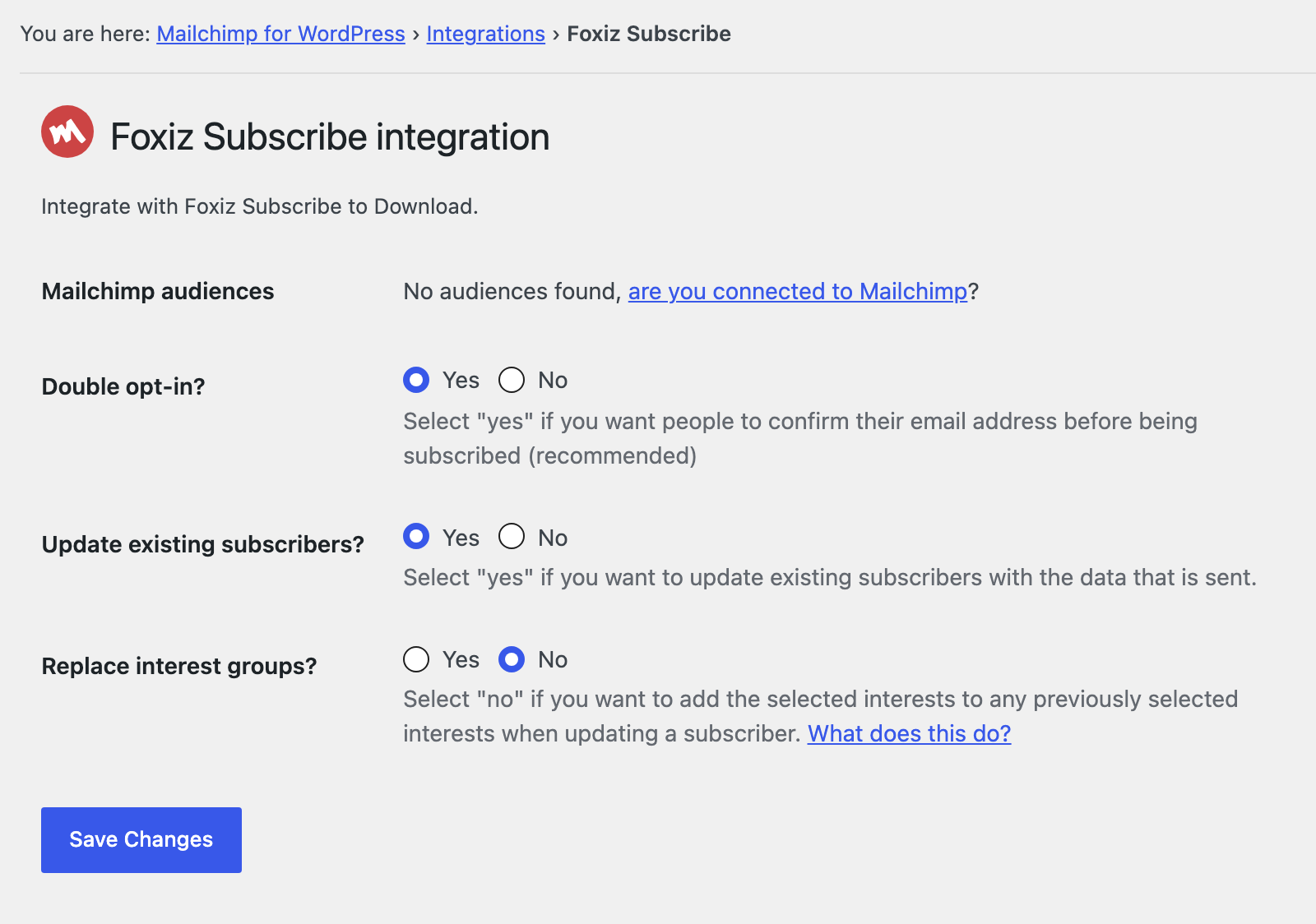
Older versions of the plugin called that row Mailchimp Lists. The link goes to the plugin's own settings screen, where you connect an API key.
Foxiz asks the plugin for four controls on this page and no others: the audience list, Double opt-in?, Update existing subscribers? and Replace interest groups?. Tick one or more audiences and save. The fourth of them is hidden until you need it: Replace interest groups? carries a
data-showifon Update existing subscribers?, so the row only appears once that one is set to Yes.
Show the consent checkbox
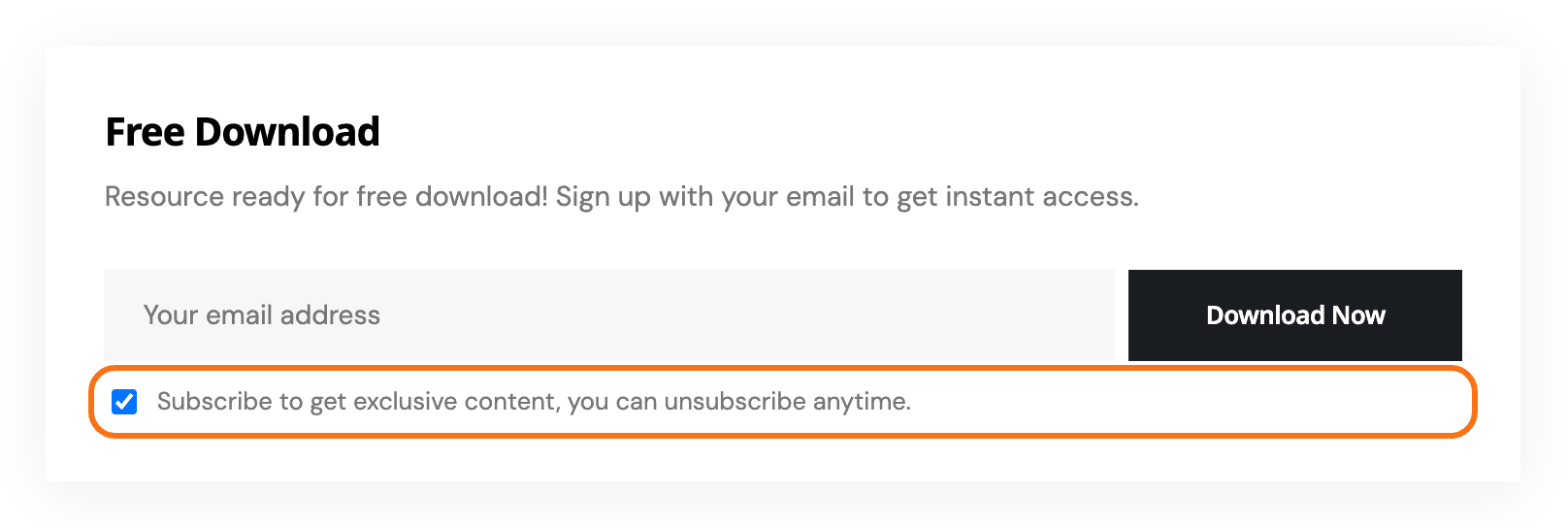
One of those four changes the block itself. The consent checkbox under the email field, the one carrying the Checkbox Text you typed in the block, is only printed when Double opt-in? is on for this integration. Leave it off and the block shows the email field and the button alone. The block reads the saved setting, so click Save Changes even if the page already shows Yes: on a page never saved, the checkbox stays hidden.
If a test download fails
When you test the form, two answers mean the block rather than Mailchimp. "Sorry, File not found." means the block's Download File > Select or Upload File is empty. The same message appears on a password protected post until you enter its password, and on a post the visitor is not allowed to see; in both cases the address is not subscribed either. A refusal after ten submissions in a minute is the rate limit, which counts per visitor and clears itself.
The block is also skipped entirely on AMP pages, so do not test it there.
Did this answer your question?