How to Use the Subscribe to Download Block
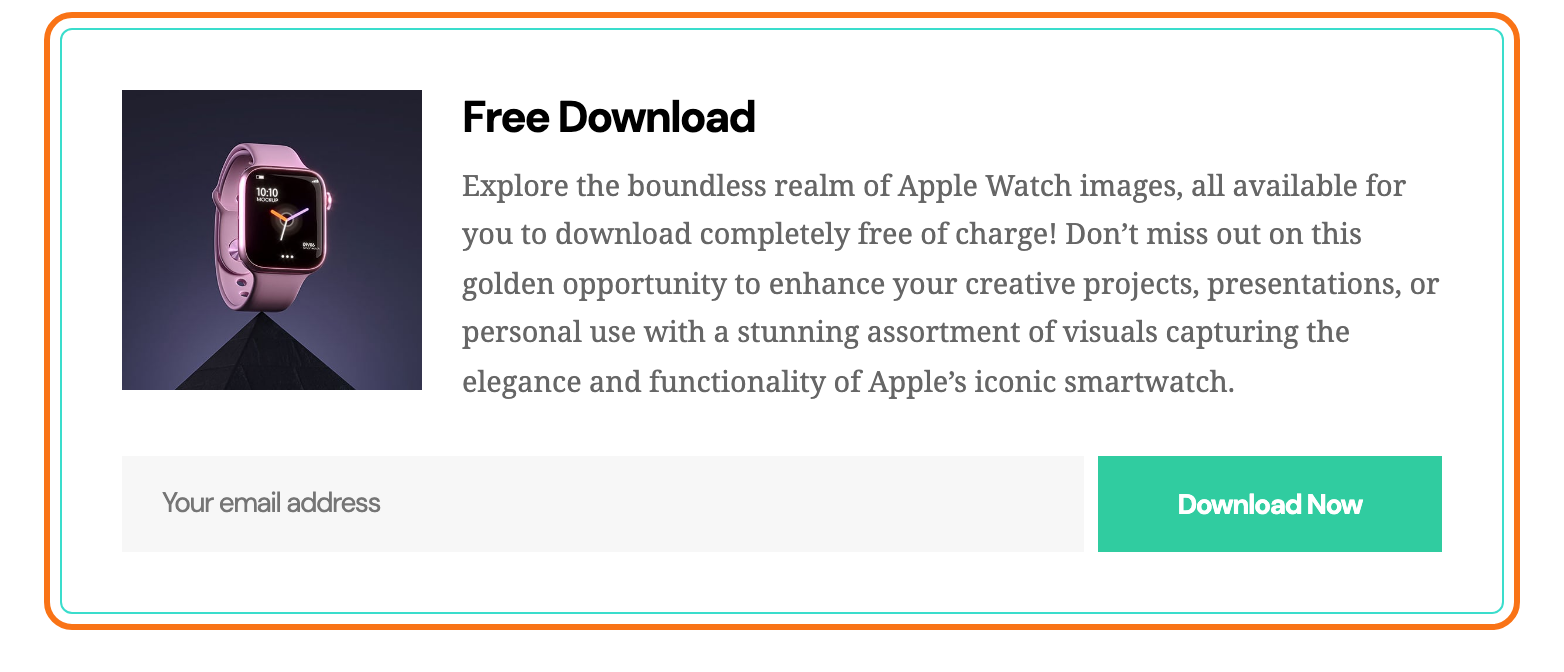
Subscribe to Download - Ruby offers a free file, such as a PDF guide or a template pack, in exchange for an email address. The visitor types their address, clicks the button and the download starts. With the Mailchimp for WordPress plugin connected, the address also joins your Mailchimp audience.
Connecting the addresses to Mailchimp is its own job: see How to Collect Email Lists When Using the Gutenberg Subscribe to Download Block. The block hands out the file without it.
Add the block
- Go to Posts > Add Post, or open a post you already have.
- Click the + button at the top left of the editor to open the block inserter.
- Type Subscribe to Download in the search box.
- Click Subscribe to Download - Ruby to insert it. Insert it straight into the post, not inside a Group, Columns or other container block, and not inside a synced pattern. The download looks for the block at the top level of the post, so a block placed inside another one answers every visitor with "Sorry, File not found."
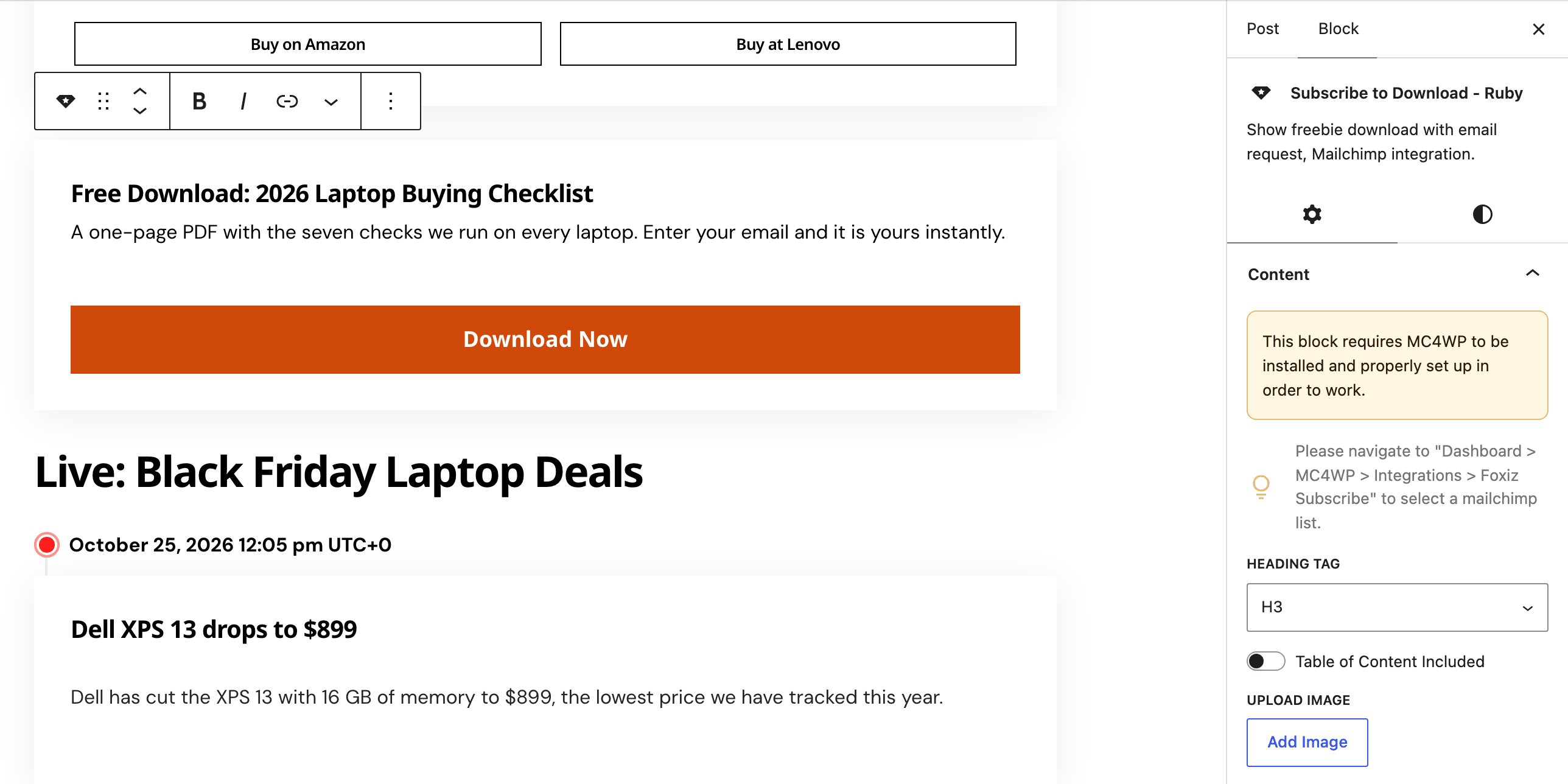
- Type the heading and the description straight into the block. They have no field in the sidebar.
- In the sidebar's Download File panel, click Add File and pick or upload the file.
- Click Save or Publish, then test the form on the published post.
If you duplicate the block to offer a second file, open Download File in the copy and pick its file again. Until you do, the copy hands out the original's file.
Settings
The Settings tab (the gear icon) holds three panels: Content, Download File and MC4WP Integration. The Styles tab (the half filled circle) holds five panels of sizes and colours, all empty by default, which keeps the theme's own look.
Content
The panel opens with a reminder that the block needs MC4WP, and where to choose the Mailchimp list. The file download itself works without it.
- Heading Tag: the HTML tag of the heading, H2 to H6, p or Div. Default: H3.
- Table of Content Included: lists the heading in the post's table of contents. Off by default.
- Upload Image: click Add Image for a picture shown with the heading, such as the cover of the guide.
- or Enter Custom Link: the address of an image hosted elsewhere. It is used only when no image was picked.
- Button Label: the submit button text. Default: Download Now.
The heading starts as Free Download and the description as "Resource ready for free download! Sign up with your email to get instant access." Change both in the block.
Download File
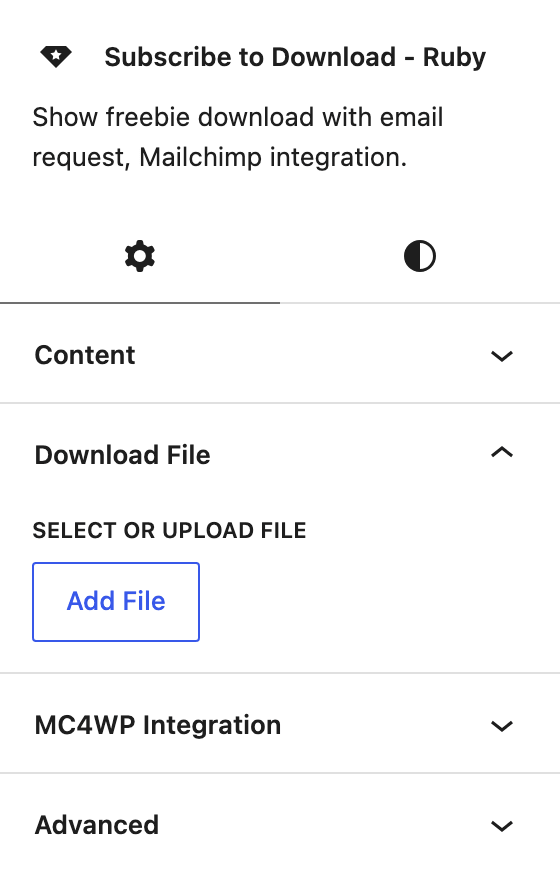
- Select or Upload File: click Add File to pick any file from the Media Library or upload one. The panel then shows its address and a Remove File button. Empty by default, and an empty block answers "Sorry, File not found." when a visitor submits.
The file stays in your Media Library at a public address. The form hands that address to visitors who can see the post; it does not hide the file from someone who already has the link.
MC4WP Integration
- Checkbox Text: the consent line printed beside a ticked checkbox under the email field. Default: "Subscribe to get exclusive content, you can unsubscribe anytime." It shows only when Double opt-in? is on in the Foxiz Subscribe integration of MC4WP.
Heading (Styles tab)
- Font Size: the heading's size in pixels for Desktop, Tablet and Mobile.
- Color and Dark Mode - Color: the heading's colour in light and dark mode.
Description (Styles tab)
- Font Size: the description's size in pixels for Desktop, Tablet and Mobile.
- Color and Dark Mode - Color: the description's colour in light and dark mode.
Image (Styles tab)
- Image Width: how wide the image is, in pixels, for Desktop, Tablet and Mobile.
Border & Shadow (Styles tab)
- Border Style: None, Solid, Dashed, Dotted or Double. Empty by default, so the block has no border.
- Border Width and Border Color (with its Dark Mode - Color): these appear once Border Style is set to anything but None. Pick a colour too, or the border will not show.
- Border Radius: rounds the corners, from 0 to 100 pixels. Empty by default.
- Shadow: a soft shadow around the block. On by default.
- Background and Dark Mode - Background: the fill colour in light and dark mode.
Inner Padding (Styles tab)
The space between the block's edge and its content, set side by side for Desktop, Tablet and Mobile. The defaults are 30px on every side on desktop, 25px on tablet and 20px on mobile. The canvas shows a new value once you click outside the panel.
The block does not appear on AMP pages.
Did this answer your question?