How to Use the Related Posts Block
Foxiz can show related posts in every post for you, with nothing to add by hand. In Theme Options > Single Post > Related & Popular you turn on a related section at the end of each post, and an Inner Content Related box inside the content after a set number of paragraphs. Start there: Automatically Adding Related Posts via Theme Options.
Add a box by hand when one post needs it somewhere else. Related Posts - Ruby puts a box of related articles at the exact spot you choose in the post, for example in the middle of a long article.
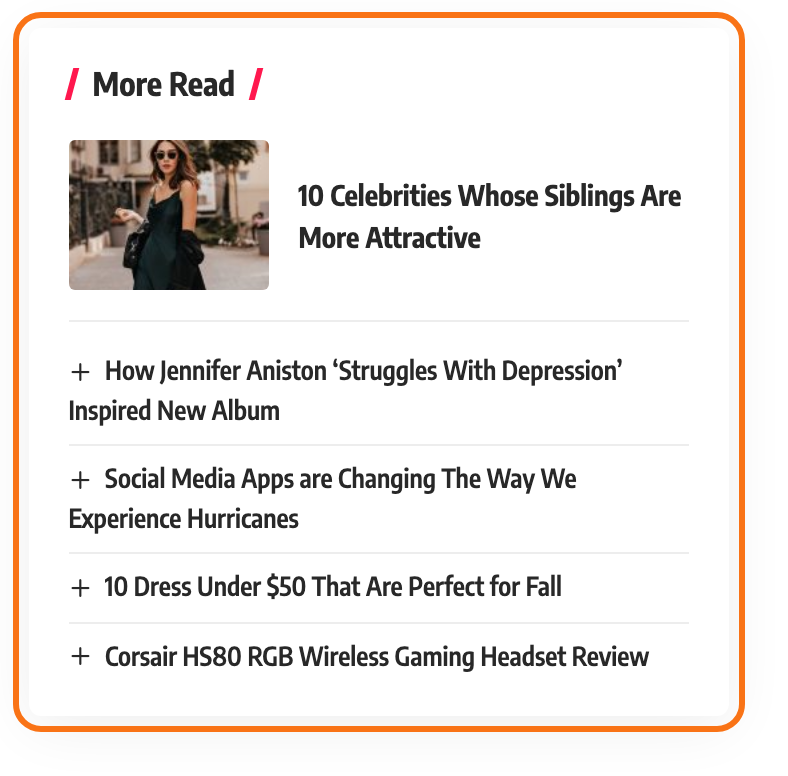
You can add a box by hand in two ways:
- The block, in the block editor. You pick every option from dropdowns, and the canvas shows a preview. Start with Add the block.
- The
[ruby_related]shortcode, anywhere a shortcode works: the Classic Editor, a Shortcode block, or Elementor's Shortcode widget. See Use the shortcode instead.
Both print the same box. The block builds the shortcode for you from its settings.
Left alone, the block shows five posts that share a category or a tag with the current post, in random order, under the heading More Read. The post you are reading is never listed. If no other post matches, the block shows nothing.
Add the block
- Open a post in the editor: Posts > All Posts, then the post's title, or Posts > Add Post.
- Click where the box should go, then click the + block inserter at the top left of the editor.
- Type Related in the search box.
- Click Related Posts - Ruby.
- With the block selected, set it up in the block settings sidebar on the right. The canvas shows a live preview of the box.
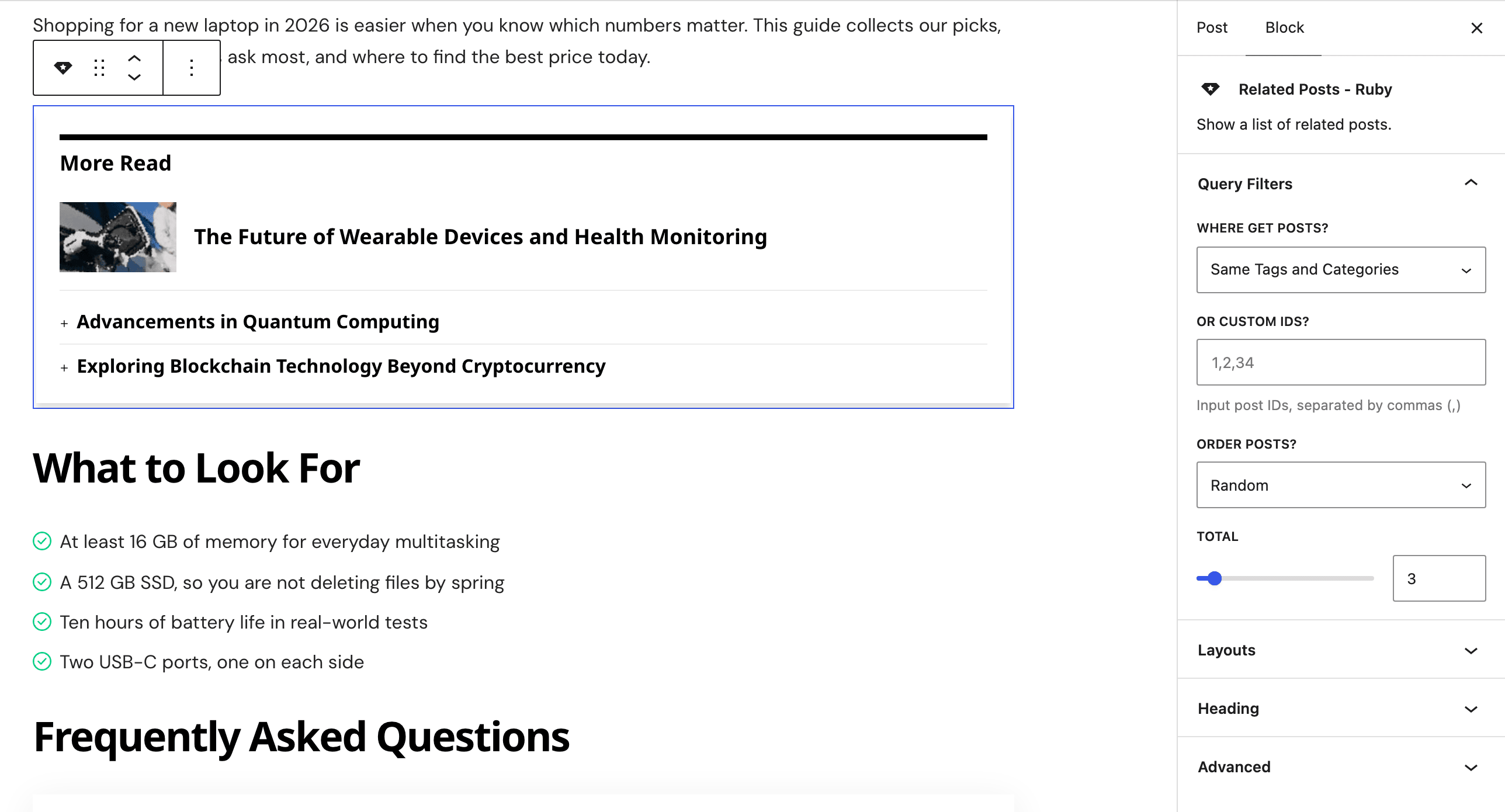
One box per post is enough. When the content holds this block, Foxiz skips the automatic in-content related box for that post, so readers never see two. That automatic box is set up in Automatically Adding Related Posts via Theme Options.
Settings
The block has three panels: Query Filters, Layouts and Heading.
Query Filters
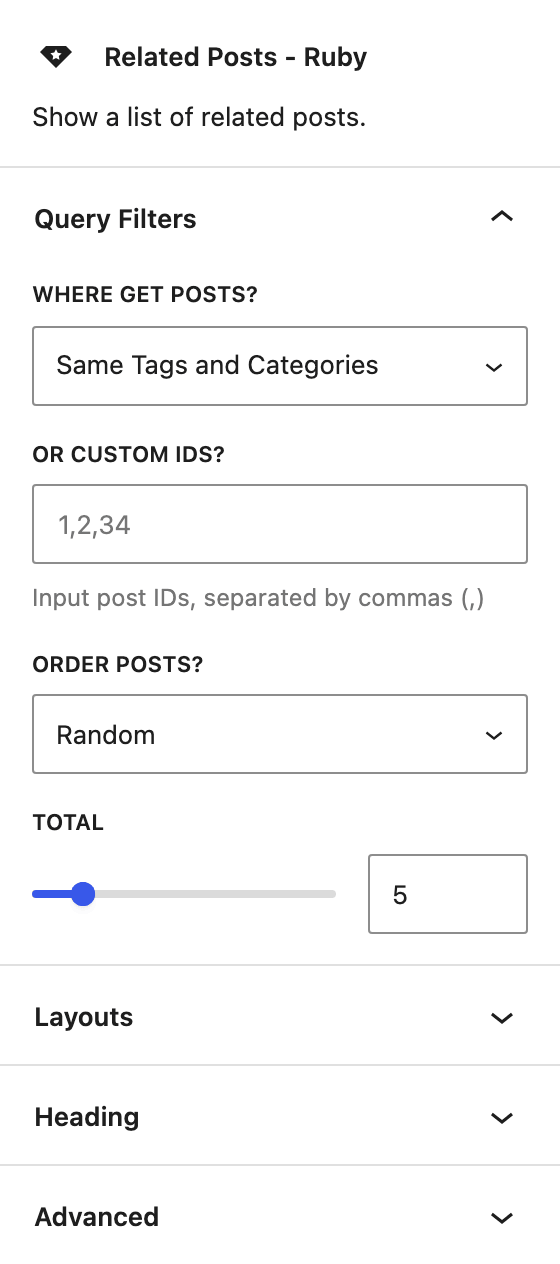
- Where get Posts?: which posts count as related.
- Same Tags and Categories: posts sharing at least one category or one tag. This is the default.
- Categories: posts sharing a category.
- Tags: posts sharing a tag. On a post with no tags, the block falls back to Same Tags and Categories.
- or Custom IDs?: post IDs separated by commas, such as
1,2,34. Use it to hand pick the posts. When it is filled, the block shows exactly those posts in the order you typed them, and Where get Posts?, Order Posts? and Total no longer apply. Empty by default. - Order Posts?: Relevance, Random, Last Published or Last Updated. Default: Random, so the box changes on every page load. Relevance sorts like Last Published, newest first, because WordPress only sorts by relevance on a search.
- Total: how many posts to show, from 0 to 30. Default: 5.
Layouts
- Layout: Layout 1 to Layout 6. Default: Layout 1.
- Layout 1: the first post with a small thumbnail on the right, the others as title links.
- Layout 2: every post with a small thumbnail on the right. At full width, each also shows its updated date.
- Layout 3: the first post as a card with a large image, the others as title links.
- Layout 4 and Layout 5: titles only, no images.
- Layout 6: a grid of image cards, three per row, one per row on phones.
- Boxed Style: the frame around the box: Shadow Box, Border Box or Plain Text. Default: Shadow Box.
- Width: Full Width or Float Right. Default: Full Width.
- Float Right turns the box into a column at most 350px wide on the right, with your text wrapping around it. It works on screens 768px and wider; on phones the box is always full width.
Heading
- Heading: the title above the box. Default: More Read. Clear it to show the box with no title.
- Heading Tag: the HTML tag of that title: H2 to H6, p or div. Default: H4. The heading is kept out of the post's table of contents whatever tag you pick.
- Heading Layout: the heading style, from 01 - Two Slashes to Center 15 - Top & Bottom Solid. Default: - Default -, which uses Global Heading Layout from Theme Options > Heading Design.
Use the shortcode instead
Use the shortcode where you cannot add a block. Type it where the box should go, for example:
[ruby_related heading="More Read" total="5" layout="1"]
Each block setting has a shortcode parameter:
| Block setting | Parameter | Values |
|---|---|---|
| Where get Posts? | where | all (Same Tags and Categories), category, tag |
| or Custom IDs? | ids | post IDs separated by commas, such as 101,102,103 |
| Order Posts? | order | relevance, rand (Random), date (Last Published), modified (Last Updated) |
| Total | total | a number |
| Layout | layout | 1 to 6 |
| Boxed Style | style | default (Shadow Box), border, plain |
| Width | width | wide (Full Width), right (Float Right) |
| Heading | heading | any text, or empty for no title |
| Heading Tag | heading_tag | h2 to h6, p, div |
| Heading Layout | heading_layout | a heading layout number |
A parameter you leave out does not take the block's default. Leave out total, for example, and the box shows only 2 posts. So write out every parameter you care about.
Every parameter, its fallback value, and the extra post_id parameter are in Related Box Shortcode.
Did this answer your question?