How to Use the Note Block
Note - Ruby puts a boxed note in your post: a heading with an icon, and your content under it. Use it for tips, warnings, disclaimers or a summary you want readers to notice. It can also fold away behind a toggle.
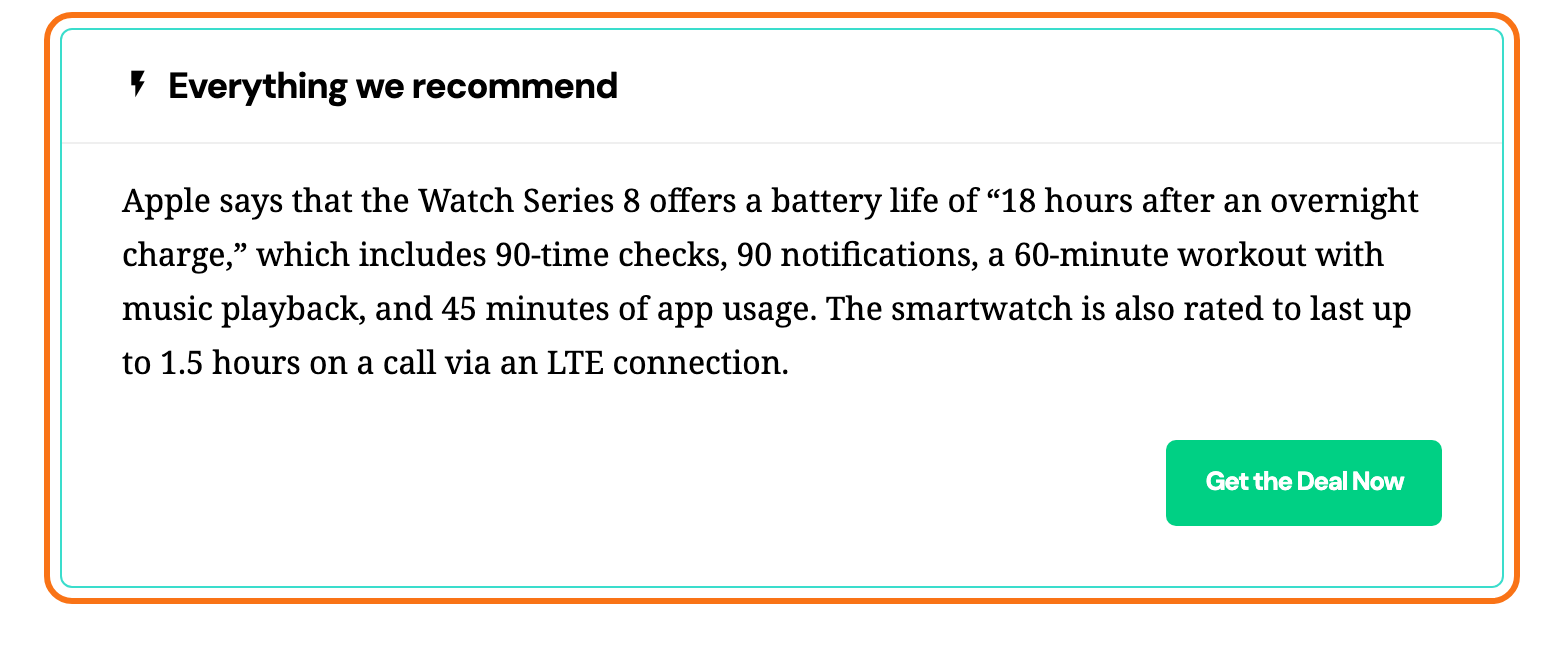
Add the block
- Open a post in the editor: Posts > All Posts, then the post's title, or Posts > Add Post.
- Click where the note should go, then click the + block inserter at the top left of the editor.
- Type Note in the search box.
- Click Note - Ruby.
- Click the heading to replace Note with your own, then add the content below it. The content takes any blocks: paragraphs, lists, images.
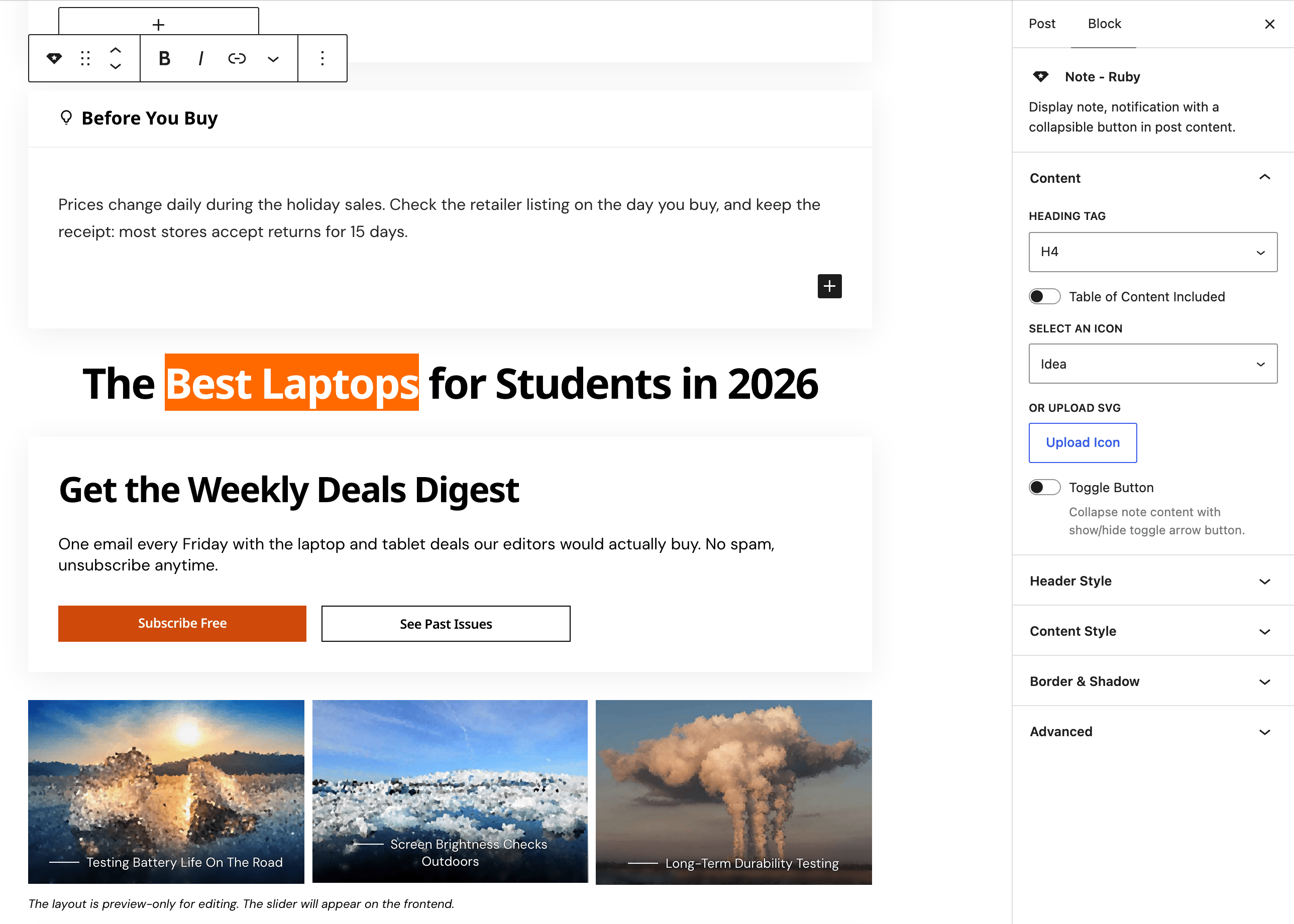
- With the block selected, choose the icon and style in the block settings sidebar on the right.
Settings
The block has four panels: Content, Header Style, Content Style and Border & Shadow. Only Content is open when you select the block.
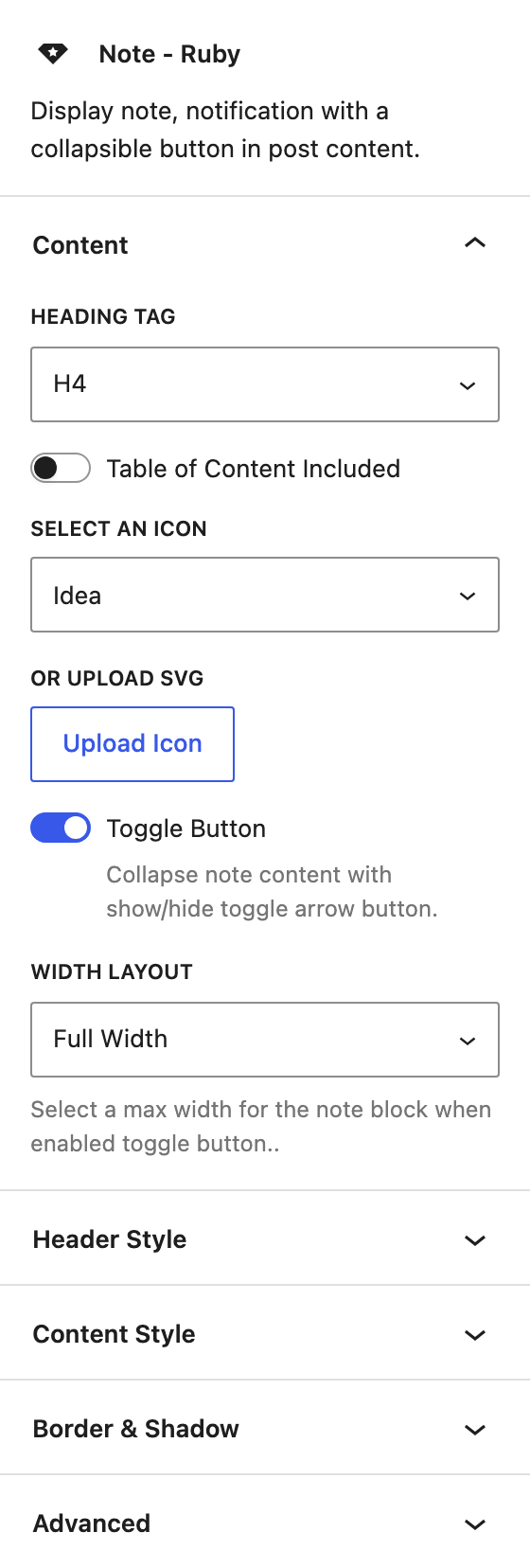
Content
- Heading Tag: the HTML tag of the note's heading: H2 to H6, p or Div. Default: H4.
- Table of Content Included: lists the note's heading in the post's table of contents. Default: off, so notes stay out of the contents box.
- Select an Icon: the icon before the heading. Default: Idea. Fourteen choices:
- Tips and alerts: Idea, Warning, Help, Info, Bell.
- Status: Secure, Not Allow, Flash, Trend, Chart.
- Markers: Bookmark, Pin, Star, Heart.
- or Upload SVG: your own icon. Click Upload Icon and pick an image or an SVG from the media library; Remove Icon takes it off again. An uploaded icon replaces the one selected above and is sized to the heading text. The media library only accepts SVG files once SVG Upload is on.
- Toggle Button: folds the note's content away. Readers see the heading with an arrow and click it to open the note. Default: off.
- Width Layout: appears only while Toggle Button is on.
- Full Width: the closed note spans the content column. This is the default.
- Inline: the closed note is only as wide as its heading, and opens to full width when clicked.
Header Style
The header is the heading line with its icon.
- Font Size: the heading size in pixels, with one box each for Desktop, Tablet and Mobile. Empty by default, which uses the theme's size for the chosen Heading Tag.
- Color: three colours for the header, each empty by default unless noted.
- Text Color: the heading and icon colour.
- Background: a fill behind the header only.
- Bottom Border Color: the line between the header and the content. Default:
#88888822, a faint grey.
- Desktop Padding, Tablet Padding and Mobile Padding: the space around the header. Default: 15px top and bottom; 30px, 25px and 20px left and right.
- Dark Mode - Color: the same three colours, Text Color, Background and Bottom Border Color, for readers in dark mode. Empty by default.
Clear both Background and Bottom Border Color and the header sits tight on the content, with no gap below it.
Content Style
- Desktop Padding, Tablet Padding and Mobile Padding: the space around the content. Default: 15px on top; 30px, 25px and 20px on the other sides.
- Background and Dark Mode - Background: the fill behind the content. Empty by default, which is transparent.
The content's text colour is not set here. Set it on the blocks inside the note, for example a paragraph's own colour settings.
Border & Shadow
- Border Style: None, Solid, Dashed, Dotted or Double. No border by default.
- Picking a style other than None shows Border Width and Border Color (Color and Dark Mode - Color). Set a width and a colour as well, or the border stays invisible.
- Border Radius: the corner rounding, from 0 to 100 pixels. Empty by default, which uses the theme's rounded corners.
- Shadow: a soft shadow around the note. Default: on.
Did this answer your question?