How to Use the Image Slider Block
Image Slider – Ruby shows a set of images one at a time, as a slider readers swipe or drag through. Use it for a photo series, product shots or before and after pictures, where a gallery grid would take too much room.

A thin scrollbar near the bottom of the slide shows where the reader is in the set. Each image's own caption appears below the slider and changes with the slide.
Add the block
- Open a post in the editor: Posts > All Posts, then the post's title, or Posts > Add Post.
- Click where the slider should go, then click the + block inserter at the top left of the editor.
- Type Image Slider in the search box.
- Click Image Slider – Ruby.
- The block asks you to "Pick images you want to use in your slider". Upload images or choose them from the media library. Pick at least two: the slider settings only appear once the block holds two or more images.
- To add a caption to a slide, select that image inside the block and type its caption under it.
- To add more images later, select the slider and click Add in its toolbar.
In the editor the images are laid out side by side, as a preview only. The block says so under the images: the slider itself appears on the front end.
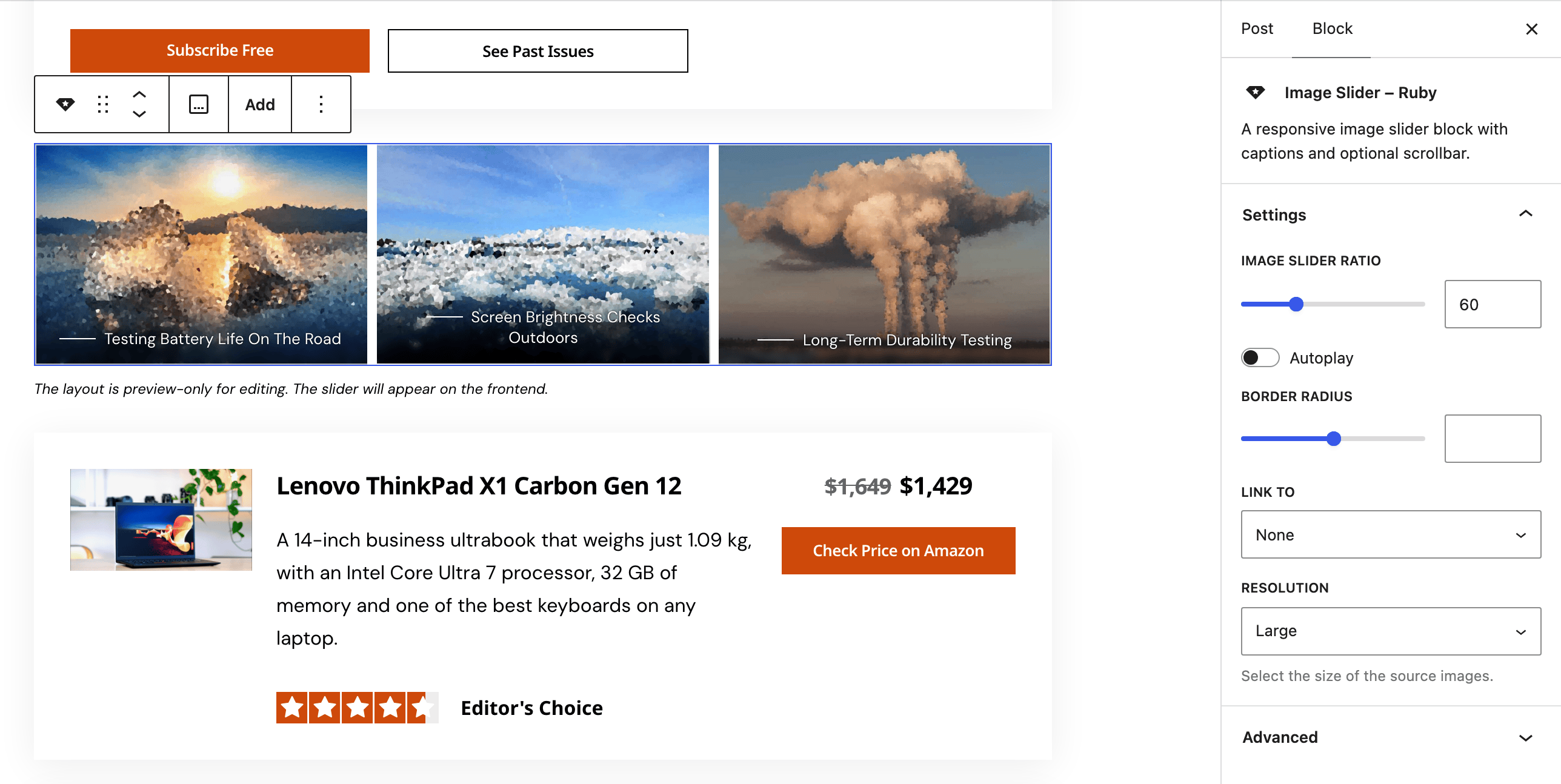
Settings
The block has one panel, Settings. Select the slider itself, not one of its images, to see it.
Settings
- Image Slider Ratio: the slide's height as a percentage of its width, from 1 to 200. Default: 60. 100 makes square slides; 56 suits 16:9 photos. Images fill the whole slide, so a ratio that matches their shape keeps them from looking stretched.
- Autoplay: moves to the next slide on its own. Default: off.
- Each slide stays for the Auto Play Speed set in Theme Options > Theme Design > Slider Animation: five seconds by default. See Slider Animation.
- On screens narrower than 1025px, autoplay stops once the reader swipes.
- Border Radius: the slider's corner rounding, from 0 to 100 pixels. Empty by default, which uses the theme's rounded corners.
- Link to: what a click on an image opens: Attachment Page, Media File or None. The choice applies to every image in the slider. Linked images zoom and fade slightly on hover.
- Open in new tab: opens those links in a new tab. It appears only when Link to is not None.
- Resolution: which size of each uploaded image is used. Default: Large. Pick a bigger size if the slider runs wider than the large size and looks soft.
Image Slider Ratio, Autoplay and Border Radius only appear once the block holds at least two images.
On AMP pages the slider is not built; the images show one after another.
Did this answer your question?