How to Use the Text Highlight Block
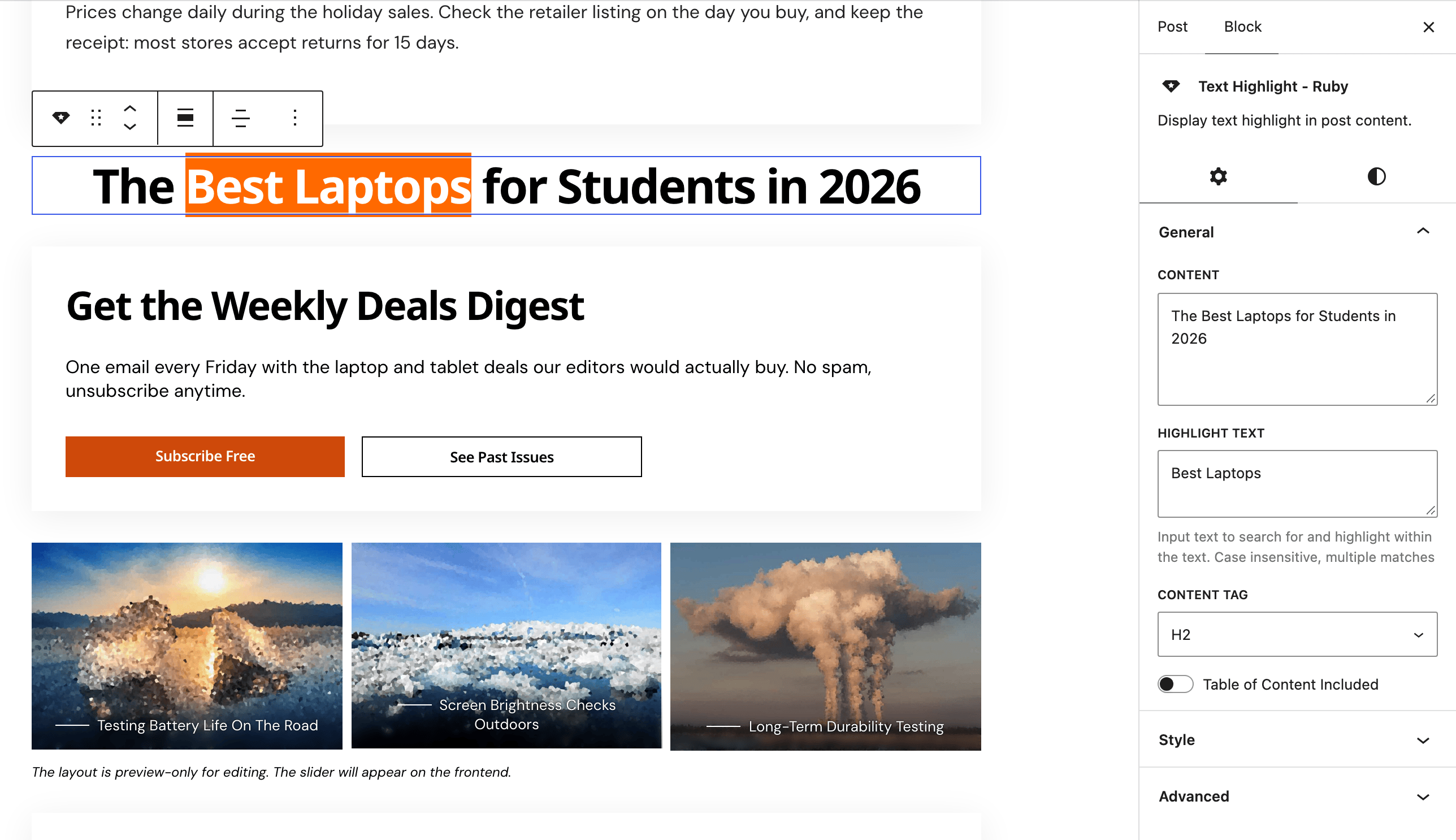
Text Highlight - Ruby writes a bold line of text and marks the words you pick with a coloured background. Use it for a headline, a key takeaway or a pull quote that should stop a scrolling reader.

Add the block
- Open a post in the editor: Posts > All Posts, then the post's title, or Posts > Add Post.
- Click where the text should go, then click the + block inserter at the top left of the editor.
- Type Highlight in the search box.
- Click Text Highlight - Ruby. It arrives with sample text, "The Impressive Mobile-First Website Builder WordPress Theme", with Impressive highlighted.
- Replace the sample in the block settings sidebar on the right: type your line in Content and the words to mark in Highlight Text. The text is edited there, not in the canvas.
- To align the text left, centre or right, use Align text in the block toolbar. Default: centred. The toolbar's block align button also offers Wide width and Full width.
Settings
The block has two Foxiz panels, General and Style.
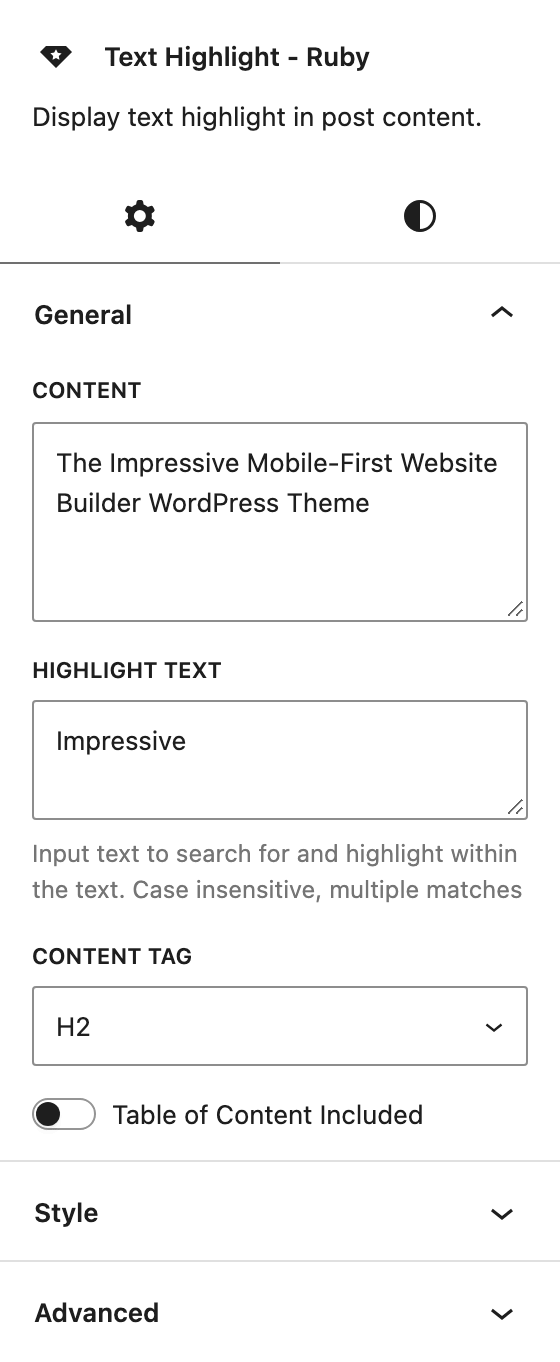
General
- Content: the full line of text.
- Highlight Text: the word or words to mark. Every place they appear in Content is marked, whatever the capital letters. Leave it empty for a plain bold line.
- Content Tag: the HTML tag of the line: H2 to H6, p or div. Default: H2. Pick a heading tag when the line is a section title, and p or div when it is a quote or a callout.
- Table of Content Included: lists the line in the post's table of contents. It only matters with a heading tag. Default: off. The contents box itself is set up in How to Create a Table of Content?.
Style
- Font Size: the text size in pixels, with one box each for Desktop, Tablet and Mobile. Desktop applies from 1025px wide, Tablet from 768px, Mobile below that.
- Default: 42 on desktop. Tablet and Mobile are empty, which uses the theme's size for the chosen Content Tag.
- Color: the marked words in light mode.
- Highlight Color: the text colour of the marked words. Default:
#ffffff, white. - Highlight Background: the colour behind them. Default:
#ff6900, orange.
- Highlight Color: the text colour of the marked words. Default:
- Dark Mode - Color: the same two colours, Highlight Color and Highlight Background, for readers in dark mode. Both are empty by default. Left empty, dark mode shows white text on your Dark Mode - Global Highlight Color from Theme Options > Global Colors, not the orange above.
The sidebar also shows WordPress's own Typography panel for this block: line height, font, appearance, letter spacing, letter case and decoration. Font size is left out because Font Size above handles it.
Did this answer your question?