How to Use the Accordion Block
Accordion - Ruby stacks titled rows that a reader clicks to open and close. Use it for FAQs, specifications or any long detail a reader may want to skip.
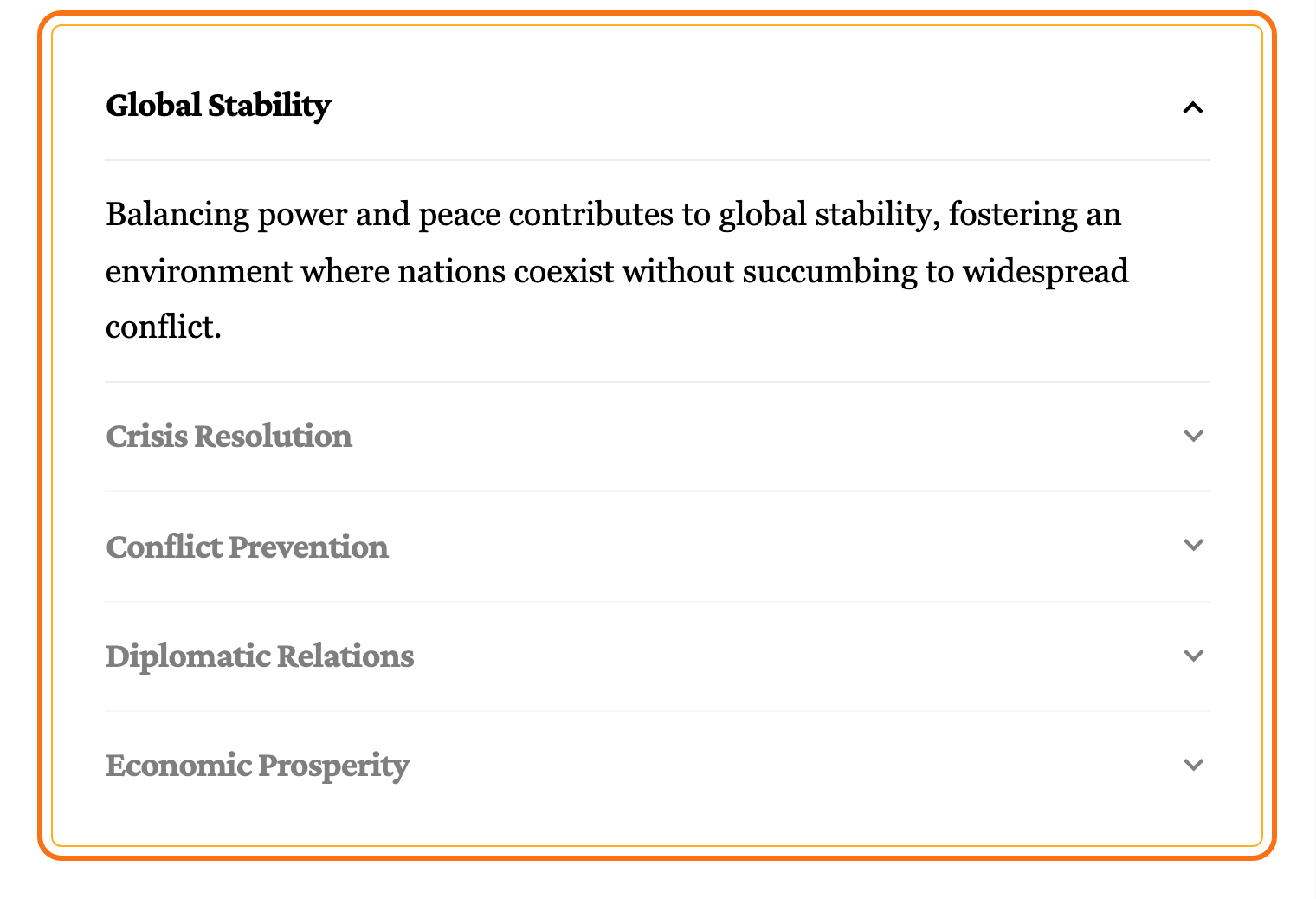
Each row is an Accordion Item block. Opening a row closes the one that was open, so only one answer shows at a time.
Add the block
- Open a post in the editor: Posts > All Posts, then the post's title, or Posts > Add Post.
- Click where the accordion should go, then click the + block inserter at the top left of the editor.
- Type Accordion in the search box.
- Click Accordion - Ruby. It starts with one Accordion Item.
- Type the row's title where it says "Enter accordion title...", then add the answer below it. The answer takes any blocks: paragraphs, lists, images.
- To add a row, click the + button at the bottom of the accordion. Accordion Item is the only block it accepts, and you will not find it in the main inserter.
- Give every row an answer. A row with a title and nothing under it does not appear on the front end.
- Select the accordion itself, not a row, to change its settings in the sidebar on the right.
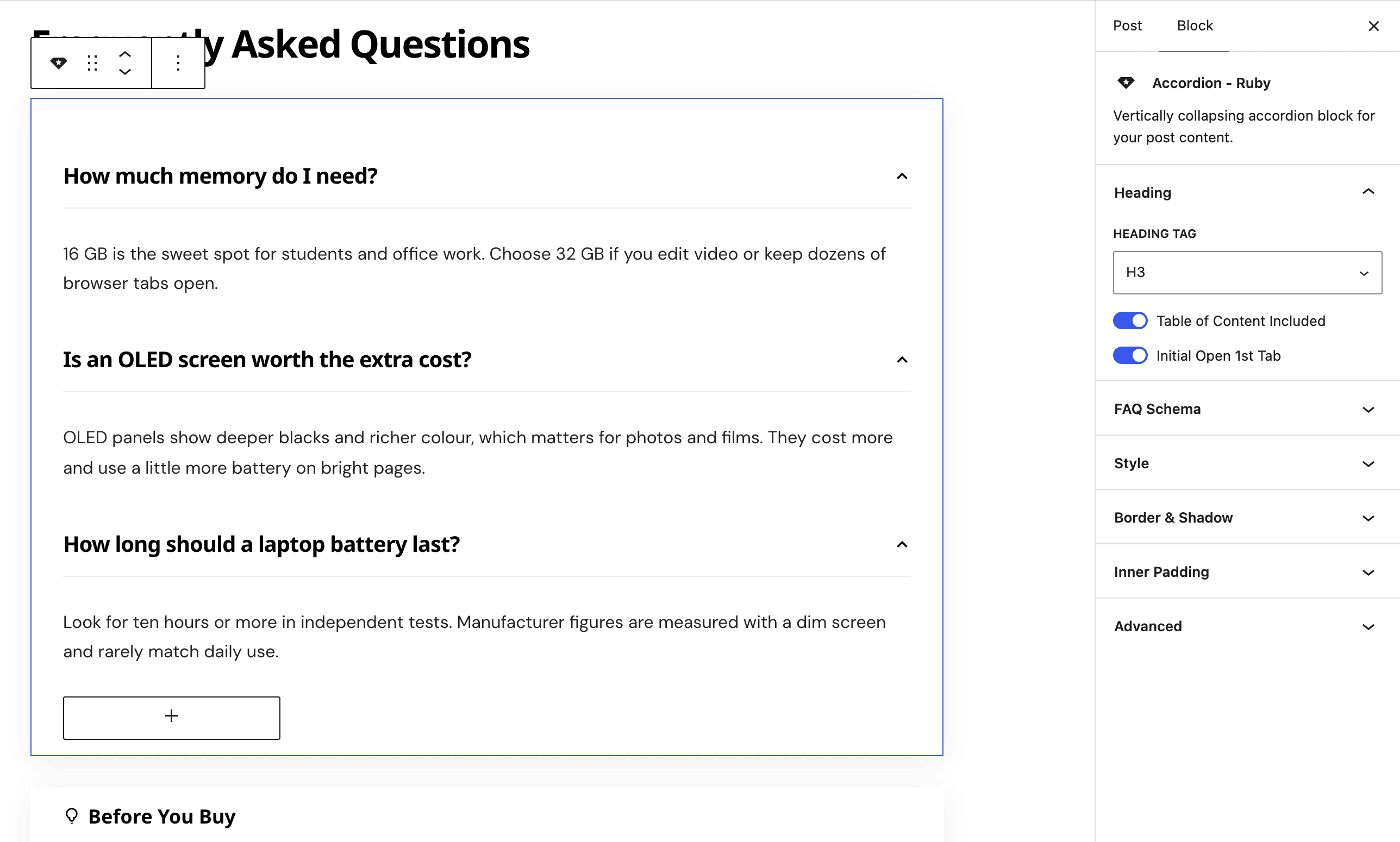
Settings
Every setting lives on the parent Accordion - Ruby block and applies to all its rows. Its panels are Heading, FAQ Schema, Style, Border & Shadow and Inner Padding.
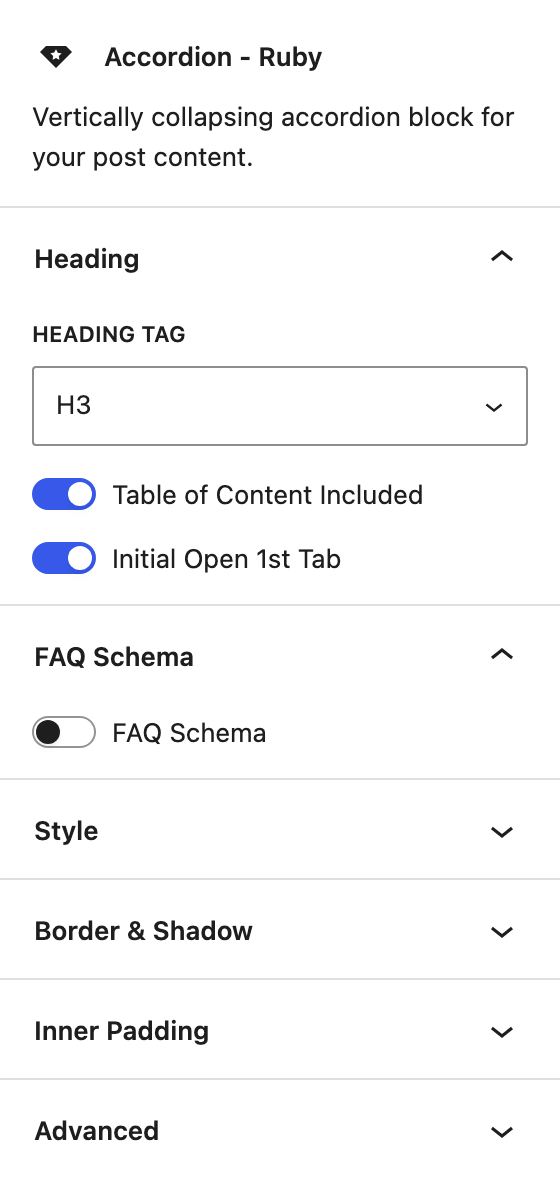
Heading
- Heading Tag: the HTML tag of every row title: H2 to H6, p or Div. Default: H3. Pick the level that fits the headings around the accordion.
- Table of Content Included: lists the row titles in the post's table of contents. Default: on. Turn it off when the titles would crowd the contents box. The contents box itself is set up in How to Create a Table of Content?.
- Initial Open 1st Tab: the first row starts open when the page loads. Default: on. Turn it off to show every row closed.
FAQ Schema
- FAQ Schema: publishes the accordion as FAQ structured data for search engines. Each row title becomes a question and the row's text its answer. Default: off. Turn it on only when the rows really are questions and answers.
Style
Closed by default in the sidebar.
- Font Size: the row title size in pixels, with one box each for Desktop, Tablet and Mobile. Empty by default, which uses the theme's size for the chosen Heading Tag.
- Color and Dark Mode - Color: the row title colour, in light and dark mode. Empty by default, which keeps the theme's heading colour.
Border & Shadow
- Border Style: None, Solid, Dashed, Dotted or Double. No border by default.
- Picking a style other than None shows Border Width and Border Color (Color and Dark Mode - Color). Set a width and a colour as well, or the border stays invisible.
- Border Radius: the corner rounding, from 0 to 100 pixels. Empty by default, which uses the theme's rounded corners.
- Shadow: a soft shadow around the accordion. Default: on.
- Background and Dark Mode - Background: the fill behind the accordion. Empty by default, which is transparent.
Inner Padding
- Desktop, Tablet and Mobile: the space between the accordion's edge and its rows, set per side.
- Desktop, from 1025px wide: 15px top and bottom, 30px left and right by default.
- Tablet, from 768px: 10px top and bottom, 25px left and right.
- Mobile: 10px top and bottom, 20px left and right.
Accordion Item
A row has no settings of its own. Its sidebar only shows a tip to select the parent Accordion - Ruby block, where the style and layout are set. Type the title and the answer straight in the canvas.
Did this answer your question?