How to Use the Review Product Block
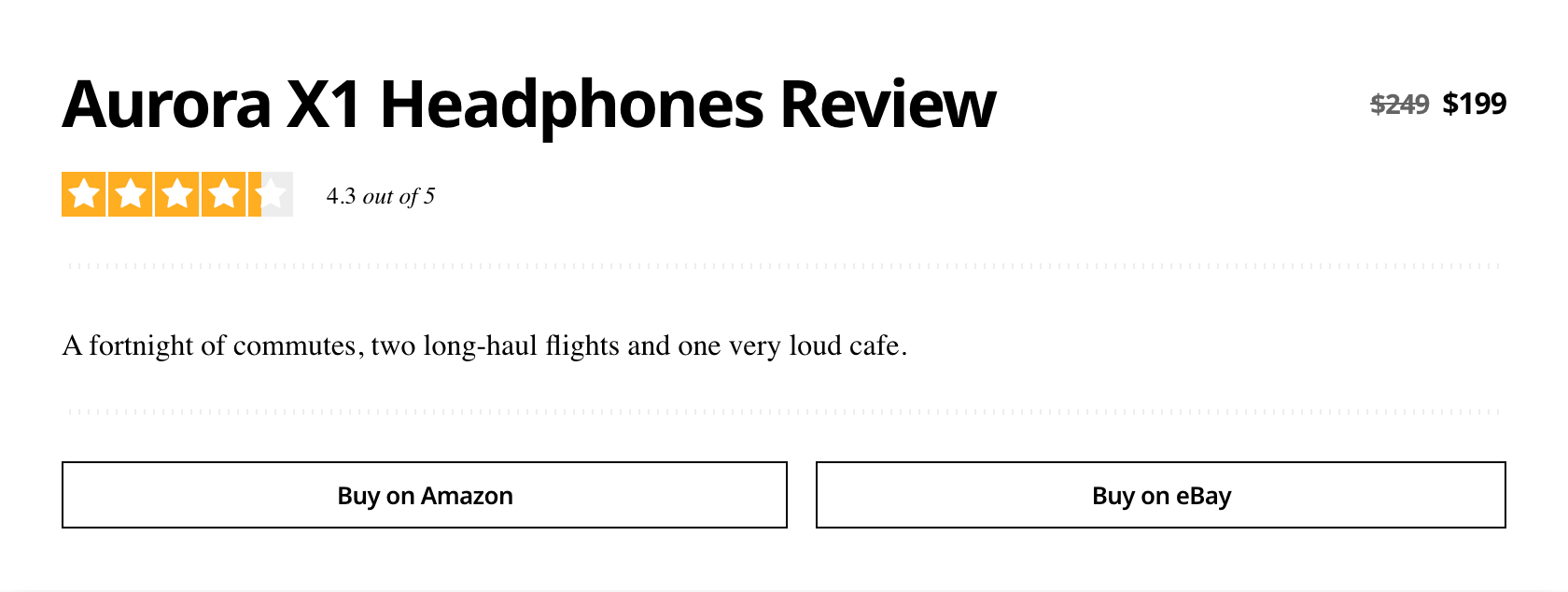
Review Product - Ruby puts a full product review anywhere in the post content: a product photo, the name and price, a star score out of 5, a summary, rated criteria, good and bad points, and buy buttons. Use it for a review written into the article, or for several products reviewed in one post.
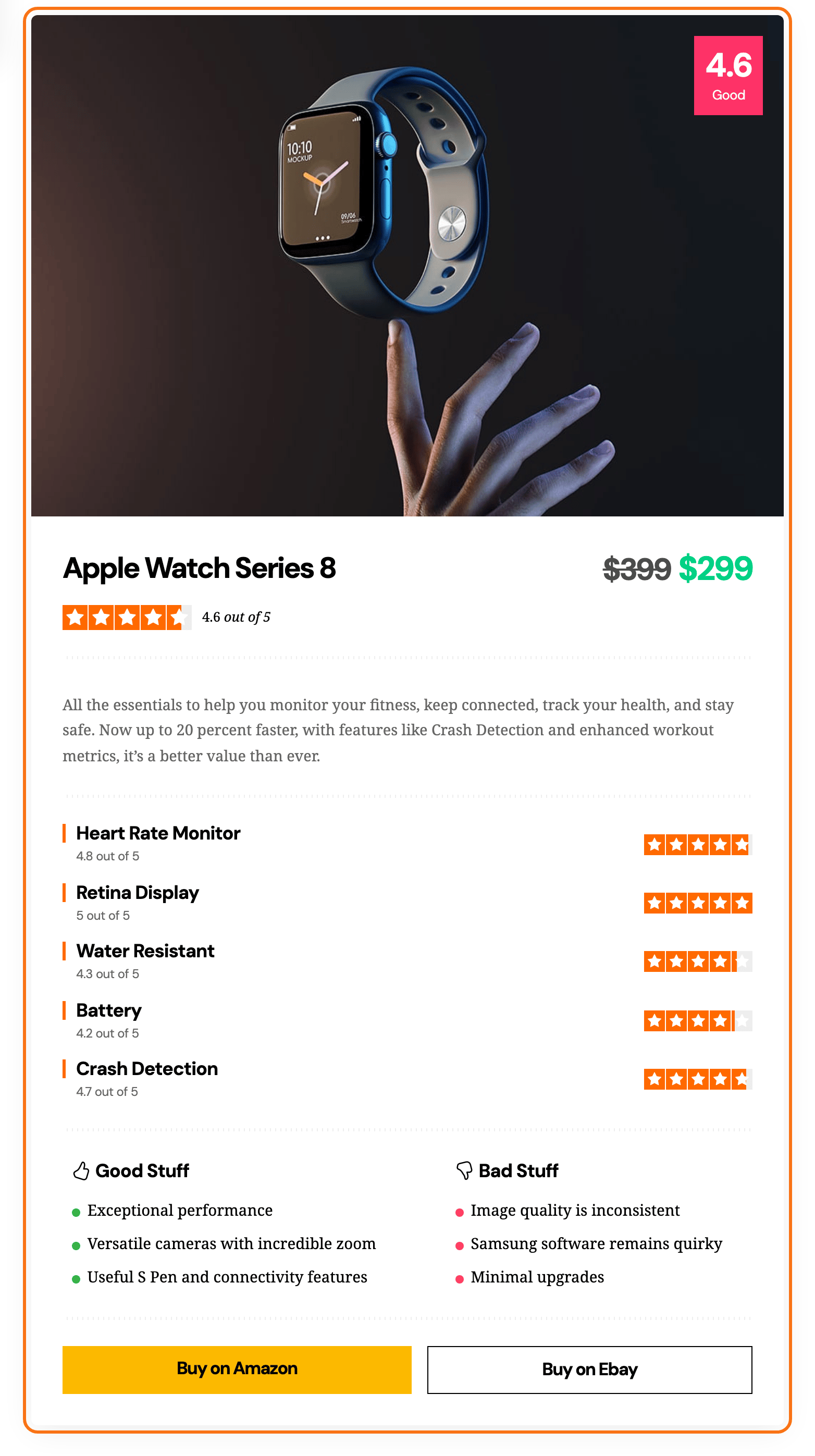
It is separate from the review box of a review post, which you turn on in the Review tab of Single Post Settings: see How to Create a Review Post?. For a block that shows one overall score with no criteria, see How to Create a Valuable Product Review Block With a Total Score Without the Criterion Data.
Add the block
-
Go to Posts > Add Post, or open a post you already have.
-
Click the + button at the top left of the editor to open the block inserter.
-
Type Review Product in the search box.
-
Click Review Product - Ruby to insert it. It arrives with a sample name, summary and two buy buttons, so you see the layout straight away.
-
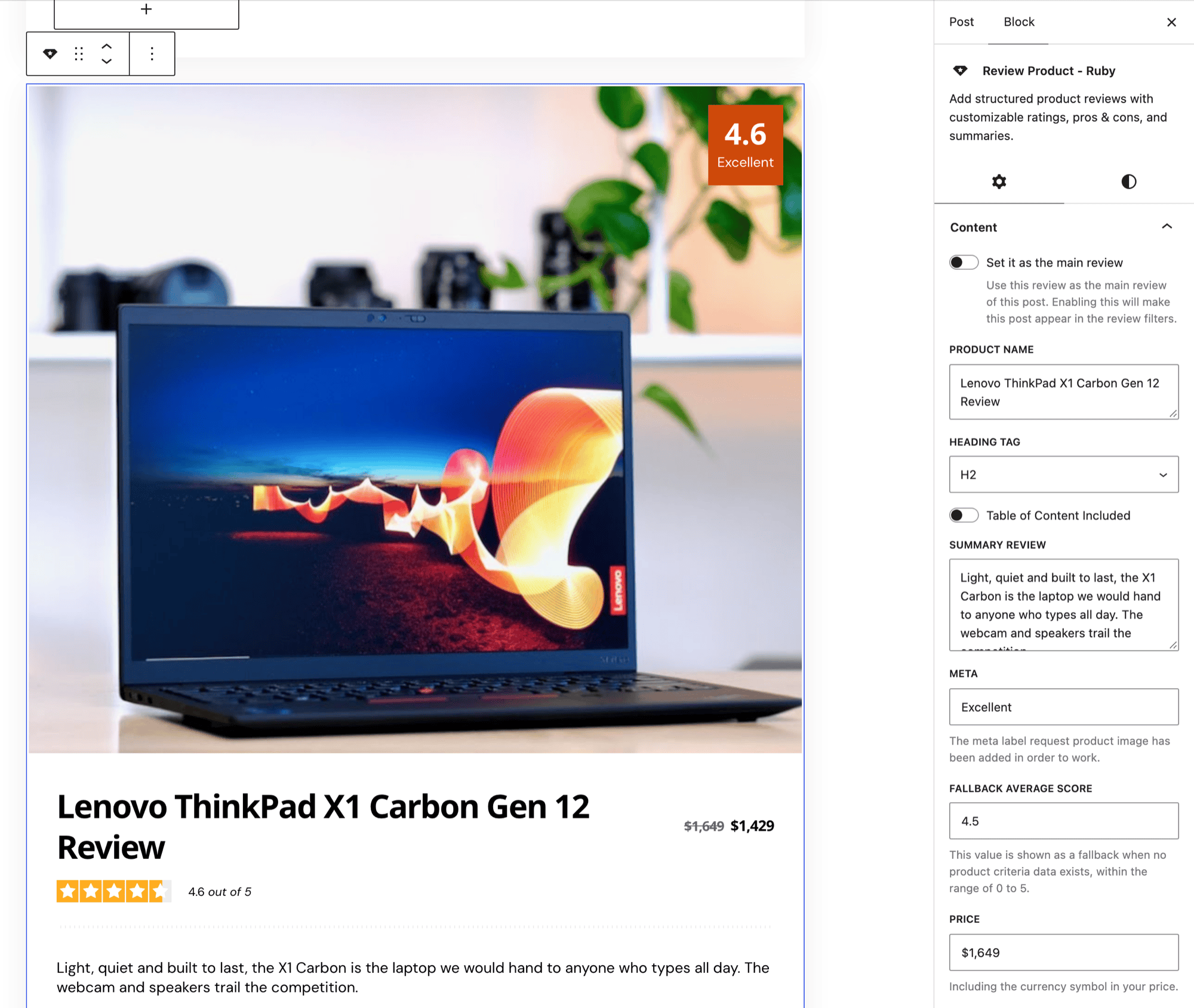
Fill the panels in the sidebar. The canvas shows a preview of the finished review, so you edit everything in the sidebar rather than in the block.
-
Click Save or Publish.
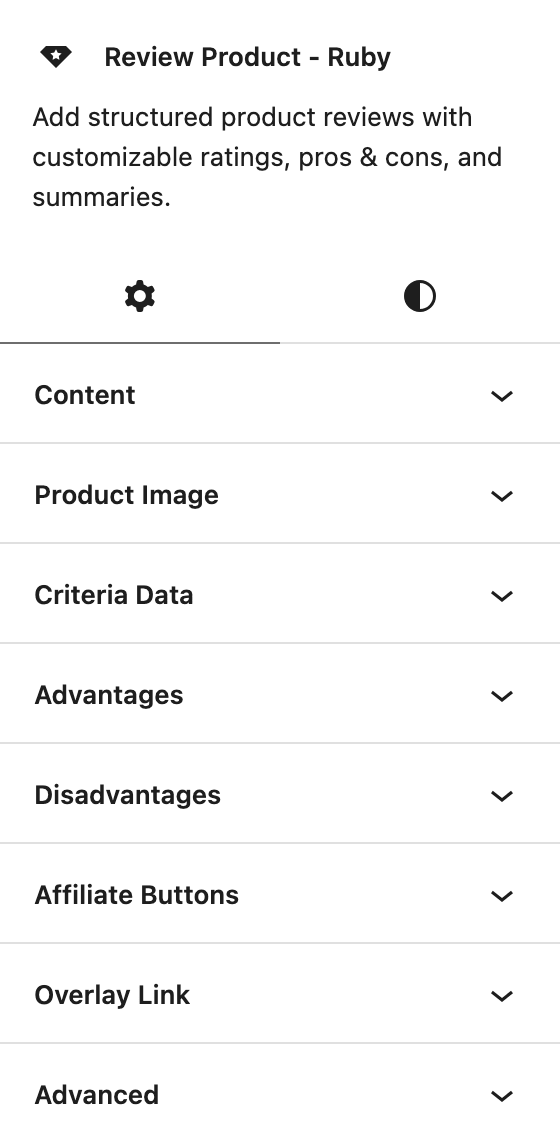
Settings
The Settings tab (the gear icon) holds seven panels for the review itself. The Styles tab (the half filled circle) holds seven panels of sizes and colours, all empty by default, which keeps the theme's own look.
Content
-
Set it as the main review: makes this block the post's review. Off by default. Turn it on for one block per post. When you save, its score becomes the post's review score:
- post listings that show review scores display it;
- Order By choices such as Top Review (All Time) rank the post by it.
A post whose Review tab is enabled keeps that box as its review, and this switch is ignored there.
-
Product Name: the heading of the review. Default: "Honest Review of [Product Name]", so replace it.
-
Heading Tag: the HTML tag of the name, H2 to H6, p or Div. Default: H2.
-
Table of Content Included: lists the name in the post's table of contents. Off by default.
-
Summary Review: the verdict paragraph under the score. It comes with sample text, so replace it.
-
Meta: a short word shown with the score in a badge on the product photo, such as "Good". Empty by default. It needs a Product Image; without one there is no badge.
-
Fallback Average Score: an overall score from 0 to 5, used only when Criteria Data has no rows. A number above 5 counts as 5. Empty by default.
-
Price: the price beside the name, with its currency symbol. Empty by default, which shows no price.
-
Discounted Price: fill it and Price is struck through, followed by this one. Empty by default.
-
Advantage Label: the title over the good points. Default: Good Stuff.
-
Disadvantage Label: the title over the bad points. Default: Bad Stuff.
-
Currency Code: the three letter code of your price, such as
EUR, for search engines only. Empty meansUSD. -
Price Valid Until: the date the offer ends, written
yyyy-mm-dd, for search engines only. Empty by default.
Every Review Product block with a Product Name also gives search engines a product review in structured data. The price, currency and offer date go into it only while the block has at least one affiliate button.
Product Image
- Click Add Image to pick the product photo from the Media Library.
- or Enter Custom Link: the address of an image hosted elsewhere. It is used only when no image was picked.
Criteria Data
Each row is one thing you rated, such as battery life or comfort. Click Add New Criteria for a row, then fill it:
- Label: what you rated.
- Rating: a slider from 0 to 5 in steps of 0.1.
The big score is the average of the rows. A row missing its label or its rating is left out of the list and the average. Click Delete inside a row to remove it.
Advantages
Click Add New for each good point and type it in Content. Empty by default.
The good and bad lists sit side by side or one above the other according to Theme Options > Single Post > Review & Rating > Advantages and Disadvantages, the same setting the review box uses. Default: 2 Columns.
Disadvantages
Click Add New for each bad point and type it in Content. Empty by default. With both lists empty, the block shows neither.
Affiliate Buttons
The block starts with two buttons, Buy on Amazon and Buy on eBay, both linking to #. Change their links, or delete them, before you publish. Click Add New Link for another button. Each button has:
- Label: the button text.
- Link: where it goes. Every button opens in a new tab with
rel="nofollow noopener". - Sponsored?: adds
sponsoredto the link. On for the two starting buttons, off for the ones you add. - Outlined Style: an outlined button instead of a filled one. Off by default.
Overlay Link
- Block Overlay Link: makes the whole review clickable, on top of the buttons' own links. Empty by default.
- Internal Link?: turn it on when the link points to your own site. It then opens in the same tab with no
nofolloworsponsored. Off by default, so the link opens in a new tab withnofollow. - Sponsored?: marks the link as paid for search engines. Off by default.
Heading (Styles tab)
- Heading Size: the product name's size in pixels for Desktop, Tablet and Mobile.
- Color and Dark Mode - Color: the name's colour in light and dark mode.
Description (Styles tab)
- Font Size: the summary's size in pixels for Desktop, Tablet and Mobile.
- Color and Dark Mode - Color: the summary's colour in light and dark mode.
Price (Styles tab)
- Font Size: the price's size in pixels for Desktop, Tablet and Mobile.
- Color and Dark Mode - Color: the price's colour in light and dark mode.
Review Meta (Styles tab)
- Star Color: the colour of the stars.
- Overlay Meta - Color and Overlay Meta - Background: the text and fill of the score badge on the product photo.
Affiliate Buttons (Styles tab)
- Font Size: the button text's size in pixels for Desktop, Tablet and Mobile.
- For Filled Buttons: Color, Background, Dark Mode - Color and Dark Mode - Background.
- For Outlined Buttons: Color, Border Color, Dark Mode - Color and Dark Mode - Border Color, for buttons with Outlined Style on.
Border & Shadow (Styles tab)
- Border Style: None, Solid, Dashed, Dotted or Double. Empty by default, so the review has no border.
- Border Width and Border Color (with its Dark Mode - Color): these appear once Border Style is set to anything but None. Pick a colour too, or the border will not show.
- Border Radius: rounds the corners, from 0 to 100 pixels. Empty by default.
- Shadow: a soft shadow around the review. On by default. It also moves the product photo: with Shadow on, the photo runs to the edges of the card; with it off, the photo sits inside the padding with the rest.
- Background and Dark Mode - Background: the fill colour in light and dark mode.
Inner Padding (Styles tab)
The space between the card's edge and its content, set side by side for Desktop, Tablet and Mobile. The defaults are 30px on every side on desktop, 25px on tablet and 20px on mobile. The canvas shows a new value once you click outside the panel.
WordPress adds its own padding and margin controls to this block's Styles tab as well.
Did this answer your question?