How to Use the List Style Block
List Style - Ruby puts an icon in front of every item of a list, in place of the plain bullet. Use it for checklists, pros and cons, or key points you want to stand out.
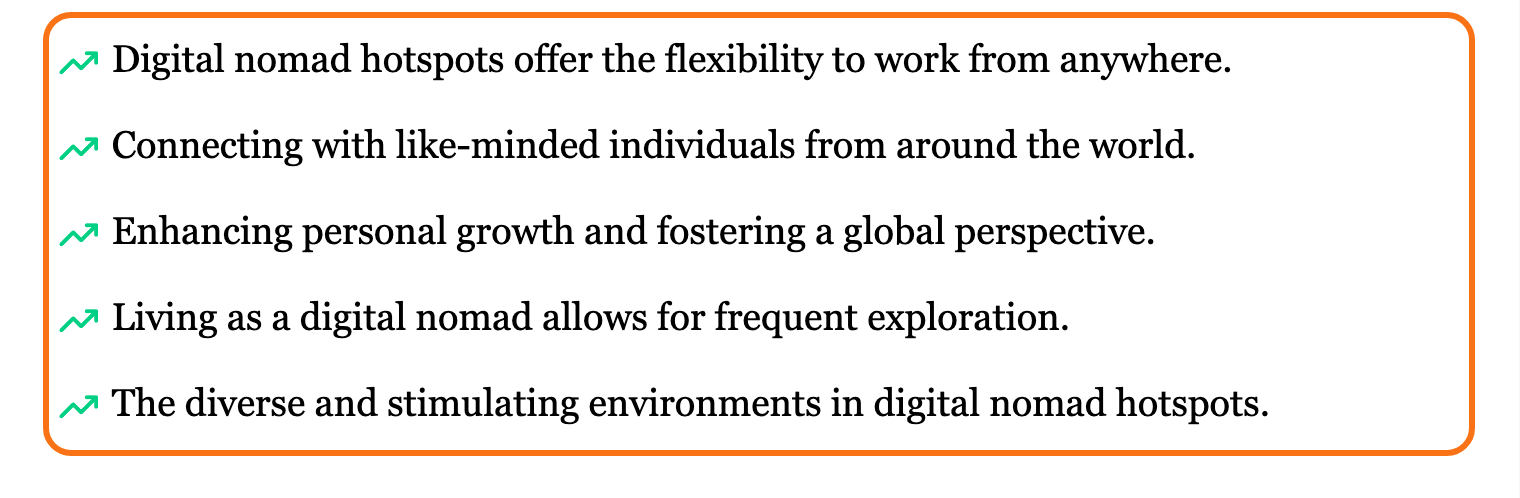
You can get icons in front of list items in two ways:
- The List Style - Ruby block: sixteen icons or any emoji, with your own size, spacing and colours. Start with Add the block.
- The
rb-listclass on an ordinary List block: one fixed green tick, nothing to set up. See Green ticks on an ordinary list.
Add the block
- Open a post in the editor: Posts > All Posts, then the post's title, or Posts > Add Post.
- Click where the list should go, then click the + block inserter at the top left of the editor.
- Type List Style in the search box.
- Click List Style - Ruby.
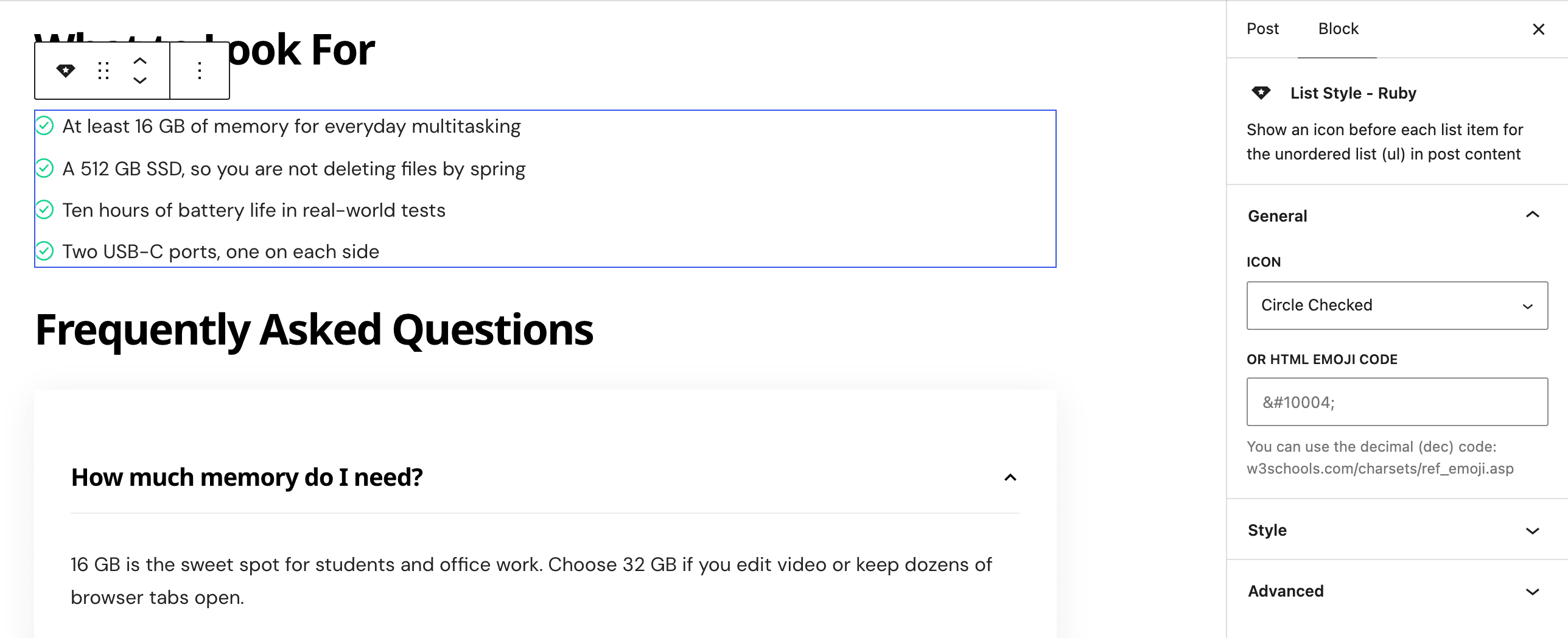
- Type your items in the list inside the block. The block holds one list and nothing else, so add a new List Style - Ruby block for each list.
- With the block selected, pick the icon and its style in the block settings sidebar on the right.
Settings
The block has two panels, General and Style, and Style ends with a Color group.
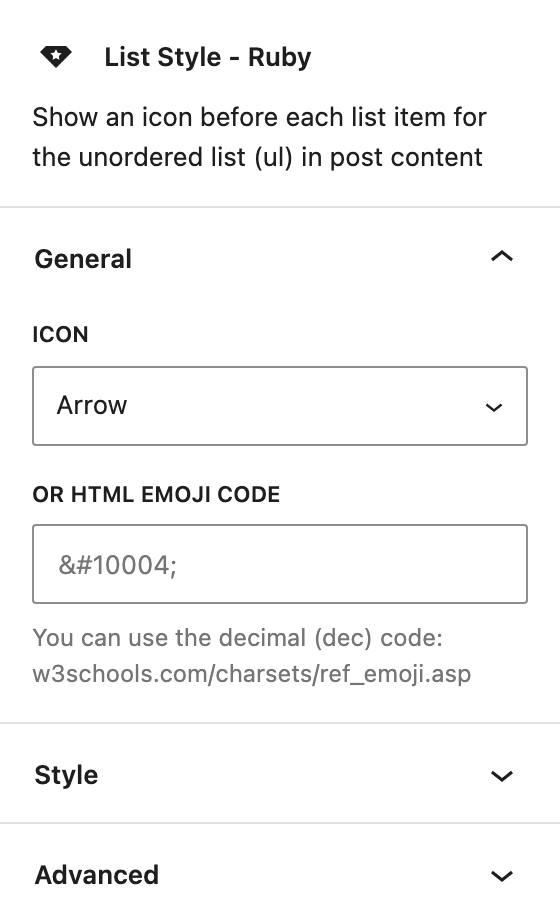
General
- Icon: the icon shown before each item. Default: Arrow. Sixteen choices:
- Arrows: Arrow, Angle, Circle Arrow, Trend.
- Ticks: Circle Checked, V, Ratio Checked, Certification.
- Signs: Plus, Minus, X, Ratio Unchecked, Warning.
- Others: Heart, Star, Flash.
- or HTML Emoji Code: an emoji instead of an icon, typed as its HTML code, such as
✔for a check mark. When this box is filled, the emoji replaces the icon. Empty by default.
Style
- Icon Size: the icon size in pixels, with one box each for Desktop, Tablet and Mobile. Desktop applies from 1025px wide, Tablet from 768px, Mobile below that. Empty by default, which keeps the icon at the size of the list text.
- List Item Spacing: the gap below each item, from 0 to 100 pixels. Empty by default, which leaves a gap of 0.5rem.
- Color: the icon colour. Default:
#00D084, a green. - Dark Mode - Color: the icon colour when the reader has dark mode on. Default:
#FFFFFF, white.
The colours also reach an emoji code. Plain symbols such as ✔ take them; colour emoji keep their own colours.
Green ticks on an ordinary list
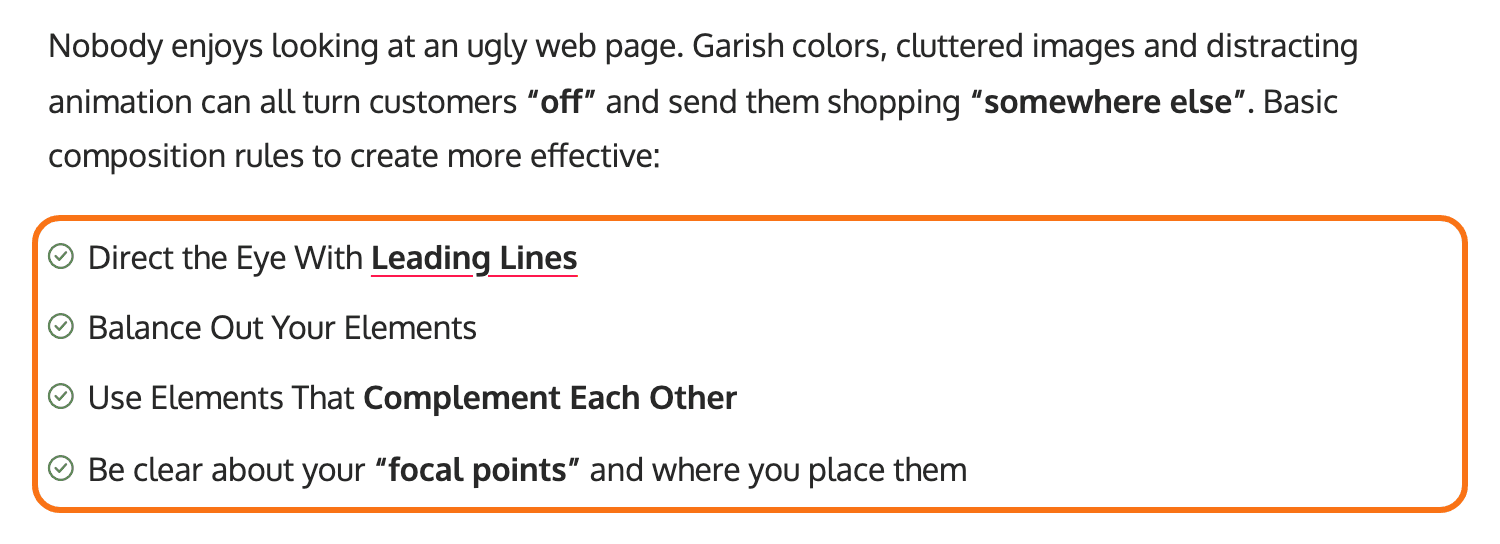
Use this to give a normal WordPress list the green tick from the freebie demo, without the List Style block.
-
Add a List block. Either kind works: the class drops the bullets from an unordered list and the numbers from an ordered one, and puts the tick in their place.

-
With the list selected, open the Advanced panel in the block sidebar on the right. Type
rb-listin Additional CSS class(es), with no dot in front of it.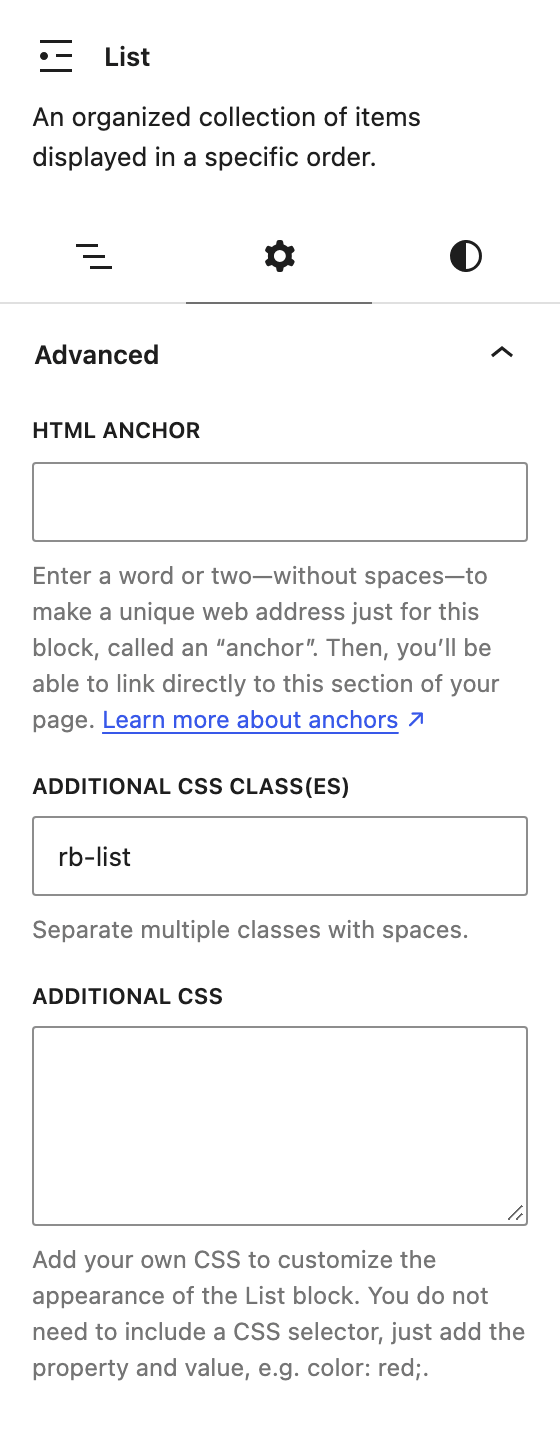
The tick is a glyph from the theme's ruby-icon font, not an image, so it scales with the text. Its green, #5e8858, is fixed in the stylesheet. No Theme Options setting changes it: for another colour or icon, use the List Style - Ruby block above.
Did this answer your question?