Every Setting in the Sticky Headline and Reading Indicator Panels
Two small screens under Theme Options > Single Post change what a reader sees while scrolling through a post. Sticky Headline swaps the menu in the sticky header for the post's title and share icons. Reading Indicator draws a progress bar across the very top of the screen. Neither appears on AMP pages.
Both screens carry a notice that they also apply to podcast episodes and other custom post types.
Sticky Headline
General
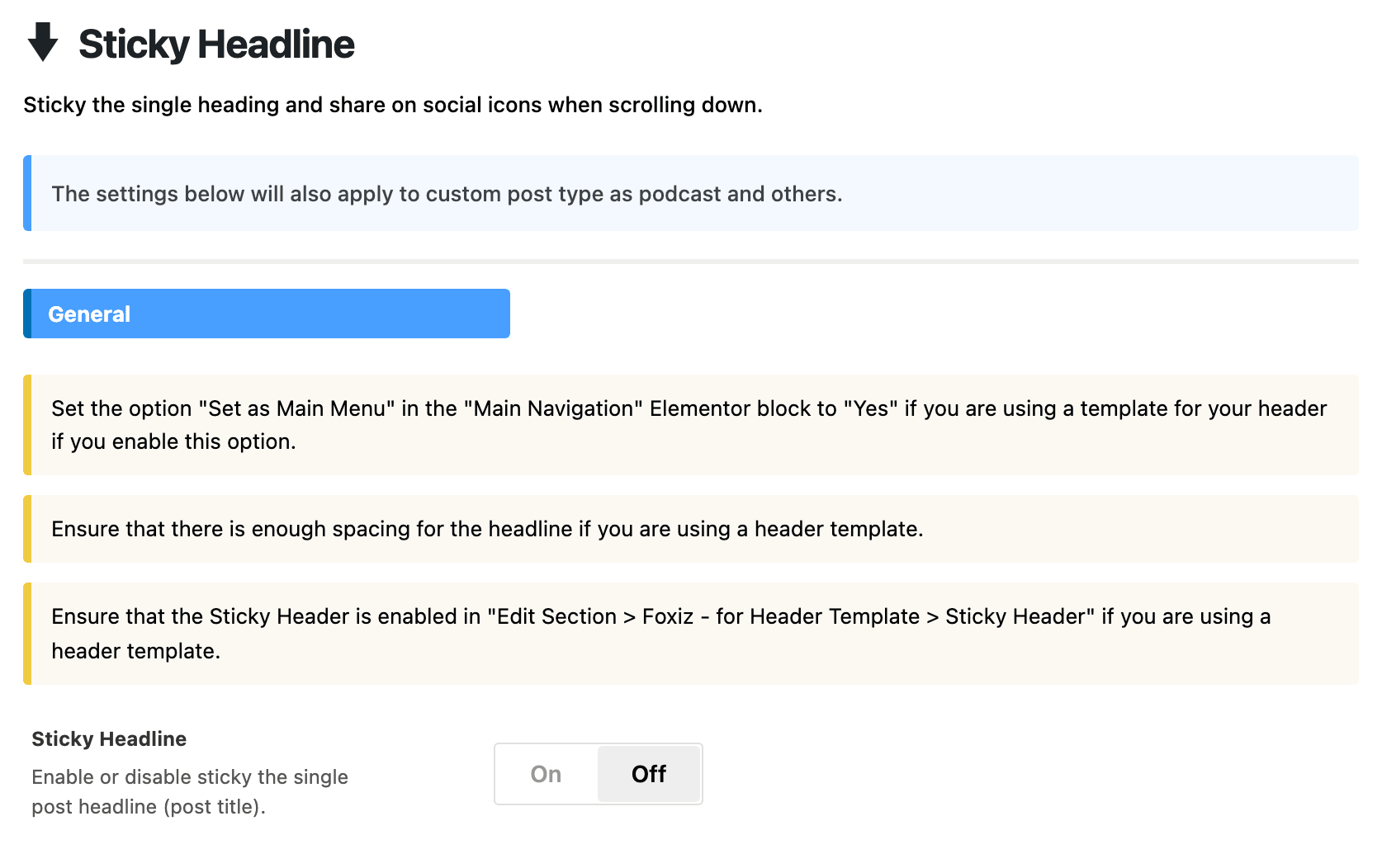
Sticky Headline is off by default. Turn it on and, once a reader scrolls down a post, the header bar that follows them shows Reading: and the post's title in place of the main menu, with the share icons from the next section beside it. The dark mode switch and the font resizer stay where they are. This happens on desktop screens; phones and tablets keep their usual header.
What decides it: while it is on, the title takes the place of the menu in the sticky bar, along with header icons such as search and the login button, so readers lose them as they scroll a post. Turn it on for sites of long articles, where keeping the title and share icons in reach matters more. Leave it off if readers use the sticky menu to move around the site.

On a post, switching it on also makes the header stick, even if sticky header is off for the rest of the site.
With Auto Load Next Posts on, the title in the bar changes to whichever post the reader has scrolled into.
If your header is a Ruby Template built in Elementor, the section's notices list three things to check before it works:
- In the template, the Main Navigation block has Set as Main Menu set to Yes.
- The section holding it has Sticky Header switched on, under Edit Section > Foxiz - for Header Template.
- There is enough free room in that section for a post title.
Share on Socials
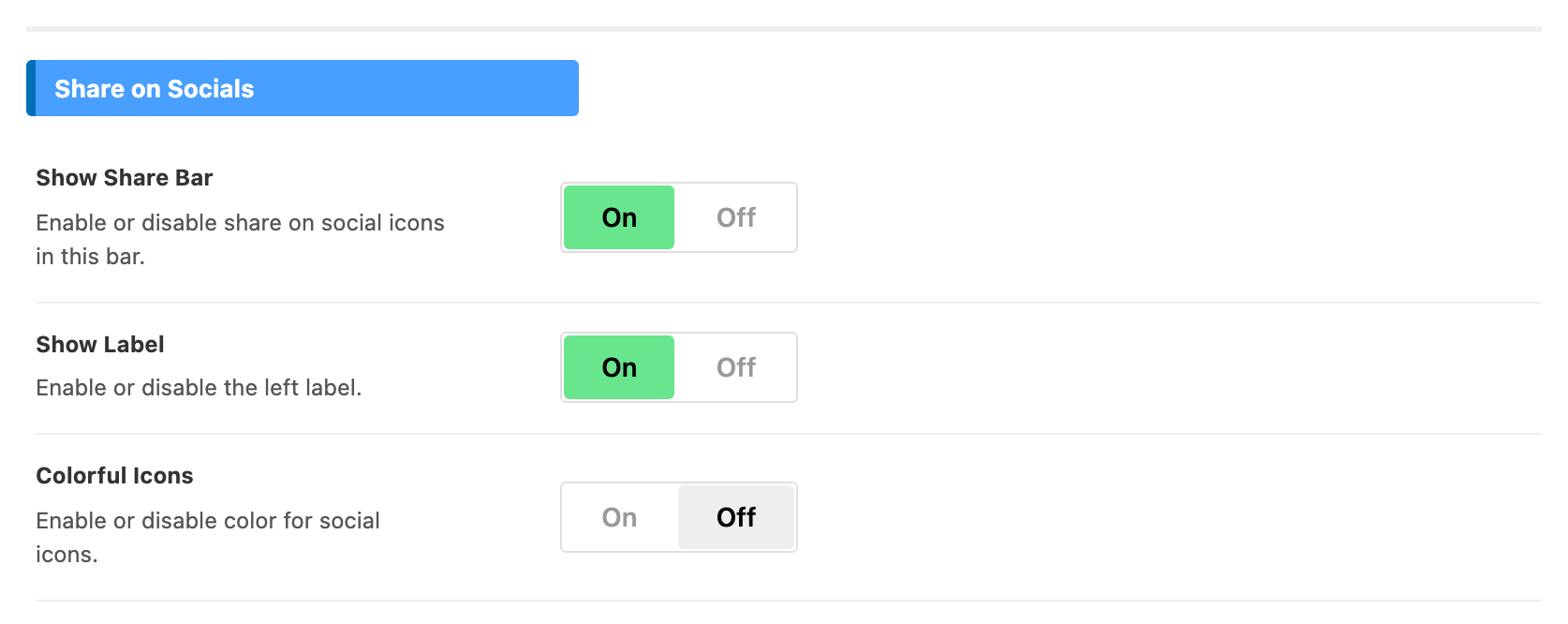
This section appears once Sticky Headline is on.
These switches are their own set. Changing Share on Socials, Entry Meta or Fixed Left Section does not change this bar, and its defaults differ: here Colorful Icons is off, while the other bars have it on. See how to set up social share on single posts for those.
- Show Share Bar shows the share icons in the bar at all. On by default.
- Show Label prints the word Share beside the share icon. On by default.
- Colorful Icons draws each network in its own brand colour instead of plain. Off by default.
Then one switch per network, in this order:
- Facebook: on by default.
- X (Twitter): on by default.
- Flipboard: off by default.
- Pinterest: off by default.
- WhatsApp: off by default.
- LinkedIn: off by default.
- Tumblr: off by default.
- Reddit: off by default.
- Vkontakte: off by default.
- Telegram: off by default.
- Threads: off by default.
- Bluesky: off by default.
- Email: off by default.
- Copy Link: on by default.
- Print: on by default.
- Native Share: on by default. It opens the phone or browser's own share sheet and only shows in browsers that have one.
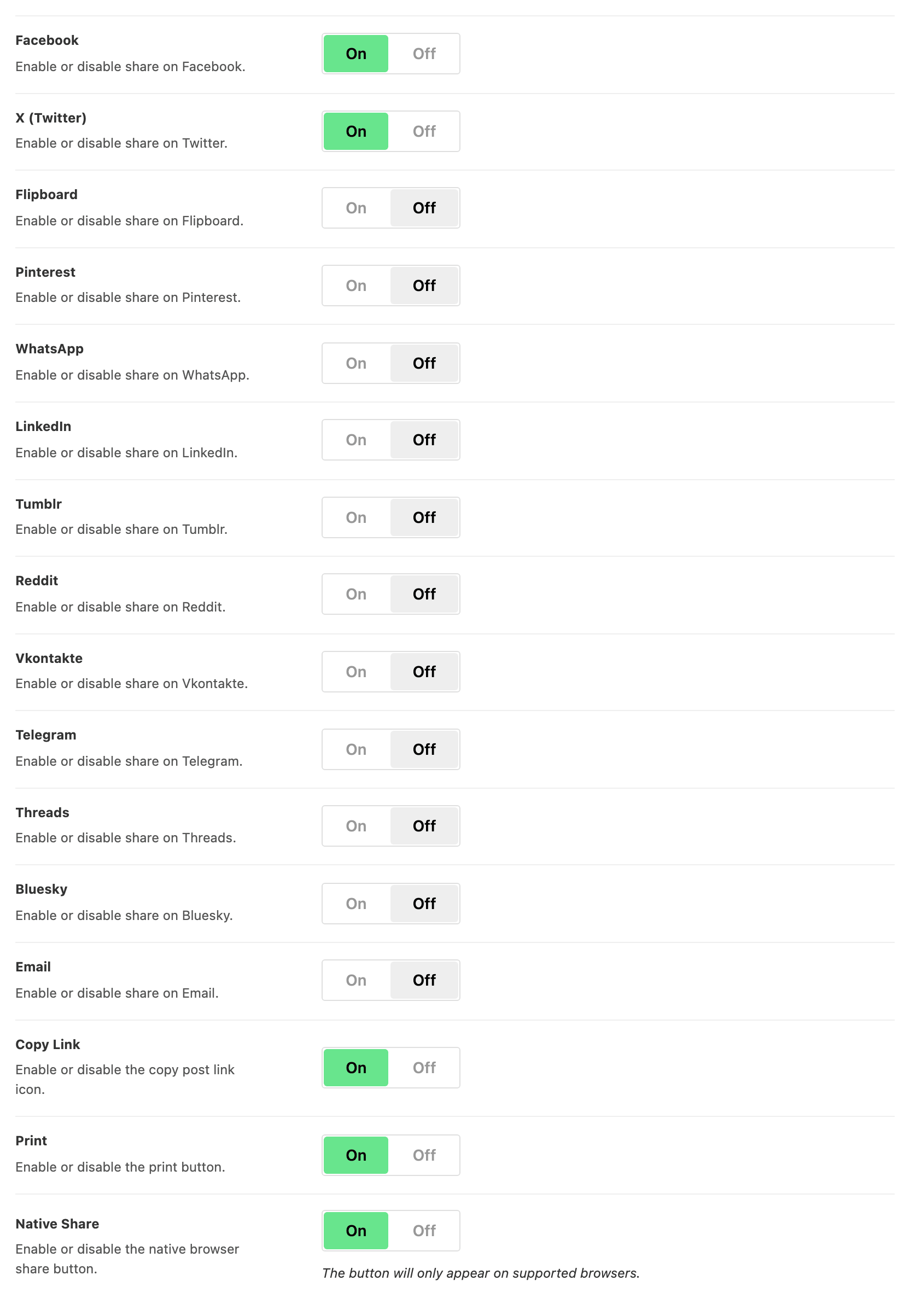
Switch every network off and the bar shows the title alone.
Reading Indicator
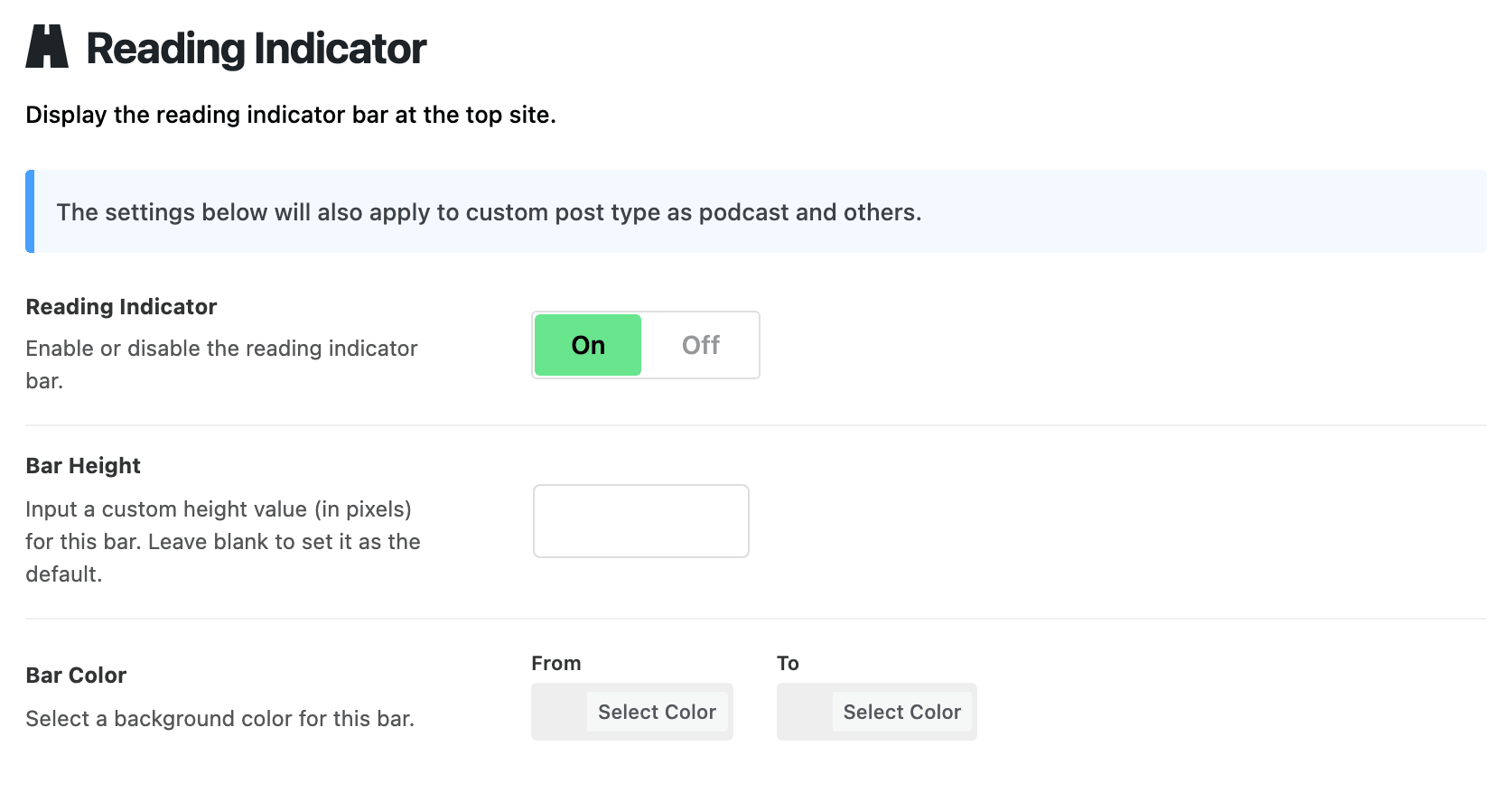
- Reading Indicator draws a thin bar along the top edge of the screen that fills from left to right as the reader moves through the post. It is on by default, on every single post.
- Bar Height is its thickness in pixels. It is empty by default, which gives 4.
- Bar Color takes two colours, and the bar fades from the first on the left to the second on the right. Left empty it runs from pink to blue. Pick the same colour twice for a solid bar.

Both fields appear once the switch is on. The bar works with the built in headers and with a header built as a Ruby Template.
Did this answer your question?