Every Setting in the Post Content Area Panel
Theme Options > Single Post > Post Content Area shapes the body of a post: how wide the text runs, how links and lists look, and which rows and boxes appear above and below the article itself. Everything here is site wide; none of it has a matching field in a post's own Single Post Settings.
A notice at the top of the screen says some of these settings also reach podcast episodes and other custom post types.
Has Sidebar and No Sidebar: line length
Long lines are hard to read, so Foxiz caps how wide the text of a post can run. There are two groups, because a post with a sidebar and a post without one need different caps.
Has Sidebar - Optimized Line Length applies to layouts with a sidebar.
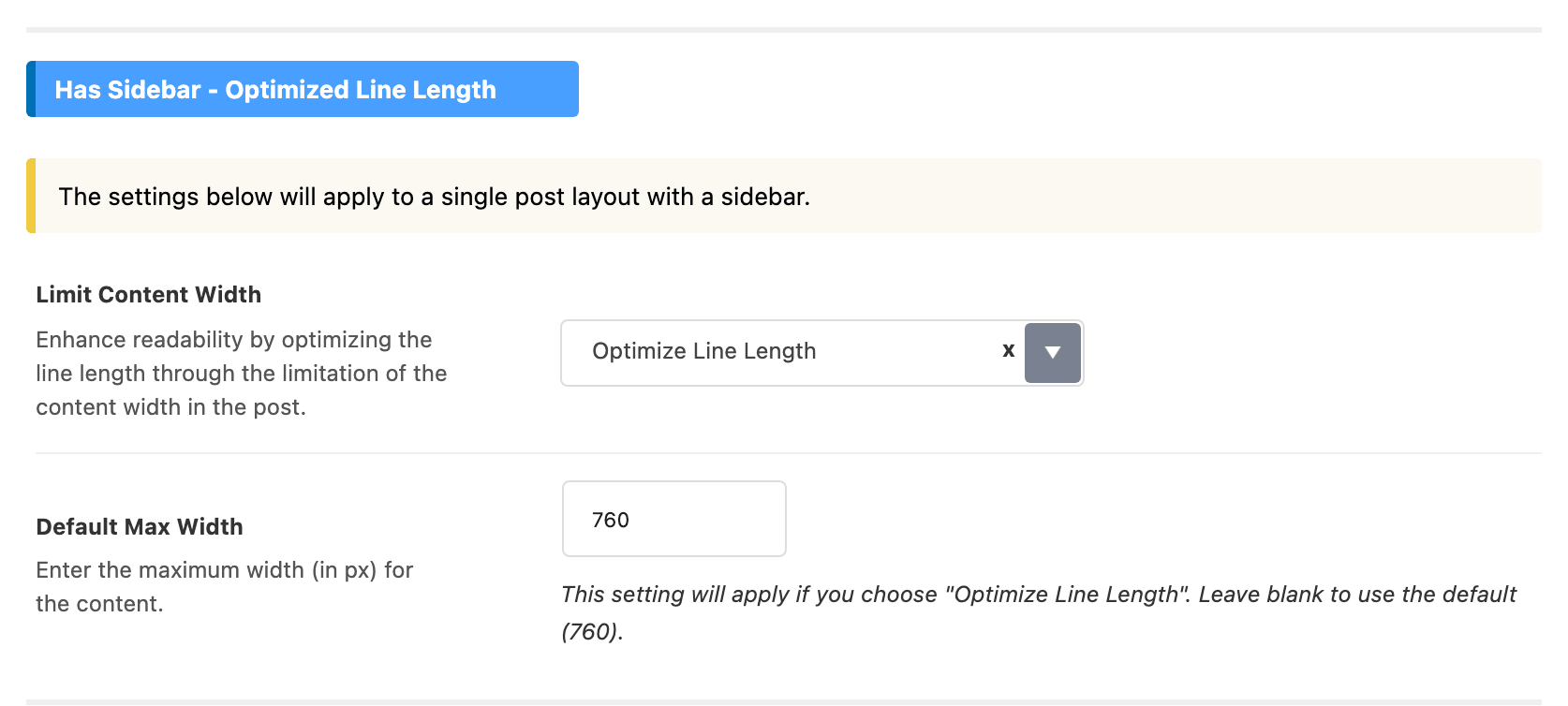
- Limit Content Width offers - None - and Optimize Line Length. Its default is Optimize Line Length. - None - lets the text fill the whole column beside the sidebar. For most sites keep Optimize Line Length: a line capped at a readable width is easier to follow than one that runs the full column.
- Default Max Width is the cap in pixels, used while the field above is on Optimize Line Length. Default: 760.
No Sidebar - Optimized Line Length applies to full width layouts.
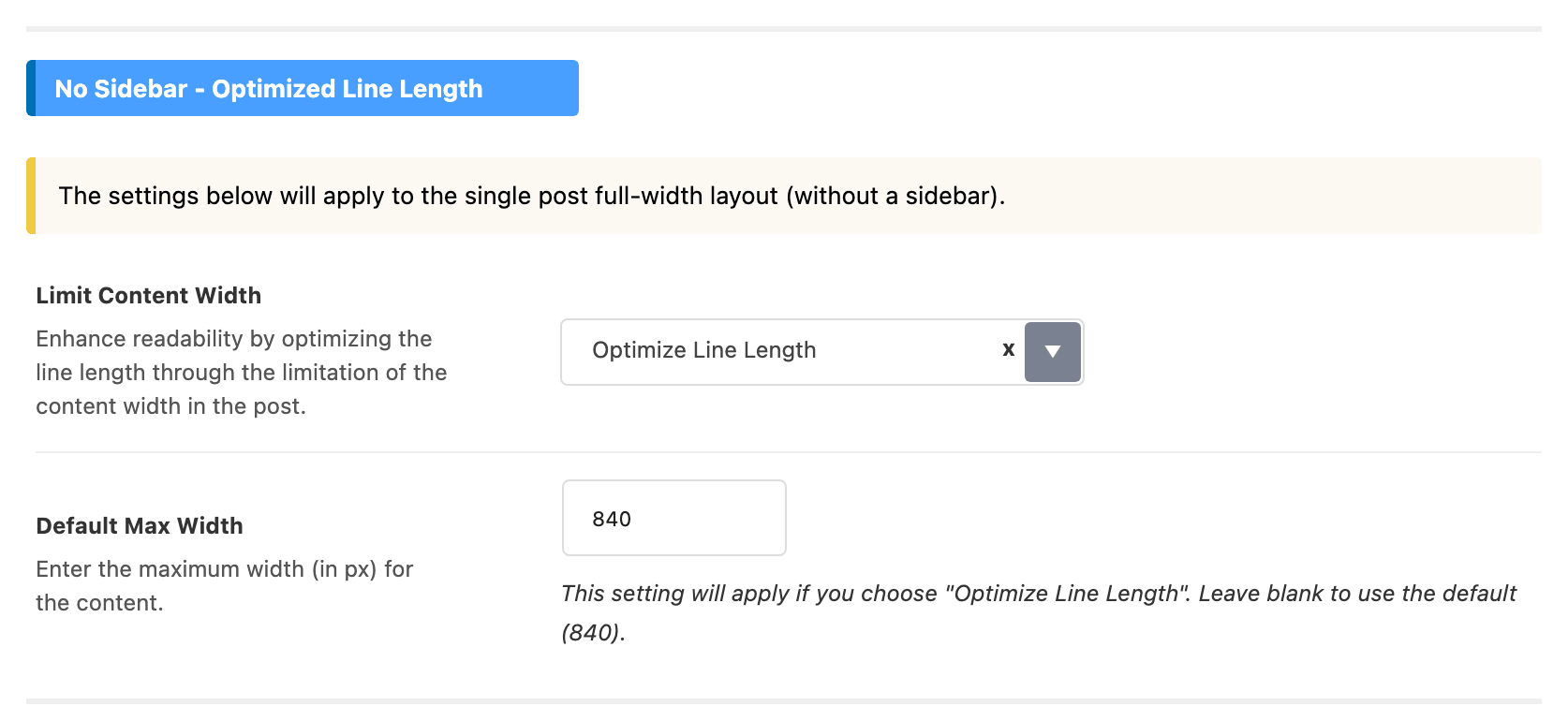
- Limit Content Width has the same two choices and also defaults to Optimize Line Length. Here the cap applies to the whole content column under the header, not only the paragraphs, and - None - lets it run the full width of the page container.
- Default Max Width is that cap in pixels. Default: 840.
Wide images and galleries in a post without a sidebar are allowed to break out of this cap; their own limit is Wide Align Max Width, further down.
Paragraph Spacing
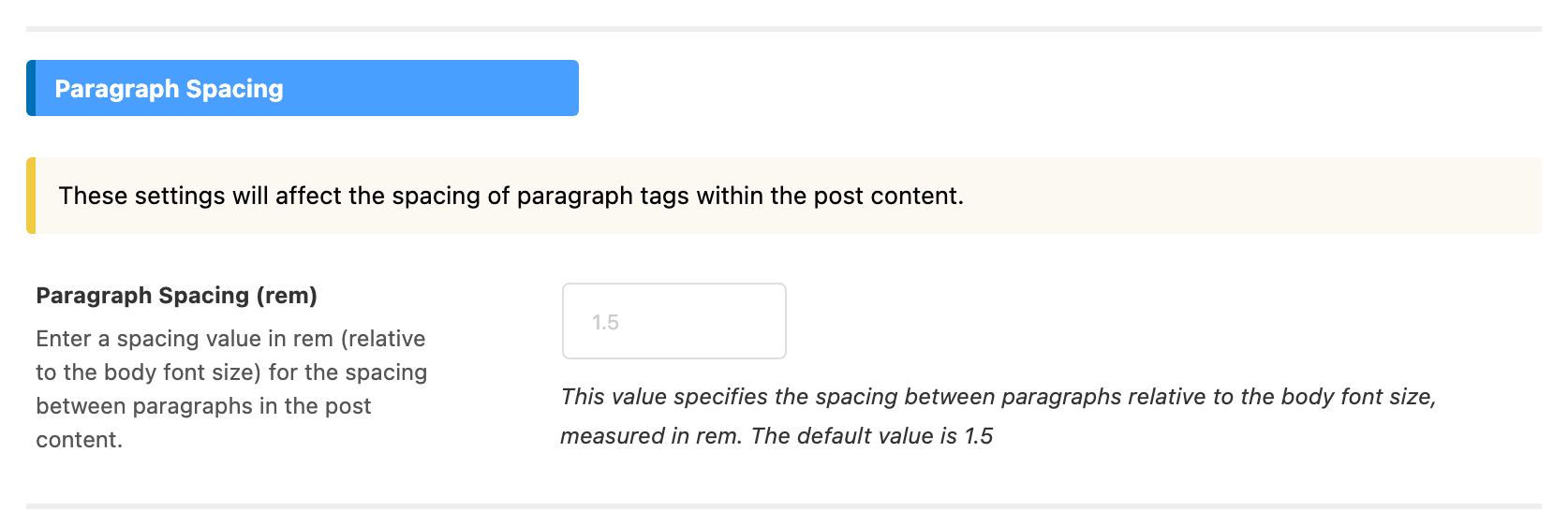
Paragraph Spacing (rem) is the gap between paragraphs, measured against the body font size, so 1.5 means one and a half times the size of a letter. It is empty by default, which gives that same 1.5. Lower it for a denser page; raise it for more air.
Hyperlink
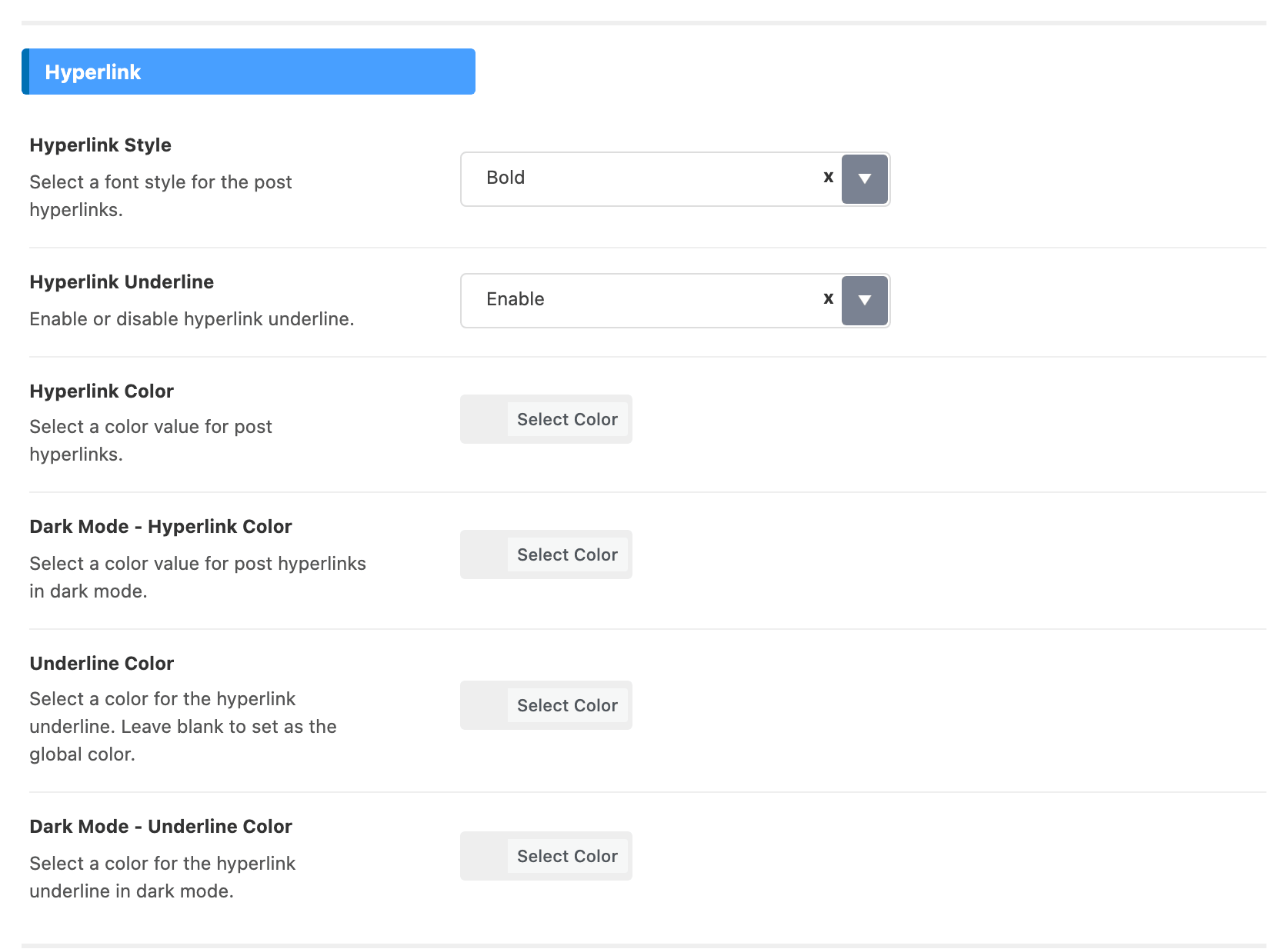
Six settings for the links inside a post. They also style links in an Elementor Text Editor widget and in a sidebar Text widget.
- Hyperlink Style offers Bold, Bold Italic, Normal Italic and Normal. Its default is Bold.
- Hyperlink Underline is Enable or Disable. Its default is Enable.
- Hyperlink Color is the colour of the link text. It is empty by default, which keeps links the same colour as the words around them, so the underline and the weight are what mark them out.
- Dark Mode - Hyperlink Color is the same in dark mode. Left empty, dark mode uses Hyperlink Color.
- Underline Color is the colour of the line under a link. Left empty, it takes the Global Highlight Color at Theme Options > Global Colors. It only matters while Hyperlink Underline is on.
- Dark Mode - Underline Color is the same in dark mode, and also falls back to the global colour.
List Style

List Style sets the bullets of ordinary lists in a post: Circle, Disc, Circle with Left Indent or Disc with Left Indent. Its default is Circle. Numbered lists keep their numbers either way; the two indented choices move both bullets and numbers out to the left of the text.
Align Wide Image & Gallery
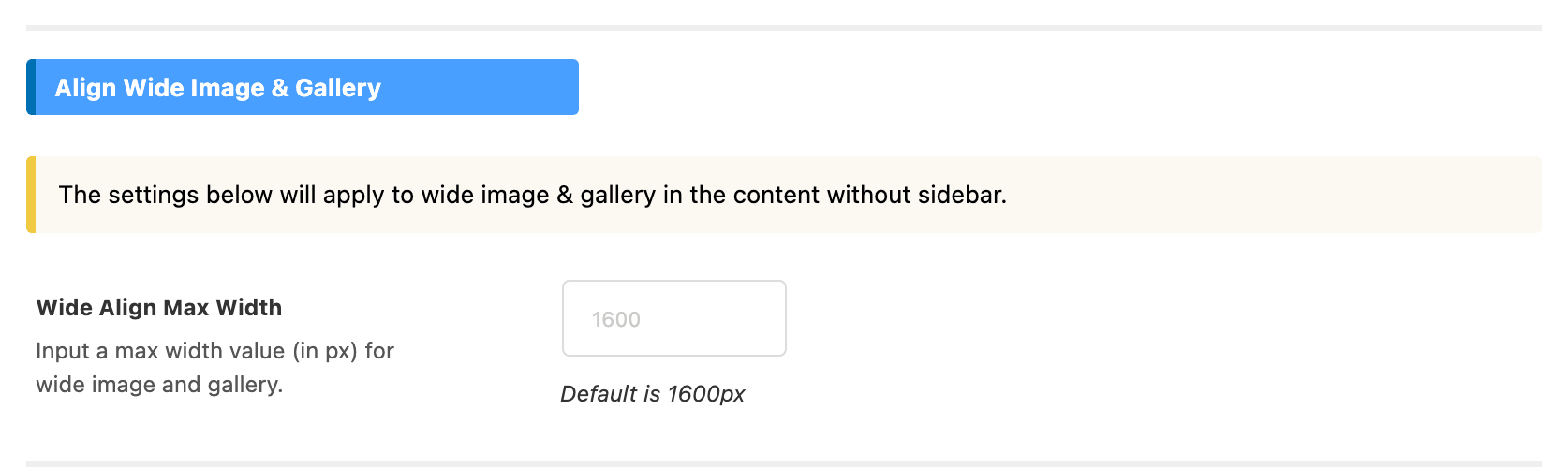
Wide Align Max Width is how far a Wide width image or gallery can spread in a post without a sidebar, in pixels. It is empty by default, which means 1600. How to Create Wide Width Images in the Content of a Post walks through using it.
Image Caption

Left Border decides whether a short border is drawn in front of image captions, both under the featured image and inside the post. - Default - draws it; None removes it.
Quick View Info
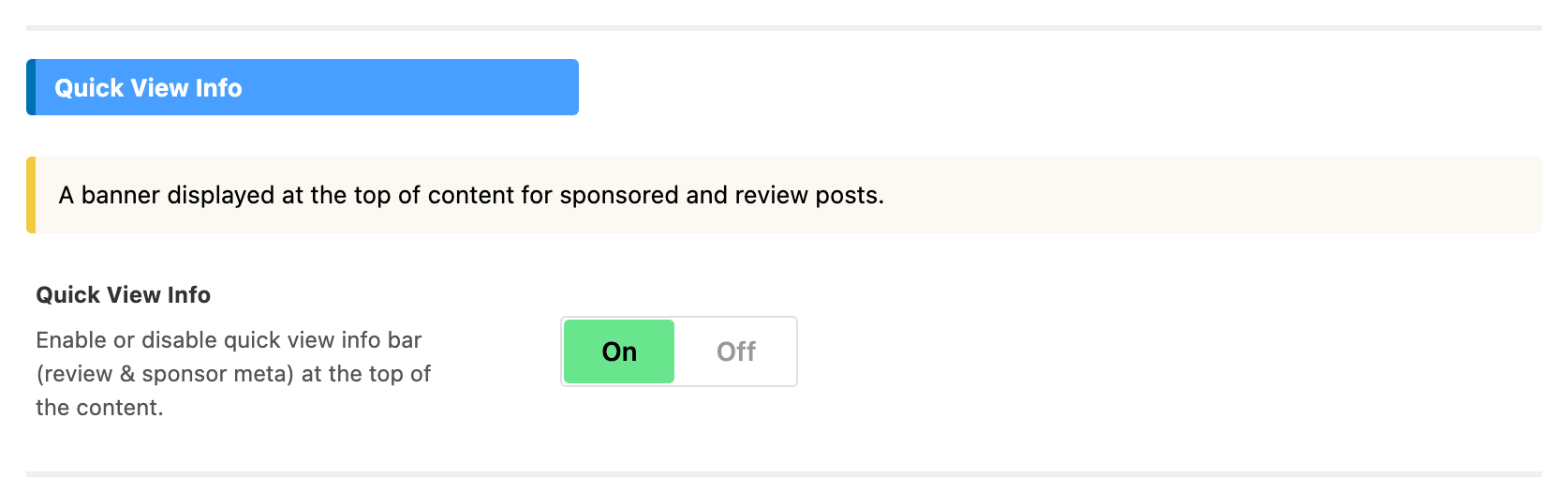
Quick View Info is a banner at the top of the content on two kinds of post. It is on by default.
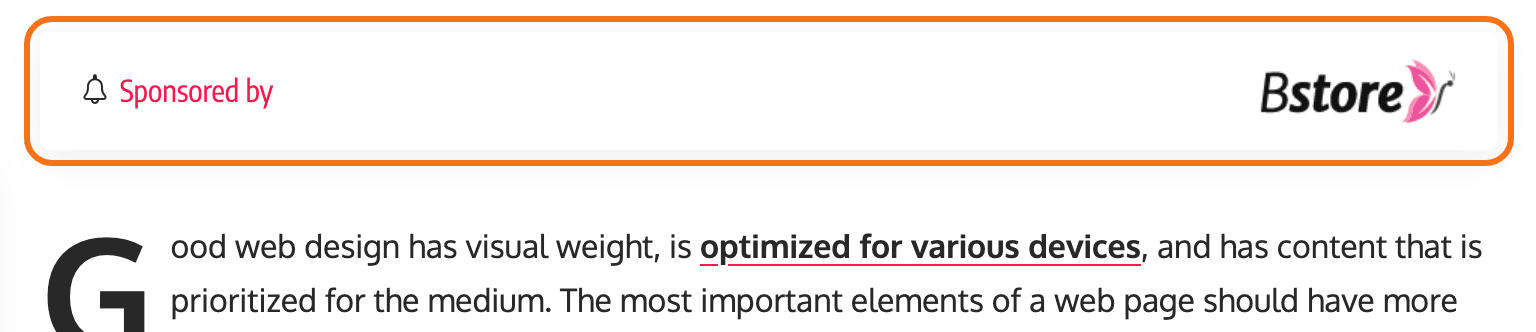
- On a sponsored post it shows the sponsor, with the "Sponsored by" label and the sponsor's name and logo.
- On a review post it shows a summary of the review: the score, the review heading, the stars or bar, and the review's button if it has one.
Any other post shows nothing here whatever the switch says. With it off, a sponsored post still names its sponsor in the meta bar and a review post still shows its full review box after the text; only the banner at the top goes.
Footer Area
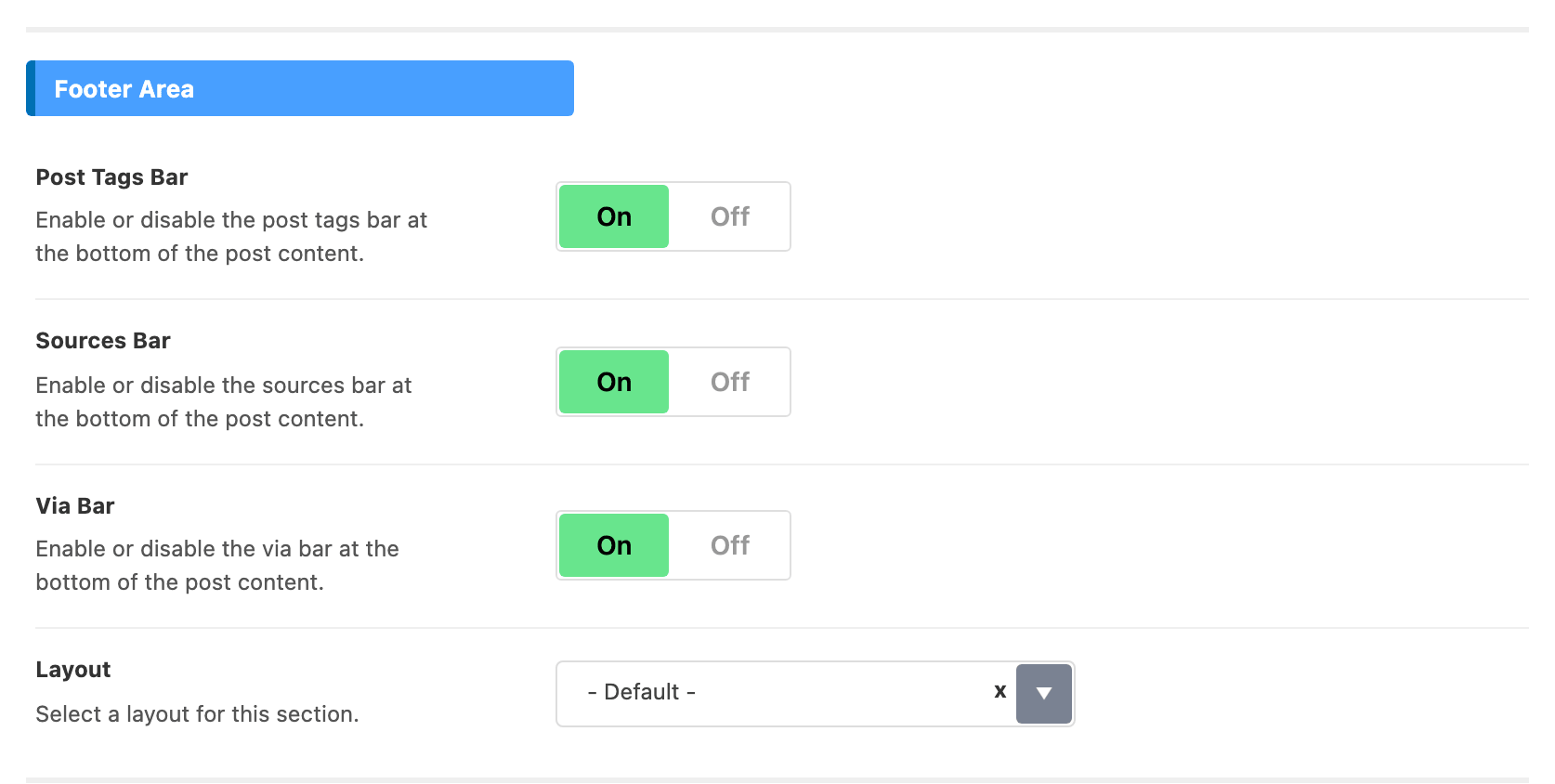
The rows printed straight after the post text.
- Post Tags Bar lists the post's tags under a TAGGED: label. On by default; a post with no tags shows no row.
- Sources Bar lists the sources you credit, under SOURCES:. On by default. You add sources per post, in the Sources/Via tab of Single Post Settings, with +Add Post Source; each one is a Source Name and an optional Source URL.
- Via Bar does the same for credits, under VIA:, filled from +Add Post Via on the same tab with Via Name and Via URL. On by default.
- Layout styles those rows: - Default - prints each as a plain comma separated list, Gray Background, Gray Border and Dark Border turn each item into a small tag.
Source and via links open in a new tab and are marked nofollow.

Bottom Newsletter

Bottom Newsletter adds a signup form at the end of the post, and is off by default. Its four fields, Newsletter Heading, Newsletter Description, Newsletter Shortcode and Policy Text, appear once it is on. How to Enable/Disable the Newsletter Section Below the Content of Single Posts covers each of them.
Author Card & Next/Prev Pagination
-
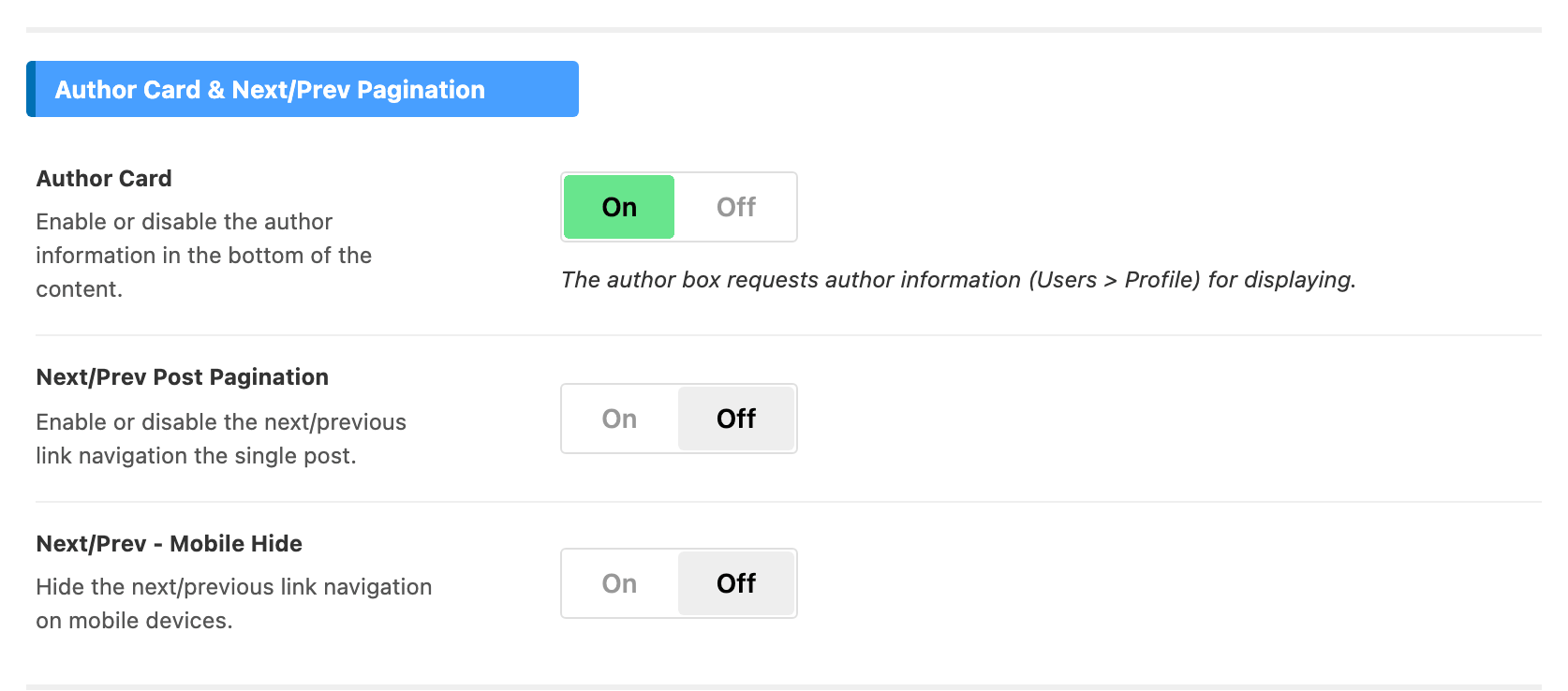
Author Card is the box about the author under the post. It is on by default, and it draws from what the author has filled in at Users > Profile. See Editing the Author Card Box.
-
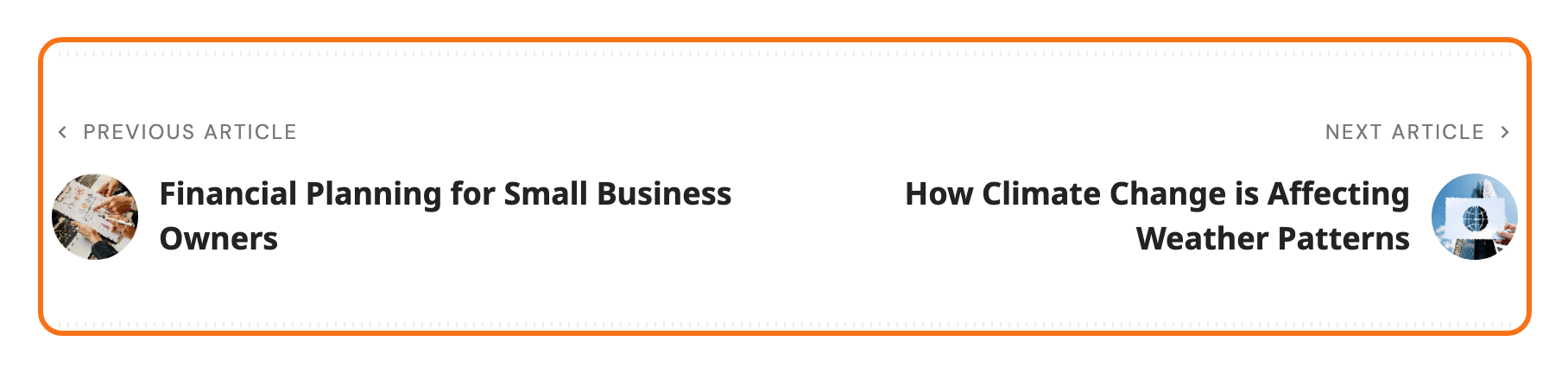
Next/Prev Post Pagination adds links to the previous and next post at the end of the article. It is off by default.
-
Next/Prev - Mobile Hide hides those links on phones and keeps them elsewhere. It is off by default.

Classic Editor
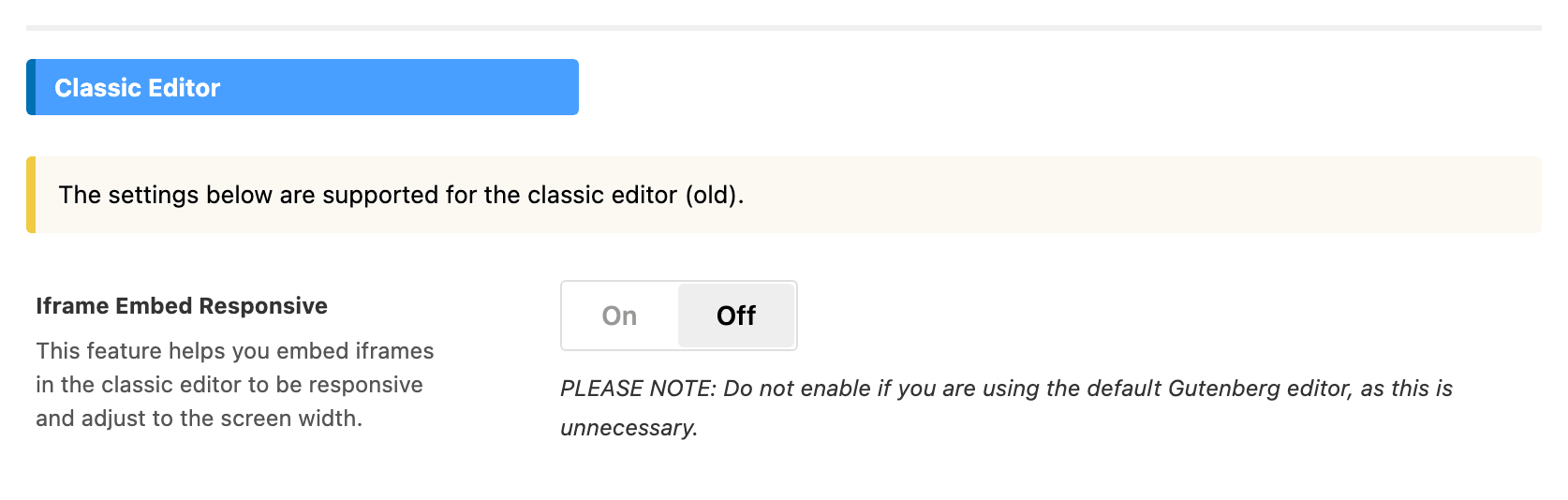
Iframe Embed Responsive is for sites that still write posts in the Classic Editor plugin. It makes YouTube, Vimeo and Dailymotion players pasted into a post resize with the screen instead of keeping a fixed width. It is off by default, and it does nothing unless the Classic Editor plugin is active; the block editor's own embeds already resize, which is why the field tells block editor users to leave it alone.
Did this answer your question?