Every Setting in the Tagline & Highlights Panel
Theme Options > Single Post > Tagline & Highlights styles two things you write on each post: the tagline, a line under the post title, and the highlights, a short list of key points at the top of the article.
The text of both lives on the post itself. Open the post, scroll to Single Post Settings and choose the Tagline & Highlights tab: Tagline is the line under the title, and Post Highlights takes one Highlight Point per row, added with +Add Highlight. A post with no points shows no highlights box at all, whatever this panel says.
Tagline
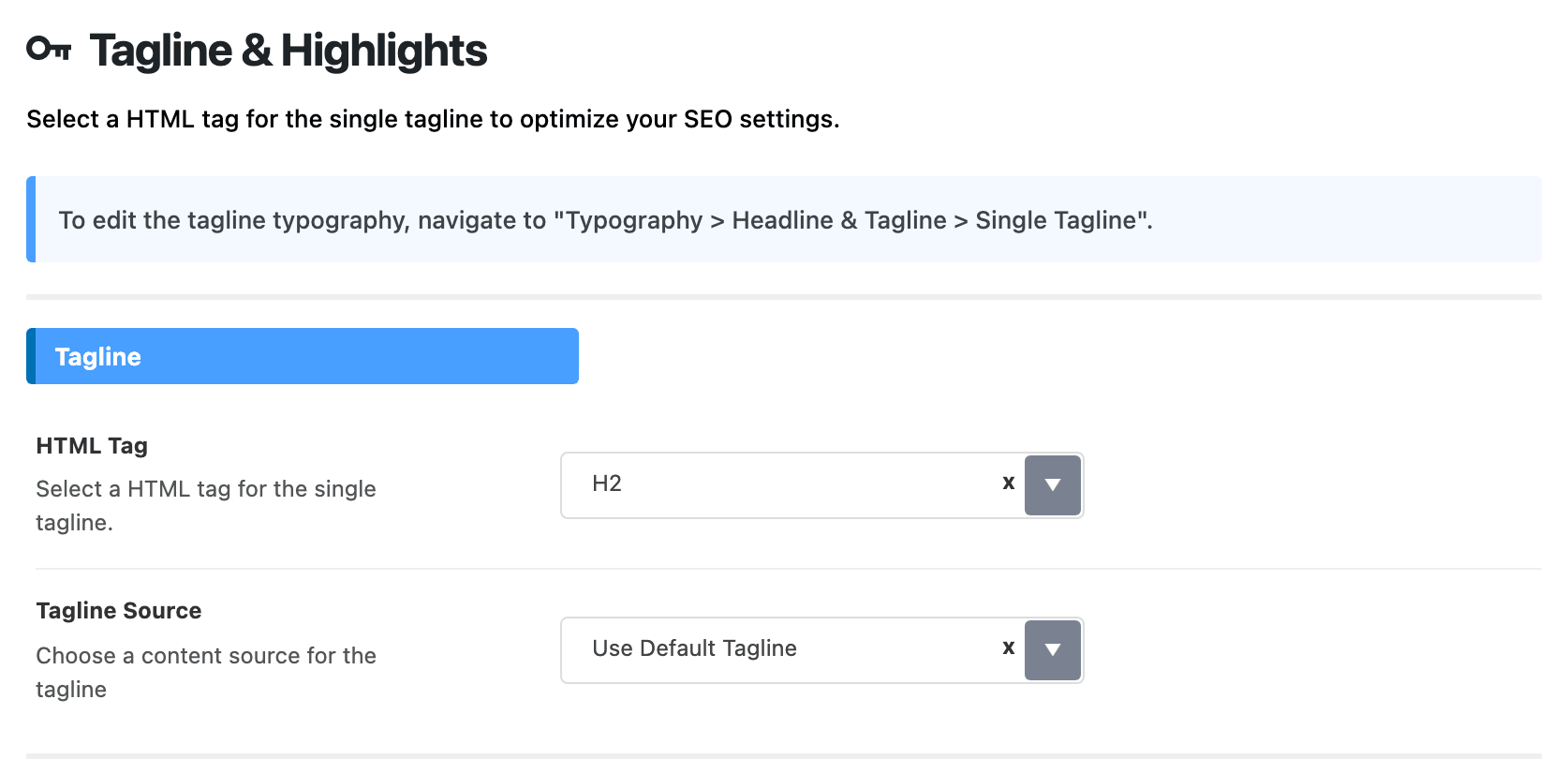
- HTML Tag is the heading level the tagline is marked up as: H2 to H6, p, span or div. Its default is H2. This is for search engines and screen readers; the tagline looks the same whichever you pick. One post can choose differently with Tagline HTML Tag on its own tab. A tag picked there wins for that post; left on - Default -, the post uses this field.
- Tagline Source decides where the tagline's words come from.
- Use Default Tagline, the default, prints the Tagline you typed on the post, and nothing when you typed none.
- Use Excerpt prints the post's excerpt instead. It has to be an excerpt you wrote in the editor's Excerpt box; WordPress's automatic one does not count, so a post without one gets no tagline. On a password protected post the excerpt stays hidden until the reader enters the password.
- Use Excerpt if empty Tagline prints the Tagline when there is one and falls back to the written excerpt when there is not. This is the choice for a site whose older posts have excerpts and no taglines.
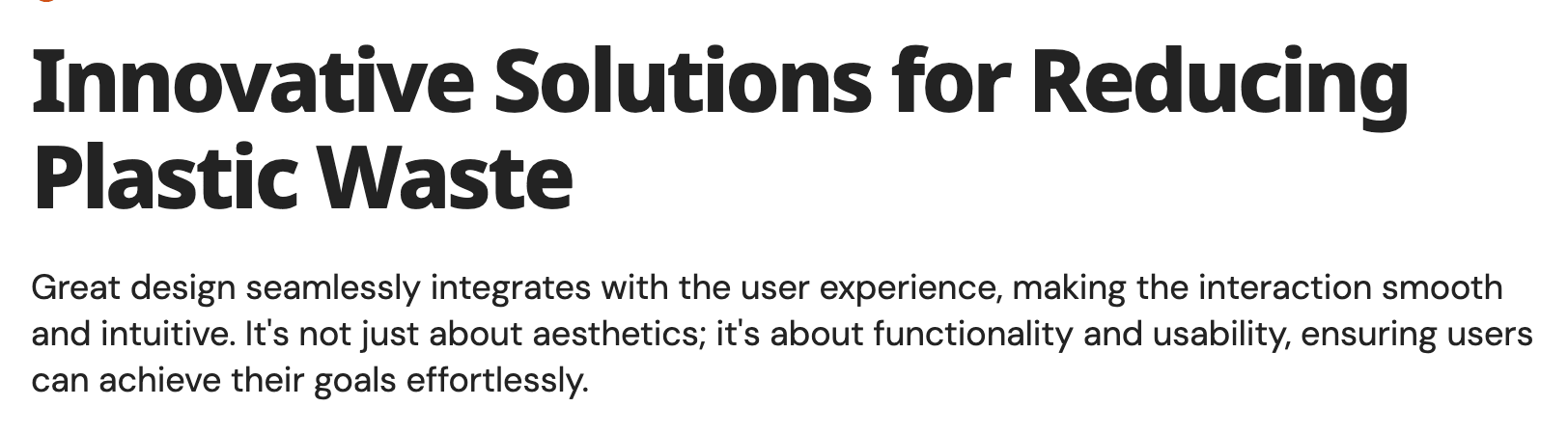
The tagline's font and size are not on this screen. A notice at the top points to Typography, and the field you want there is Single Tagline Fonts (Sub Title) in the Single Post section.
Highlights
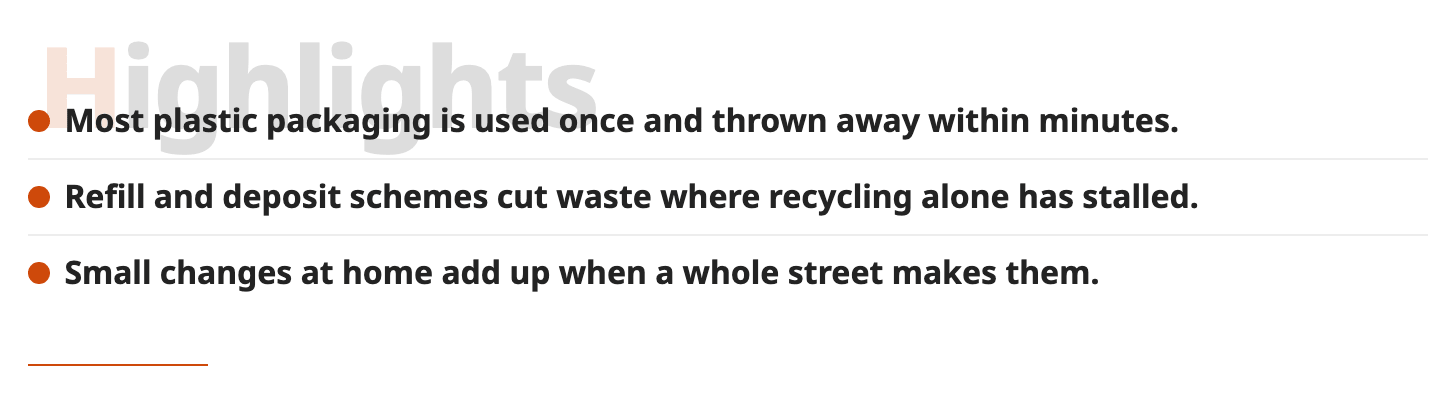
The box sits at the top of the article text, above the first paragraph.
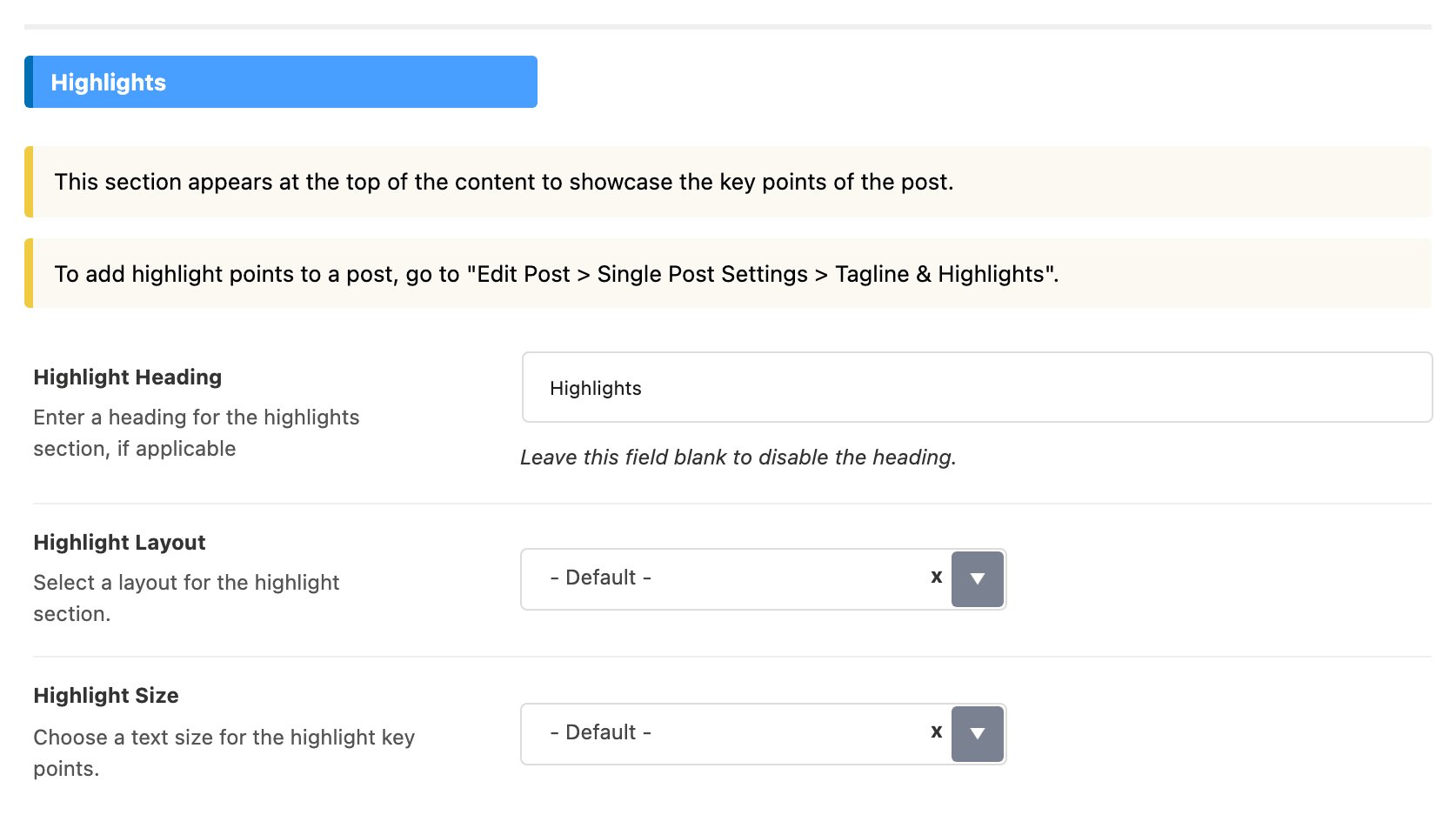
- Highlight Heading is the word above the points. Its default is
Highlights; clear the field and the box has no heading. Simple formatting such as bold or italics is allowed. - Highlight Layout is - Default - or Boxed. Its default is - Default -. The default prints the heading large and faint behind the list, with a thin rule between points. Boxed puts the list in a card with a shadow and a top border in your Global Highlight Color, with the heading set normally above it. What decides it: - Default - blends into the article, Boxed stands out in a card. Keep the default unless the points should catch the eye before the first paragraph.
- Highlight Size is the size of the points themselves: - Default -, Large, Small or Plain Text. Its default is - Default -. - Default - sets them in your H5 heading style, Large in your H4 and Small in your H6; Plain Text sets them like the article's own text.
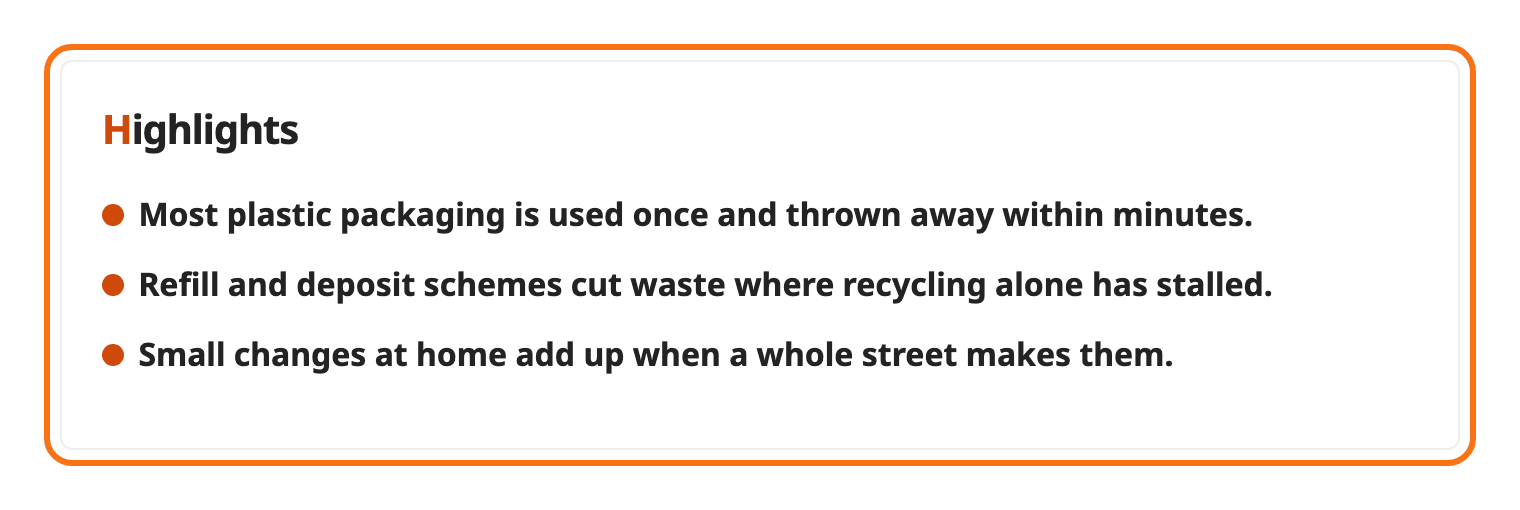
In the Boxed layout the box takes its background from the same colour as the table of contents, set with Background at Theme Options > Global Colors > TOC, Left Shares & Inline Related.
Did this answer your question?