Every Setting in the Summarize with AI Panel
Theme Options > Single Post > Summarize with AI controls a small block on your posts that lets a reader get a summary of the article. It works in one of two ways. In Copy Prompt Mode, clicking an assistant opens it in a new tab with a request already typed in, naming your site and linking to the post; nothing is sent from your site and no AI service is involved until the reader clicks. In Connector API Mode, your own site asks the AI provider you connected for a short list of key points and shows them on the page.
The block sits at the top of the post, above the highlights and the first paragraph. It appears on posts only, not on pages or other post types, and not on AMP pages.
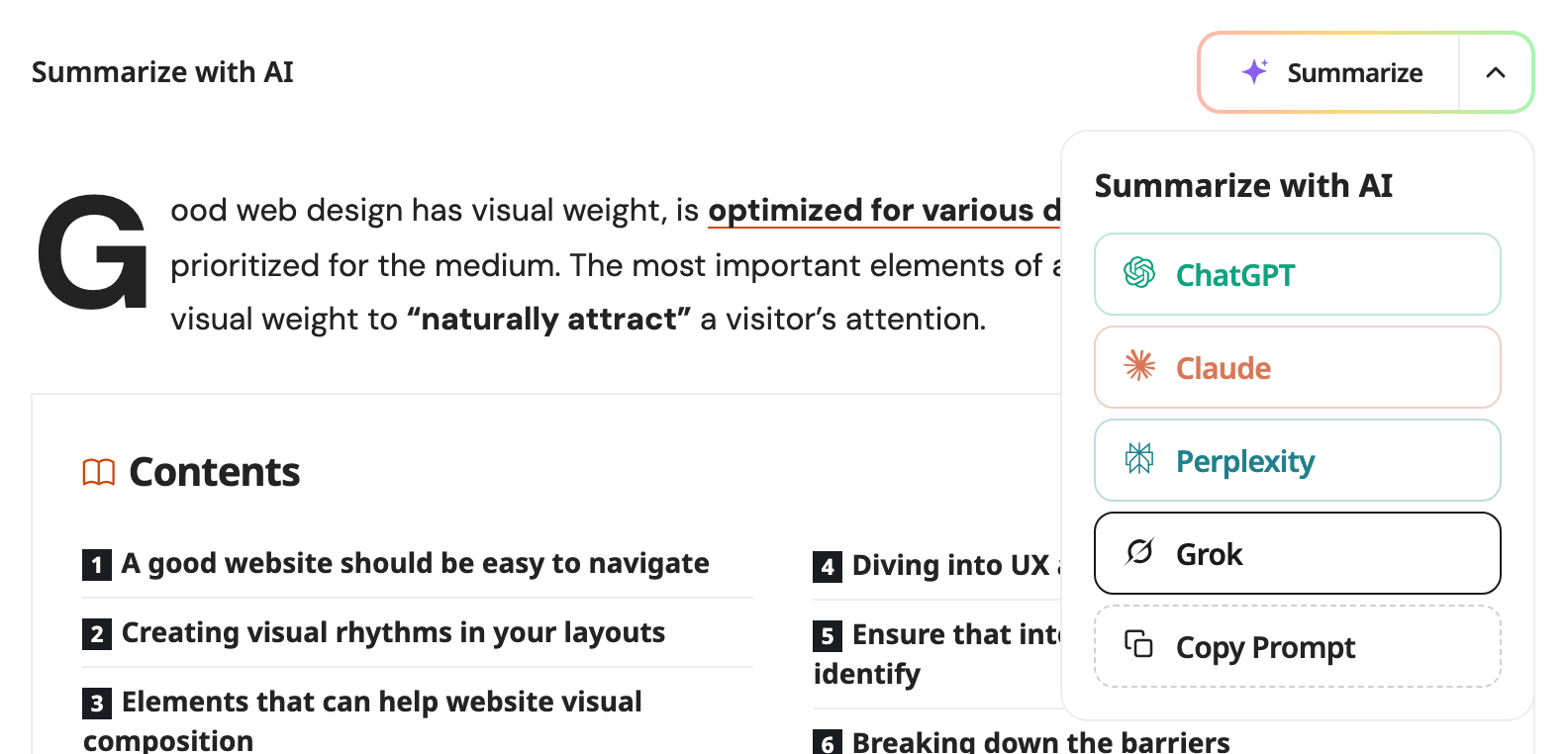
Summarize with AI
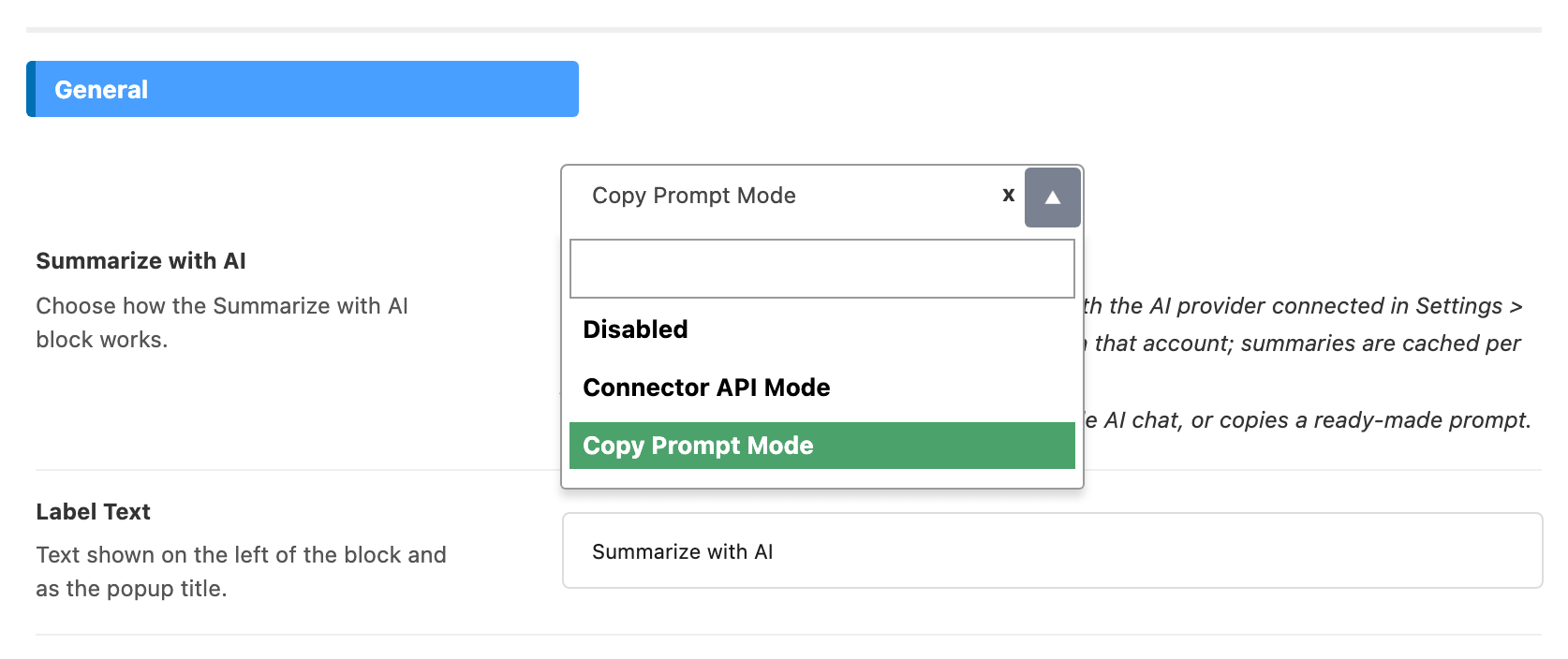
The first field, also called Summarize with AI, is a select with three choices:
- Disabled removes the block from every post, and hides every other field on the screen.
- Copy Prompt Mode is the block described in most of this page: buttons that open the post in an outside AI chat, and a button that copies a ready made prompt.
- Connector API Mode summarizes the post on the page with the AI provider connected to your site. It has its own group of fields, covered in Connector API Mode at the end of this page.
Its default is Copy Prompt Mode, so the block is already on your posts until you change it. A site that had switched the block off keeps it on Disabled.
Copy Prompt Mode suits most sites: it costs nothing, and nothing leaves your site until a reader clicks. Pick Connector API Mode once an AI provider is connected and you accept that each new summary uses tokens from your provider account.
Layout and texts
-
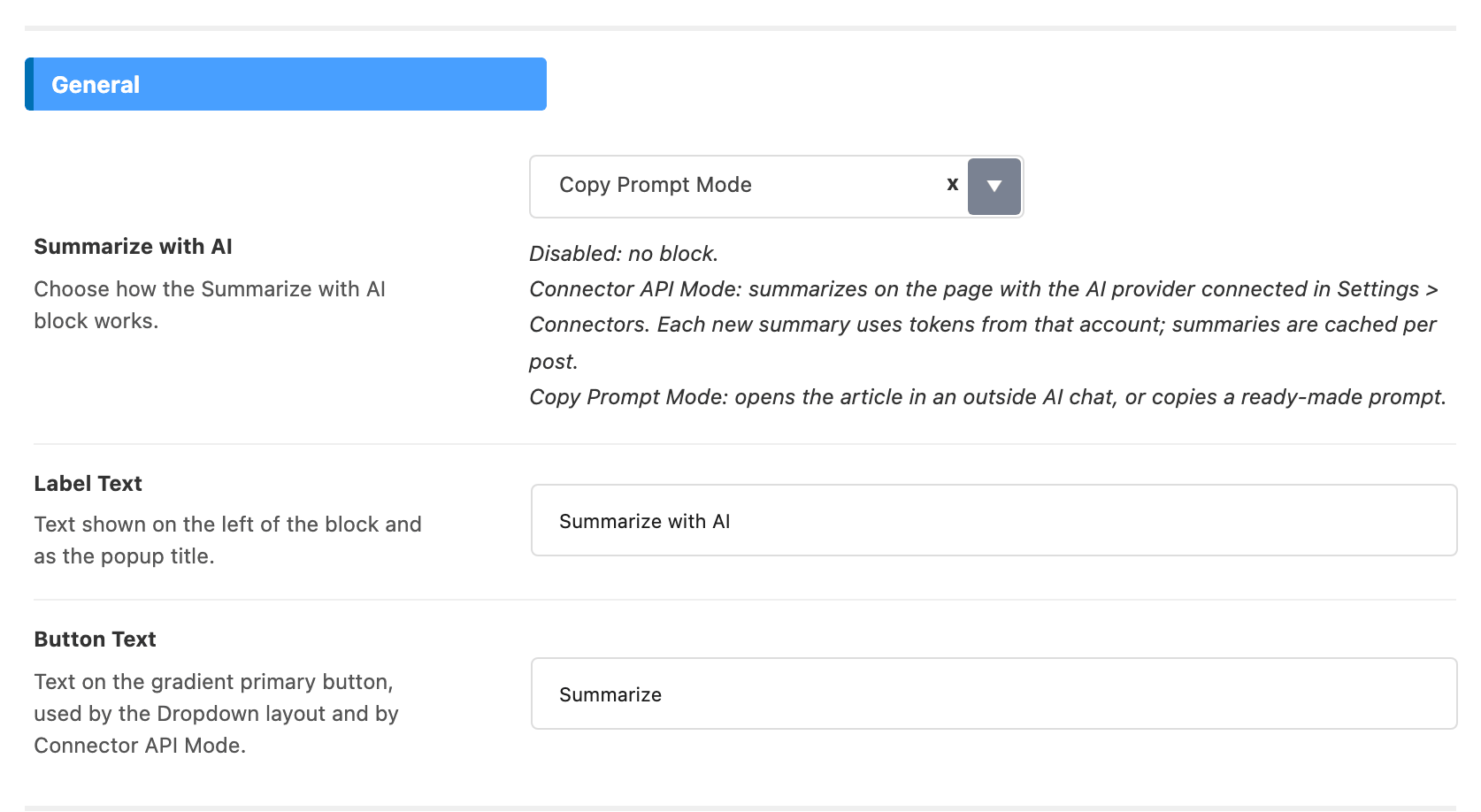
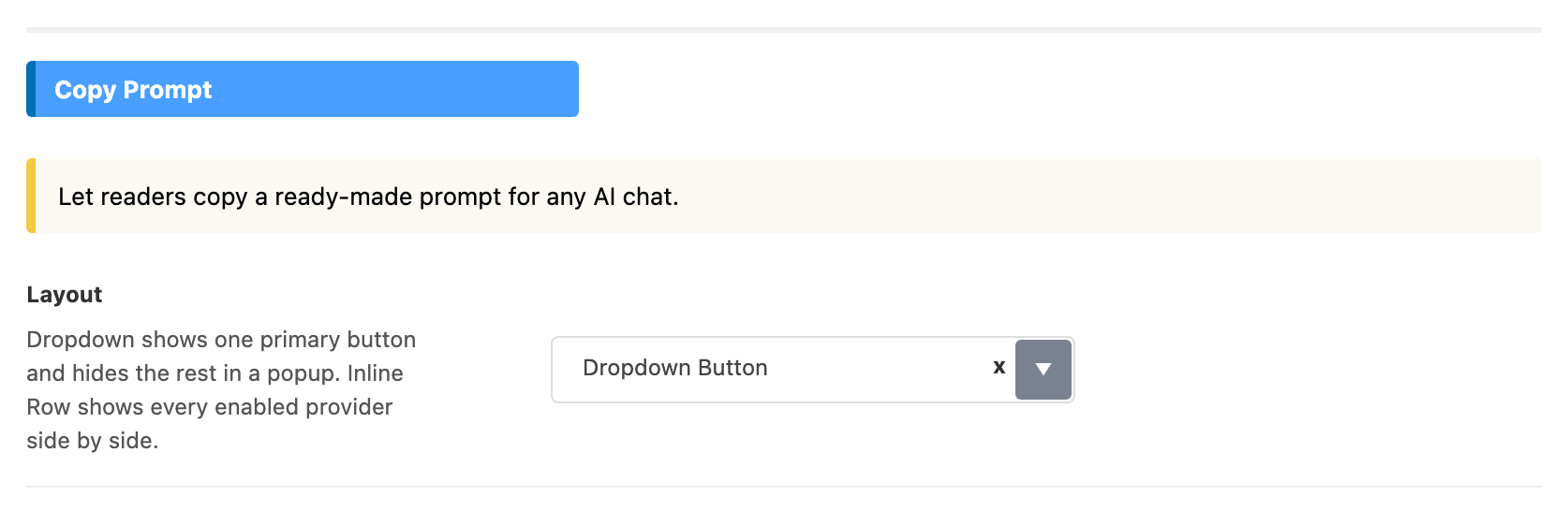
Layout is Dropdown Button (the default) or Inline Row. Dropdown Button shows one main button for your default assistant and a small arrow beside it that opens a list of the others. Inline Row shows every assistant you enabled as its own button, side by side. The field sits in the Copy Prompt group further down the screen and only appears in Copy Prompt Mode; Connector API Mode has a layout of its own.

-
Label Text is the words at the left of the block, also used as the title of the dropdown list. Its default is
Summarize with AI. -
Button Text is the word on the main button: the one that opens your default assistant with Dropdown Button, or the one that asks for the summary in Connector API Mode. Inline Row has no main button, so it does not use it. Its default is
Summarize.
Leave any of these text fields empty and the block uses the default wording rather than showing a blank. That is also how you translate them: type your own words here.
Assistants
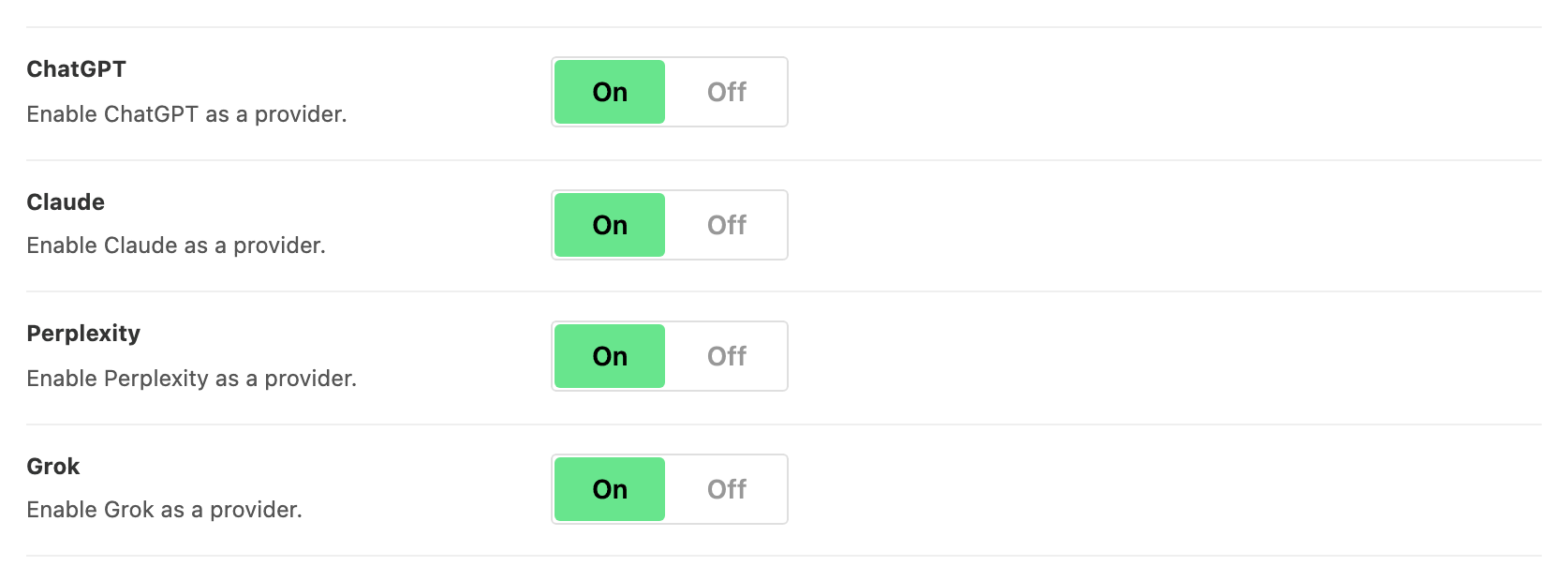
Four switches in the AI Chat Links group, ChatGPT, Claude, Perplexity and Grok, each adding that assistant to the block. All four are on by default. In Connector API Mode they stay hidden and only appear, in a dropdown, when a summary cannot be made.
Default Provider picks which of them the main button opens: ChatGPT (the default), Claude, Perplexity or Grok. It is used by the Dropdown Button layout and by the dropdown that Connector API Mode falls back to; Inline Row has no main button. If you choose an assistant you have switched off, the main button opens the first one still on, in the order the switches are listed.

Copy Prompt
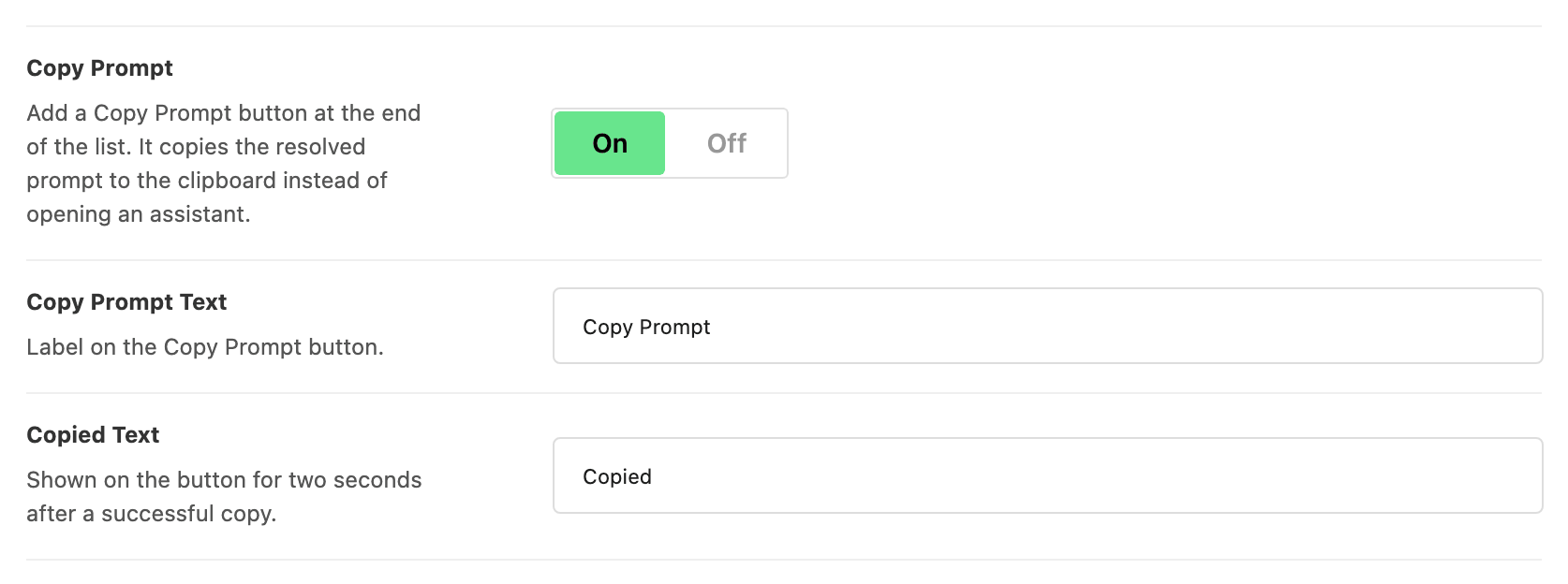
- Copy Prompt adds one more button at the end of the list that copies the request to the reader's clipboard instead of opening an assistant, for readers who use some other AI tool. It is on by default. The button only appears in browsers that can copy, so some readers will not see it.
- Copy Prompt Text is the button's label. Its default is
Copy Prompt. - Copied Text replaces that label for two seconds after a successful copy. Its default is
Copied.
Both text fields appear only while Copy Prompt is on. In Copy Prompt Mode, switch off all four assistants and Copy Prompt as well, and the block disappears.
Prompt Template
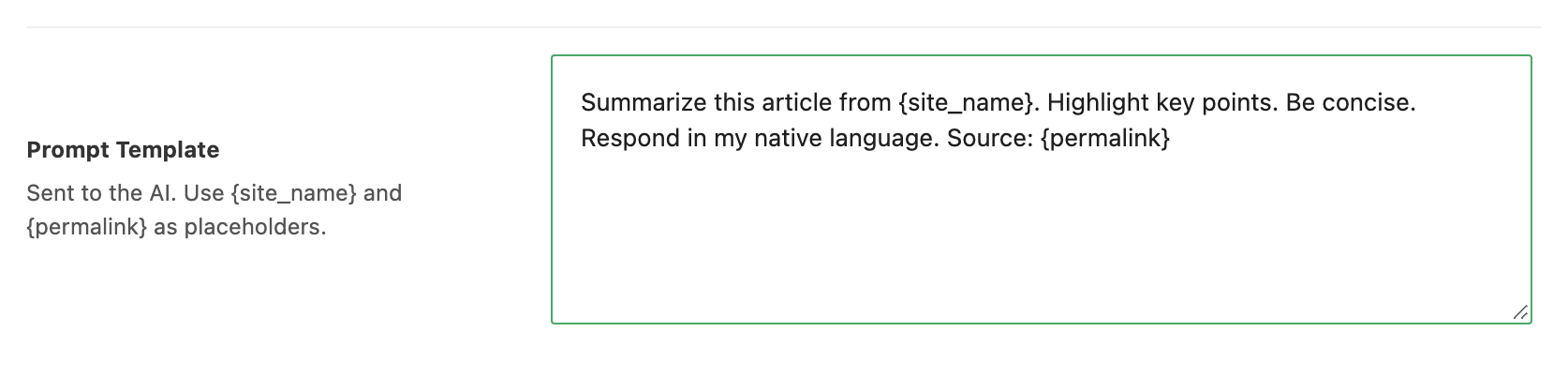
Prompt Template is the request the outside assistant receives, and the text the Copy Prompt button copies. Two placeholders are filled in when the reader clicks: {site_name} becomes your site title from Settings > General, and {permalink} becomes the address of the post. By default it reads:
Summarize this article from {site_name}. Highlight key points. Be concise. Respond in my native language. Source: {permalink}
Keep {permalink} in whatever you write: it is the only part of the request that tells the assistant which article you mean. Leave the field empty and the default prompt is used. Connector API Mode does not send this prompt; it sends the post itself with its own Instructions.
Connector API Mode
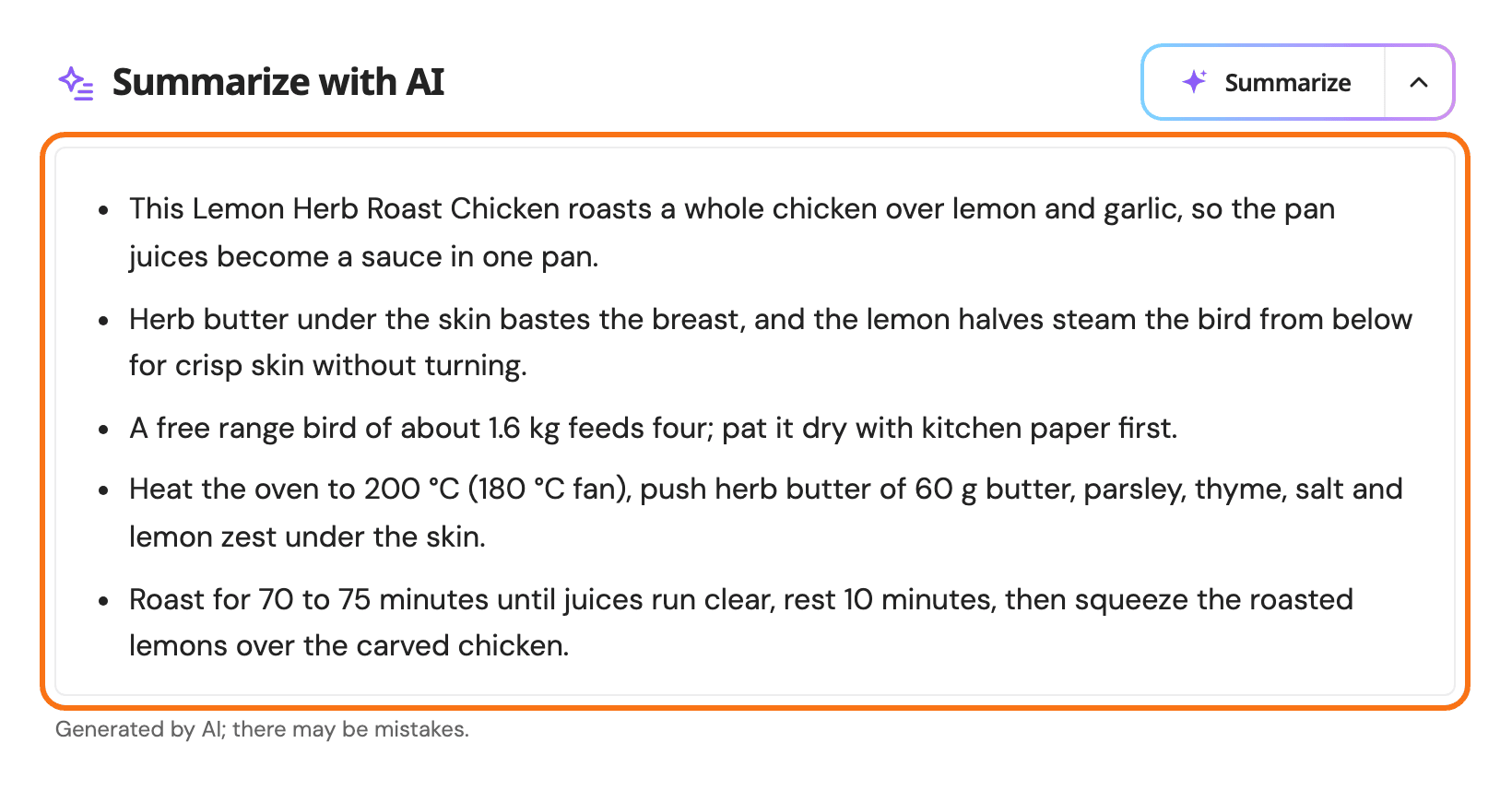
With Summarize with AI on Connector API Mode, the main button asks your site for a summary instead of opening an outside chat. The site sends the post to your AI provider, gets back 3 to 5 short bullet points in the article's own language, and types them into an AI Overview box that slides open under the block. The arrow beside the button hides and shows the box again.
Connect a provider first
The mode needs four things, and while one is missing the Connector API Mode group opens with a warning that names it:
- An activated Foxiz license.
- WordPress 7.0 or later.
- An AI provider connected at Settings > Connectors, the WordPress screen where you add your provider and its API key. How to connect an AI provider walks it.
- AI features left on for the site. If the warning says they are switched off, the
WP_AI_SUPPORTconstant or thewp_supports_aifilter has turned them off.
If the warning says Foxiz Core is waiting for approval, approve it at Tools > Connector Approvals. The warning ends with an Open AI Assistant link to Foxiz > AI Assistant, where you can check the connection.
Until all of that is in place, the block works as in Copy Prompt Mode: your readers get the assistants and the Copy Prompt button, never a broken button.
The fields
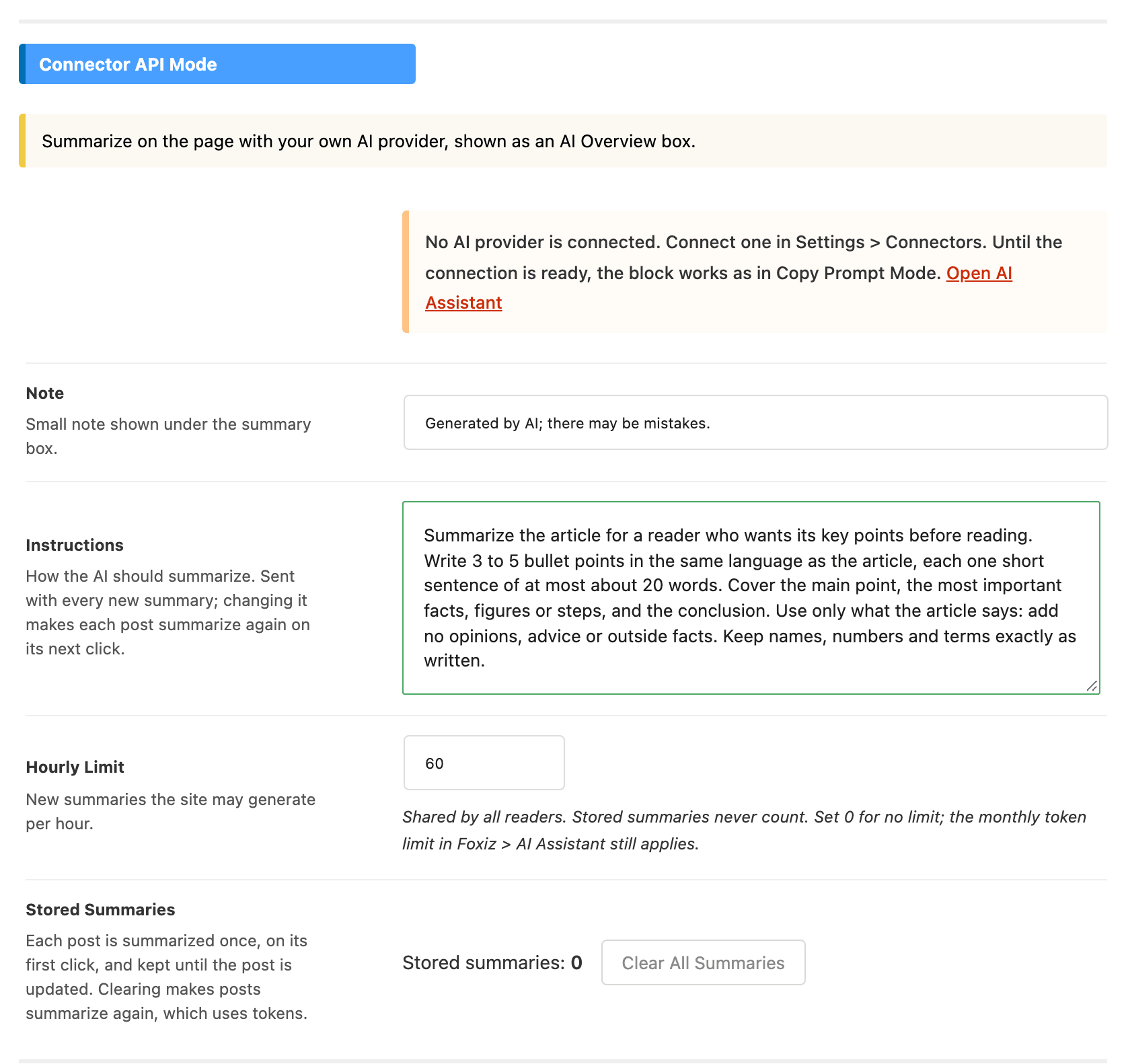
- Note is the small line under the summary box. Its default is
Generated by AI; there may be mistakes., and an empty field uses that same text. - Instructions tells the AI how to summarize. By default it asks for 3 to 5 bullet points in the article's language, each one short sentence, using only what the article says and keeping names, numbers and terms as written. Change it to ask for a different tone or length. Changing it makes every post summarize again on its next click, which uses tokens. Leave it empty and the default instructions are used.
- Hourly Limit is how many new summaries the whole site may make in an hour, shared by all readers. Default: 60; set 0 for no limit. Summaries already stored never count against it. The Monthly Token Limit at Foxiz > AI Assistant applies to summaries as well.
- Stored Summaries shows how many posts have a summary saved, with a Clear All Summaries button. Click it twice to confirm. Cleared posts summarize again on their next click.
What it costs, and when it falls back
Each post is summarized once, on the first reader's click, and every later reader gets the stored summary at no cost. Each new summary uses tokens from your AI provider account. A post is summarized again only when you change its content or title, change Instructions, or pick another AI Model at Foxiz > AI Assistant, which is also the model summaries use.
When a summary cannot be made, because a limit is reached or the provider returns an error, the block turns into the Dropdown Button layout in place. It shows "AI summary is unavailable right now. Summarize with:" above your assistants and Copy Prompt, using Default Provider for the main button. Switch off every assistant and Copy Prompt too, and the reader gets "The summary is not available right now. Please try again later." instead.
A post shorter than about 120 words, or one protected by a password, is never sent: it shows the Copy Prompt Mode block instead.
To stop summaries, set Summarize with AI to Copy Prompt Mode or Disabled. Enable Foxiz AI Assistant at Foxiz > AI Assistant switches off the editor assistant, not the summaries.
Did this answer your question?