How to Create a Table of Content?
The table of contents is a box near the top of a post that lists the post's headings and links to each one. You do not build it by hand: the theme collects the headings in the content and draws the box, on the post types you choose.
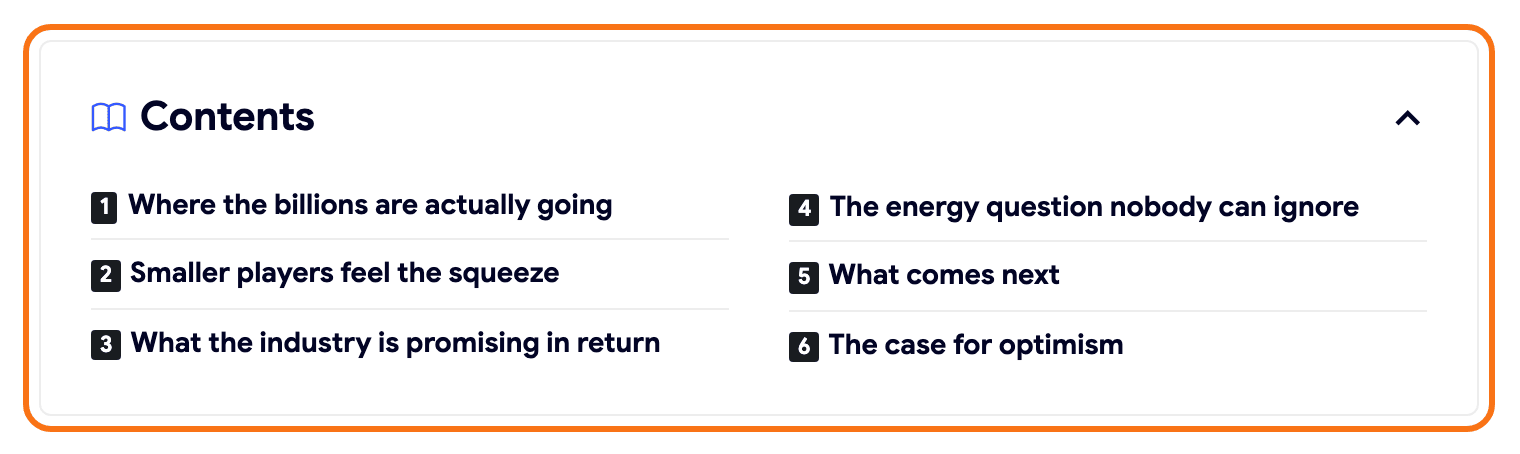
You can set the table of contents in two places:
- Theme Options > Table of Contents sets it for every post, page and custom post type listed in Support Post Types.
- The Table of Content tab in the settings box under the editor (Single Post Settings, Single Page Settings or Single Post Type Settings) changes one post or page only.
When both set the same thing, the post's own setting wins. A field left on - Default -, or a blank Display Position, follows Theme Options.
So work in this order: set the box up for the whole site in Theme Options first. Then open the posts or pages that should differ and change only those fields.
To get started, follow the steps below:
-
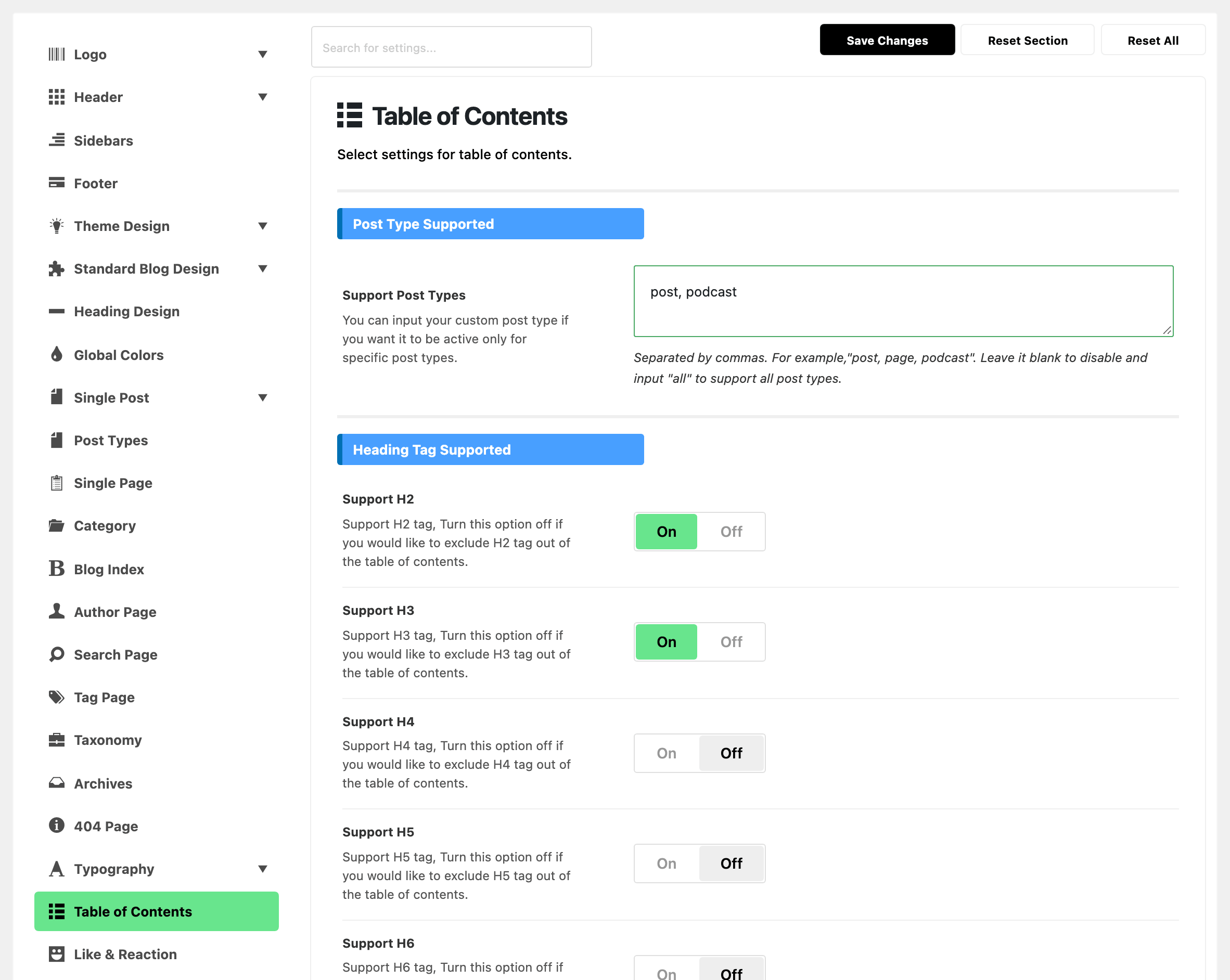
Navigate to Theme Options > Table of Contents
-
In Support Post Types, list the post types that get a table of contents, separated by commas, such as
post, page, podcast. Typeallfor every post type, or clear the field to switch the table of contents off. The field already containspost, podcast, so posts work before you change anything.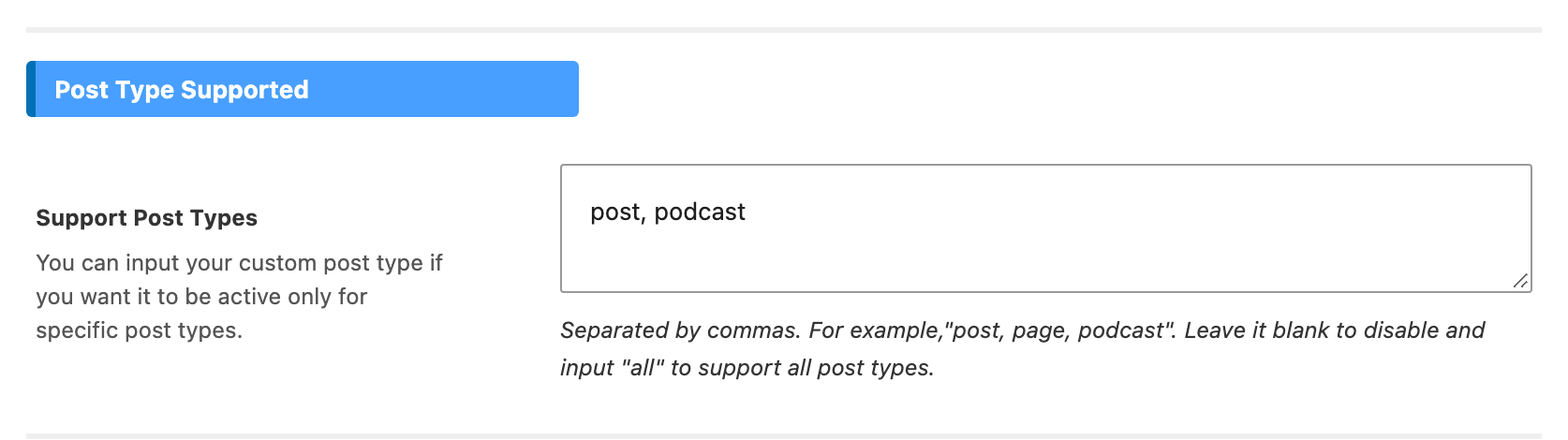
-
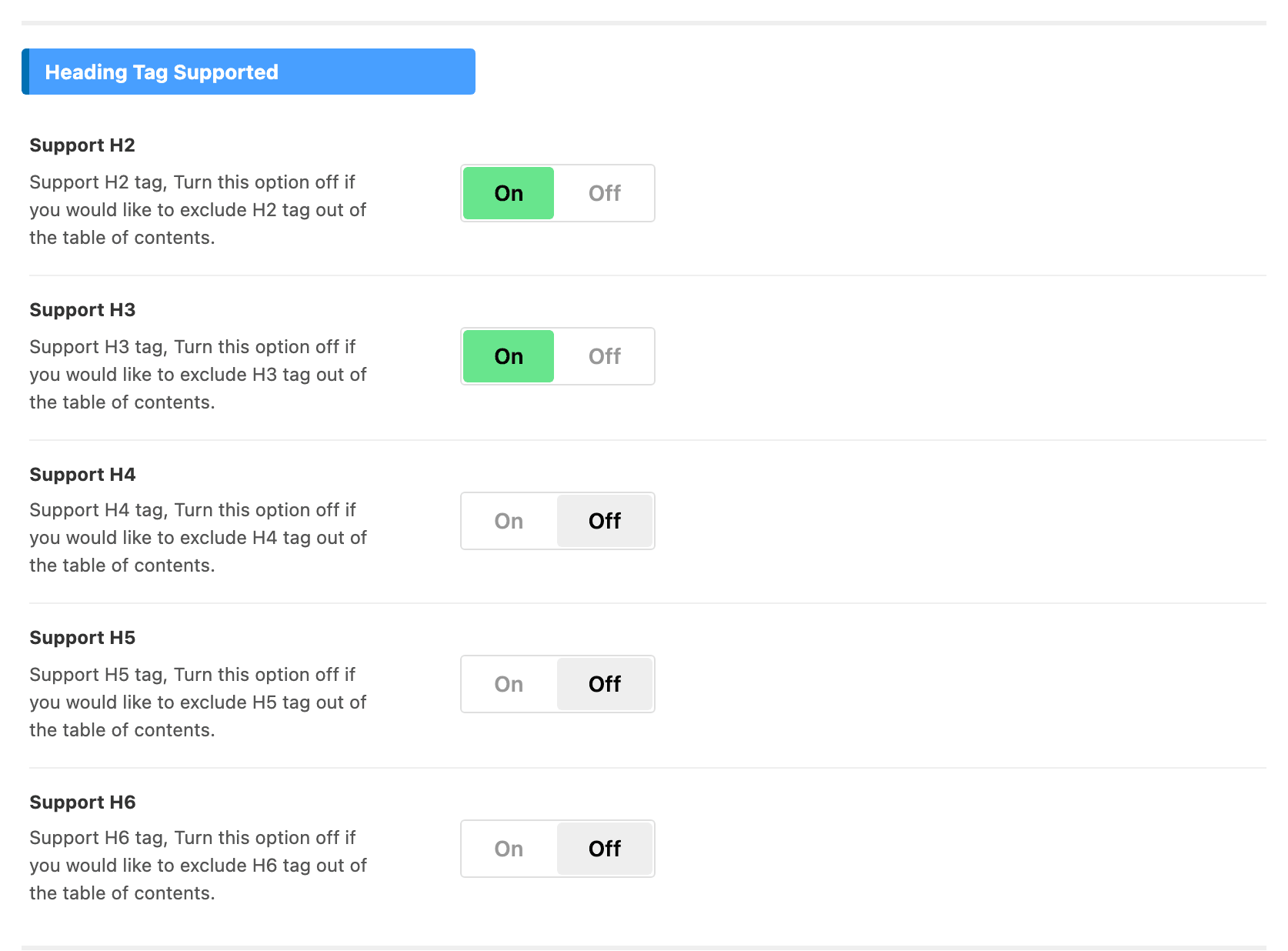
In Heading Tag Supported, choose which heading levels the box collects.
It collects H2 to H6 only. An H1 in the content is never listed, and of the five it does collect, only Support H2 and Support H3 are on when the theme is installed. That is the usual reason a heading is missing from a box that otherwise works.
The other three switches sit underneath in the same group, all off by default:
- Support H4
- Support H5
- Support H6
Turn on the one that matches the heading level your posts use for their subsections, and those headings join the box. Every heading you collect also counts toward Enable When below, so switching on a level that a post uses a lot can make a box appear on a post that had none.
-
Save your changes.
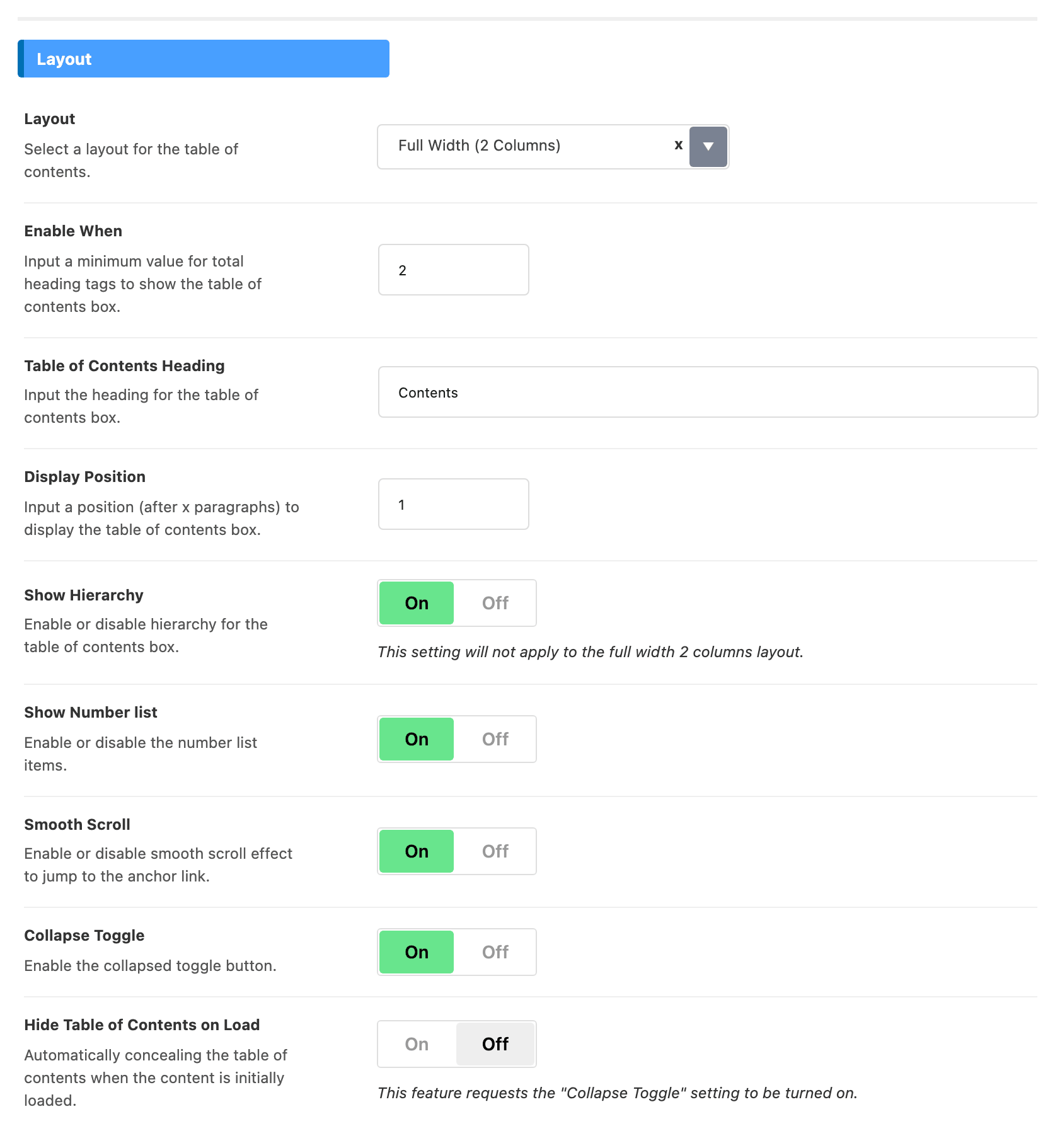
Three settings in the Layout section below decide whether anything is drawn, and all three fail quietly:
-
Enable When is the minimum number of headings, and its default is 2. A post with one heading gets no box.
-
Display Position is how many paragraphs the box waits for, and its default is 1. Set it to
-1in a post's own settings to put the box at the very top. -
Hide Table of Contents on Load needs Collapse Toggle to be on, or there is no control left to open the box with. It is off by default.
The rest of the Layout section is appearance:
- Layout offers Full Width (2 Columns), Half Width and Full Width (1 Column), and the first is the default. The default suits most posts. Half Width floats a narrower box at the left with the text running beside it, on screens 768 pixels and wider, which suits posts with a few short headings. Full Width (1 Column) lists the headings in one column across the full width, which gives long heading titles room.
- Table of Contents Heading defaults to
Contents. - Four switches, all on by default:
- Show Hierarchy nests each lower heading under the heading above it. It does nothing on the two column layout.
- Show Number list numbers the items.
- Smooth Scroll scrolls smoothly to the heading when a reader clicks an item.
- Collapse Toggle adds the button that folds the box away.
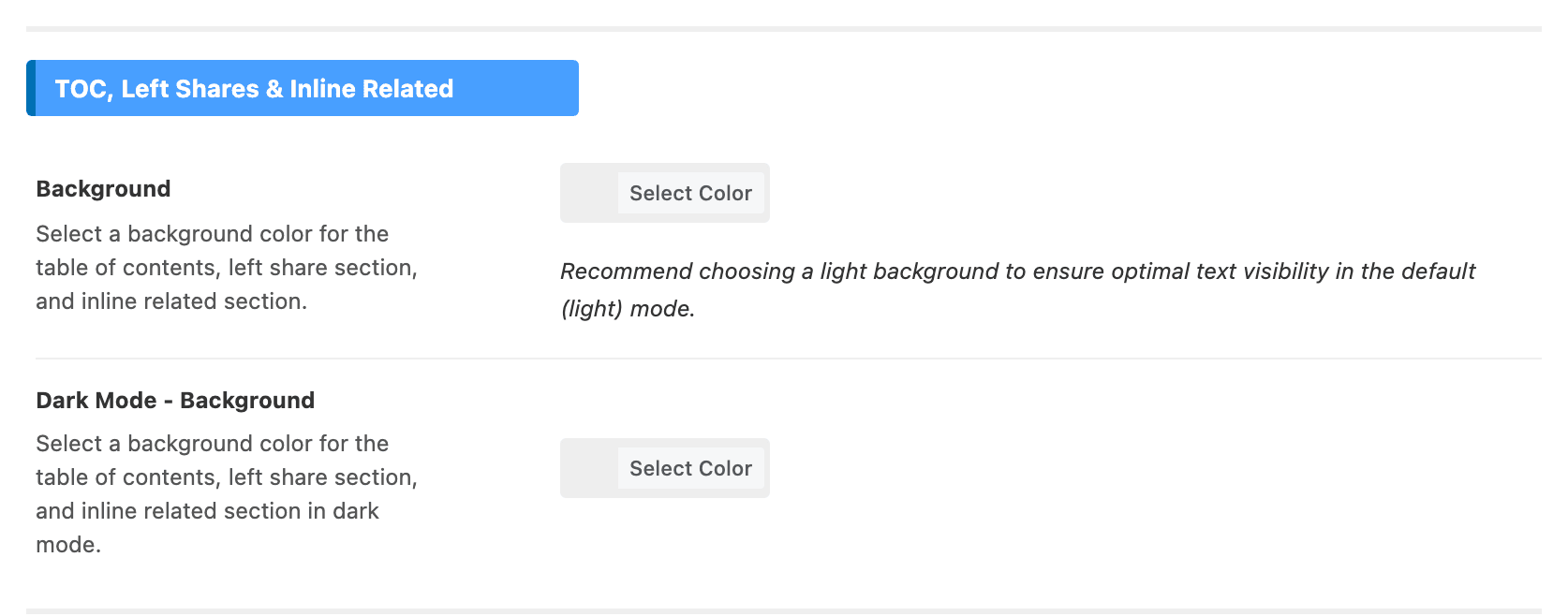
Its colours come from Global Colors > TOC, Left Shares & Inline Related.
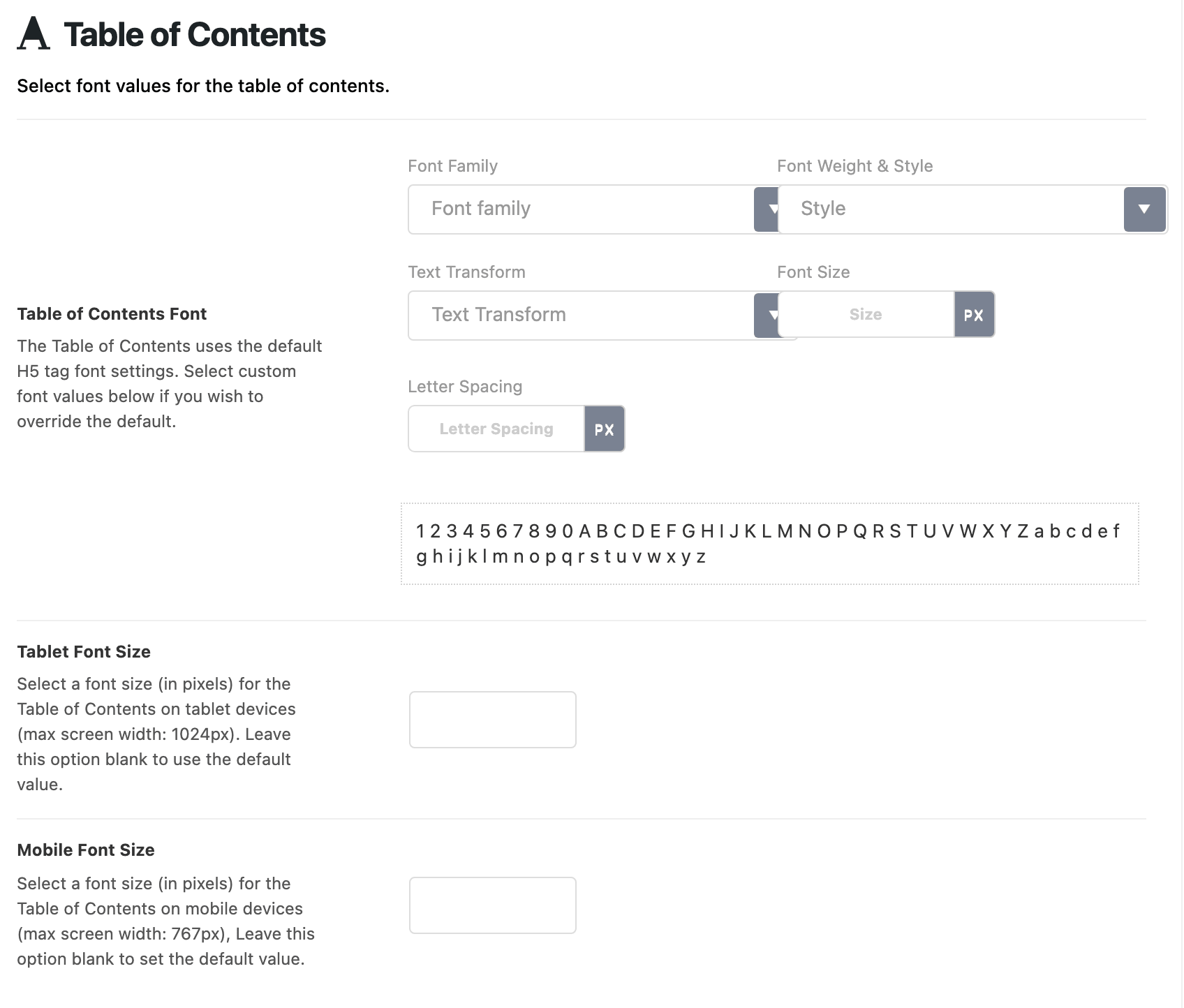
Its font comes from Typography > Table of Contents.
Settings for Individual Post
To change the table of contents for one post:
-
Open the post in the editor.
-
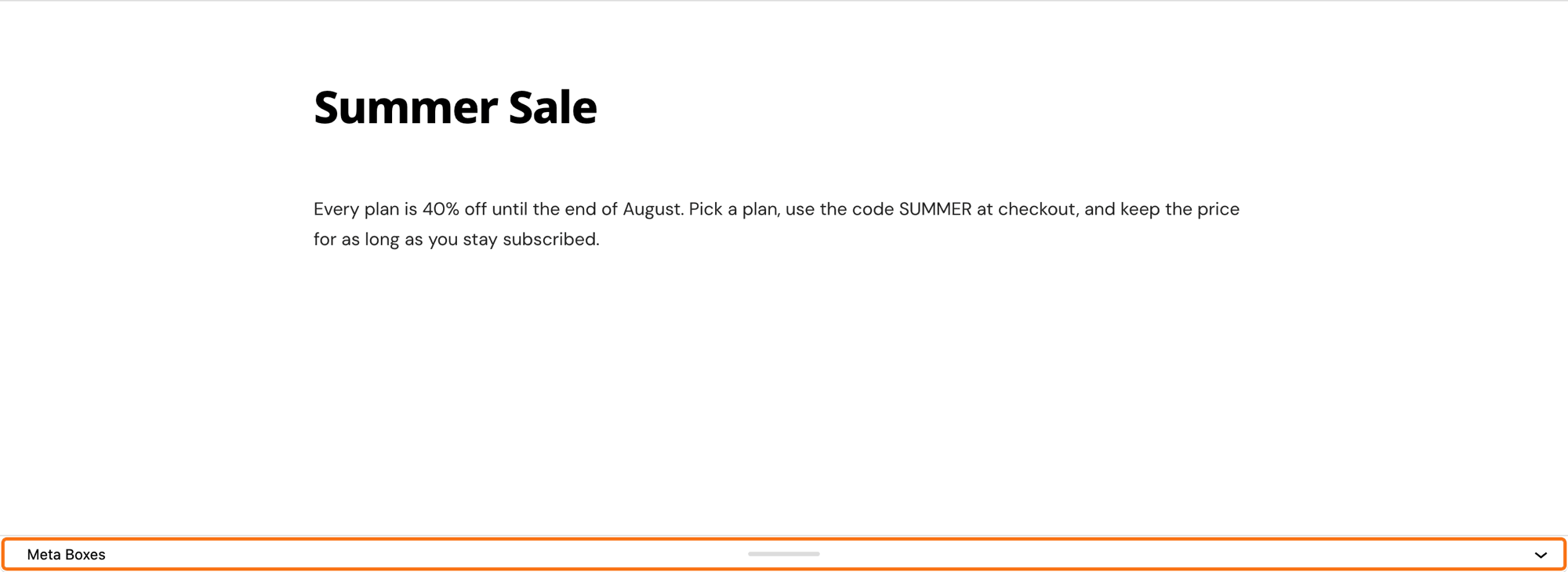
Scroll below the content to the Single Post Settings box. In the block editor it sits inside the collapsed Meta Boxes bar at the foot of the screen; click the bar to open it.
-
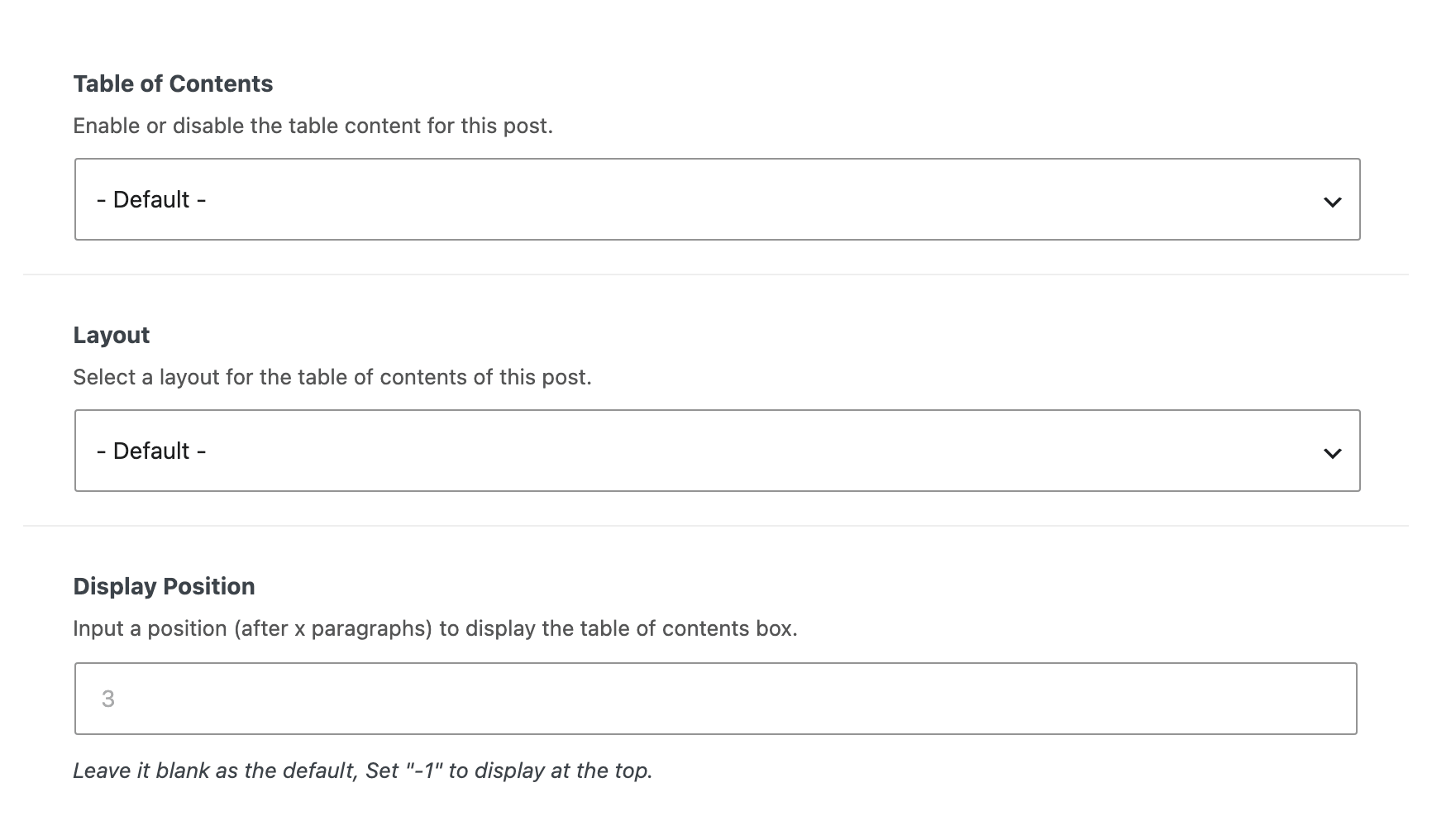
Select the Table of Content tab then edit what you need
-
Click "Update/Publish"
The tab has three fields:
- Table of Contents is - Default -, Enable or Disable.
- Layout repeats the three global layouts, with a - Default - at the top.
- Display Position is a number, blank meaning the global one. The grey 3 in the empty field is only a hint, not the value used.
Enable and Disable here really do beat the global list. Setting a post to Enable gives it a box even when its post type is not in Support Post Types, and Disable removes it even when the post type is.
Enable the table of content for the single page
-
Navigate to Theme Options > Table of Contents
-
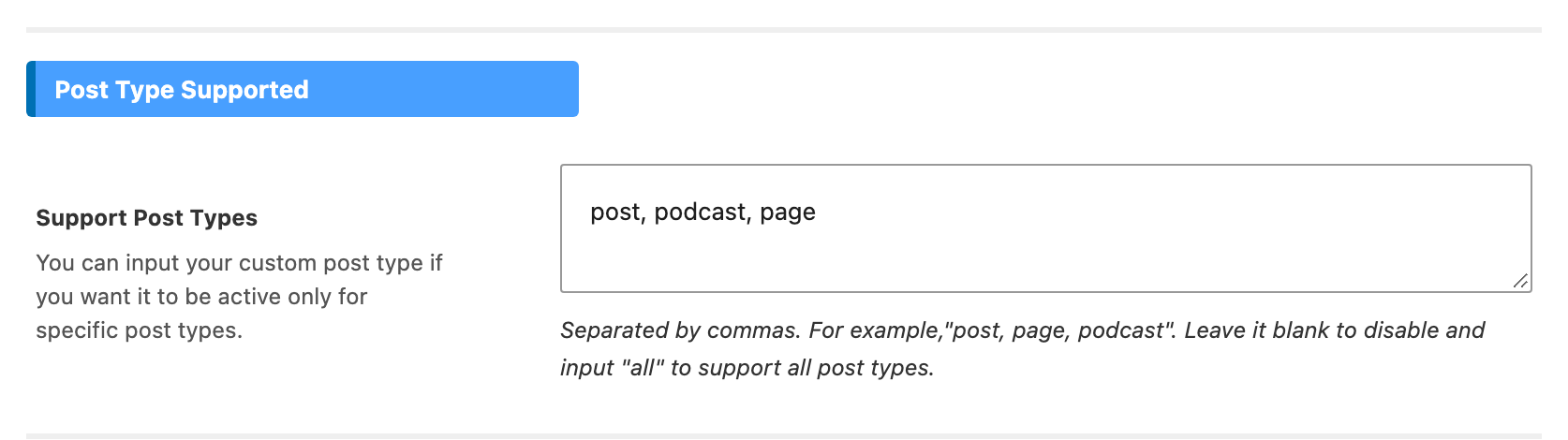
You can input the text "page" into the "Support Post Types" option if you want it to work with pages. Pages are not in the field to begin with, so this step is the one that actually changes something.
-
Save your changes.
Add it to the existing value rather than replacing it, so the field reads post, podcast, page. Whatever you leave out stops having a table of contents.
Settings for Individual Page
To change the table of contents for one page:
-
Open the page in the editor.
-
Scroll below the content to the Single Page Settings box, inside the Meta Boxes bar at the foot of the block editor.
-
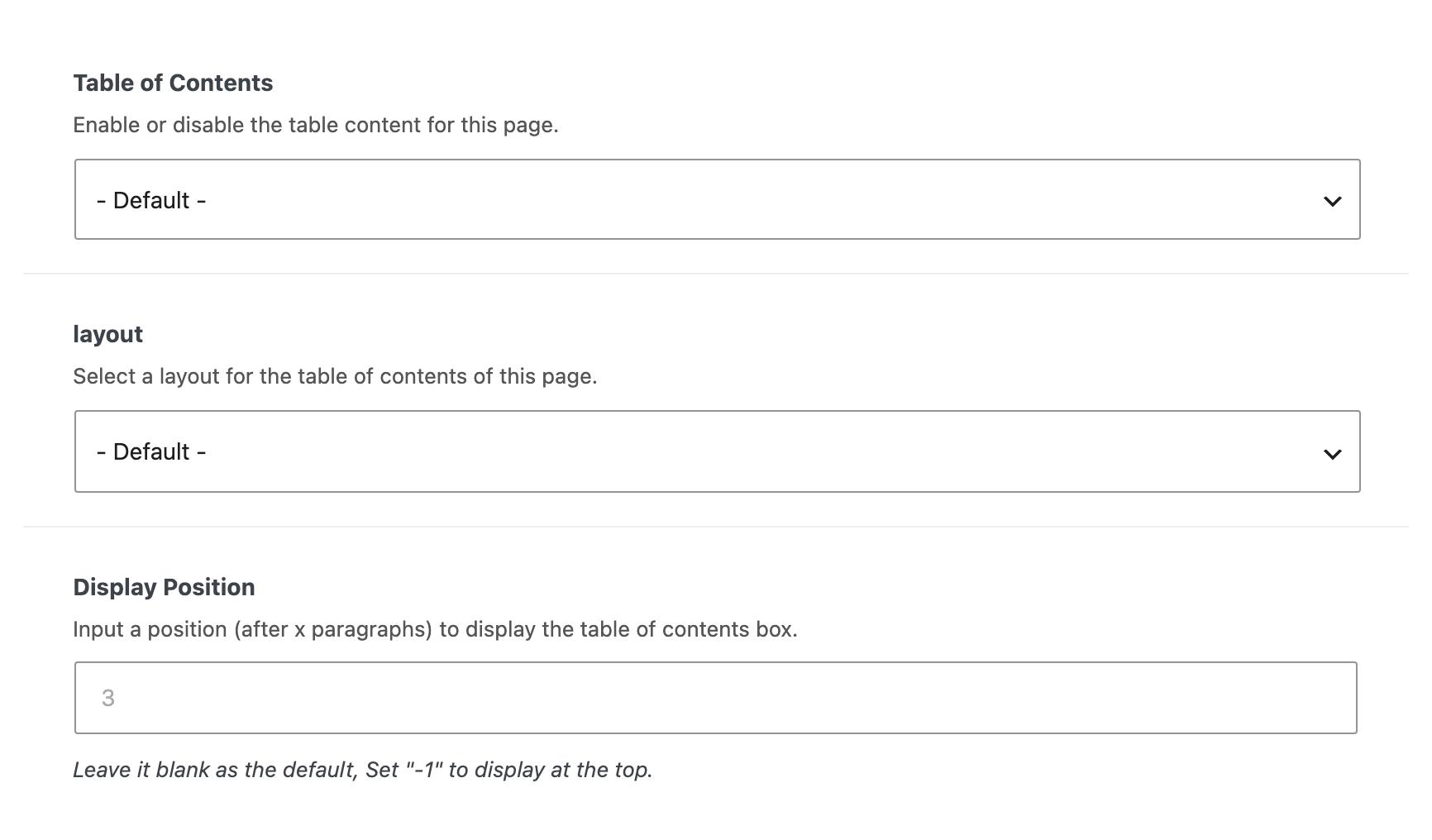
Select the Table of Content tab then edit what you need
-
Click "Update/Publish"
Enable the table of content for the custom post type
-
Navigate to Theme Options > Table of Contents
-
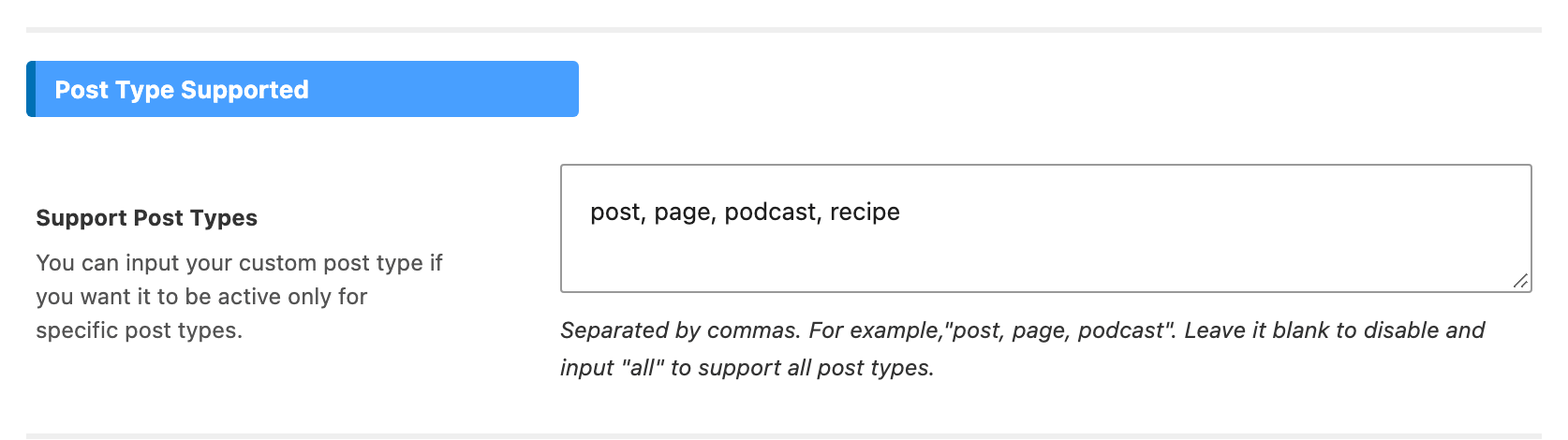
You can input your custom post type into the "Support Post Types" option if you want it to only work for specific post types. Use the post type's slug, the same string that appears in its URL, and separate entries with commas.
-
Save your changes.
Two post types are refused whatever you type: WooCommerce product and web-story.
Settings for Individual Custom Post Type
To change the table of contents for one entry of a custom post type:
- Open the entry in the editor.
- Scroll below the content to the Single Post Type Settings box, inside the Meta Boxes bar at the foot of the block editor. On a podcast episode the same panel is called Episode Settings.
- Select the Table of Content tab then edit what you need. It holds the same three fields as the tab on a post, which is the one pictured here.
- Click "Update/Publish"
Rank Math counts the Foxiz table of contents as a table of contents plugin, so its content check passes on a post where the box is enabled. You do not need a second TOC plugin to satisfy it.
Did this answer your question?