How to Create a Youtube Videos block
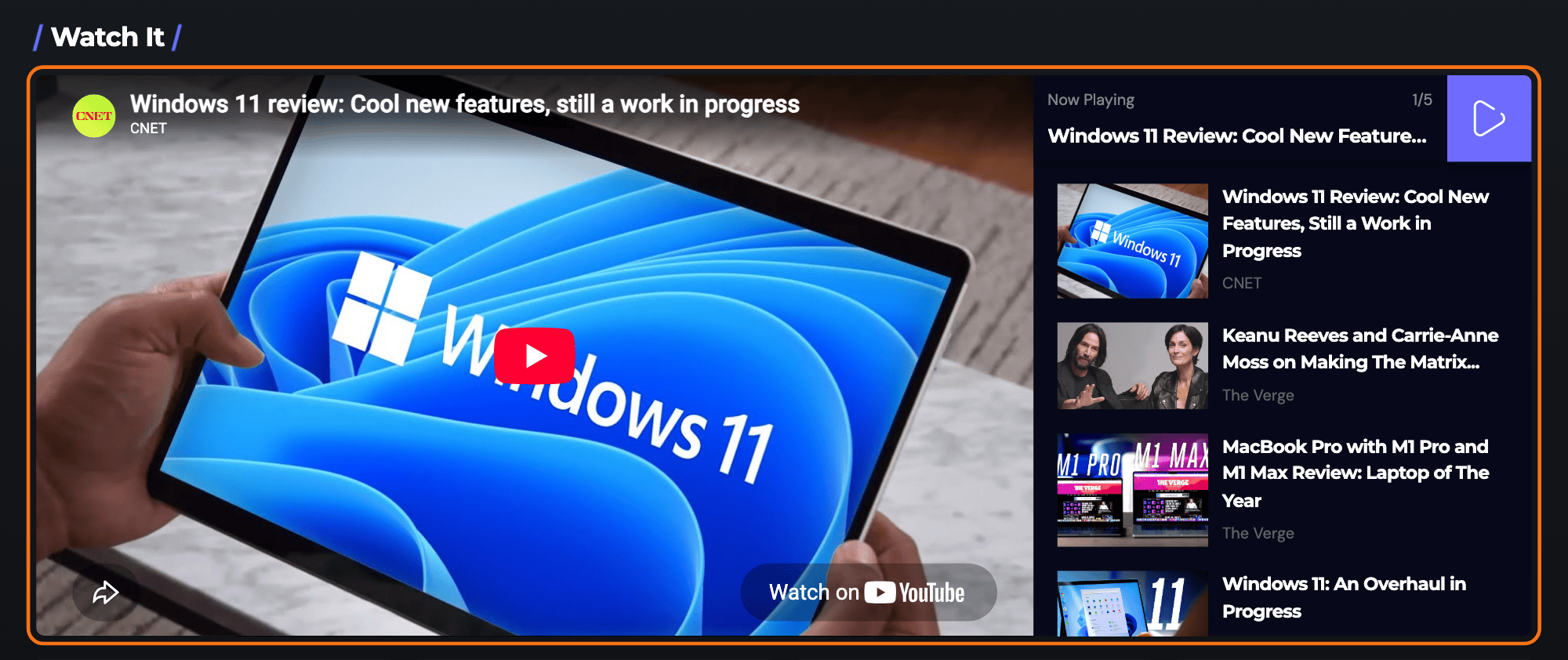
To get started, follow the steps below:
-
Navigate to Pages > All Pages.
-
Select a page you would like to edit or add a new page, and click on the “Edit with Elementor” link.
-
The website will redirect to another URL and the panel will appear on the page. Then you can search “Youtube Videos” blocks in the Elementor. Its full name in the panel is Foxiz - Youtube Videos.

-
After you search “Youtube Videos”, you can drag and drop blocks inside.
-
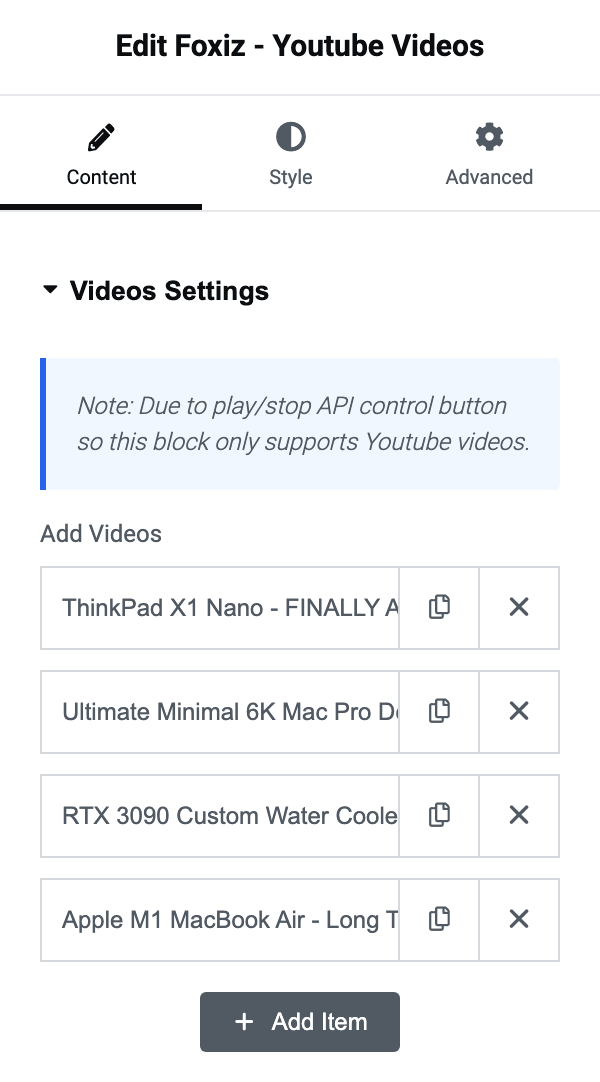
Add your videos. On the Content tab, in Videos Settings, the Add Videos list starts with one empty row, Video Title #1. Open it, paste the video's Youtube Video URL and type a Video Title. Click Add Item for each further video.
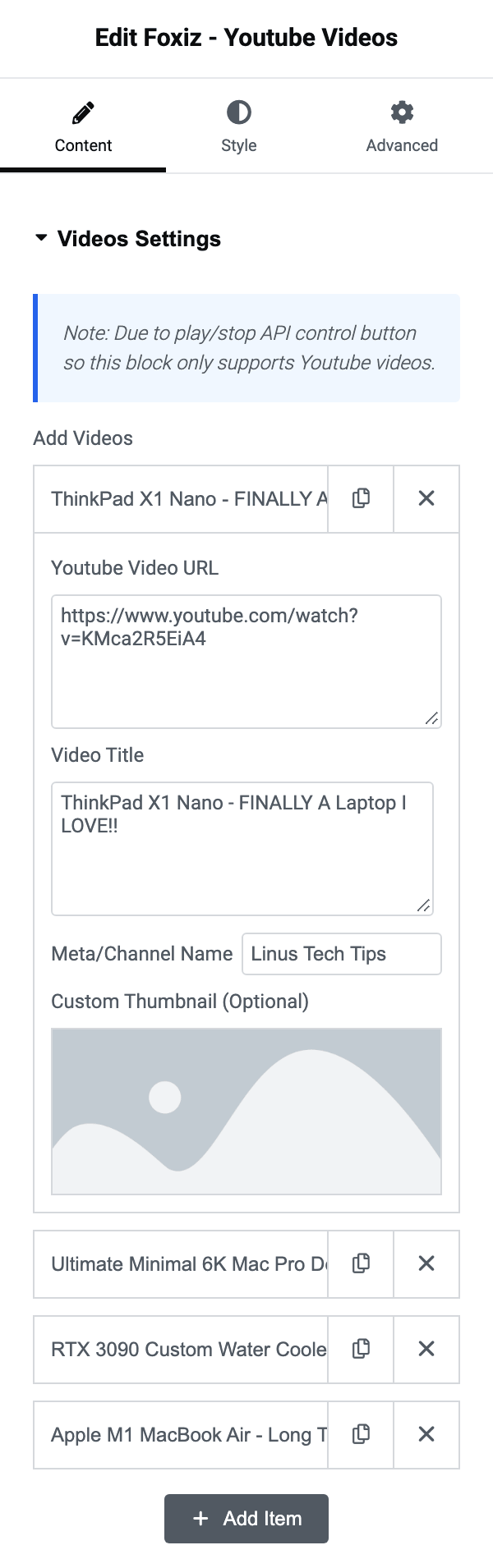
The Style and Advanced tabs are optional; the block works with what you have entered.
-
Click "Publish"
The block takes a Youtube Video URL per video, along with a Video Title and a Meta/Channel Name you write yourself, so titles are never read from YouTube and no API key is needed. Leave the thumbnail empty and Foxiz fetches the video's own picture from YouTube. Setup Video Playlist covers where the thumbnails come from, each field, and the three Style tab sizes.
It is YouTube only. The block drives play and stop through the YouTube player API, so a Vimeo or self hosted URL will not work here, and the panel says so beside the URL field.
On the page, the videos play in the order you added them. When one ends the next starts on its own, and after the last one the block stops. The list on the right scrolls to keep the playing video in sight, but leaves it alone for a few seconds after a reader has scrolled or tapped it, so it never pulls the list away from someone browsing it. Clicking a video in the list plays it straight away and pauses any other Youtube Videos block on the same page.
A block with no videos added prints nothing on the page, so if the space is empty after you publish, open Add Videos and check that at least one video is there.
Did this answer your question?