How to Display Top Taxonomies with Links Using the Quick Links Block in Elementor
This feature enables the display of categories, tags, and taxonomies with their respective links. Users can easily navigate their websites, enhancing user experience and interaction.

To get started, follow the steps below:
-
Navigate to Pages > All Pages.
-
Select a page you would like to edit or add a new page, and click on the "Edit with Elementor" link.
-
The website will redirect to another URL and the panel will appear on the page. Then you can search "Quick Links" blocks in the Elementor.

The block's full name in the panel is Foxiz - Quick Links. Searching for
menuorlinksfinds it too. -
After you search "Quick Links", you can drag and drop blocks inside.
-
Click on the "Content" tab.
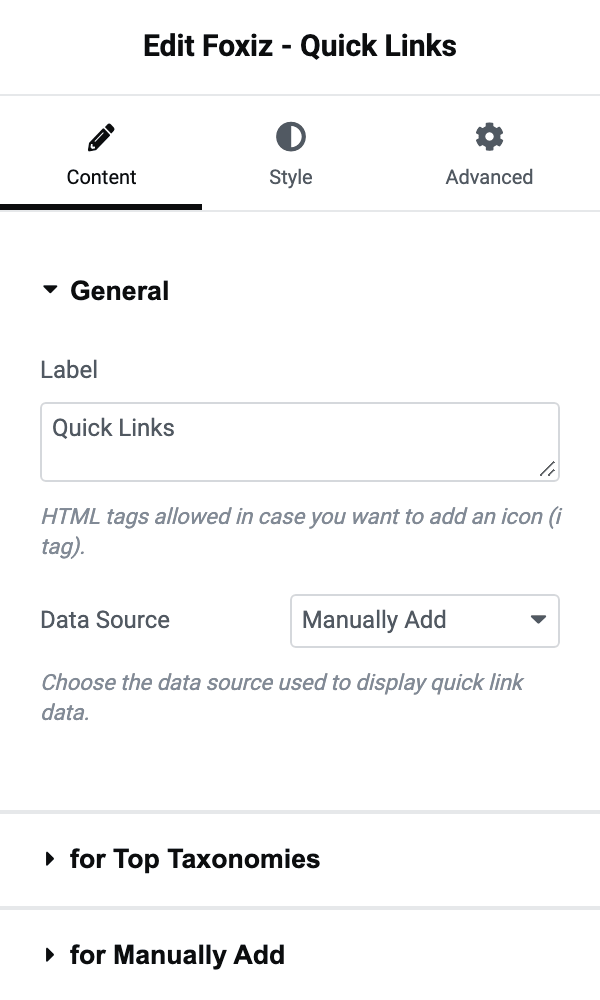
That tab holds three sections, and which of them you need depends on the next step: General, for Top Taxonomies and for Manually Add. All three are always visible, so the section you are not using simply sits there ignored.
General also holds Label, the heading printed before the links, which starts out as "Quick Links". Clear it and no heading is printed.
-
Data Source: In this section, you can choose the data source to display Quick Link data.

It is the second control in General, and it starts on Manually Add.
Manually Add: This option allows you to add links by manually inserting them in the "for Manually Add" section below.
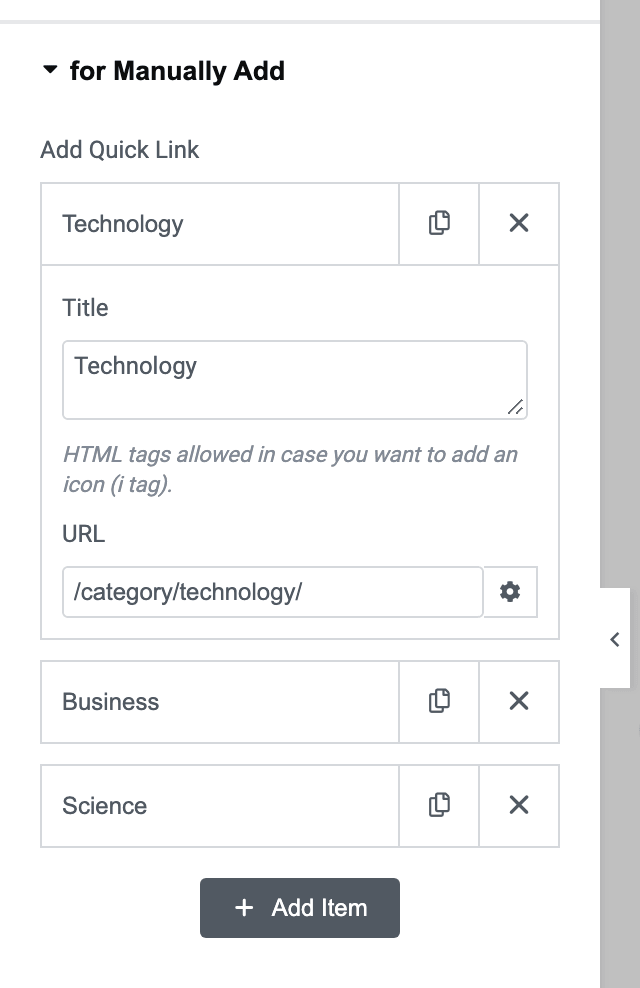
That section is the Add Quick Link repeater, and each row has a Title and a URL. A row with no URL is skipped silently, however filled in its title is, so an item that never appears is almost always a missing URL.
Top Taxonomies: This option only shows the top taxonomies (taxonomy has many posts) after inputting the taxonomy slugs in the "for Top Taxonomies" section below.
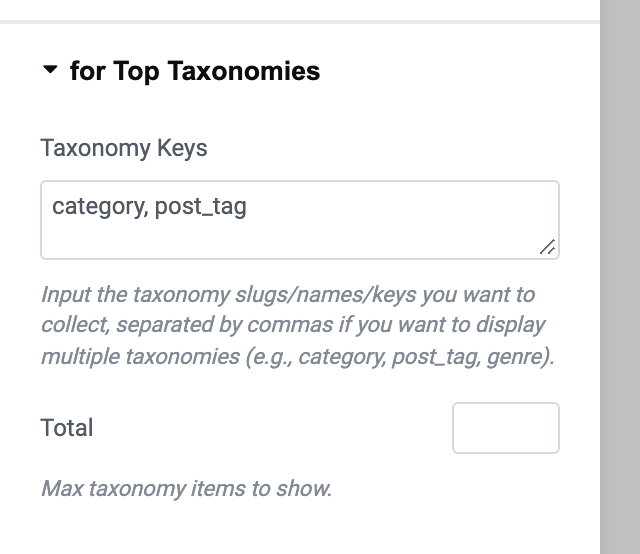
Taxonomy Keys is not empty to begin with: it arrives holding
category, post_tag, so the block works as soon as you switch the source. Replace or extend that list with the taxonomy slugs you want, separated by commas.Total is the number of terms to print. Leave it empty and the block prints 10. Terms are ordered by post count, highest first, which is what "top" means here, and a term with no posts is never listed.
Manual & Top Taxonomies: This option allows you to display both methods for presenting data sources. The manual links are printed first and the taxonomy terms follow them.
Sub Terms: a fourth option that only appears when the block is inside a Ruby Template. It lists the child terms of whichever category or tag or custom taxonomy archive the template is rendering, so one block serves every archive on the site. It prints nothing anywhere else, and there is no limit on it. Manual links, if you have any, are printed after the child terms.
If no source produces a single item, the block prints nothing at all, not even its Label. An empty gap where the block should be is that, rather than a styling problem.
Did this answer your question?