The Foxiz Weather Block in Elementor
Foxiz - Weather draws a weather panel: today's icon and temperature, the place name, a short description, the day's high and low, humidity, wind, and a row of forecast days below. It sits in the Foxiz - Element category and searching the panel for weather finds it.
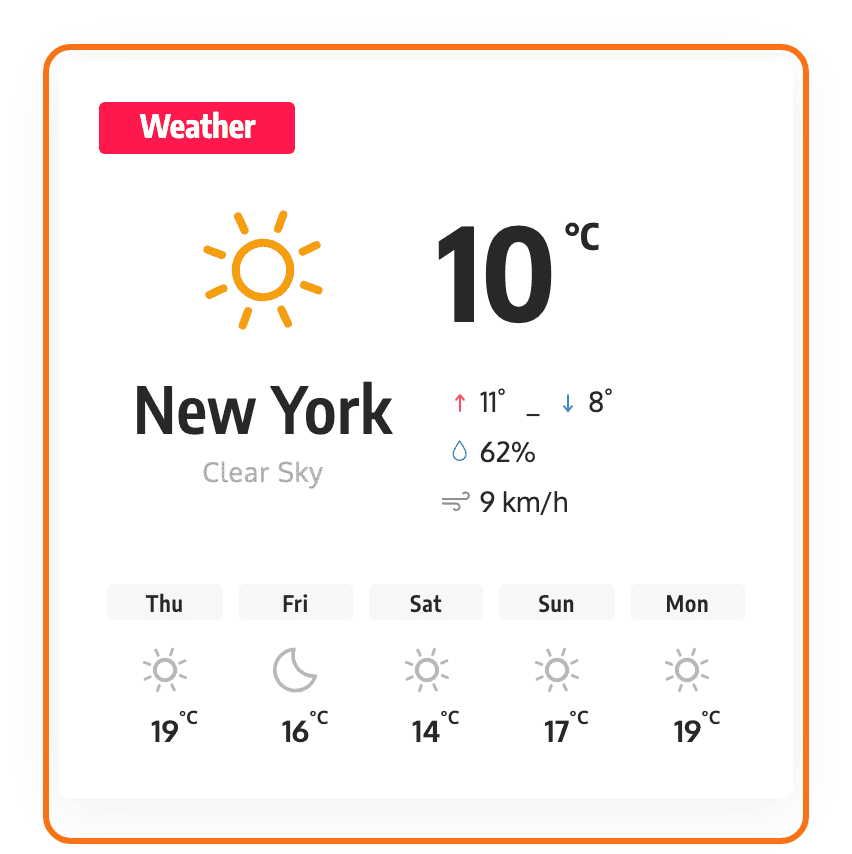
This is not the widget. Foxiz - Widget Weather is a separate sidebar widget with its own panel, and it is documented at how to create a weather widget. Use that one to put weather in a sidebar from Appearance > Widgets; use this one to put weather into an Elementor page, a header template or any other Ruby template. Both talk to the same weather service and both need the same key.
Putting weather on a page
- Get a free API key from OpenWeatherMap. The steps and the link are in the widget article's getting the API key section, and the block's own Weather API Key field links to the same page.
- Open the page with Edit with Elementor.
- Search the panel for weather, or scroll to the Foxiz - Element category, and drag Foxiz - Weather onto the canvas.
- Paste the key into Weather API Key. Until you do, the block prints nothing at all.
- Replace London in Location with your own place.
- Check it while signed in as an administrator, then publish the page.
Content tab
All five settings are in the one General section.
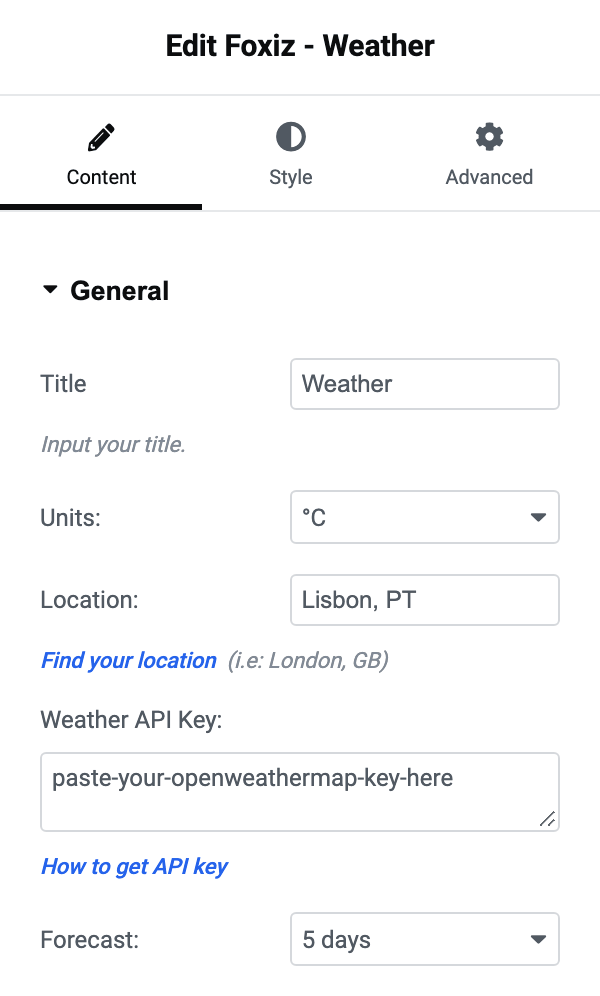
- Title is the heading above the panel and arrives holding "Weather". Clear it and no heading is drawn.
- Units offers °C and °F. Its default is °C, so this block is metric until you change it. Wind speed follows the same choice: metres per second, shown as m/s, with °C, and miles per hour, shown as mph, with °F.
- Location arrives holding London and takes one of two forms: a city name with a comma and the two letter country code, as the field's own hint shows, or the numeric city id on its own. A number is looked up as an id, anything else as a name.
- Weather API Key is empty on arrival and is the one field the block will not work without.
- Forecast is how many days to show below today: 1 day through 5 days, or Do not display for today's conditions only. Its default is 5 days. On Do not display the block does not ask for forecast data at all, which makes it a little quicker.
Nothing here needs setting for the language. Descriptions come back in your site's language when WordPress is set to one of the two dozen languages the service is asked for, and in English otherwise.
Style tab
This is what the widget does not have, and the reason to use the block when you want weather to match a page rather than a sidebar.
Typography
Three separate font groups, one per line of the panel:
- Title Font is the heading you typed in Title.
- Location Font is the place name the service returns, which is not always spelled the way you typed it into Location.
- Current Temperature Font is the large number. This is the one to set when the panel sits in a narrow column and the temperature wraps.
The short description, the high and low, the humidity, the wind and the forecast row have no font controls of their own and follow your site's meta text settings.
Text Color Scheme
One field of the same name, offering Default (Dark Text) and Light Text. Its default is Default (Dark Text). Set it to Light Text when the weather panel sits on a dark section, because the panel has no background of its own and its text would otherwise be dark on dark.
When the block draws nothing
- Weather API Key is empty. This is the common one, and it is silent: no box, no warning, no gap.
- The key is wrong, or Location does not resolve. Then a signed in administrator sees the line "No weather information available. Please check your location here", with a link to the service's search page, and everybody else sees nothing. So test this while signed in, because as a visitor there is nothing to see.
A good answer is kept for three hours and a failed one for five minutes, both remembered per place, per unit and per language. The five minute one is only kept for signed out visitors, so while you are signed in as an administrator a corrected key works on the next reload. Your visitors may wait out those five minutes, or you can change Location and back, which asks afresh because the answer is remembered under a different place.
If today's conditions appear but the forecast row does not, and Forecast is not on Do not display, that is a slow answer from the service rather than a wrong setting. Today's half and the forecast half are asked for separately and the forecast is the one that gives up first. Reload in a moment.
Did this answer your question?