The Foxiz Sidebar Menu Block in Elementor
Foxiz - Sidebar Menu draws one of your WordPress menus as a standalone list, so a menu can appear somewhere other than the site header: a footer column, a sidebar, a landing page. It sits in the Foxiz - Element category and searching the panel for navigation or vertical finds it.
It draws two shapes. Vertical stacks the items and carries submenus four levels deep. Horizontal lays them in a row and shows only the top level, because a row has nowhere to put a submenu.

Putting a menu on a page
- Build the menu first, at Appearance > Menus. The block lists menus by name and cannot create one.
- Open the page with Edit with Elementor, or open the Ruby template you want the menu in.
- Search the panel for navigation, or scroll to the Foxiz - Element category, and drag Foxiz - Sidebar Menu onto the canvas.
- Choose your menu in Assign Menu.
- Type a Heading above it if you want one, then set Layout on the Style tab.
To get the menu into a sidebar or a footer rather than onto a page, put the block in a Ruby template and assign that template where you need it. The steps are in how to add a Ruby template to a sidebar.
Content tab
The General section holds two fields.
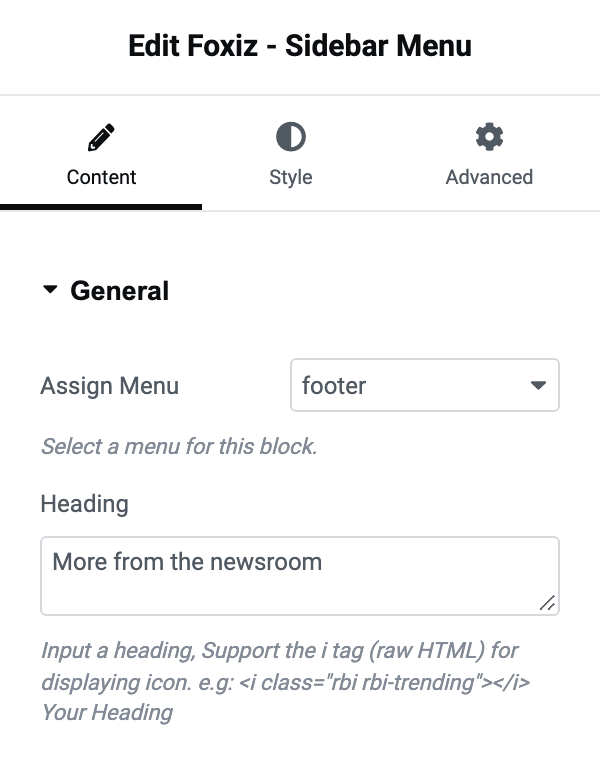
- Assign Menu lists every menu on your site by the name you gave it, and it arrives holding the first one in that list rather than nothing. So a block you have just dragged in already shows a menu, and it may not be the menu you wanted.
- Heading is an optional line above the menu, empty on arrival. It takes an icon tag alongside the words, written the way the field's own hint shows, so a heading can carry a small glyph before its text. Leave it empty and no heading is drawn.
Icons you have already set on individual menu items at Appearance > Menus come through into this block as well, and so does a menu item's secondary label. Nothing here needs switching on for that.
Style tab
Heading
Every control here applies to the Heading you typed on the Content tab, and does nothing while that field is empty.
- Heading HTML Tag offers - Default -, H1 through H6, plus three tags that carry no heading weight at all: p, span and div. Its default is - Default -, which draws the heading as an H4. Change it when the heading's level matters for the page's outline rather than for its size.
- Heading Font is the typography group for it.
- Bottom Spacing is the gap in pixels between the heading and the first menu item, per device, blank on arrival.
- Heading Color and Dark Mode - Heading Color set its colour in each mode. Both are empty by default, which inherits your site's heading colour.
Layout
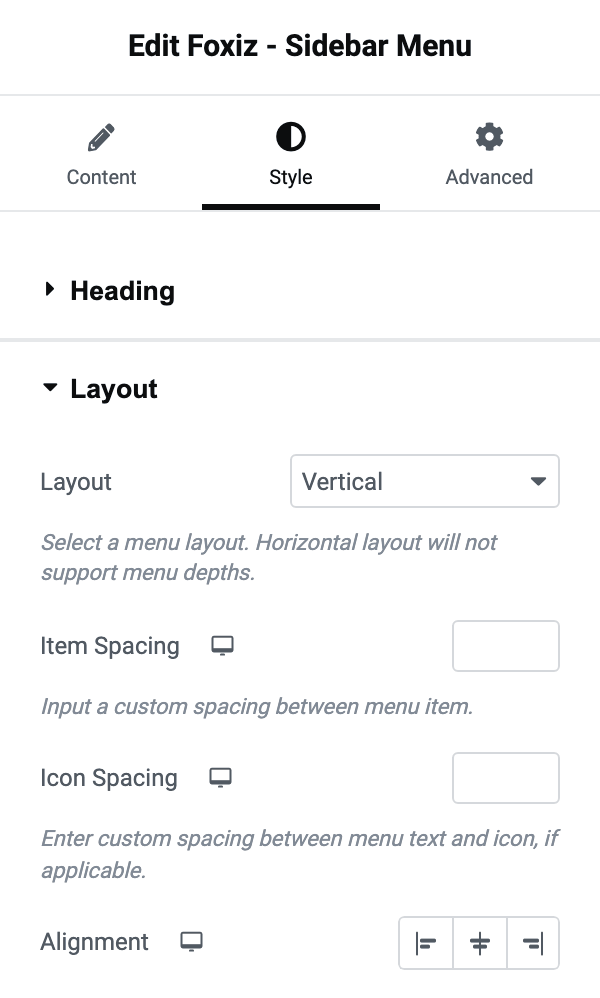
- Layout offers Vertical and Horizontal. Its default is Vertical.
- Item Spacing is the gap between items in pixels, per device. On Vertical it is the space between rows; on Horizontal it is the space between neighbours.
- Icon Spacing is the gap between a menu item's icon and its text, per device, and only shows itself on items that have an icon.
- Alignment is Left, Center or Right, per device, and is unset by default.
Below those, a Normal and a Hover tab:
- Normal holds Text Color and Dark Mode - Text Color for the menu items at rest.
- Hover holds Text Color and Dark Mode - Text Color for a hovered item. The same two colours also mark the item matching the page the reader is on, so set them even if you do not care about hover: without them the current page is not distinguished.
Font & Font Size
- Menu Font is the typography group for the menu items.
- Sub Menu Font Size is a separate pixel value for items below the top level, per device, so a submenu can be smaller without touching the parent. It only matters on Vertical, which is the only layout that draws submenus.
for Vertical
One field, Bottom Border, which draws a line under each item so the menu reads as a list of rows. It offers - Disable - and seven lines. The solid ones are Gray Solid, Dark Solid and Bold Dark Solid. The others are Gray Dotted, Dark Dotted, Gray Dashed and Dark Dashed. Its default is - Disable -.
for Horizontal
- Horizontal Divider Style puts a small character between neighbouring items. Its default is None, which leaves the items without a divider. The six characters are Slash (/), Pipe (|), Pipe 2 (|), Hyphen (-), Dot (.) and Dot 2(.).
- Color and Dark Mode - Color set the divider's colour in each mode.
Both sections stay visible whichever Layout you chose, so a vertical menu still shows for Horizontal and its fields simply have nothing to draw. Set the one that matches your layout and ignore the other.
When the block draws nothing
The block prints nothing at all, no heading either, in two cases:
- Assign Menu is empty, which happens when your site has no menus yet. Create one at Appearance > Menus and come back.
- The menu it points at has been deleted or renamed. The block stores the menu, so renaming a menu in WordPress can leave a block pointing at a name that no longer resolves. Reopen the block and pick the menu again.
Did this answer your question?