The Foxiz Heading Block in Elementor
Foxiz - Heading is the section heading you put above a grid or a list: a line of type, an optional tagline beside or under it, an optional link on both, and a graphic treatment chosen from 39 layouts. It sits in the Foxiz - Element category of the Elementor panel, and searching for "header", "title", "top" or "section" finds it.
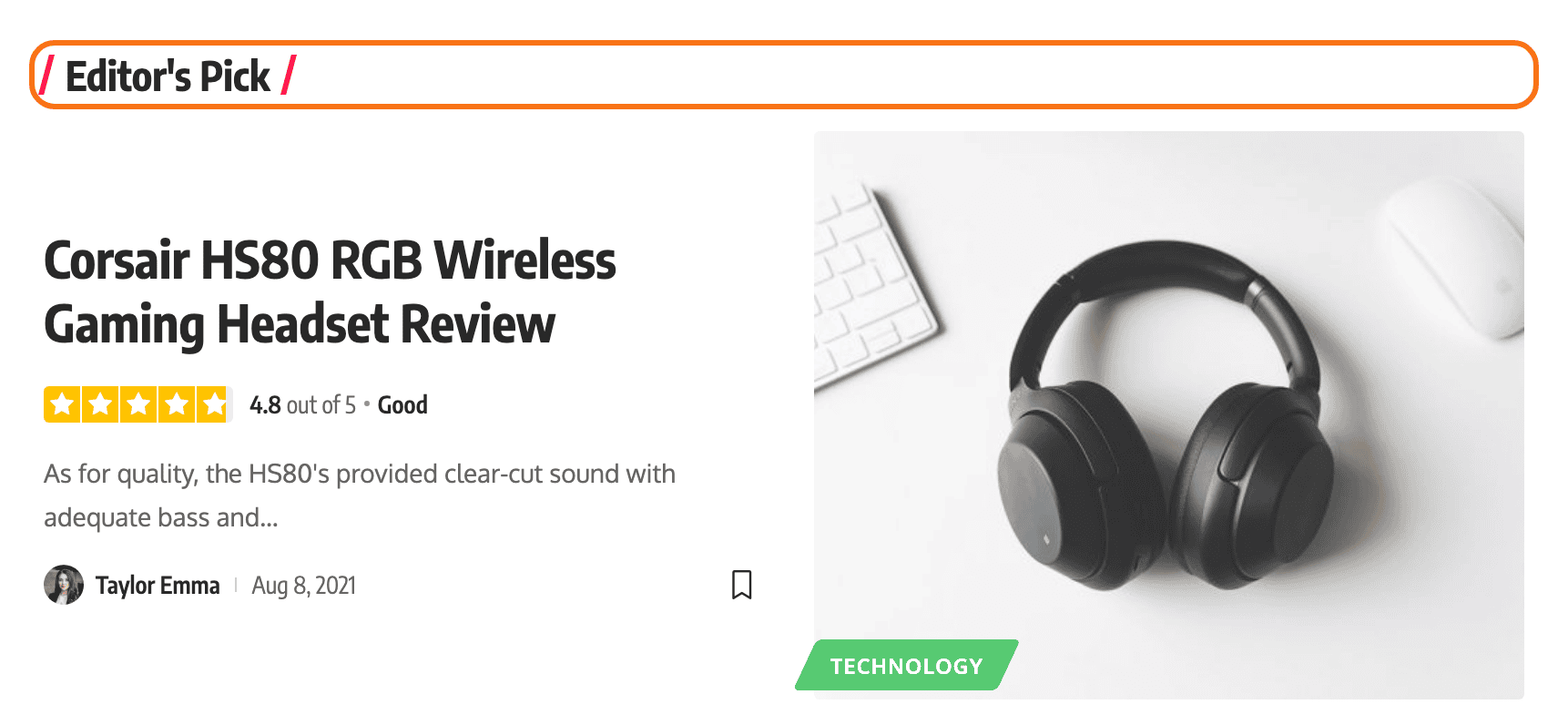
It is also the block that fills itself in from the page it is on. Type {archive} into its Heading field and a template shared by every category prints the right name on each one. That is a task of its own and it has its own article: How to Create Dynamic Title Heading Blocks for Archive, Category, Tags, Author Pages.
The other tags, by page:
- On an archive:
{category},{tag}and{taxonomy}do the same as{archive}. - On an author page:
{author}prints the author's display name. - On a search results page:
{search}gives you what the visitor searched for.
One rule to know before anything else: an empty Heading field prints nothing at all, tagline and layout included. If a heading block has vanished from your page, that field is the first place to look.
Putting one on a page
- Open the page with Edit with Elementor.
- Search the panel for Heading, or scroll to the Foxiz - Element category. Foxiz's own heading is the one named Foxiz - Heading; Elementor has a plain heading widget of its own.
- Drag it in above the block it introduces. It arrives holding the words "Latest News", so it draws something immediately.
- Replace the Heading text, and add a Tagline if the section needs a second line.
- Pick a Layout on the Layout tab, then Publish.
Content tab
The one Content section is called Content:
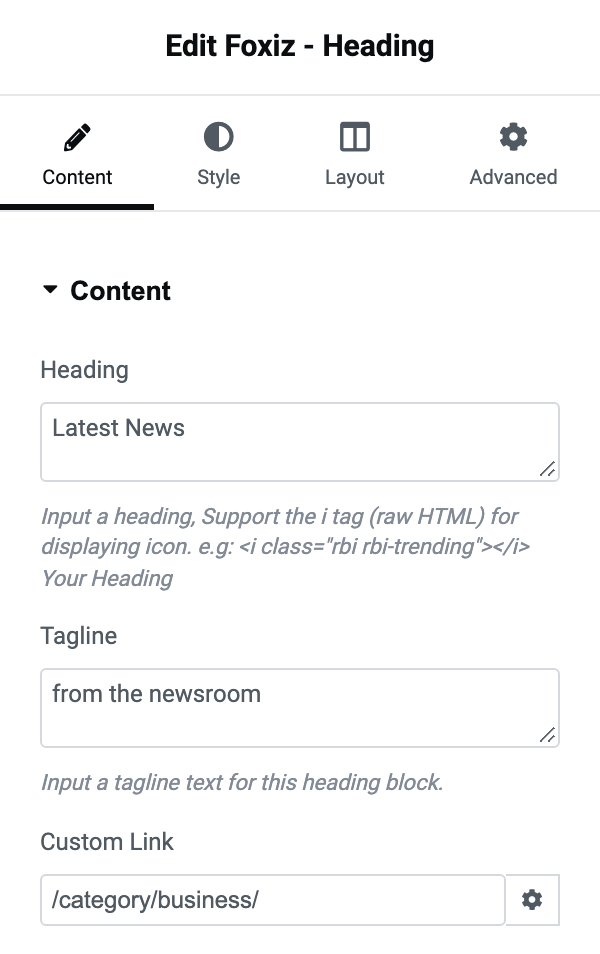
- Heading is the text, and by default it holds "Latest News". Inline HTML survives, so
<i class="rbi rbi-trending"></i> Trendingputs a theme icon in front of the words, and bold, italic and a link work the same way. The panel shows that icon example as its hint. - Tagline is a second, smaller line, and it is empty by default. Leave it empty and no tagline is drawn, which also means the Tagline section on the Style tab has nothing to act on. Some layouts place it beside the heading and some under it.
- Custom Link makes the heading clickable, which is how you point a homepage section at its own archive. It carries Elementor's own Open in new window and Add nofollow switches. Leave it empty and nothing is a link.
A Custom Link normally wraps the tagline as well as the heading, so the whole thing is one target. Three layouts are the exception, and on them only the heading is linked: 11 - Big Tagline Overlay, 19 - Line Break for Tagline and Center 11 - Big Tagline Overlay. In those three the tagline is a design element rather than a label.
Style tab: Heading
- Heading HTML Tag runs from H1 to H6 and then the
span,divandptags. Its default is H2. There is no - Default - entry here: the tag you pick is the tag you get. Use H2 for a section heading on a page whose H1 is the page title. - Font Size takes a number of pixels, per device, and is blank by default, which uses your theme's own heading size.
- Heading Font is the full typography group for the heading text.
Style tab: Tagline
Every control here needs the Tagline field to have something in it.
- Tagline HTML Tag offers the same list as the heading. Its default is
span. - Tagline Icon adds a mark beside the tagline. It offers - Disable -, Circle Arrow, Thin Arrow, Dots, Angle before Label and Plus before Label. Its default is - Disable -. The last two sit in front of the words, the first three after them. It is the cue that a linked tagline is clickable, so it pairs with Custom Link.
- Tagline - Font Size takes a number of pixels, per device.
- Custom Tagline Font is the typography group for the tagline.
Style tab: Colors
Six colour fields, three for light mode and the same three for dark. All six are empty by default, which inherits the colours set at Theme Options > Heading Design.
- Primary Color is the heading text.
- Accent Color is the graphic part of the layout: the slashes, the dot, the underline, the background panel. On a layout with no graphic it changes nothing.
- Tagline Text Color is the tagline.
- Dark Mode - Primary Color, Dark Mode - Accent Color and Dark Mode - Tagline Text Color are the same three for readers in dark mode. They also apply wherever you have set Text Color Scheme to Light Text, so one pair of values covers both cases.
Style tab: Text Color Scheme
One field of the same name, offering Default (Dark Text) and Light Text. Its default is Default (Dark Text). Switch it to Light Text when the heading sits on a dark section, and the three dark mode colours above become the ones in use.
Layout tab: Layouts
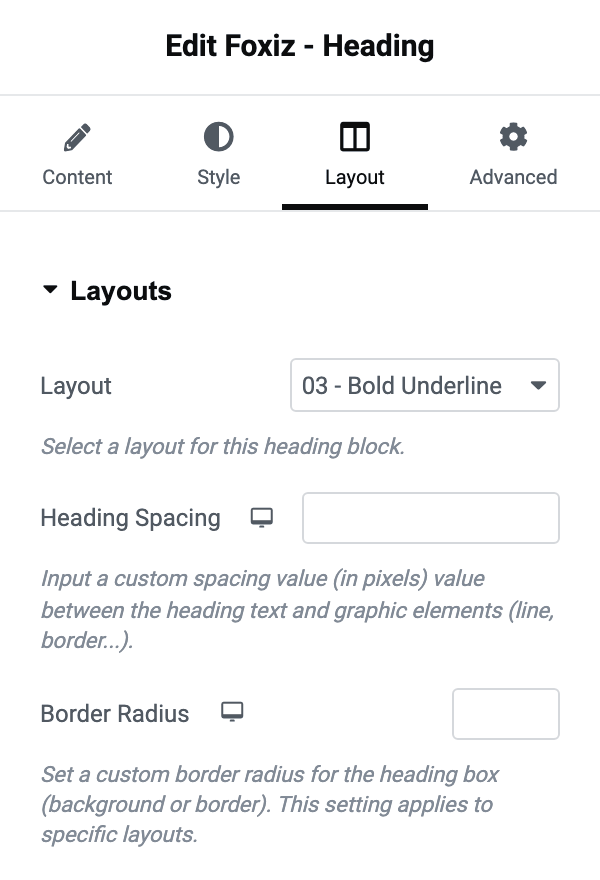
Layout is the block's main control. Its default is - Default -, which follows Global Heading Layout in the Global Heading section of Theme Options > Heading Design, and that defaults to the first layout. Set Layout here when you want one heading to differ from the rest of the site, and set the Theme Options field when you want to change all of them at once.
The twenty four left aligned layouts are:
- 01 - Two Slashes
- 02 - Left Dot
- 03 - Bold Underline
- 04 - Multiple Underline
- 05 - Top Line
- 06 - Parallelogram Background
- 07 - Left Border
- 08 - Half Elegant Background
- 09 - Small Corners
- 10 - Only Text
- 11 - Big Tagline Overlay
- 12 - Mixed Underline
- 13 - Rectangle Background
- 14 - Top Solid
- 15 - Top & Bottom Solid
- 16 - Mixed Background
- 17 - Centered Solid
- 18 - Centered Dotted
- 19 - Line Break for Tagline
- 20 - Mixed Box Light Border
- 21 - Mixed Box Solid Border
- 22 - Mixed Box Shadow Border
- 23 - Right Slashes
- 24 - Mixed Background 2
The fifteen centred layouts follow them, each one prefixed Center:
- Center 01 - Two Slashes
- Center 02 - Two Dots
- Center 03 - Underline
- Center 04 - Bold Underline
- Center 05 - Top Line
- Center 06 - Parallelogram Background
- Center 07 - Two Square Dots
- Center 08 - Elegant Lines
- Center 09 - Small Corners
- Center 10 - Only Text
- Center 11 - Big Tagline Overlay
- Center 12 - Mixed Underline
- Center 13 - Rectangle Background
- Center 14 - Top Solid
- Center 15 - Top & Bottom Solid
Two more fields in the same section:
- Heading Spacing is the gap in pixels between the heading text and the layout's graphic: the distance to the slashes, the line, the border. It takes a value per device.
- Border Radius rounds the box a layout draws, whether that is a background or a border, and does nothing on the layouts that draw neither.
Layout tab: for Center Layouts
- Tagline Top Margin is the space above the tagline in pixels, per device, and it applies only to the centred layouts, where the tagline sits under the heading rather than beside it.
When it draws nothing, or draws the wrong thing
- Heading is empty. Nothing is printed, not even the tagline or the layout's graphic.
- A tag such as
{archive}prints as the literal word. That happens when the block is on an ordinary page rather than inside a template assigned to an archive, an author page or a search page. - The Tagline section of the Style tab appears to do nothing. Fill in the Tagline field first; with it empty there is no tagline to style.
- Accent Color or Border Radius changes nothing. Both act on the graphic part of a layout, so 10 - Only Text and Center 10 - Only Text have nothing for them to colour or round.
Did this answer your question?