The Foxiz Rotating Words Block in Elementor
Foxiz - Rotating Words draws one line of type in three parts: fixed text, a word that cycles through a list you write, and more fixed text. It sits in the Foxiz - Element category of the Elementor panel, and searching for "rotating", "words", "animation" or "text" finds it.
It arrives fully filled in, reading "THE BEST" then NEWS, MAGAZINE and BLOG in turn, then "WORDPRESS THEME.", so you see the effect the moment you drop it in and your job is to replace three pieces of text.

It needs at least two words to move. With one word in the list the line is drawn and simply sits there, which reads as a broken animation rather than a short list.
Putting one on a page
- Open the page with Edit with Elementor.
- Search the panel for Rotating Words, or scroll to the Foxiz - Element category.
- Drag it in, usually into a hero section at the top of a page.
- Replace Beginning Text and End Text, then edit the Rotating Words rows.
- Adjust the Style tab if you need to, then Publish.
Content tab
The one Content section is Content Settings:
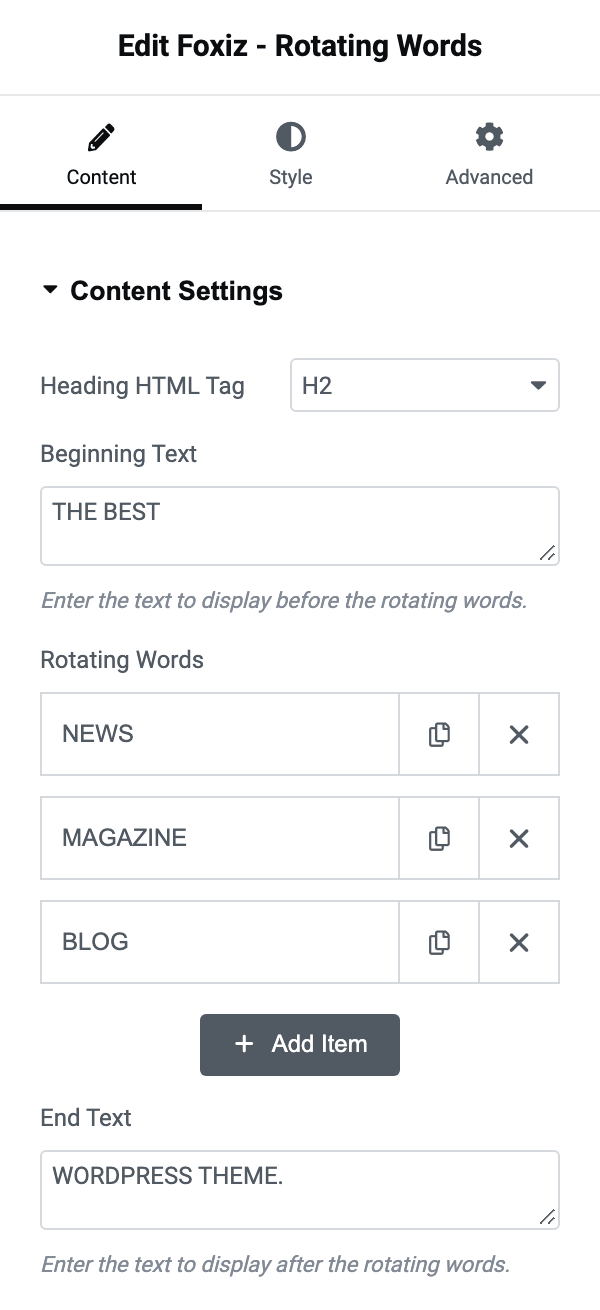
- Heading HTML Tag runs from H1 to H6 and then the
span,divandptags. Its default is H2. The whole line is one element, so this is the tag for all three parts at once. There is no - Default - entry: what you pick is what you get. - Beginning Text is the fixed text before the cycling word, set to "THE BEST" by default. Clear it and the line starts with the cycling word.
- Rotating Words is the repeater, one row per word, and each row has a single field called Word. It has three rows by default. The panel labels each row with the word itself, so the list stays readable however long it gets. Words are shown in the order of the rows and then start again from the top, so drag the rows to change the order.
- End Text is the fixed text after it, set to "WORDPRESS THEME." by default. Clear it and the line ends on the cycling word.
Keep the words a similar length if you can. The space for the cycling word is measured from the word on screen and animated to the next one, so a two letter word followed by a fifteen letter one makes the rest of the line jump sideways on every cycle.
Style tab
Everything else is in one section called Style, including the timing.
The section opens with two wrap controls, Beginning Text Wrap for the text before the cycling word and End Text Wrap for the text after it. Each offers No Wrap and Wrap, per device, and is unset by default. Wrap puts that part of the line on a line of its own, which is how you get a two line headline with the cycling word on the first line.
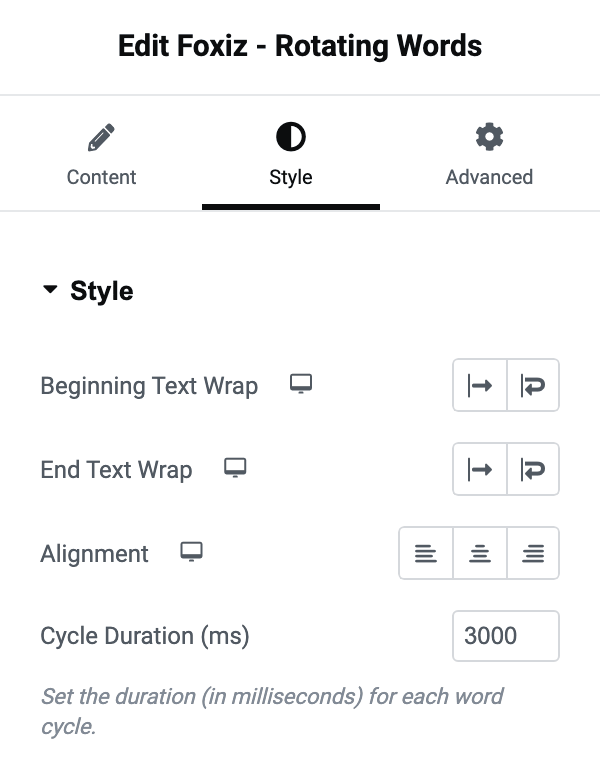
- Alignment offers Left, Center and Right, per device, and is unset by default so the line follows the section it sits in.
- Cycle Duration (ms) is how long each word is held, in thousandths of a second. Its default is 3000: three seconds a word. Below about 1200 the words change before the animation has settled.
- Title Font is the typography group, and it covers the whole line: the two fixed parts and the cycling word share one size and one family.
- Title Color colours the line. With Rotating Color left empty it colours the cycling word too.
- Rotating Color colours the cycling word only, which is the point of the block: one accent colour on the part that moves.
- Dark Mode - Title Color is the line's colour for readers in dark mode.
- Dark Mode - Rotating Color is the cycling word's colour for readers in dark mode.
When it does not animate
- There is only one row in Rotating Words. Add a second and it starts cycling.
- A row is present but its Word field is empty. The row still takes its turn and shows nothing, so the line appears to blink out. Delete the row instead of emptying it.
- The line is set in the wrong colour after switching a section to a dark background. The two dark mode colour fields only apply to readers who have chosen dark mode, so a dark section in light mode needs Title Color and Rotating Color set instead.
Did this answer your question?