How to Create and Use Custom Popups with Foxiz - Popup Template
The Foxiz - Popup Template block allows you to create customizable popups, enabling users to view highlighted content with just one click. This block is perfect for showcasing essential elements like menus, popular posts, or any other standout content you want to emphasize.
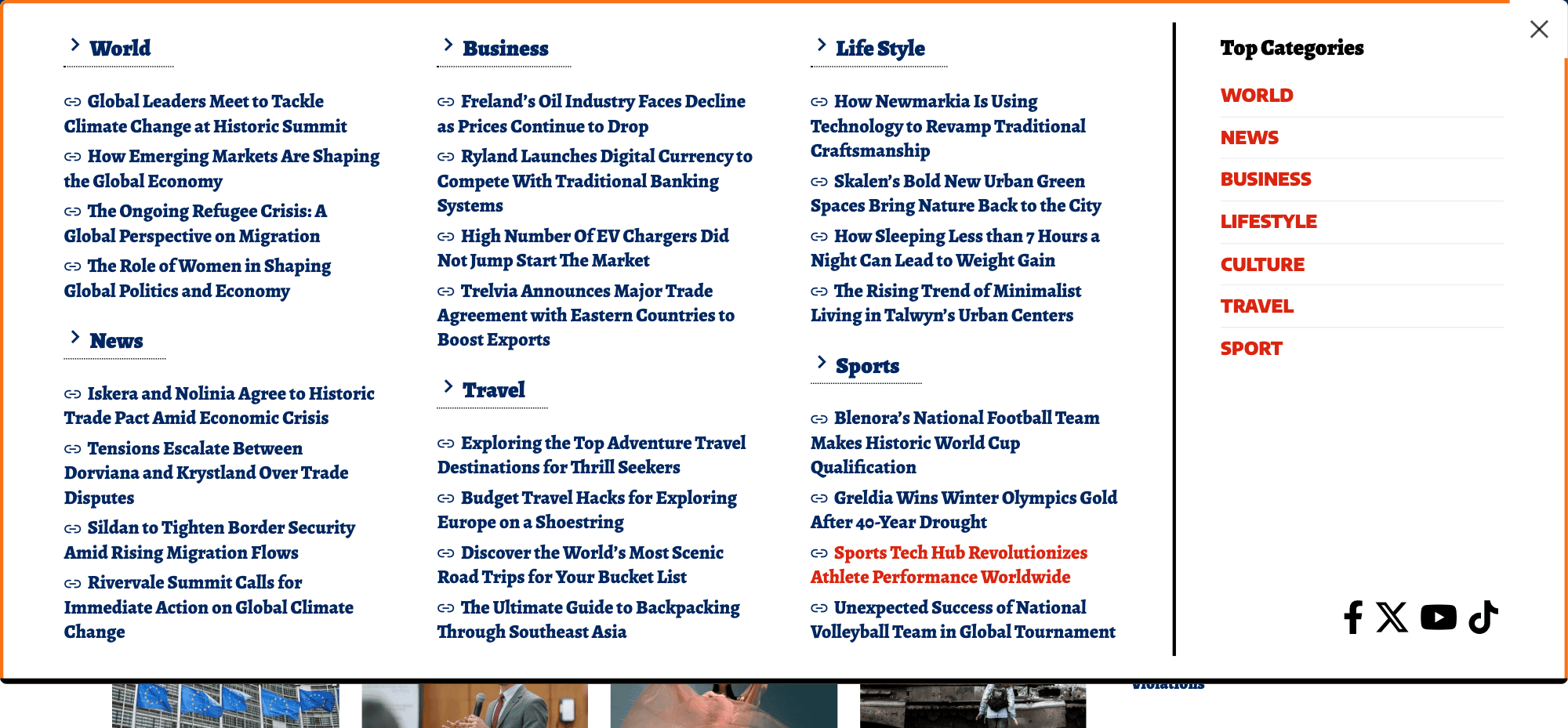
Part 1: Creating Content for the Popup
-
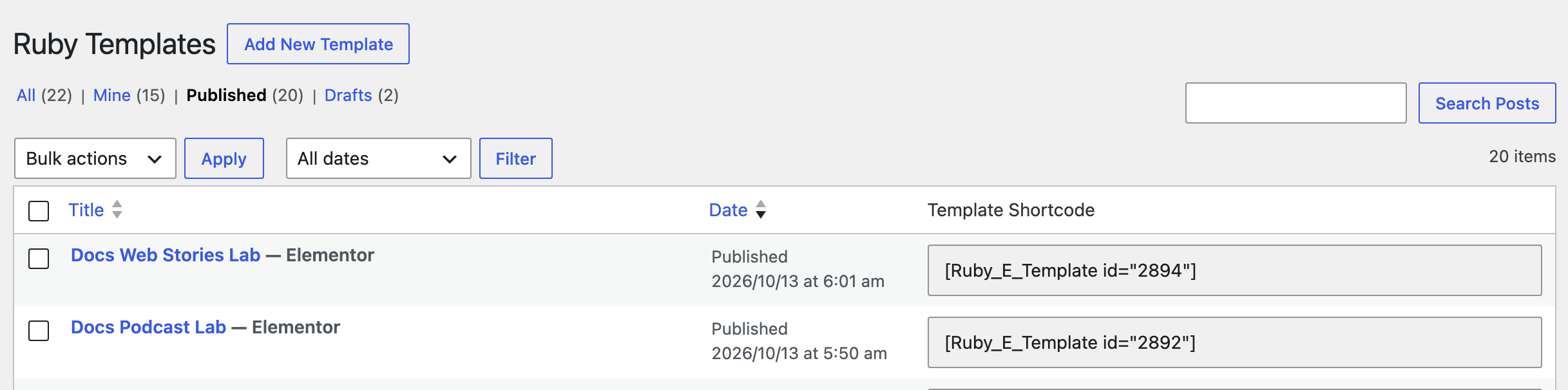
Navigate to Templates: Go to Ruby Templates > All Templates in your WordPress dashboard.
-
Create a New Template: Click the "Add New Template" button. This will redirect you to the Elementor editor.
-
Insert the Foxiz - Popup Template Block (optional, most popups skip it):
You can skip this step. The popup's content is an ordinary Ruby Template, so any block that renders in Elementor can go in it. The block's real job is the button that opens the popup, in Part 2.
-
Search for the block named "Foxiz - Popup Template" in the Elementor widget panel. It is filed under Foxiz - Element.

-
Drag and drop it into the editor area.
-
-
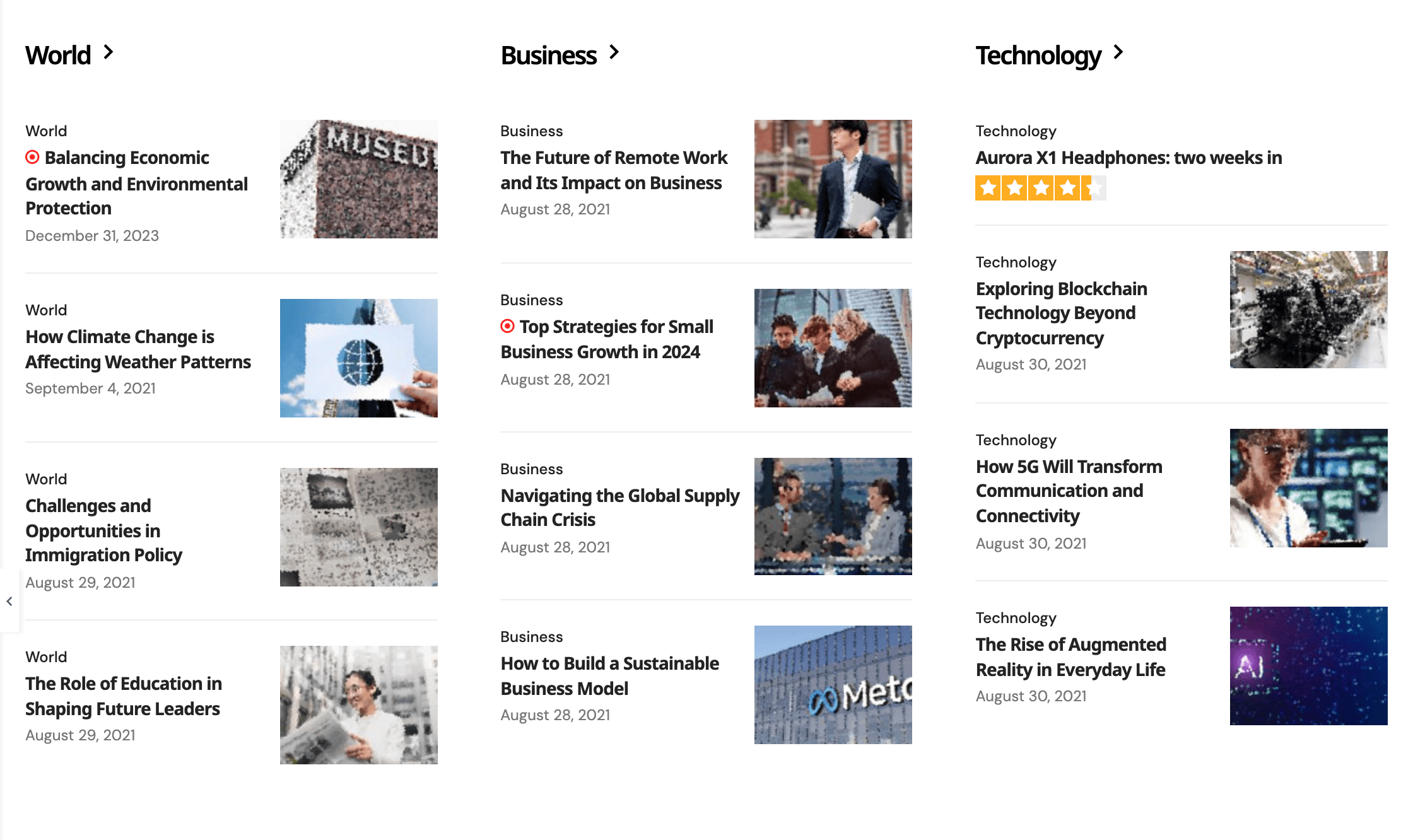
Customize the Popup Content:
-
Add elements you want to display in the popup. For example:
- Menu blocks to guide users to key categories.
- Popular posts list.
- Any other content you want to highlight.
-
Style the content according to your preferences (colors, layout, fonts, etc.).
-
-
Save the Template:
-
Click "Publish" to save the template.
-
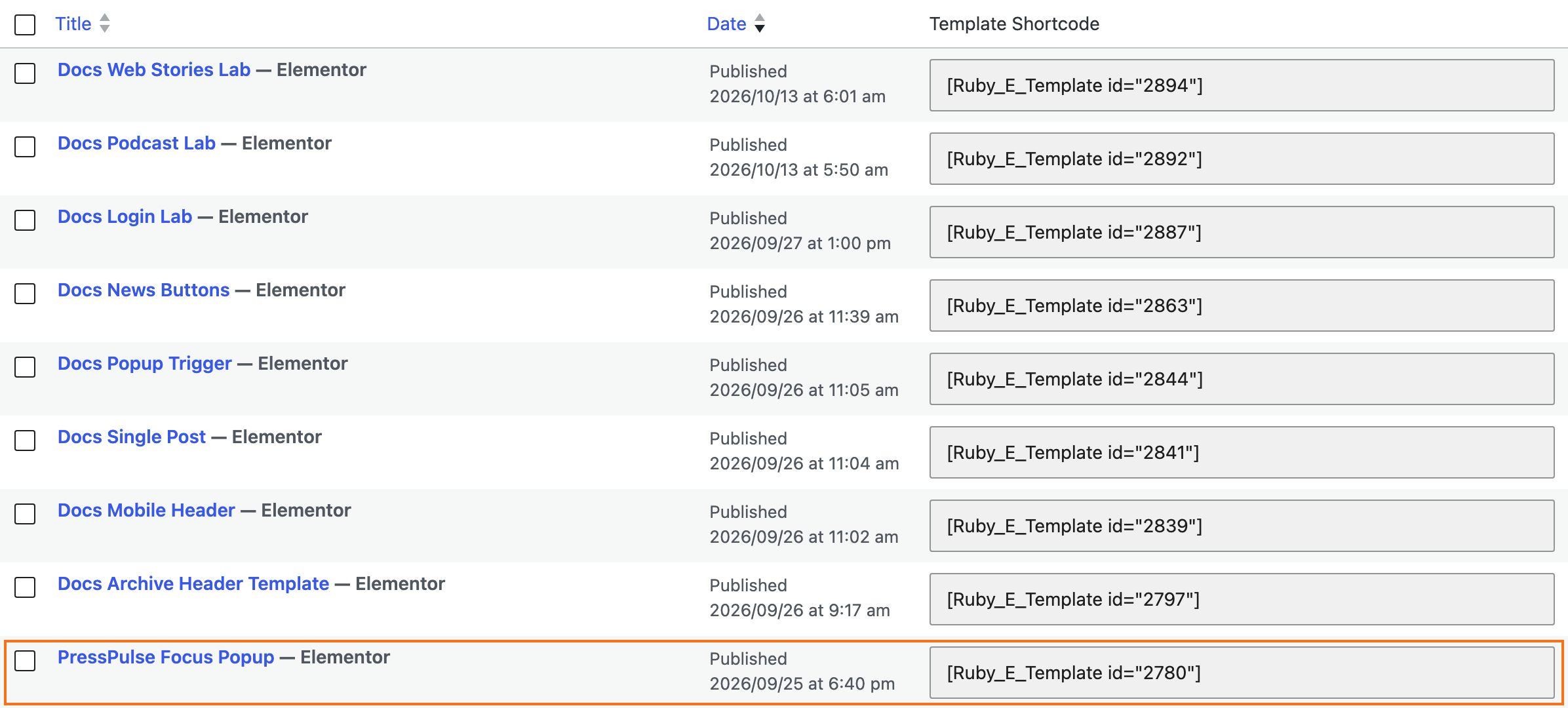
Go back to Ruby Templates > All Templates to find the shortcode of the template you just created.
-
Part 2: Adding a Button to Trigger the Popup
Create a button in the header (or any desired location) that users can click to open the popup.
-
Edit the Target Template:
- Navigate to Ruby Templates > All Templates.
- Select Header Template (or any other template where you want the button to appear) and click "Edit with Elementor".
The button goes wherever an Elementor block can go. To put it in the header, your header has to be a header template: Theme Options > Header > Header Layout set to Use Ruby Template, with that template's shortcode in Template Shortcode. On one of the ready made Layout 1 to Layout 5 headers there is nowhere to drop a block. Either put the button on a page instead (open it with Edit with Elementor), or build a header template first: How to Create Header Templates and Assign It to Your Website.
-
Insert the Foxiz - Popup Template Block:
-
Search for the block "Foxiz - Popup Template" in Elementor.
-
Drag and drop it into the area where you want the button to appear

-
-
Configure the Popup Settings:
-
Go to the Content tab in the block settings and set the following:
-
Popup Content Template or RAW HTML: Paste the shortcode of the popup template created earlier.
-
Trigger Button Label: Enter the button text, such as View Highlights.
-
Trigger Button Icon (SVG Attachment): If needed, input the URL of an SVG icon to display it next to the button label.
-
Has Script Tags?: leave this on No unless the template you pasted contains a
<script>tag. Turn it on when it does, or the script will not run.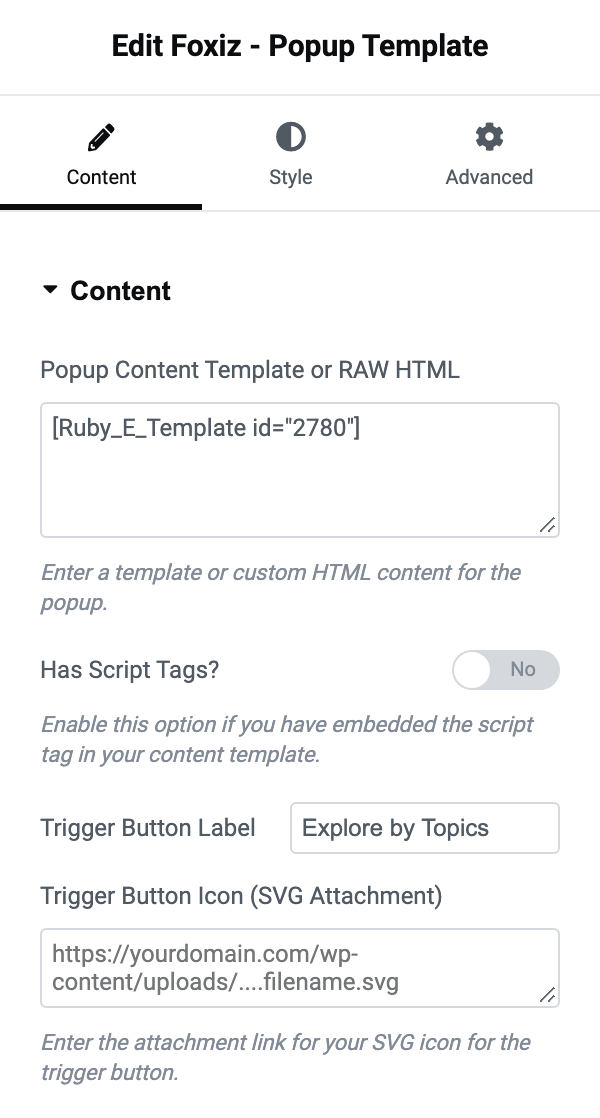
-
-
-
Click "Publish" to apply the changes.
The block is doing two different jobs in the two parts above, which is easy to miss. In Part 1 it is not needed at all: the popup's content is an ordinary Ruby Template, and anything that renders in Elementor can go in it. In Part 2 the block is the button, and the shortcode you paste into Popup Content Template or RAW HTML is what it opens.
The same field also takes raw HTML, so a short popup needs no separate template at all.
Styling for the button itself is on the Style tab, under Trigger Button: Button Font, Button Padding and Border Radius, among others.
Did this answer your question?