The Foxiz Gallery Blocks in Elementor
Foxiz adds two gallery blocks to the Elementor panel, both in the Foxiz - Element category: Foxiz - Simple Gallery and Foxiz - Lightbox Gallery. Searching the panel for "gallery" finds both, because each one carries that keyword.
They are two different jobs:
- Foxiz - Simple Gallery draws a plain grid of pictures, each one able to carry a title, a paragraph, a small badge and its own link. Nothing pops up; a click follows the link you gave the item.
- Foxiz - Lightbox Gallery draws a masonry or flex grid and a click opens the picture full size in a popup, with its caption and description beside it. Its keywords include "popup" for that reason.
Putting a gallery on a page
- Open the page with Edit with Elementor.
- Search the panel for gallery, or scroll to the Foxiz - Element category.
- Drag the block you want onto the canvas.
- Open the one repeater on its Content tab and add a row per picture.
- Adjust the Style and Layout tabs if you need to, then Publish.
Both blocks arrive holding one empty row titled "Item #1", so a gallery you have just dragged in shows a single caption and no picture until you choose one.
Foxiz - Simple Gallery
Content tab
The General section holds one repeater, Add Gallery Item, and every picture in the gallery is one row of it. The row label in the panel is built from the item's title and description, so filling those in is what makes a long list readable.
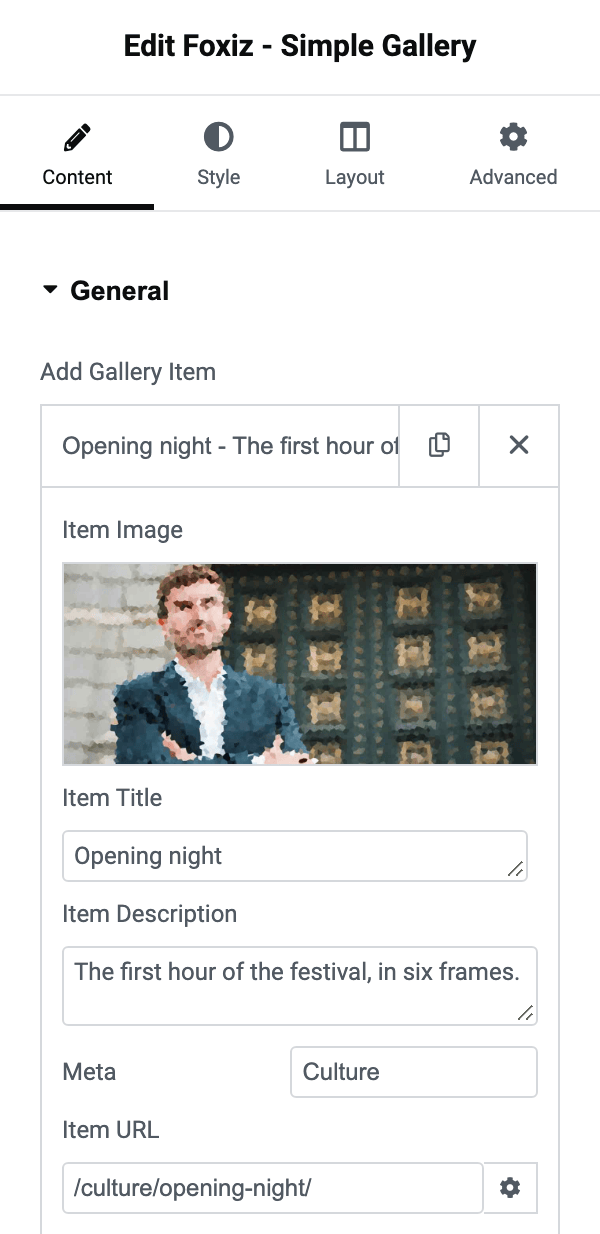
Each row has five fields:
- Item Image is the picture, chosen from your media library. It is empty by default.
- Item Title is the heading printed under the picture. Leave it blank and no heading is printed. It also becomes the picture's alt text when the image in your media library has none of its own.
- Item Description is the paragraph below the heading. Blank prints nothing.
- Meta is a short badge drawn on top of the picture, styled like a category label. It is only printed when the row has a picture.
- Item URL is where the row links, and it wraps both the picture and the title. It is empty by default, which leaves the row unlinked, and it arrives with Elementor's Open in new window switch already on, so a link you paste in opens in a new tab unless you turn that off. Its Add nofollow switch is off by default.
A row with no picture is not skipped. Its title and description are still printed, so an empty row leaves a caption floating with nothing above it.
Style tab
Image:
- Image Style picks a ready made frame: Shadow, Dark Border, Gray Border or None. Its default is Shadow.
- Image Border Width and Image Border Radius take a number of pixels each, per device, and override the frame's own width and corners. Both are blank by default.
- Entrance Animation offers None, Fade In and Zoom In. Its default is None. The animation is suppressed inside the Elementor editor, so judge it on the live page rather than on the canvas.
- Lazy Load defaults to - Default -, which follows Theme Options > Performance > Featured Image - Lazy Load. The other entries are Disable, Enable, and then Enable except 1st image through Enable except 6 first images, which is how you let the first row of a gallery near the top of the page load immediately while the rest waits.
Title holds Text Color, Dark Mode - Text Color and the typography group Title Font. The dark mode colour is white by default.
Description holds the same three for the paragraph: Text Color, Dark Mode - Text Color and Description Font.
Meta holds Meta Font, a Border Radius in pixels per device, and a Meta Background group that takes a flat colour or a gradient.
Text Color Scheme holds one field of the same name, offering Default (Dark Text) and Light Text. Its default is Default (Dark Text). Switch it to Light Text when the gallery sits on a dark section.
Layout tab
Columns holds Columns on Desktop, Columns on Tablet and Columns on Mobile, then Column Gap. Desktop and tablet run from 1 Column to 7 Columns; mobile stops at 4 Columns. All four default to - Default -, and on - Default - the gallery lays out in three columns with the 40px gap.
Choosing Custom Value in Column Gap reveals 1/2 Custom Gap Value, which is responsive and doubles: your number becomes the padding on each side of a column, so the space between two of them is twice what you typed.
Grid Borders opens with a notice saying the settings below need all three column values set, so fill in desktop, tablet and mobile before you use them. It holds three fields:
- Column Border and Bottom Border each offer - Disable - and seven lines, and both default to - Disable -. The solid lines are Gray Solid, Dark Solid and Bold Dark Solid. The others are Gray Dotted, Dark Dotted, Gray Dashed and Dark Dashed.
- Last Bottom Border offers only Enable and Disable. Its default is Disable, which keeps the border off the last row.
Spacing holds three responsive numbers, all in pixels and all blank on arrival:
- Custom Element Spacing between the title, description and meta.
- Image Spacing below each picture.
- Custom Bottom Margin between rows.
Centering holds Centering Content, offering only Enable and Disable, with no - Default - entry. Its default is Enable. So a Simple Gallery centres its titles and paragraphs unless you switch that off.
Foxiz - Lightbox Gallery
Content tab
The section is called Gallery and its repeater is Add Item. The row label in the panel is the item's caption, so an item with no caption shows as an unnamed row.
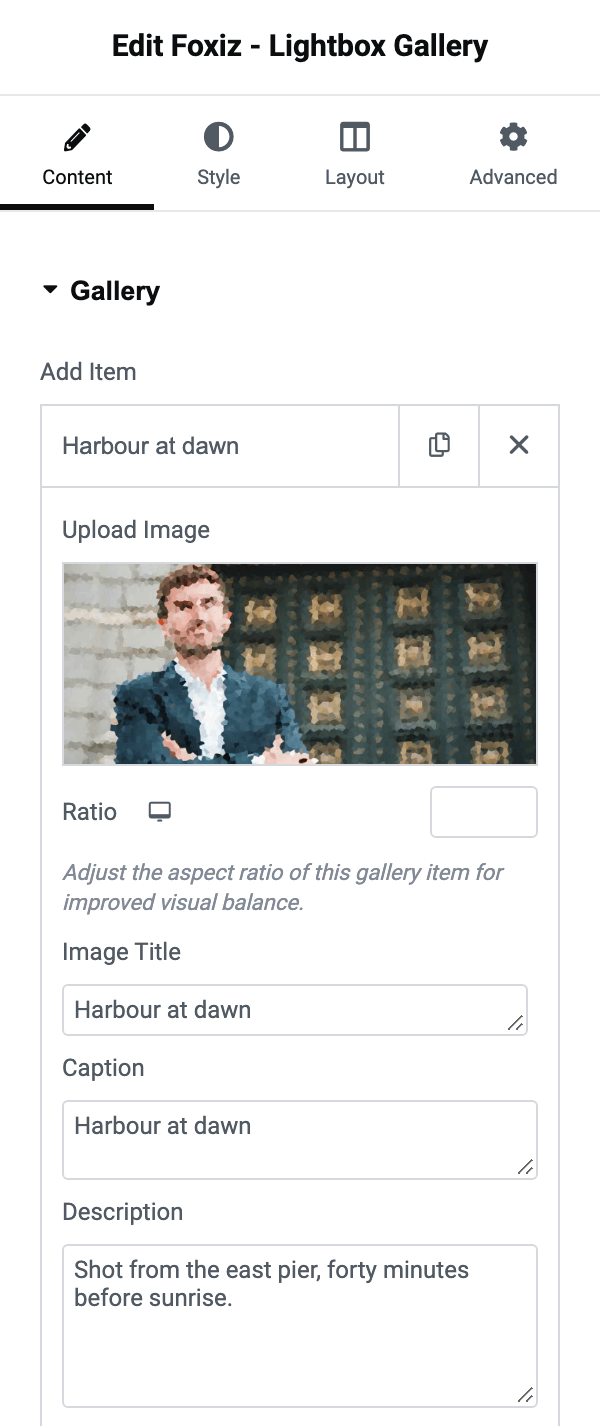
Each row has five fields:
- Upload Image is the picture. This one is required: a row with no picture is skipped entirely, grid and popup both.
- Ratio sets this one item's aspect ratio, per device, which is how you make a single picture taller or wider than its neighbours in a masonry wall. Blank follows Default Ratio further down the Style tab.
- Image Title names the item in the popup. Leave it blank and the popup uses the attachment's own title from your media library.
- Caption is the line printed over or under the picture in the grid and repeated in the popup. Blank falls back to the attachment's caption.
- Description is the longer text below the caption. Blank falls back to the attachment's own description.
Those three fallbacks mean a gallery of well described media library images needs no typing at all: add the rows, leave the text fields empty, and the captions come from the library.
Style tab
Style & Layout opens with a notice about the masonry layout arranging items in column order rather than row order, which is what to read if your pictures come out in an unexpected sequence.
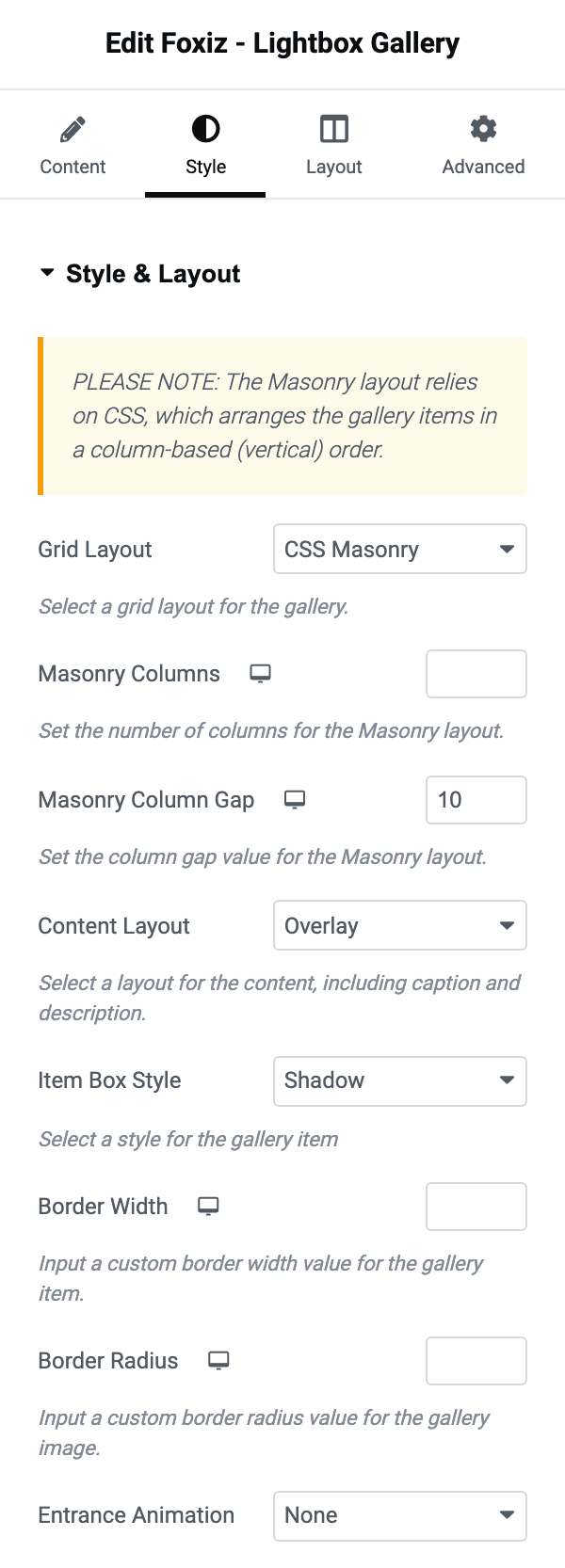
- Grid Layout offers CSS Masonry and Flexbox. Its default is CSS Masonry. Masonry gives a ragged wall of different heights; Flexbox gives an even grid, and it is the only one of the two that the Layout tab's column settings apply to.
- Masonry Columns and Masonry Column Gap appear only on CSS Masonry. By default the gap is 10 pixels and the column count is blank. Both are responsive.
- Content Layout offers Overlay and Standard. Its default is Overlay. Overlay floats the caption and description on top of the picture; Standard puts them below it.
- Item Box Style offers Shadow, Dark Border, Gray Border and None. Its default is Shadow. Border Width and Border Radius below it take a number of pixels each, per device.
- Entrance Animation offers None, Fade In and Zoom In. Its default is None. It does not run inside the Elementor editor.
Image:
-
Hover Effect offers - Disable -, Scale, Fade Out, Black & White and Black & White Invert. Its default is - Disable -.
-
Align offers - Default -, Top and Bottom. Its default is - Default -. It decides which part of a cropped picture survives, so set it to Top for a gallery of portraits.
-
Default Ratio is the aspect ratio every item uses unless its own Ratio overrides it, per device, and it is blank by default.
-
Crop Size picks which registered image size the grid thumbnails use. The list opens on - Default - and every size your site registers. It ends with four WordPress sizes: Thumbnail (Core WP), Medium (Core WP), Medium Large (Core WP) and Large (Core WP). Its default is - Default -, which uses the full size file. The popup always uses the full size file whatever you choose here.
-
Lazy Load works exactly as it does on the simple gallery: - Default -, Disable, Enable, and the six Enable except entries.
-
Caption holds Text Color, Dark Mode - Text Color and Caption Font.
-
Description holds Text Color, Dark Mode - Text Color and Description Font.
-
Text Color Scheme holds one field of the same name, Default (Dark Text) or Light Text. Its default is Default (Dark Text).
With Content Layout on Overlay, set the two dark mode colours to something light: the caption sits on the picture, not on the page background.
Layout tab
Flexbox - Columns opens with a notice saying the column settings are only available for the Flexbox layout, and every field in it is hidden until Grid Layout is Flexbox. It holds:
- Columns on Desktop, which defaults to 3 Columns.
- Columns on Tablet and Columns on Mobile, both on - Default -.
- Column Gap, also on - Default -.
- 1/2 Custom Gap Value, for when Column Gap is Custom Value.
All three column dropdowns run from 1 Column to 7 Columns here, mobile included.
Spacing holds four responsive pixel values:
- Custom Element Spacing
- Image Spacing
- Content Padding around the caption and description
- Custom Bottom Margin, which is the only one with a value on arrival, at 10 pixels
Centering holds Centering Content, offering Enable and Disable. Unlike the simple gallery, this one defaults to Disable.
When a gallery draws nothing
- On Foxiz - Lightbox Gallery, a row with no picture is skipped, so a gallery whose rows are all still empty draws an empty grid. Choose a picture in every row.
- On Foxiz - Simple Gallery, a row with no picture still prints its title and description. If you see captions with no pictures, those rows have no Item Image.
- Entrance Animation is held back inside the Elementor editor on both blocks, so a gallery that looks static on the canvas may well be animating on the live page.
- The column settings on Foxiz - Lightbox Gallery do nothing while Grid Layout is CSS Masonry. Use Masonry Columns for that layout, and switch to Flexbox if you want the Layout tab's dropdowns.
Did this answer your question?