The Foxiz Image Block in Elementor
Foxiz - Image is Elementor's image widget with one thing added that the original does not have: a second picture for readers in dark mode. It sits in the Foxiz - Element category and searching the panel for image finds it.
Use it wherever a logo, a diagram or a screenshot has to stay legible in both colour modes. For an ordinary photograph that reads fine either way, Elementor's own image widget is enough.

Putting one on a page
- Open the page with Edit with Elementor.
- Search the panel for image, or scroll to the Foxiz - Element category, and drag Foxiz - Image onto the canvas.
- In Choose Image, pick your light mode picture.
- In Dark Mode - Choose Image, pick the dark mode one, or clear the field if you only want one picture. Both fields arrive holding Elementor's grey placeholder, so clearing is a real step rather than a tidy up.
- Set Caption and Link if you want them, then Publish.
Leave Dark Mode - Choose Image on the placeholder and the block prints two pictures, the placeholder among them. It is one field but it behaves like a required one, so decide it every time: either a real dark mode picture, or empty.
Content tab
Everything below is in the one Image section.
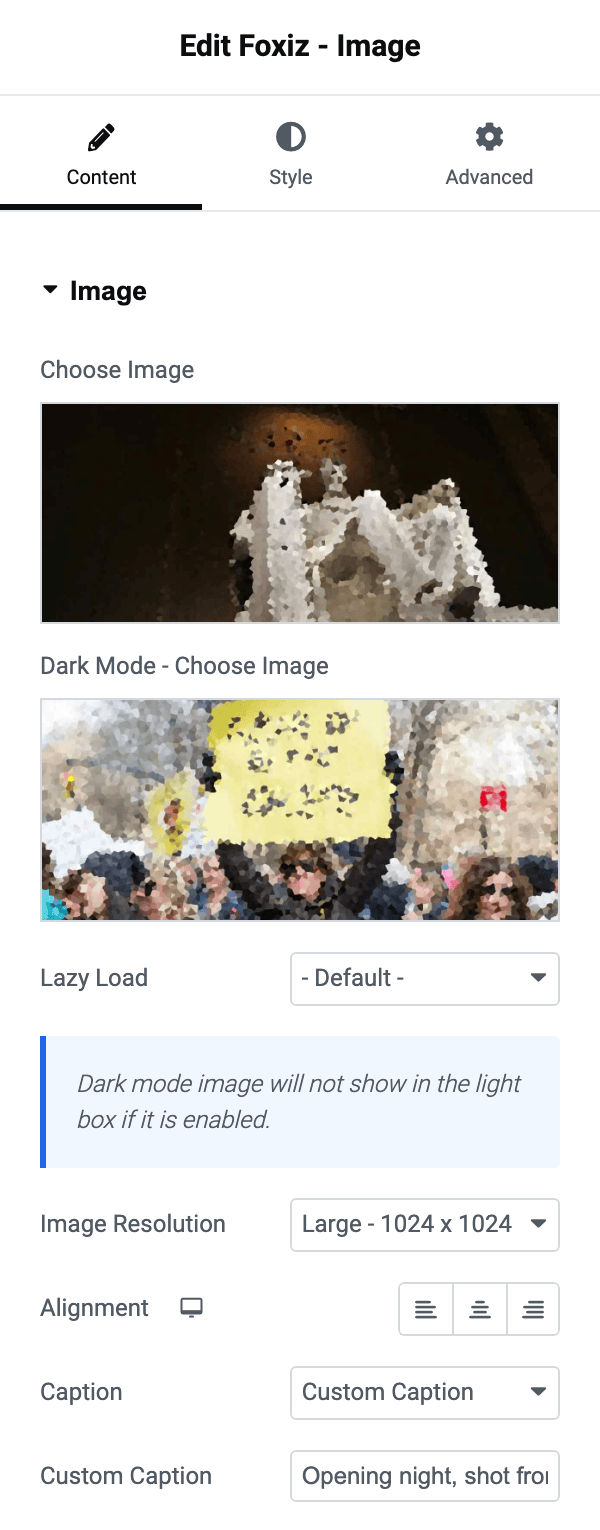
- Choose Image is the picture every reader sees, and the picture the whole block depends on.
- Dark Mode - Choose Image replaces it for a reader who has switched your site to dark mode. Both files are sent to the browser and it shows whichever matches the current mode, so keep the second one small.
- Lazy Load offers - Default -, Disable and Enable. Its default is - Default -. Set it to Disable for a picture near the top of the page so the browser fetches it at once instead of waiting for the reader to scroll. The dark mode picture is always lazy loaded whatever this says.
- A notice under it says the dark mode picture is not the one a lightbox opens. If you send readers to the full size file, that file is the light mode one.
- Image Resolution is Elementor's own size picker. Its default is Large here rather than on full size. Choose Custom and an Image Dimension pair appears, where a value in one box and nothing in the other keeps the original ratio.
- Alignment is Left, Center or Right, set separately per device, and is unset by default, which leaves the picture wherever the surrounding text alignment puts it.
- Caption offers None, Attachment Caption and Custom Caption. Its default is None. Attachment Caption prints whatever the caption field of that media library item holds, so editing the picture in the library changes every page it appears on. Custom Caption reveals a Custom Caption text field for a line that belongs to this block only.
- Link offers None, Media File and Custom URL. Its default is None.
- On Custom URL a second Link field appears for the address, with Elementor's Open in new window and Add nofollow switches. A Custom URL with the field left empty draws no link at all.
- On Media File a Lightbox dropdown appears instead, offering - Default -, Yes and No. Its default is - Default -, which follows Elementor's own site wide lightbox setting.
Style tab
Image
The first four controls are all about the box the picture fills, and all four are per device.
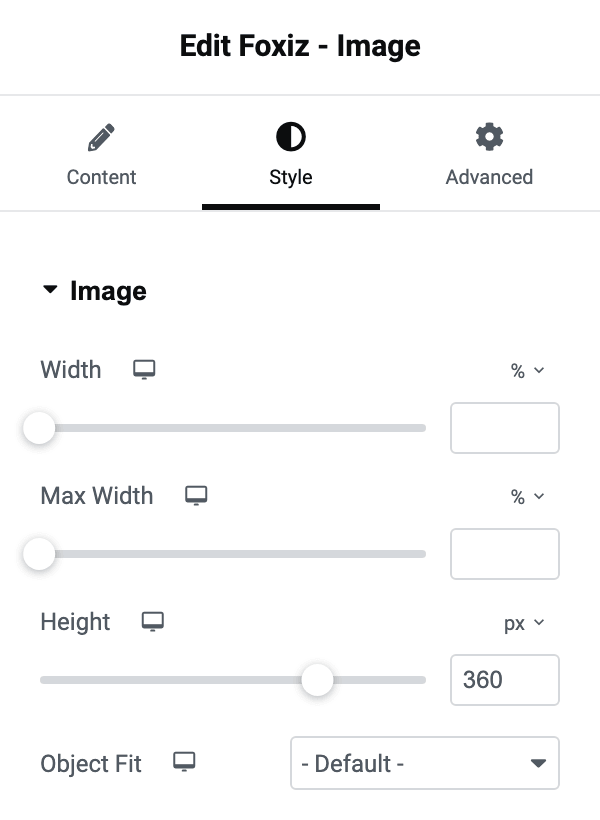
- Width is a slider in %, px or vw, and it stretches the picture to that width.
- Max Width is the same three units and caps the picture instead, which is the one to reach for when you want a picture smaller on a phone but never stretched on a desktop.
- Height is a slider in px or vh. Setting it forces every picture in a row to the same height, and it is what makes the next control appear.
- Object Fit appears only once Height has a value. It offers - Default -, Fill, Cover and Contain. Its default is - Default -. Cover crops to fill the height without distorting; Fill stretches; Contain fits the whole picture inside and leaves space.
Below a divider sit two tabs, Normal and Hover.
- Normal holds Opacity, a slider from 0.1 to 1, and a CSS Filters group. The group holds Blur, Brightness, Contrast, Saturation and Hue.
- Hover holds the same Opacity and CSS Filters for the hovered state. After them come Transition Duration, in seconds or milliseconds, and Hover Animation, Elementor's list of ready made movements. Set Transition Duration whenever you change anything on this tab, or the change snaps instead of easing.
Three more groups close the section:
- Elementor's border group, with Border Type, Border Width and Border Color.
- Border Radius, taking four corners in px, % or em.
- Box Shadow, a group of its own.
Caption
This whole section is hidden while Caption on the Content tab is None, so set the caption first and style it second.
- Alignment is Left, Center, Right or Justified, per device, and is unset by default. It is separate from the picture's own Alignment, so a centred picture can carry a left aligned caption.
- Text Color and Dark Mode - Text Color set the caption's colour in each mode. Both are empty by default, and both offer your site's global text colour as their starting point.
- Background Color and Dark Mode - Background Color put a band behind the caption, which is what you want when the caption sits over the picture rather than under it. Both are empty by default.
- Typography is the font group, and Text Shadow adds a shadow behind the words.
- Spacing is the gap between the picture and its caption, in pixels, from 0 to 100, per device.
When the block draws nothing
Clear Choose Image and the block prints nothing at all, not even a caption or a link. A dark mode picture on its own is not enough: the light mode field is the one the block checks.
Did this answer your question?