The Foxiz Tax-based Accordion Posts Block in Elementor
Foxiz - Tax-based Accordion Posts draws a stack of taxonomy names. The visitor clicks one and its posts slide open underneath as a list of title links. It sits in the Foxiz - Element category of the Elementor panel, and searching for "accordion", "category", "tax" or "tag" finds it.
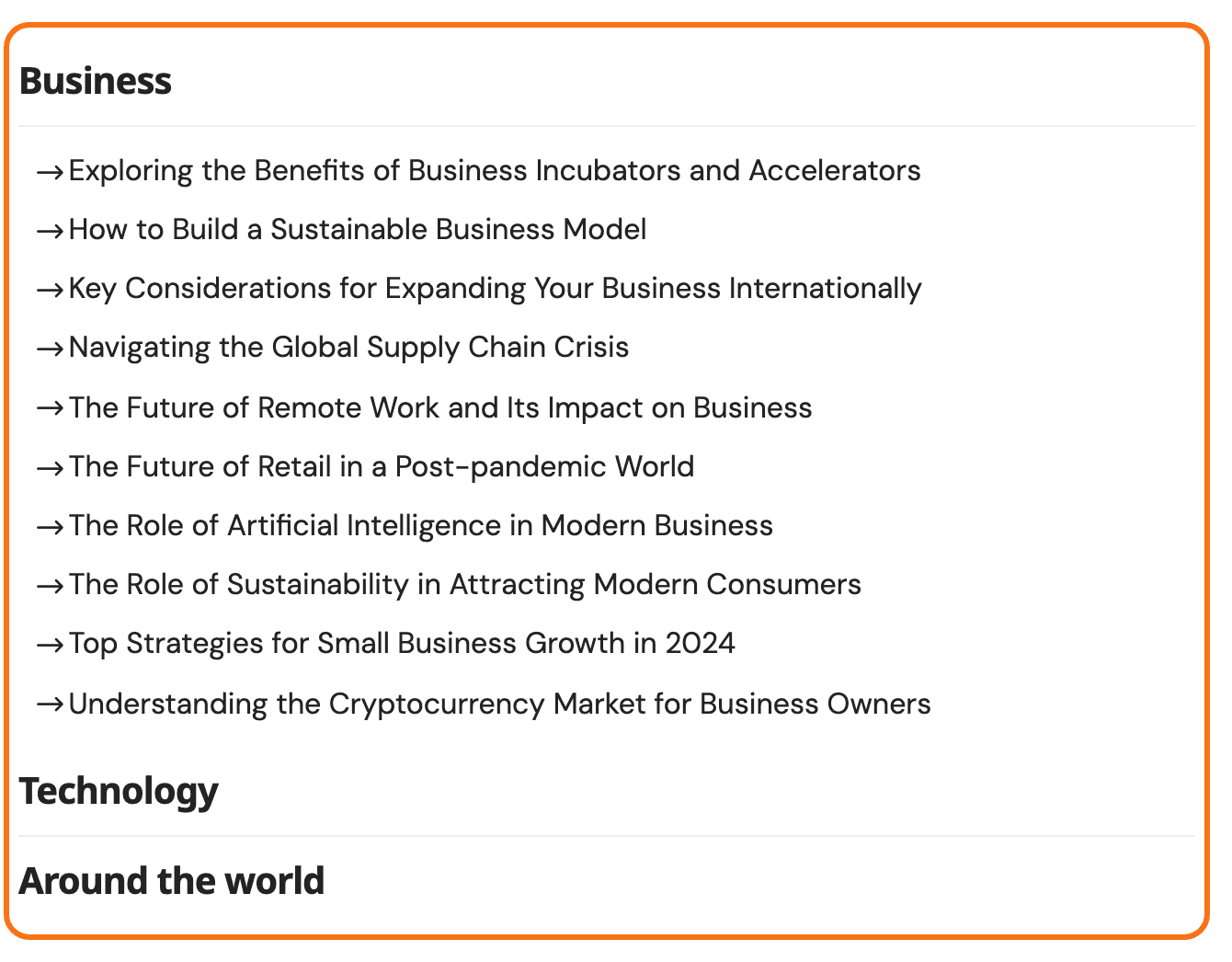
It is the block for a large archive index: a sitemap page, a "browse everything" page, a footer column of topics. Three behaviours worth knowing before you build one:
- Every section starts closed, and opening one closes whichever was open, so only one list of posts is ever on screen.
- The section a visitor last opened is remembered and reopened when they come back to the page.
- Inside the Elementor canvas only the first section's posts are drawn, to keep the editor quick. The rest fill in on the live page.
Putting one on a page
- Open the page with Edit with Elementor.
- Search the panel for Accordion Posts, or scroll to the Foxiz - Element category.
- Drag it onto the canvas. It arrives with one empty row and draws nothing until you fill it in.
- In Add Taxonomies on the Content tab, add one row per section you want.
- Adjust the Style and Layout tabs if you need to, then Publish.
Content tab: Add Taxonomies
Add Taxonomies is a repeater and every row is one collapsible section. Each row has four fields:
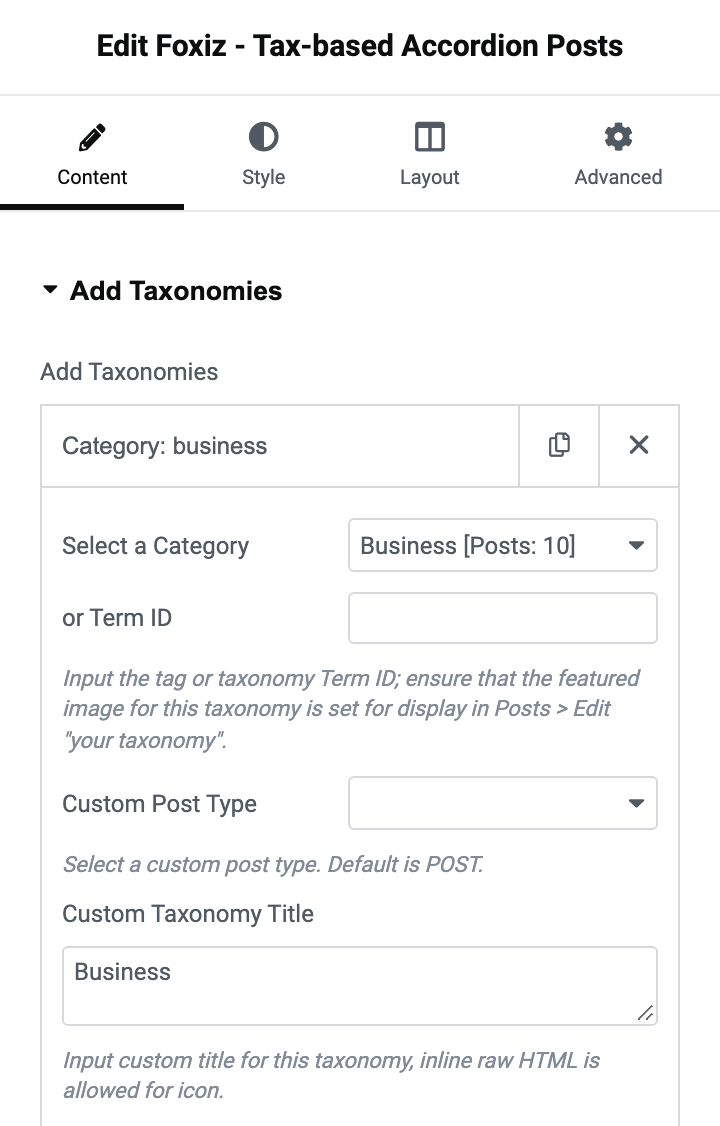
- Select a Category is a dropdown of your categories, opening on - Select a category -.
- or Term ID takes the numeric ID of any term instead, which is how you make a section from a tag or a custom taxonomy term. A row with both filled in uses the ID. Where to find an ID shows where WordPress prints it.
- Custom Post Type is which post type this section lists. Its default is - Default -, meaning posts. Set it per row, so one accordion can mix a category of posts with a term of a custom post type.
- Custom Taxonomy Title replaces the term's own name on the clickable heading. Inline HTML is allowed here, which is how you put an icon in front of a section name. Leave it empty and the term name is used.
The panel labels each row by its Term ID if you set one, and by its category if you did not, so filling one of the two in is what keeps a long list readable.
Content tab: Query Settings
These two apply to every section, not to one row.
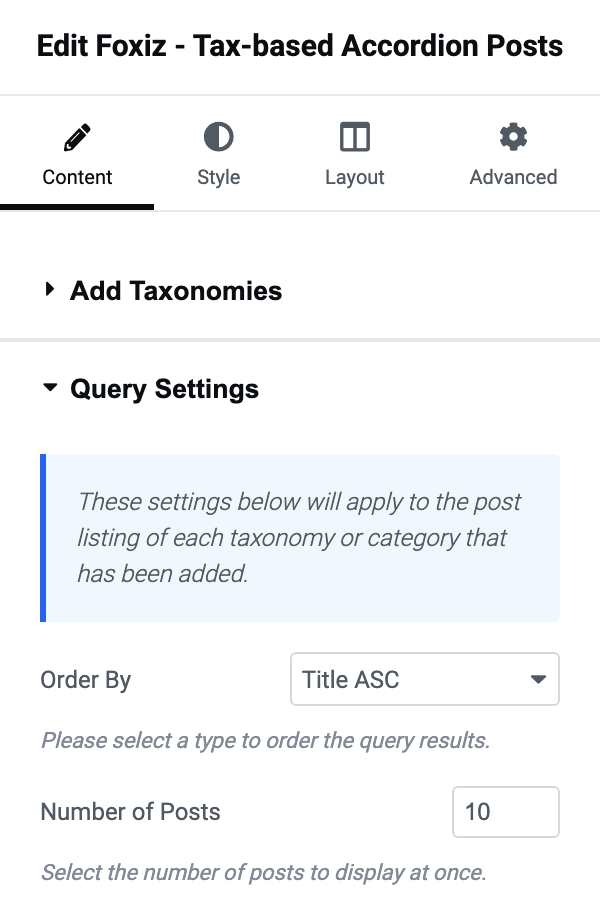
- Order By defaults to Title ASC, which sorts each section alphabetically by post title. The full list is the standard Foxiz sort list, covered in How to Set Up Query Filters in Elementor Blocks; alphabetical is the right default for an index, and Last Published is the one to pick if you want the newest first.
- Number of Posts defaults to 10 and is how many posts each section lists. Raise it for an index page; every section queries this many, so a page of twenty sections at fifty posts each is a large page.
Content tab: Cache
The whole block is built once and kept, because an index of twenty sections is twenty queries.
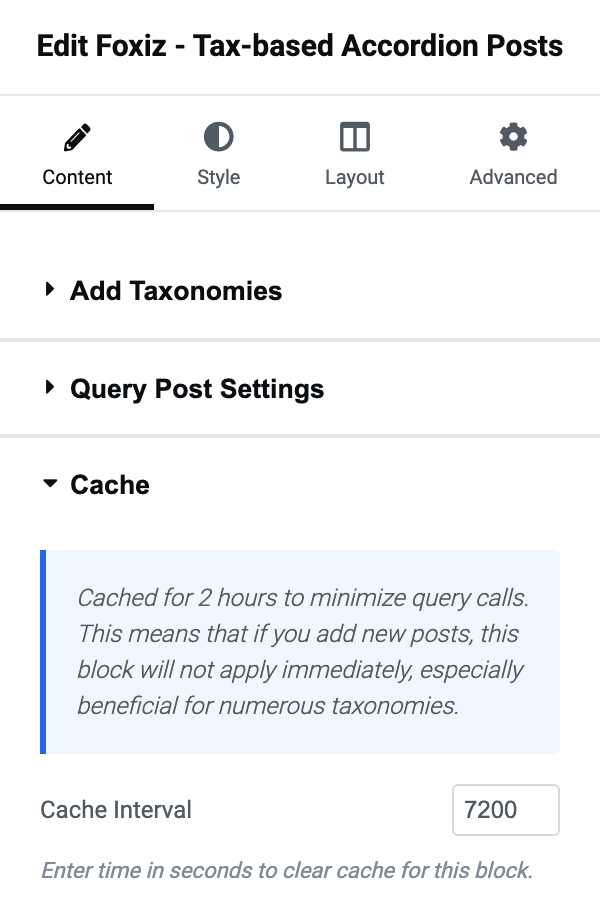
- Cache Interval is how long that copy is kept, in seconds. Its default is 7200: two hours. A post published now will not appear in the block until the interval is up.
Lower it if the page is meant to look current, raise it if the page is a stable index and the query cost matters more. To see a change at once while you are building, open the template in Elementor: the stored copy is thrown away every time the block is drawn in the editor.
Style tab: Taxonomy Title
This is the clickable heading of each section.
- Taxonomy Title HTML Tag runs from H1 to H6 and then the
span,divandptags. Its default is - Default -, which draws an H3. - Taxonomy Title Font is the typography group for it.
Style tab: Post Title
This is one post inside an open section.
- Title Icon is a marker drawn in front of every post title, and by default it holds the theme's own small arrow. Clear it for a plain list. Any icon class from the theme's set works, and the panel links the list at https://icons.themeruby.com/foxiz/.
- To use a Font Awesome class instead, switch on Font Awesome at Theme Options > Theme Design > Font Awesome first. It is off by default, and a Font Awesome class with it off draws an empty space.
- Title HTML Tag offers the same list as the heading above. Its default is
div, which keeps a long index out of your heading outline. Pick H4 or lower only if you want these titles in the document structure. - Title Font is the typography group for the post titles.
Style tab: Text Color Scheme
One field of the same name, offering Default (Dark Text) and Light Text. Its default is Default (Dark Text). Switch it to Light Text when the block sits on a dark section.
Layout tab: Grid Borders
- Bottom Border draws a rule under each post title. It offers - Disable - and seven lines. The solid ones are Gray Solid, Dark Solid and Bold Dark Solid. The others are Gray Dotted, Dark Dotted, Gray Dashed and Dark Dashed. Its default is - Disable -. Turning it on doubles the space below each title, so set Post Title Spacing afterwards rather than before.
Layout tab: Spacing
All three take pixels and can be set per device.
- Tax Title Spacing is the space between one section heading and the next.
- Post Title Spacing is the space between post titles inside an open section.
- Post Title Left Padding indents the post titles under their heading, which is what makes the nesting read at a glance.
When a section is missing or empty
- A row with neither a category chosen nor a Term ID is skipped entirely, heading and all. A block whose only row is empty prints nothing.
- A row whose Term ID belongs to a term that has since been deleted is skipped the same way.
- A heading that opens onto nothing means the term has no posts of the type in Custom Post Type. A term of a custom taxonomy usually needs that field set, because the default is posts.
- Only the first section has posts, and you are looking at the Elementor canvas. Preview the page.
- A post you just published is not there yet. That is Cache Interval.
Did this answer your question?