How to Config Shares on Socials in the Single Post Page?
The theme comes with 3 areas to display shares on socials on the single post page: at the top, left side, and bottom of the single post page.
A fourth set of share icons sits in the sticky headline bar, shown while a reader scrolls when Sticky Headline is on. It has its own switches, set apart from these three: see Sticky Headline: Share on Socials.
They are configured in three different subsections of Single Post, not in one. The Share on Socials subsection holds only the bottom bar, and says as much in two notices at the top of it.
All three offer the same sixteen buttons, in this order. Twelve are networks: Facebook, X (Twitter), Flipboard, Pinterest, WhatsApp, LinkedIn, Tumblr, Reddit, Vkontakte, Telegram, Threads and Bluesky. The other four are Email, Copy Link, Print and Native Share.
Five of them are on before you change anything:
- X (Twitter)
- Copy Link
- Native Share
The rest are off. Native Share opens the operating system's own share sheet and only draws on browsers that support it, which is why it can be on and invisible on a desktop.
The five defaults suit most sites. On a phone, Native Share opens the phone's own share sheet, which already lists the apps the reader uses, so a mobile audience rarely needs more. Add a network when your readers share there from a desktop, such as LinkedIn for a business audience.
Shares on socials at the top
To get started, follow the steps below:
-
Navigate to Theme Options > Single Post > Entry Meta. The top bar is part of the entry meta line, so it is not in Share on Socials with the bottom one.
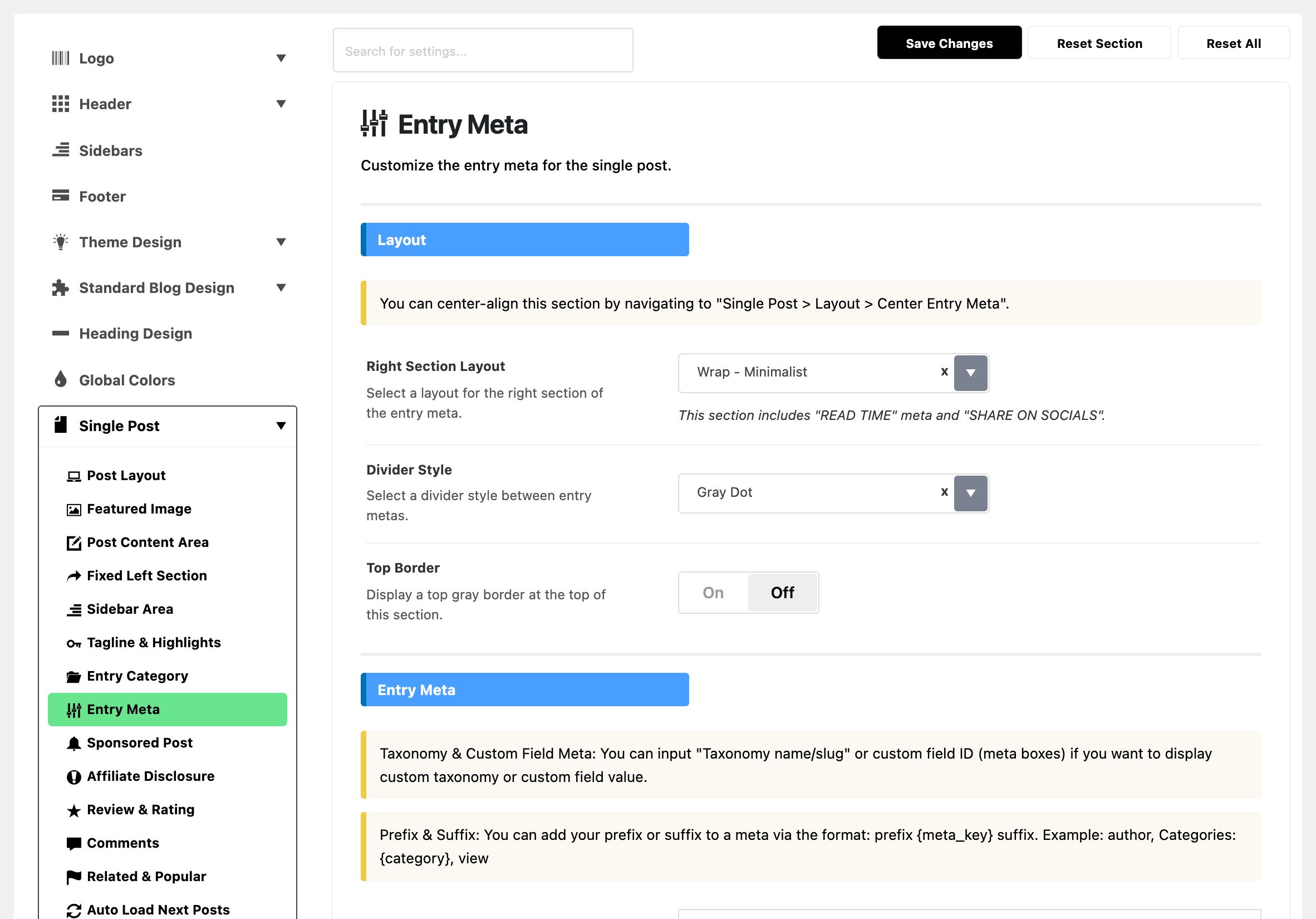
-
Scroll to the Right Section - Share on Socials section. Share Bar is on by default; turn it off to remove this bar.
-
The list of supported socials appears below it. Turn on each social you want to show. They stay hidden until Share Bar is on, so an empty looking section means the switch above it is off.
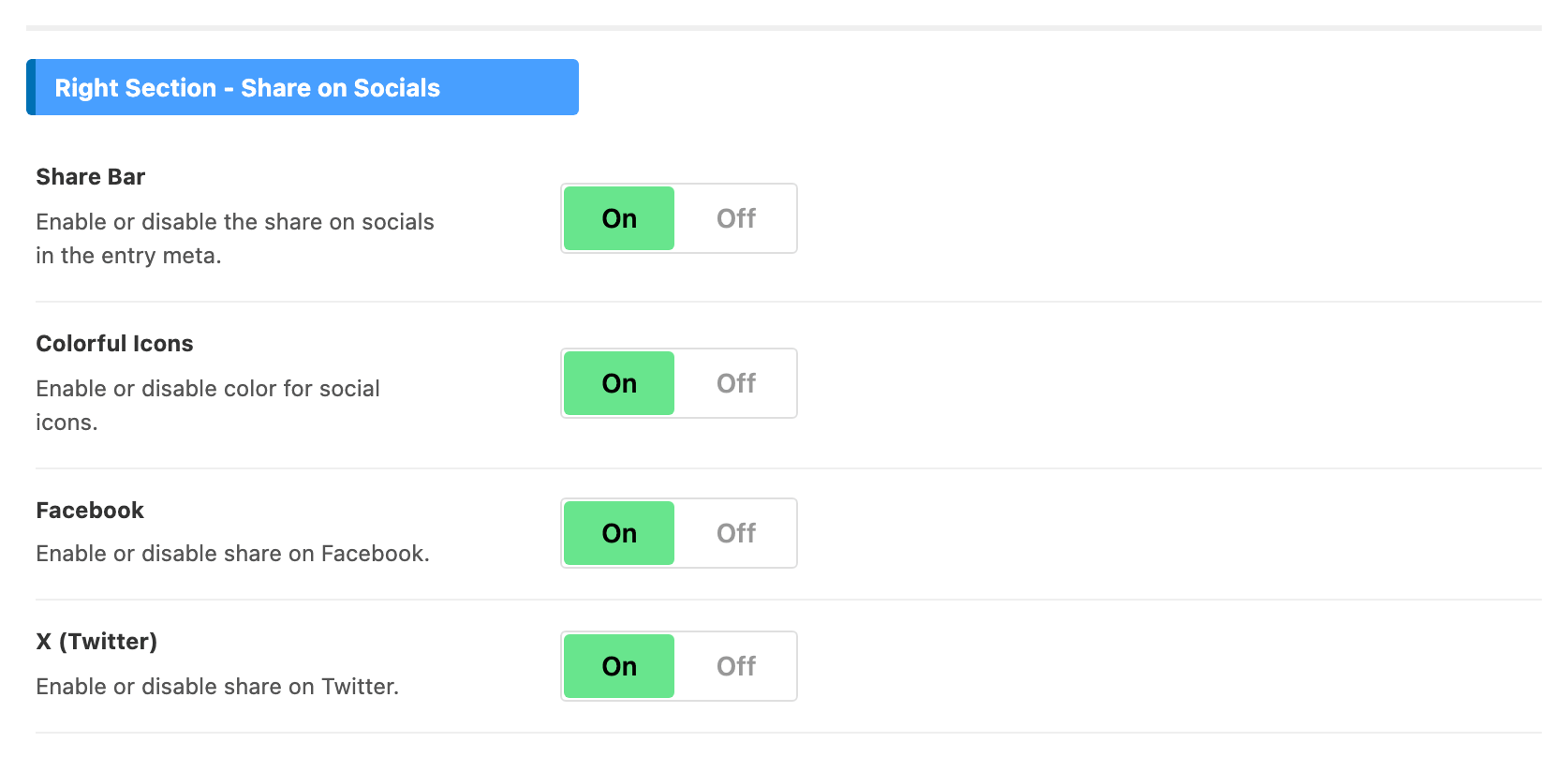

Colorful Icons, the first switch under Share Bar, is on by default and gives each icon its brand colour. Turn it off for a single toned bar.
Shares on Socials at the Bottom
To get started, follow the steps below:
-
Navigate to Theme Options > Single Post > Share on Socials.
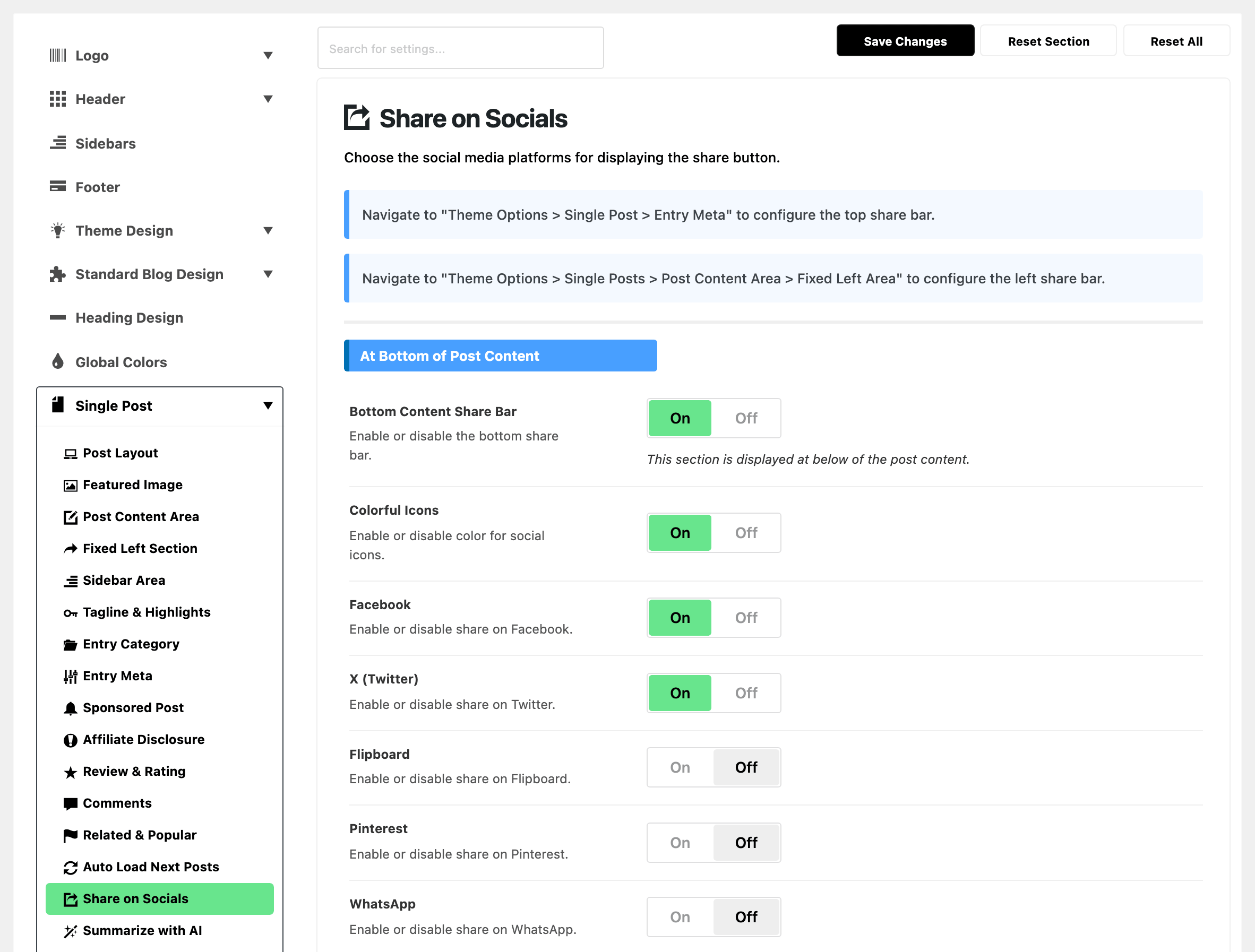
-
Bottom Content Share Bar is on by default; turn it off to remove this bar.
-
The list of supported socials appears below it. Turn on each social you want to show.
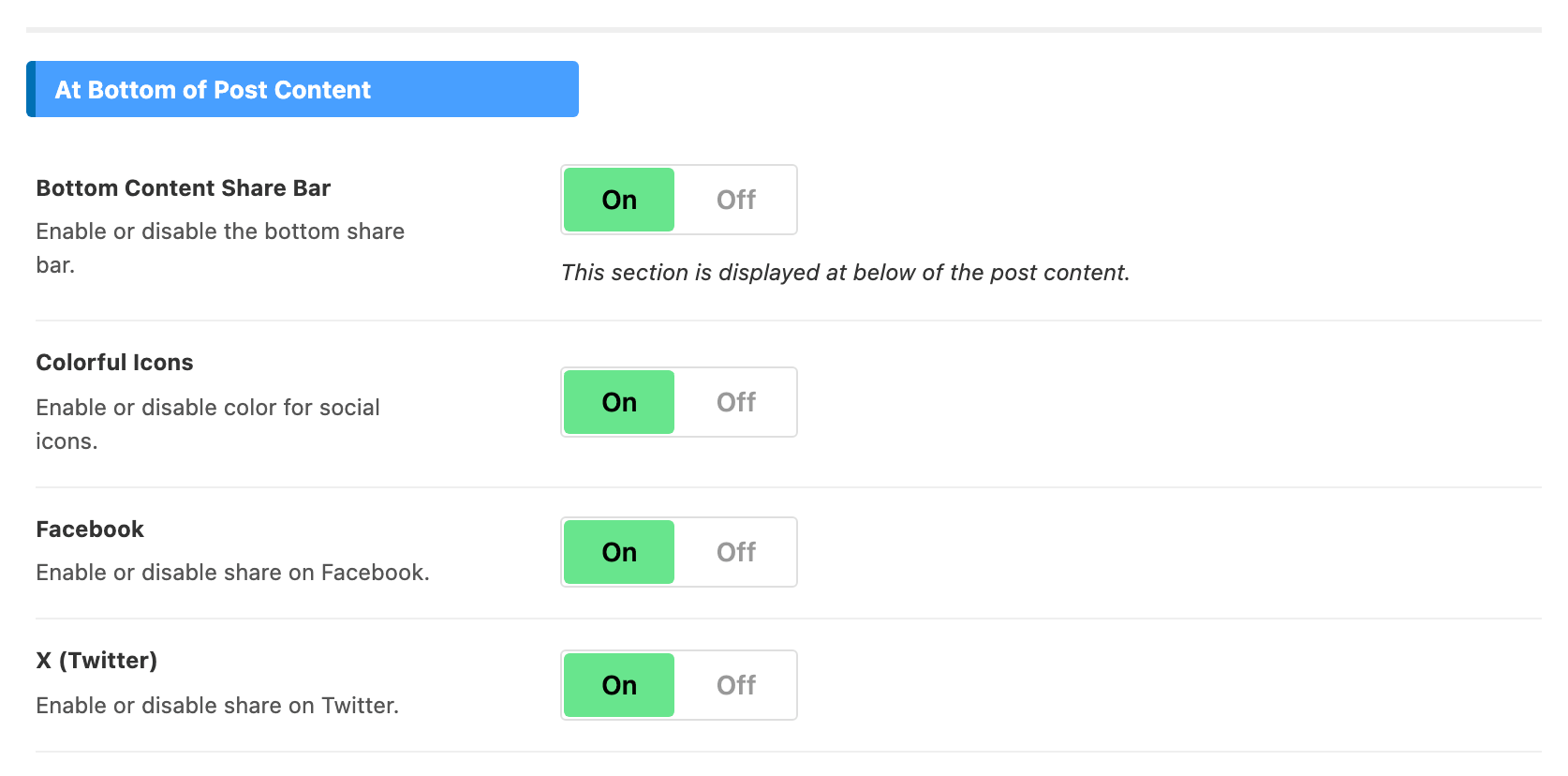
This bar sits directly below the post content and above whatever follows it.
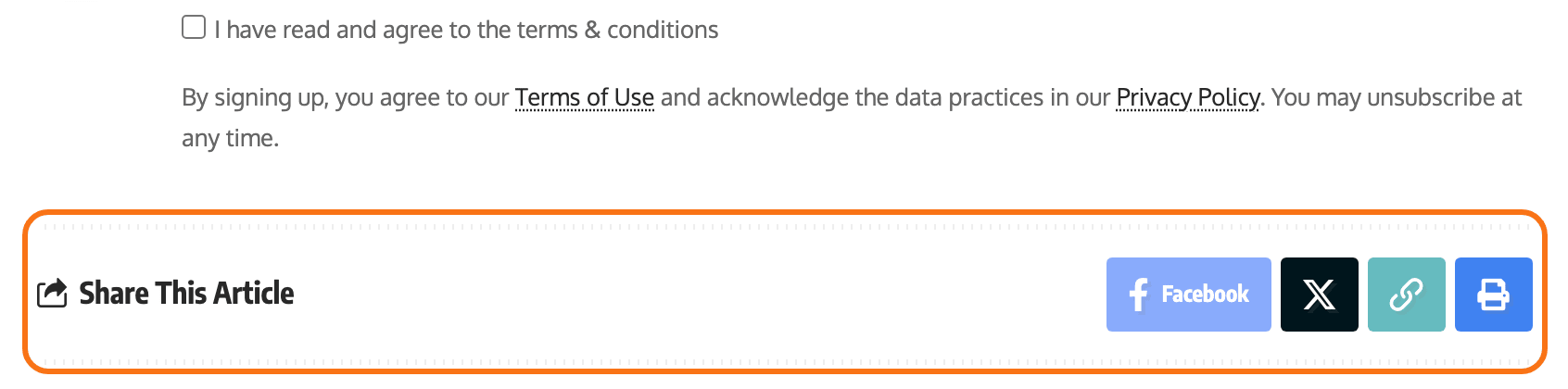
Shares on socials on the left side
To get started, follow the steps below:
-
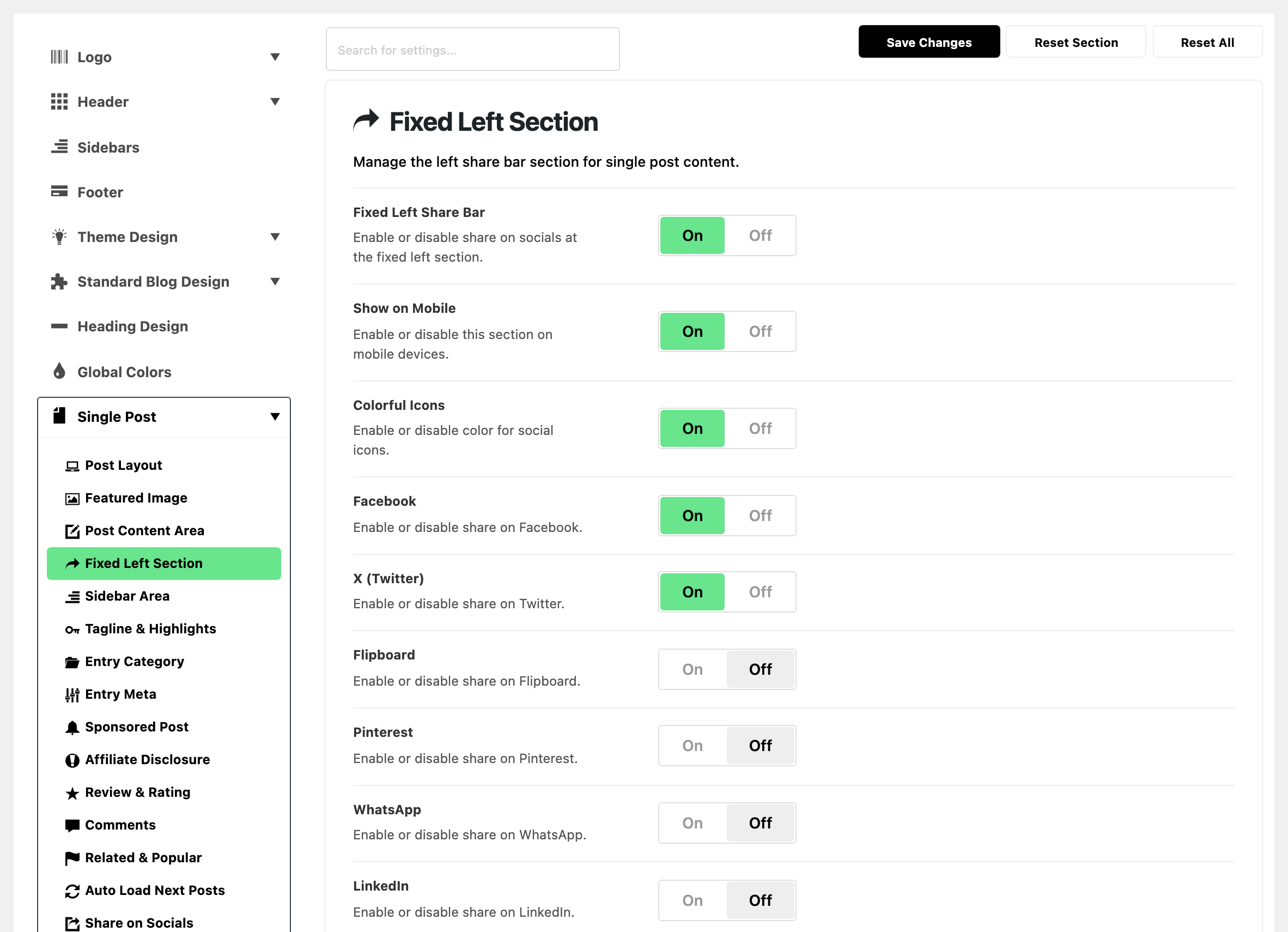
Navigate to Theme Options > Single Post > Fixed Left Section. The subsection was called Fixed Left Area in older versions.
-
Fixed Left Share Bar is on by default; turn it off to remove this bar.
-
The social switches appear under it once it is on. Select a social you want to show, then turn it on.
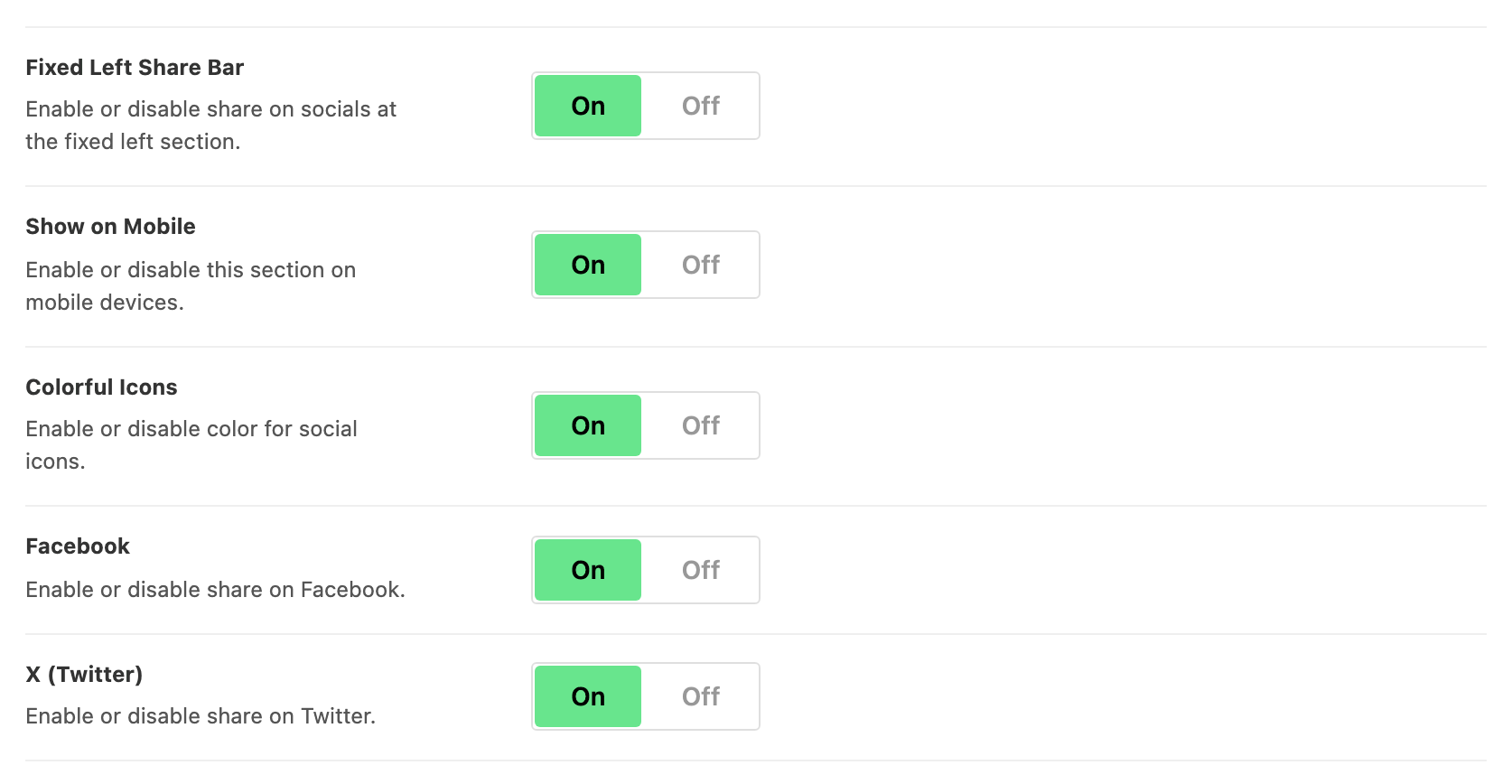
This bar has one switch the other two do not: Show on Mobile, on by default, which decides whether the fixed column is drawn on a phone at all.
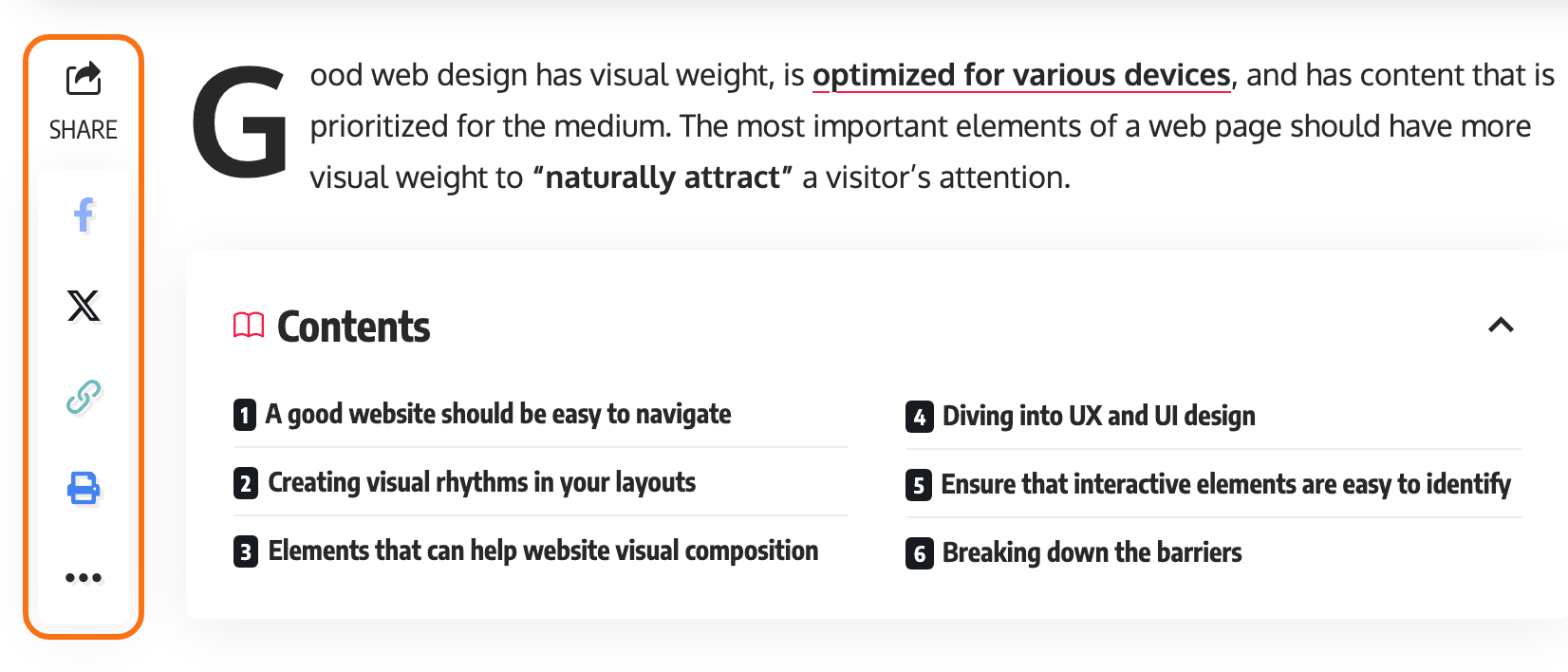
The bar's background comes from Global Colors > TOC, Left Shares & Inline Related, which it shares with the table of contents box and the inline related box.
Two things switch this bar off from somewhere else.
Turn every network off and the bar does not render at all, even with Fixed Left Share Bar on, because there is nothing left to draw.
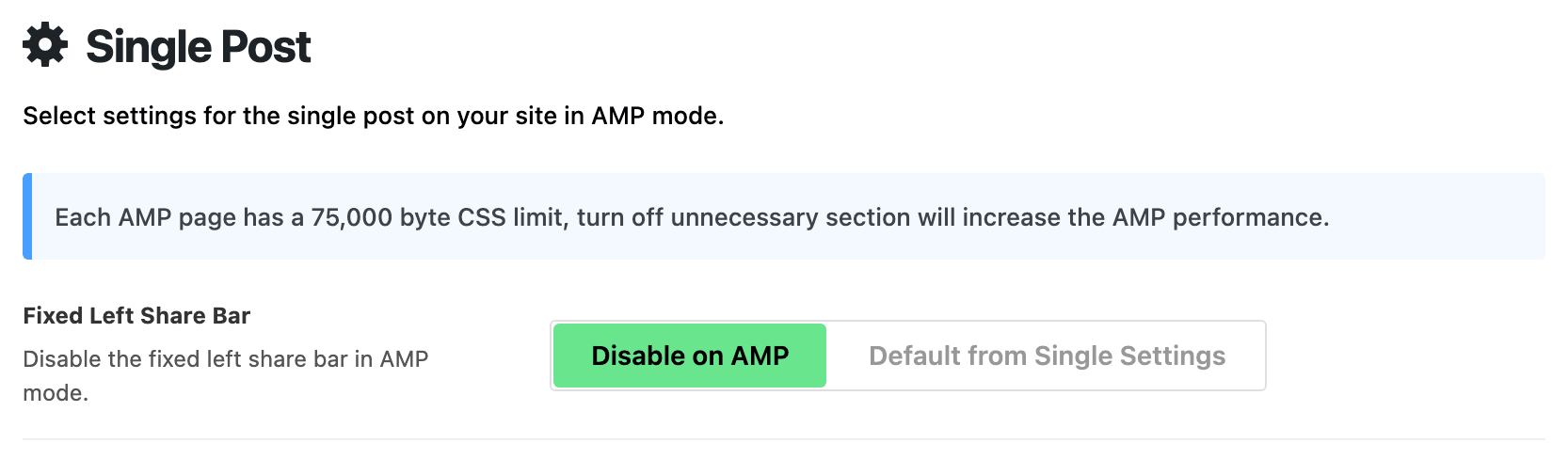
On AMP pages a second switch also called Fixed Left Share Bar, at Theme Options > AMP > Single Post, removes it. That one is set to Disable on AMP by default, so the left bar is off in AMP mode until you change it.
Let a Reader Share a Sentence They Highlighted
Besides the three bars there is a popup that appears when a reader selects text in the post, offering to share that sentence rather than the page. It is off as the theme arrives.
-
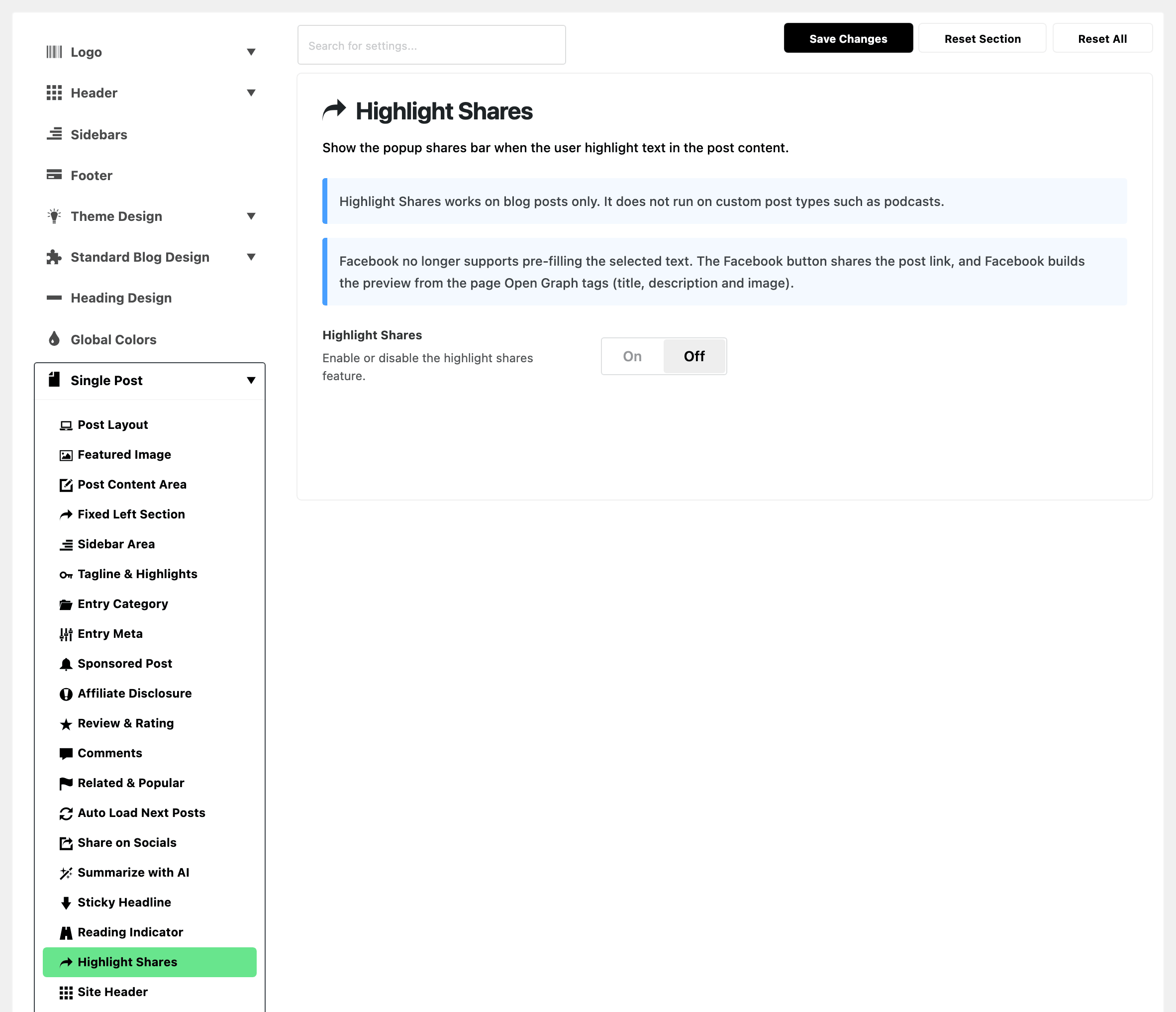
Navigate to Theme Options > Single Post > Highlight Shares.
-
Turn on Highlight Shares. It is off by default, and until it is on the three switches below it do nothing.
-
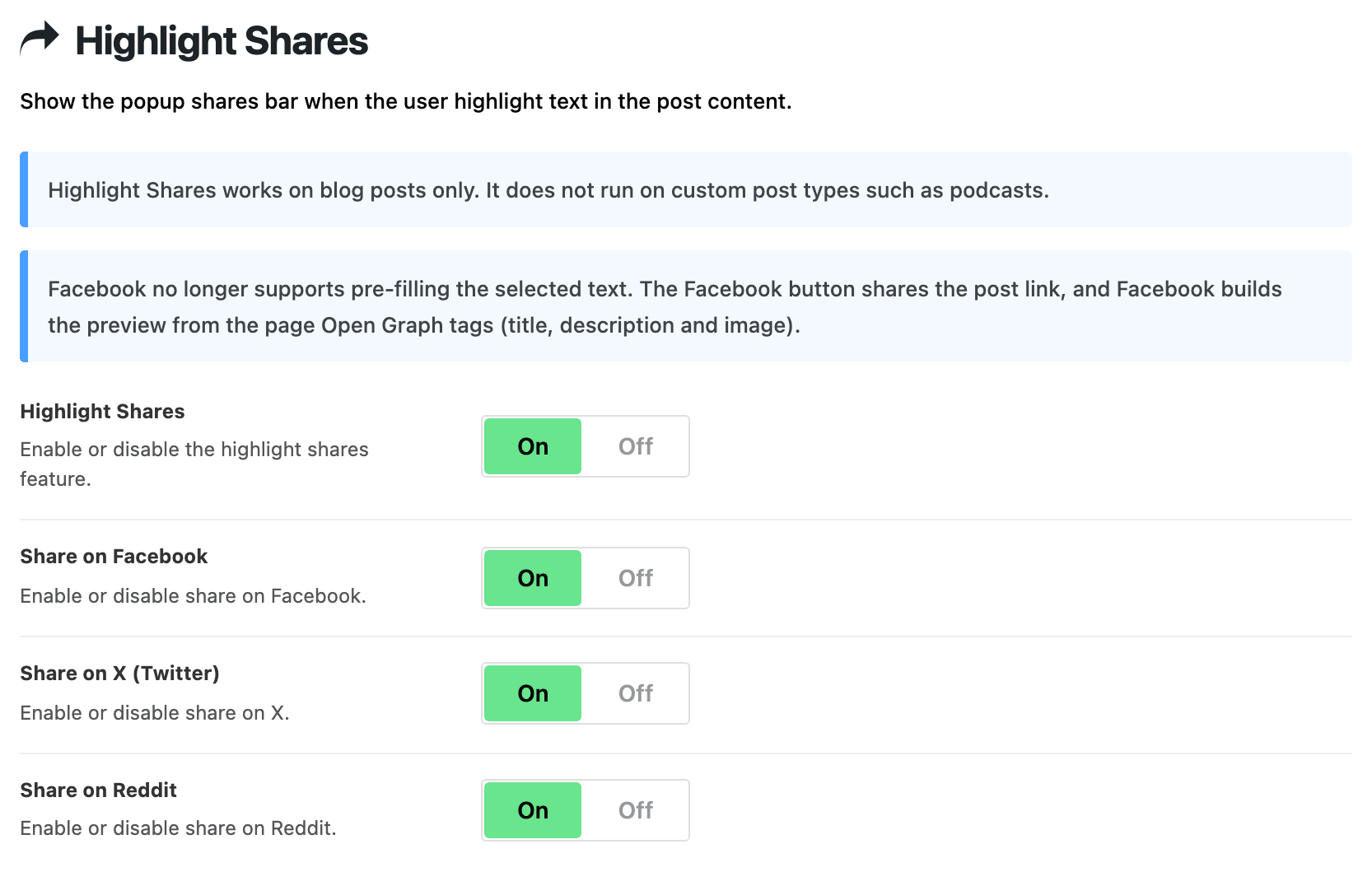
Choose the buttons the popup offers. There are three, Share on Facebook, Share on X (Twitter) and Share on Reddit, and all three are on by default.
-
Save with Save Changes, then open a post on the front end and select a few words to see it.

Turn all three off and the popup stops appearing, the same way the left bar does with no networks left.
Two things about the buttons themselves. Share on X (Twitter) carries the highlighted sentence and credits your site's X username, which is set where how to change your Twitter username when sharing a post describes. Share on Facebook shares the post's link instead of the sentence, because Facebook builds its own preview from the page rather than accepting text you hand it, and the panel says so above the switch.
Did this answer your question?