Login
Login decides where your readers sign in and what they see while they do: the WordPress login screen, your own front-end login and registration pages, or the sign in button and popup in the header. It also holds the admin bar setting.
Where to find it
Go to Theme Options > Login. The tab has no settings of its own. Click it and it opens a list of two subsections; each subsection has its own settings.
After changing anything, click Save Changes. The button is at the bottom of the panel, and also in the bar that stays at the top while you scroll.
What is inside, by job
The Theme Options menu on the left lists the subsections in panel order. Each one is split into groups.
The login screen, your own login pages and the admin bar
-
Login System: the default login screen, the front-end login and registration pages, and the admin bar. Its groups:
- Default Login Screen: restyle the WordPress login page.
- Frontend Login and Registration Pages: send readers to login and registration pages you built, and choose where they land after signing in or out.
- Admin Bar: hide the admin bar from everyone but Administrators.
Signing in from the header
-
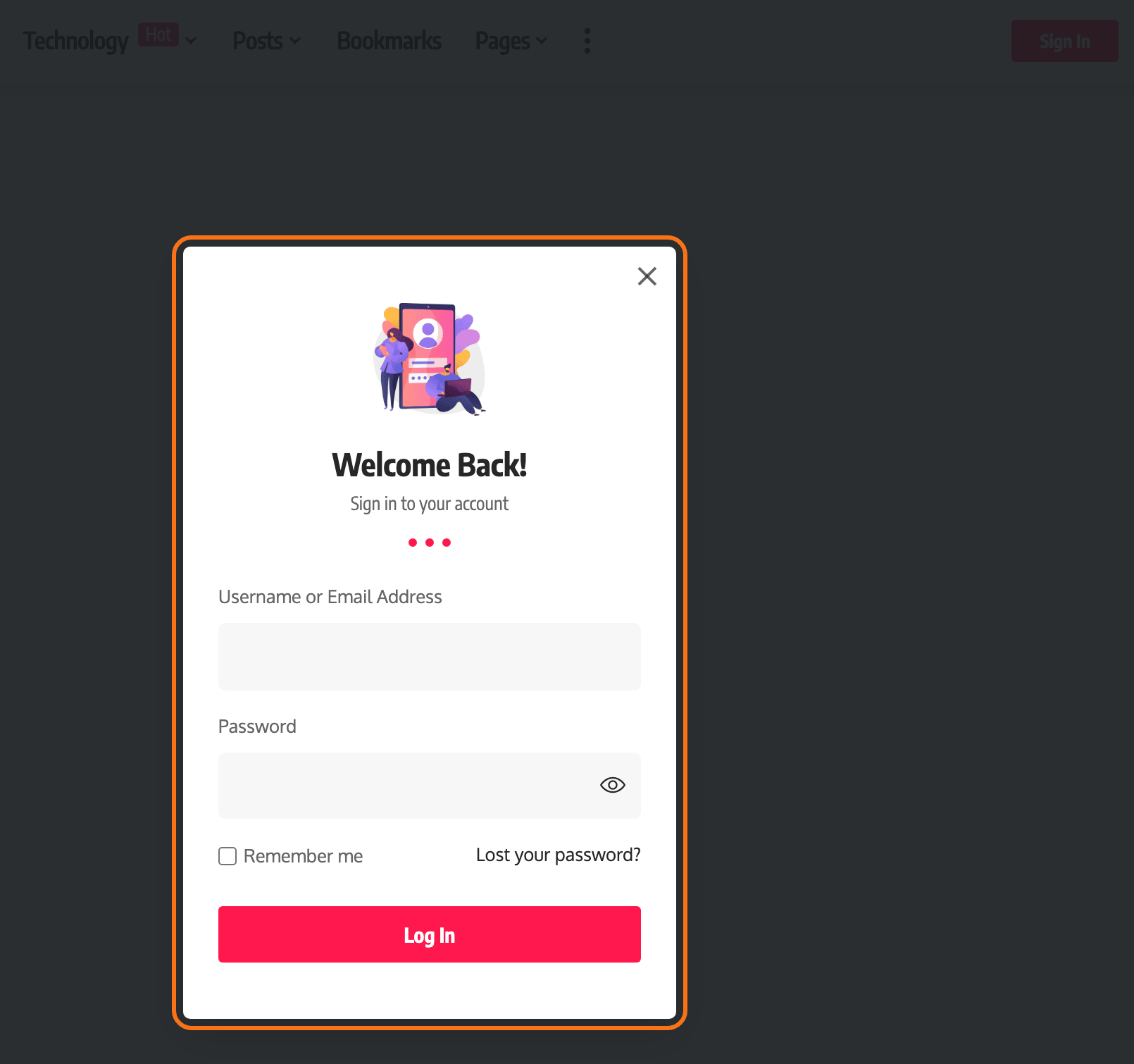
Popup Sign In: the sign in buttons in the header and the popup login form they open. Its groups:
- Sign In Button for Desktop: the sign in button in the desktop header, its layout, and the reader's Gravatar once signed in.
- Sign In Button for Mobile: the sign in button in the mobile menu and its label.
- Logged User Menu: the menu a signed in reader sees on the login icon.
- Sign In Button Icon: your own SVG in place of the user icon, and its size.
- Popup Login Form: the heading, logo and width of the popup.
Both subsections are covered field by field in every setting in the login panel.
Common jobs
- Build your own login page and point the theme at it: guide to creating a login page.
- Build your own registration page: guide to creating a registration page.
Good to know
Several parts are off by default. Turn them on when you want them:
- Custom Login Screen: restyles the WordPress login page. Its default is Disable. The login screen fields, such as Login Logo, show only once it is set to Enable.
- Sign In Button: the button in the desktop header. Off by default.
- Mobile Header - Sign In: the button in the mobile menu. Off by default.
Two parts are on by default.
- Disable Admin Bar: only Administrators see the admin bar on the site. On by default.
- Login Popup Support: the popup opens across the site, for the sign in button and for the personalized system. Its default is Enable.
Custom Login Page URL takes a full URL or a link that starts with a slash, such as /login. Keep it on your own site. Build the page with the Foxiz - Login Form block.
If a change does not show
- Did it save? Click Save Changes again and wait for the confirmation.
- Is a cache serving the old page? Clear your caching plugin and any server or CDN cache, then reload the page on the site.
- Is the header a Ruby Template? The sign in button settings apply to the predefined headers only. Edit the header in Elementor and add the Foxiz - Login Link Trigger Button block instead.
- Is the login screen still plain? Set Custom Login Screen to Enable.
Did this answer your question?