Ruby Podcast
This tab turns on the podcast feature built into the theme and styles it: episodes in listings, the episode page, the show pages and the podcast archives. A show is a podcast category; an episode is one podcast post.
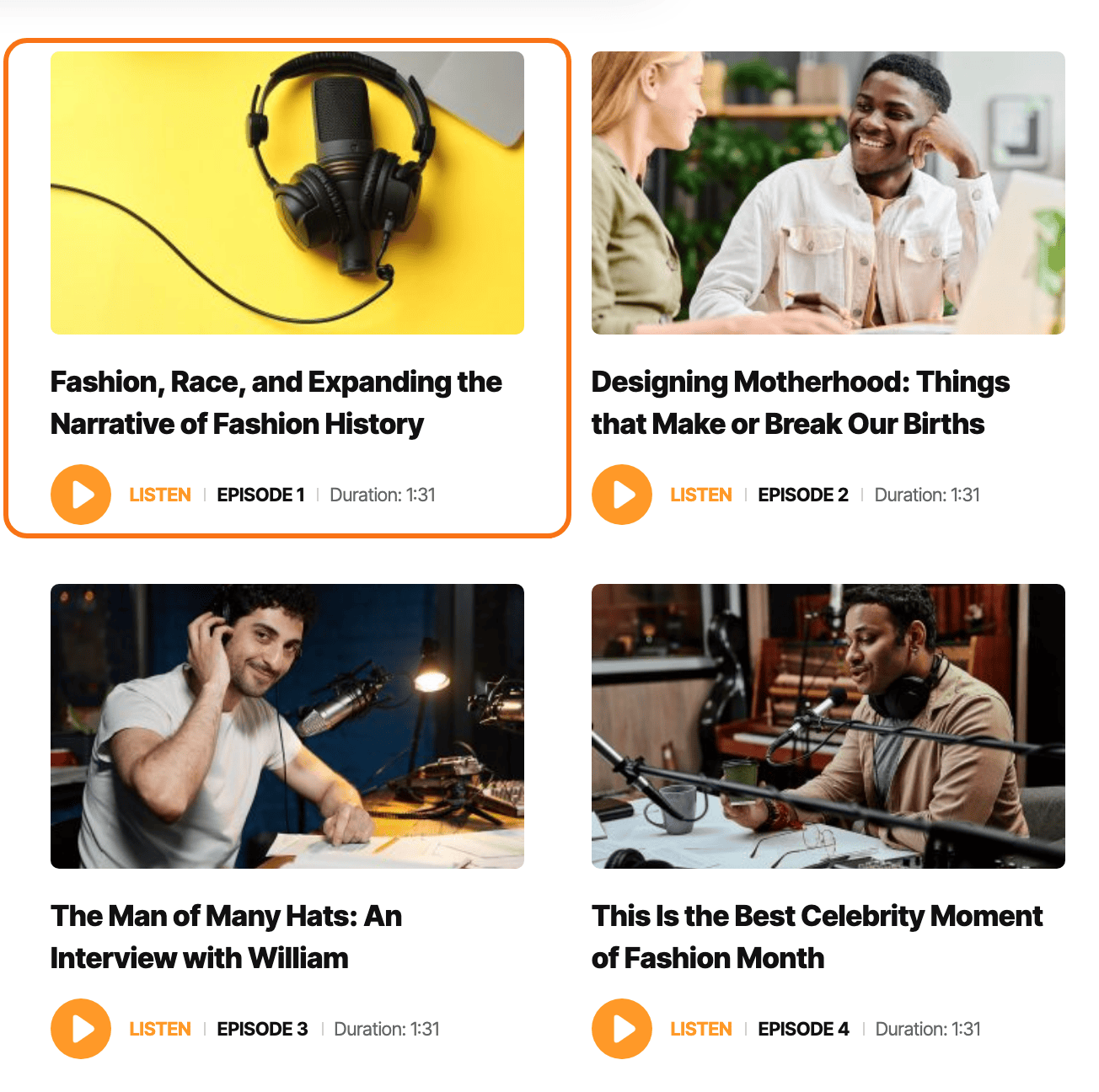
Where to find it
Go to Theme Options > Ruby Podcast. The tab has no settings of its own. Click it and it opens a list of five subsections; each subsection has its own settings.

After changing anything, click Save Changes. The button is at the bottom of the panel, and also in the bar that stays at the top while you scroll.
Podcasts are off by default. Turn on Support Podcast in General first; until then the rest of this tab has nothing to style. Turning it off later does not delete your episodes.
Ruby Podcast or another tab?
- How podcasts look, as a default: Ruby Podcast, this tab.
- One episode only: the settings on the episode itself win.
- One show only: Ruby Podcast > Shows > Edit in the dashboard menu, not in Theme Options.
- Parts of the episode page shared with blog posts: Single Post. An episode follows four of its subsections, each marked with a notice: Post Content Area (in part), Related & Popular, Sticky Headline and Reading Indicator. See Single Post.
- Adverts inside episodes: set the ads in Ads & Slide Up > Inline Single Content. They show on episodes while Inline Content Ads Supported, in General, is on, as it is by default.
General
The podcast post type: turning podcasts on, their URLs, the listings episodes join, the labels on episode cards, ads inside episodes and the episode schema markup.
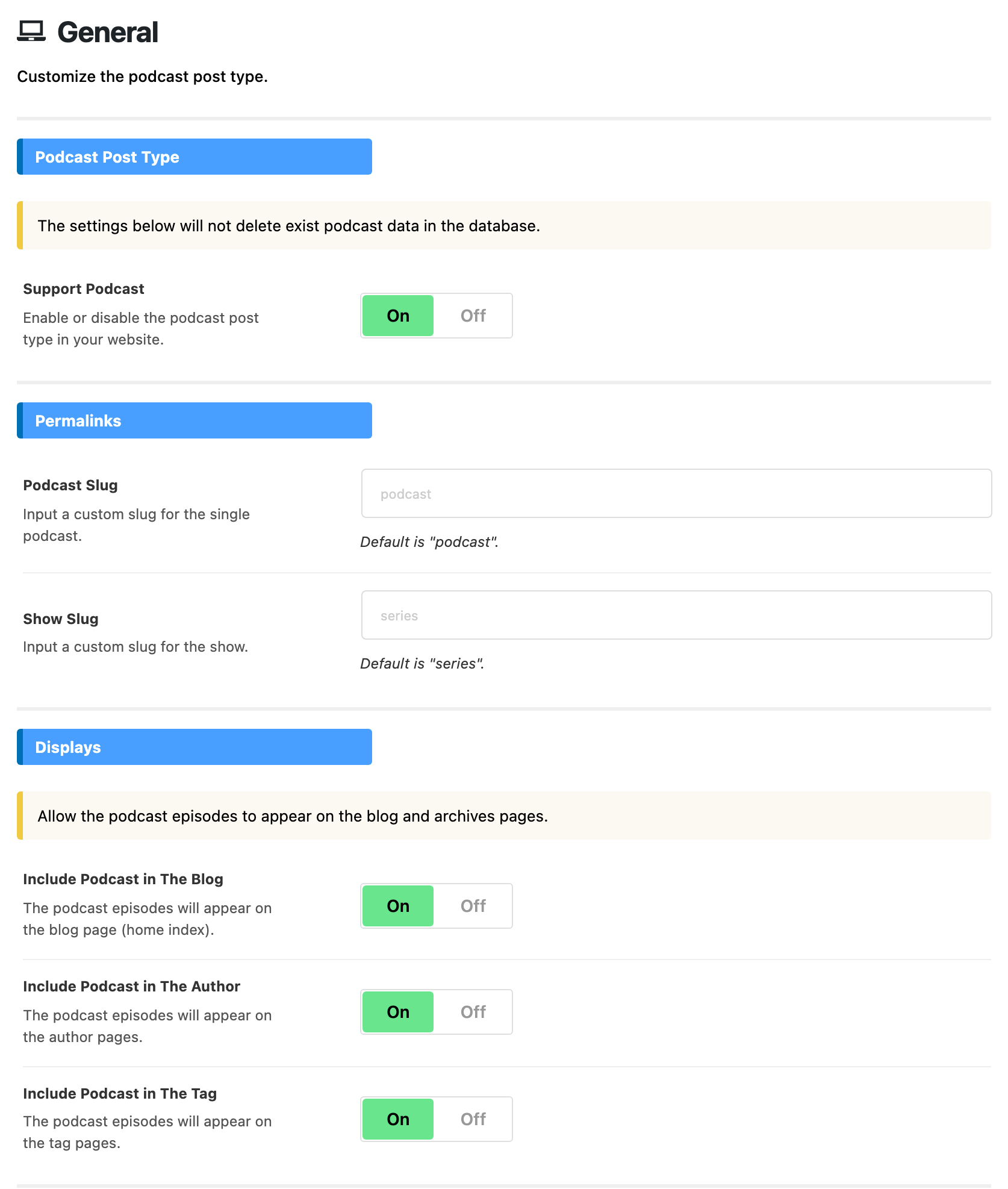
Podcast Post Type
- Support Podcast: turns the podcast feature on. The Ruby Podcast menu, with its episodes and Shows, appears in the dashboard, and the episode, show and archive pages start working. Default: off.
Permalinks
- Podcast Slug: the word in an episode's URL, and the address of the podcast archive. Empty by default, which uses
podcast. - Show Slug: the word in a show page's URL. Empty by default, which uses
series.
Changed either one and episodes return a 404 page? See Changed a slug? under Good to know.
Displays
Episodes can appear among your ordinary posts. One switch per listing:
- Include Podcast in The Blog: episodes appear on the blog page. On by default.
- Include Podcast in The Author: episodes appear on author pages. On by default.
- Include Podcast in The Tag: episodes appear on tag pages. On by default.
Turn one off to keep episodes out of that listing.
Entry Meta
Three small labels in the meta row of episode cards, in listings and podcast blocks. The episode page has its own, in Episode.
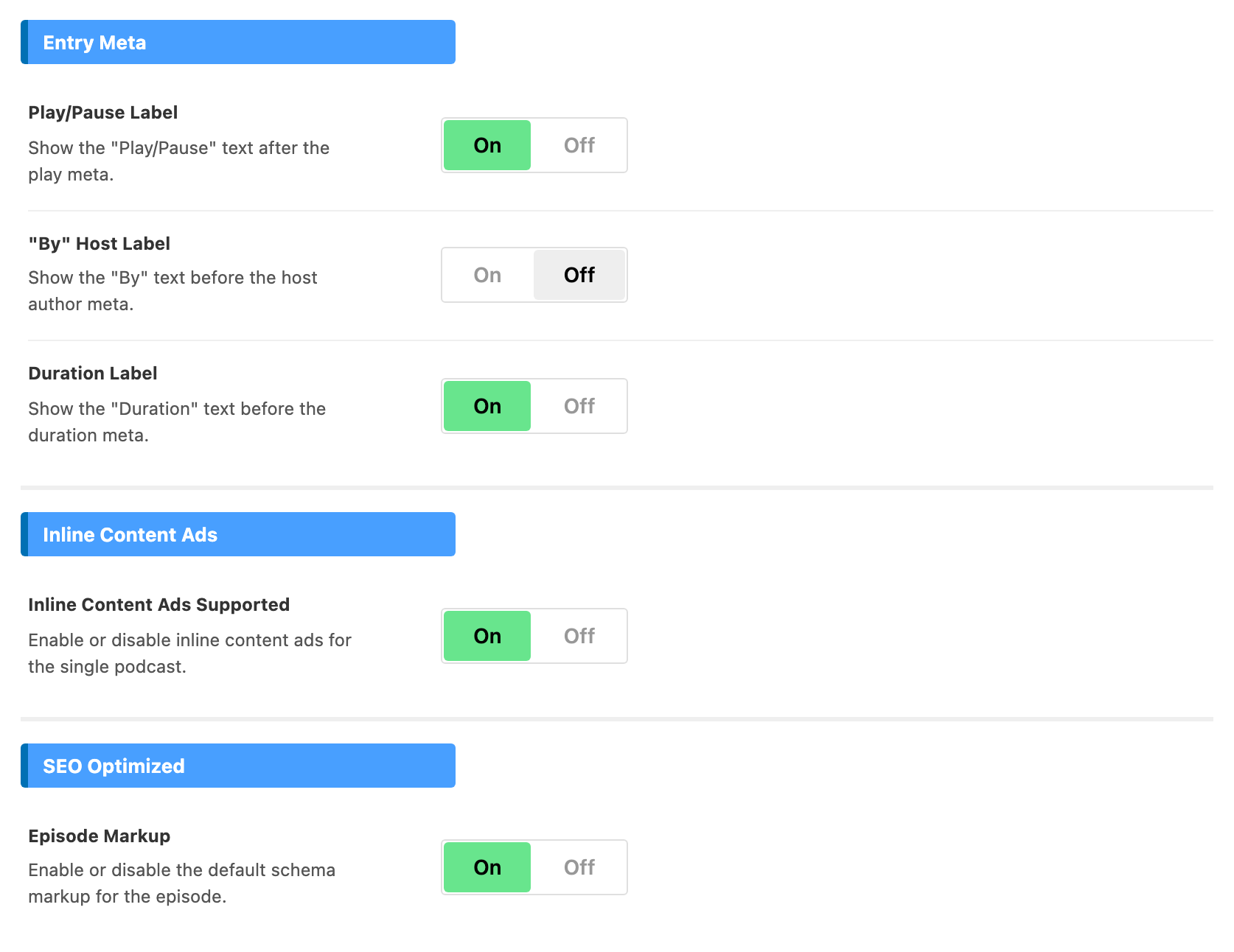
- Play/Pause Label: prints LISTEN beside the play button, which turns to PAUSE while the episode plays. On by default.
- "By" Host Label: puts "By" before the host's name. Off by default.
- Duration Label: puts "Duration:" before the running time. On by default.
Inline Content Ads
- Inline Content Ads Supported: lets the inline adverts from Ads & Slide Up appear inside episodes, as they do inside posts. On by default.
SEO Optimized
- Episode Markup: adds podcast episode schema to each episode page for search engines: the title, dates, description and audio file. On by default. Turn it off if your SEO plugin already adds episode schema, so the page does not carry it twice.
Style
The audio player colour, the microphone icon on an episode's featured image, and the read more text on episode cards.
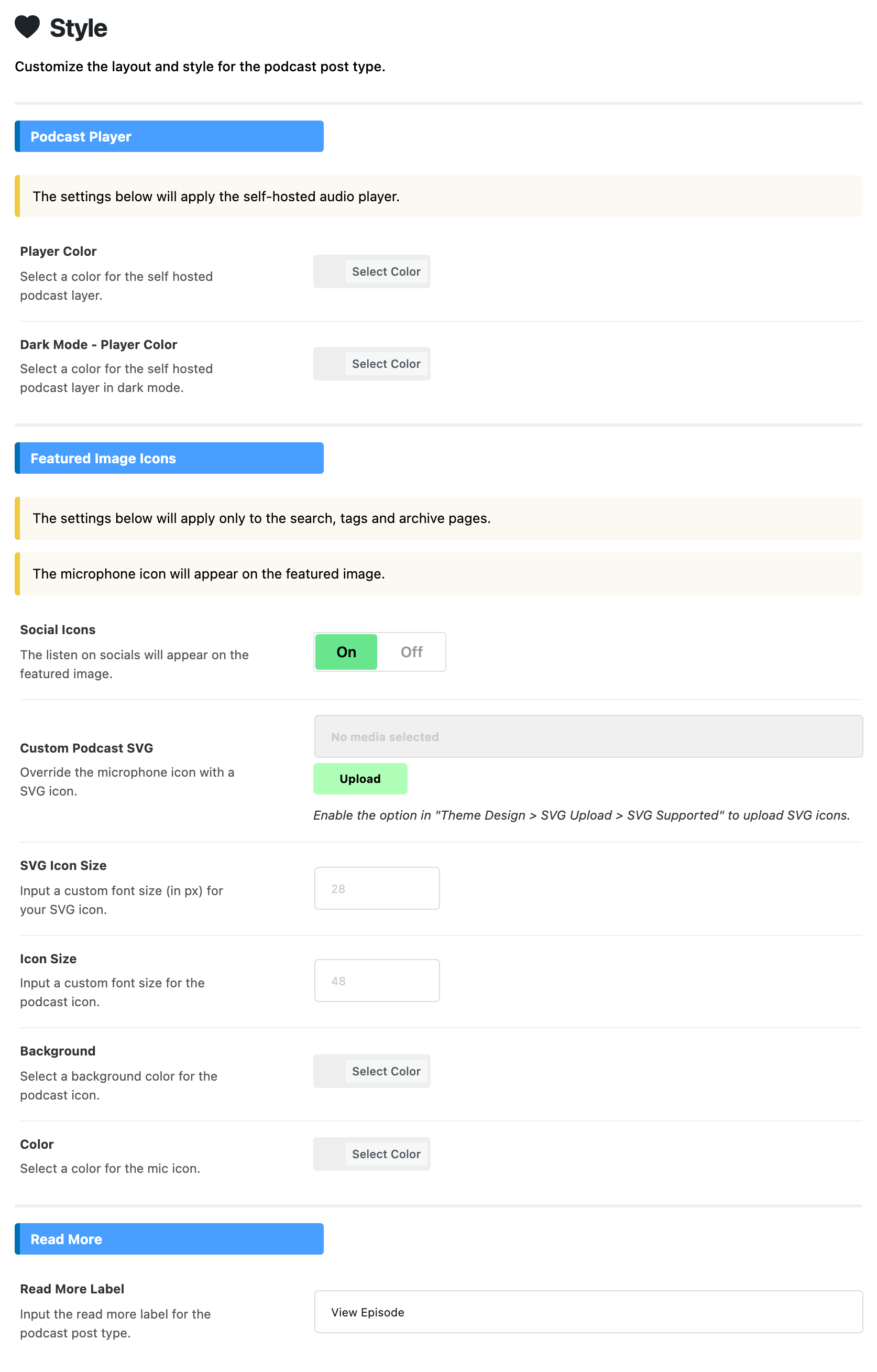
Podcast Player
These colour the audio player for episodes whose audio file is uploaded to your site.
- Player Color: the colour of the player. Empty by default, which uses your Global Highlight Color.
- Dark Mode - Player Color: the same in dark mode. Empty by default, which keeps Player Color, or Dark Mode - Global Highlight Color when both are empty. The player on a Layout 2 episode page uses this colour in light mode too.
Featured Image Icons
An episode's featured image carries a microphone icon. The group's note says these settings apply to the search, tag and archive pages.
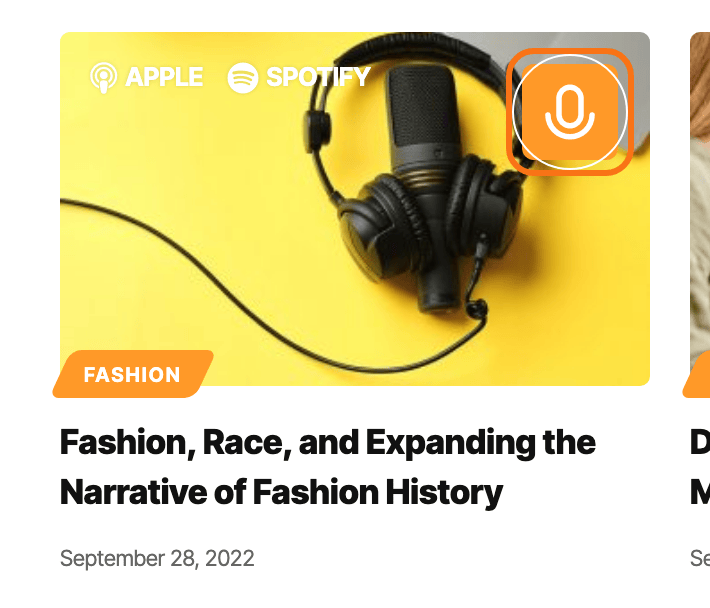
- Social Icons: shows the episode's listen on links over the featured image. On by default. An episode with no listen on links shows nothing here.
- Custom Podcast SVG: replaces the microphone with an icon you upload. An SVG takes the icon Color below; any other image shows as it is. Uploading an SVG needs SVG Supported on at Theme Options > Theme Design > SVG Upload, which it is by default.
- SVG Icon Size: the size of that uploaded icon, in pixels. Empty by default; the placeholder shows 28.
- Icon Size: the size of the default microphone icon, in pixels. Empty by default, which gives 48.
- Background: the colour of the circle behind the icon. Empty by default, which uses the player colour.
- Color: the colour of the icon itself. Empty by default, which gives white.
Read More
- Read More Label: the read more text on episode cards. Default: View Episode. Posts keep their own label.
Episode
The episode page: its layout, the show name, the meta bar, the sidebar, the site header and the breadcrumb.
These are defaults for every episode. A setting changed on one episode wins over them, and the episode page also uses some Single Post settings; the notices at the top of the subsection say both. Podcast settings and layouts covers the per episode box.
Layout
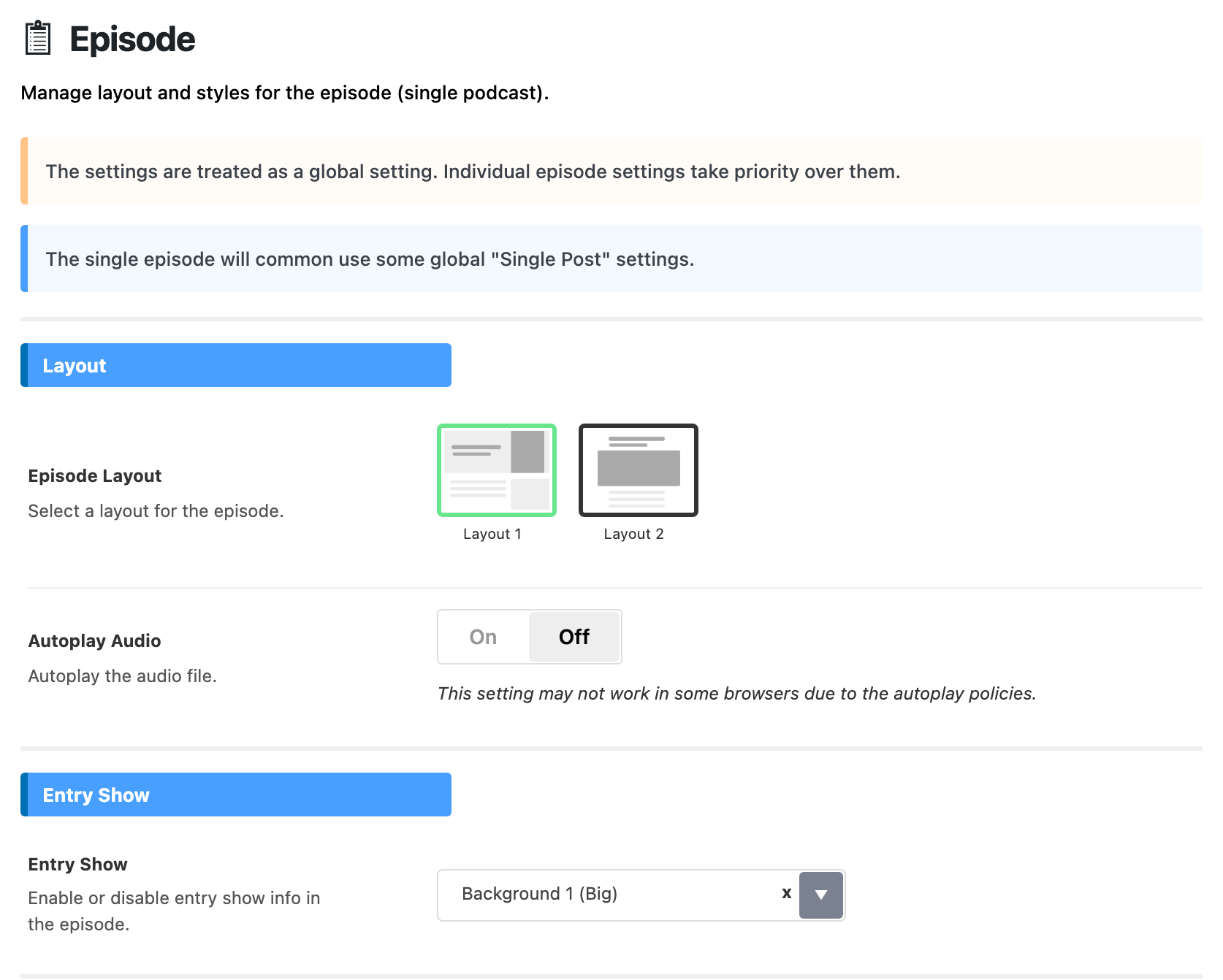
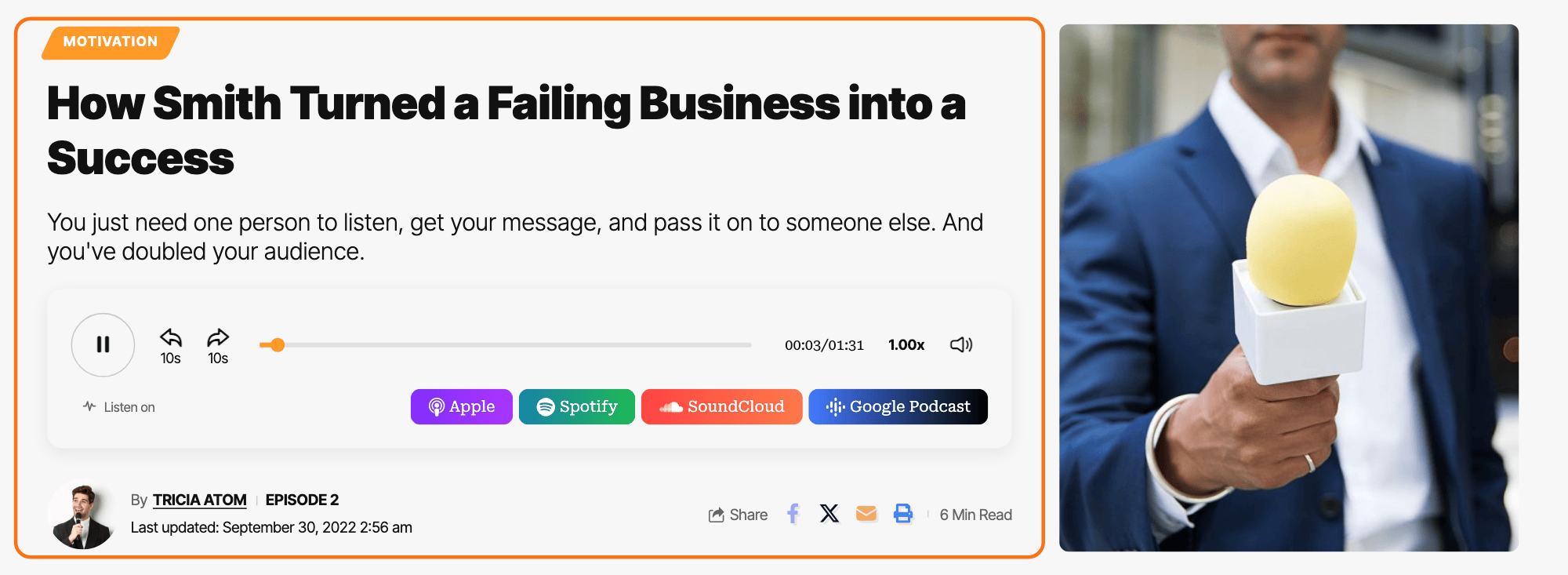
- Episode Layout: Layout 1 or Layout 2. Default: Layout 1. Layout 1 puts the title, the player and the meta bar beside the featured image. Layout 2 centres the title and meta bar above a wide featured image, with the player under it. To switch one episode only, see Editing a Podcast Layout.
- Autoplay Audio: starts the audio when the page opens. Off by default. Many browsers block autoplay whatever you set.
Entry Show
- Entry Show: how the show name above the episode title looks. Default: Background 1 (Big). Disable hides it. The choices are the category label styles, each in a normal and a (Big) size:
- Background 1 to Background 4
- Only Text and Border
- Bottom Line, Bottom Dotted and Bottom Border
- plus Left Dot, in one size only
Entry Meta
The meta bar under the episode title.
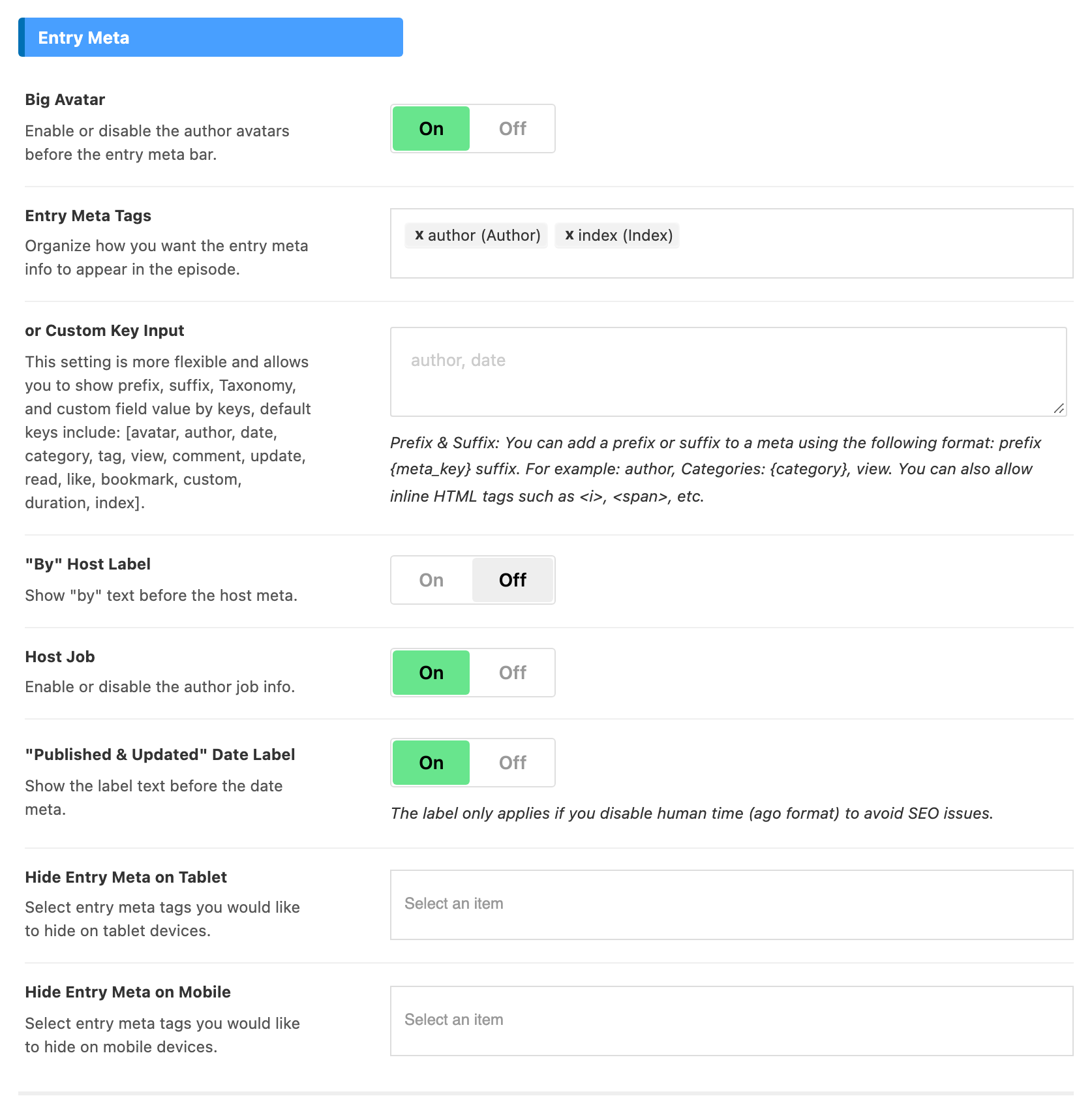
- Big Avatar: shows the host's avatar, large, at the start of the meta bar. On by default.
- Entry Meta Tags: which items the meta bar shows, in the order you pick them. Thirteen items, the usual post meta plus two for podcasts: duration (Duration) and index (Index), the episode number from the episode's Episode Index field. Default: author (Author) and index (Index).
- or Custom Key Input: the same choice typed as keys, with optional text before or after each one. While it holds anything, it is used instead of Entry Meta Tags. Empty by default.
- "By" Host Label: puts "By" before the host's name in the meta bar. Off by default. The switch of the same name in General covers episode cards.
- Host Job: prints the host's job title after their name. On by default. It shows only for a host who filled in Job Name on their user profile.
- "Published & Updated" Date Label: puts "Published:" before the date. On by default. The label shows only while Display Human Time (Ago) is off in Theme Options > Theme Design > Entry Meta.
- Hide Entry Meta on Tablet: meta items to drop on tablets. Empty by default.
- Hide Entry Meta on Mobile: meta items to drop on phones. Empty by default.
Last Updated Date
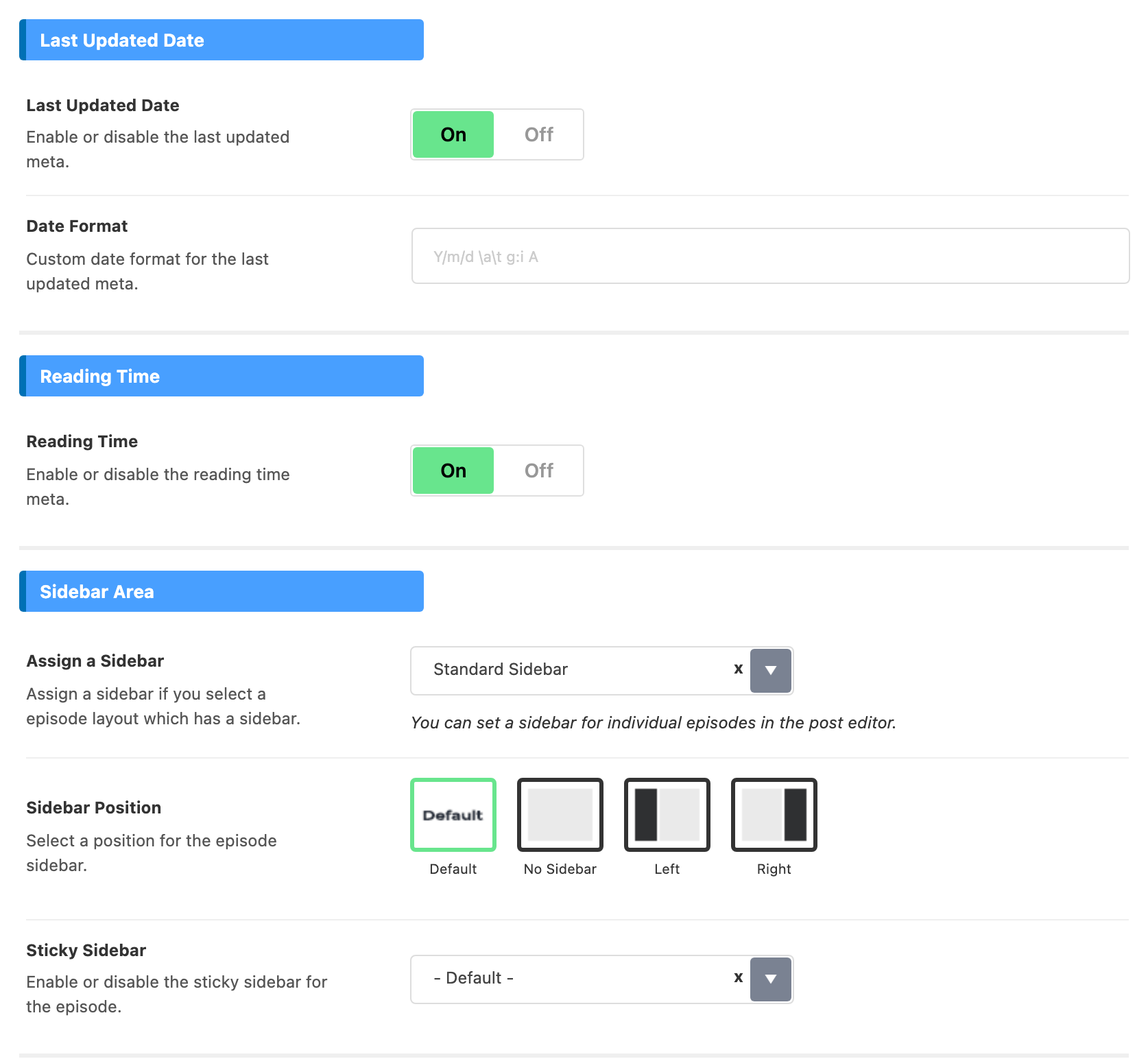
- Last Updated Date: adds a line with the date the episode was last changed, next to the meta items. On by default. The "Last updated:" text before the date follows Label in Theme Options > Single Post > Entry Meta.
- Date Format: how that date is written, in PHP date characters, as the placeholder
Y/m/d \a\t g:i Ashows. Empty by default, which uses the date and time formats from Settings > General.
Reading Time
- Reading Time: shows the estimated reading time in the meta bar. On by default.
Sidebar Area
- Assign a Sidebar: the sidebar beside the episode. Standard Sidebar or any sidebar you created. Default: Standard Sidebar. A sidebar with no widgets is not shown.
- Sidebar Position: Default, No Sidebar, Left or Right. Default: Default, which follows Theme Options > Sidebars > Sidebar Position.
- Sticky Sidebar: - Default -, Sticky Sidebar, Sticky Last Widget or Disable. Default: - Default -, which follows Sticky Sidebar in Theme Options > Sidebars.
Site Header
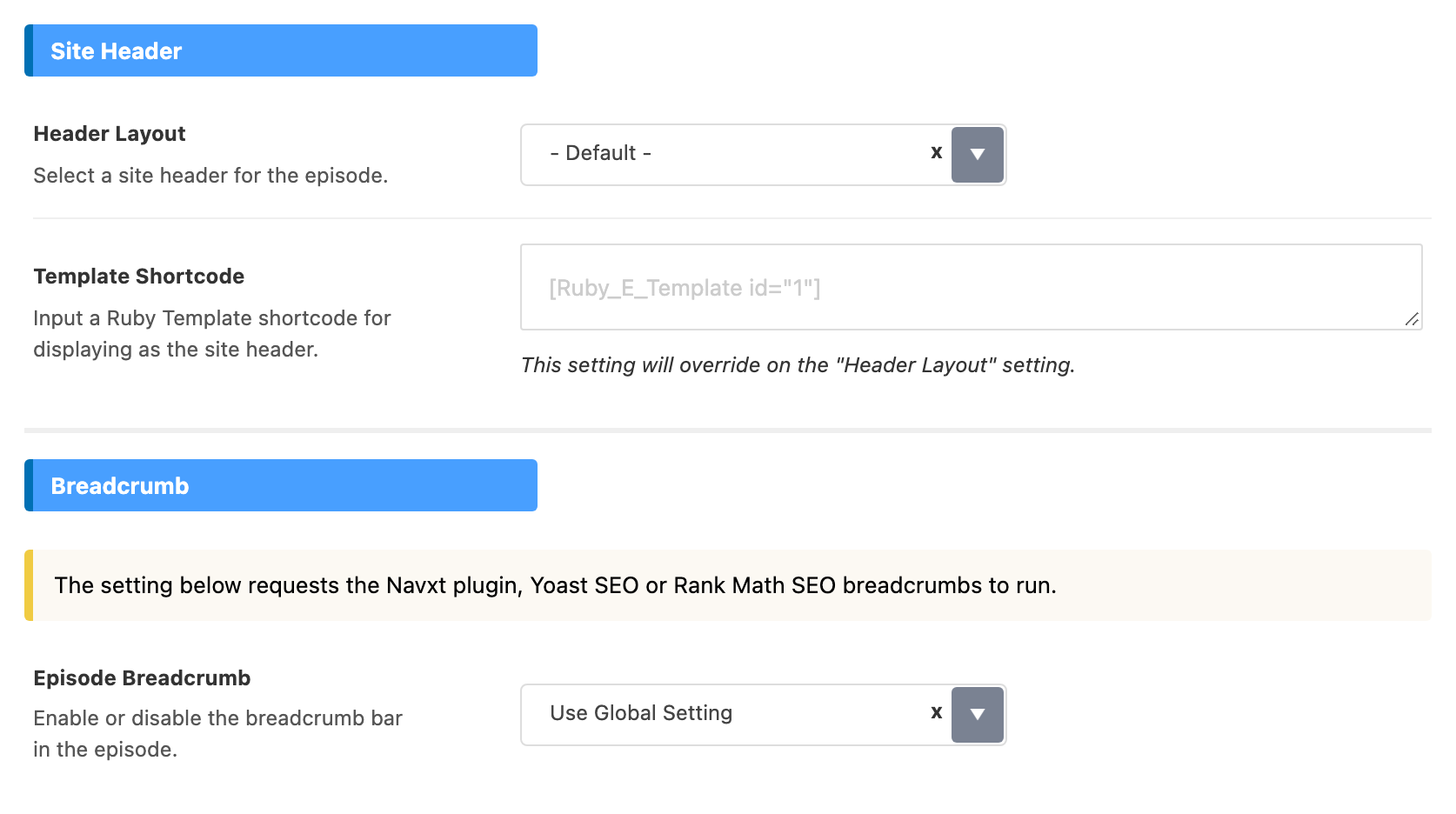
- Header Layout: the site header on episode pages. - Default - or Layout 1 (Left Menu) to Layout 5 (Center Logo). Default: - Default -, which uses Header Layout in Theme Options > Header > Header Layout.
- Template Shortcode: a Ruby Template shortcode to use as the header instead. While it is filled, it overrides Header Layout. Empty by default.
Breadcrumb
- Episode Breadcrumb: Use Global Setting or Disable. Default: Use Global Setting, which shows the breadcrumb above the episode title while Breadcrumb Bar is on in Theme Options > Breadcrumb Bar. It needs the Breadcrumb NavXT, Yoast SEO or Rank Math plugin to build it.
Show
A show page lists the episodes of one show. It uses a grid of three columns on desktop, two on tablets and one on phones, until you assign a Ruby Template here.
These are defaults for every show. One show can change most of them in its own Foxiz Show (Series) Settings box, at Ruby Podcast > Shows > Edit, and its values win.
Site Header
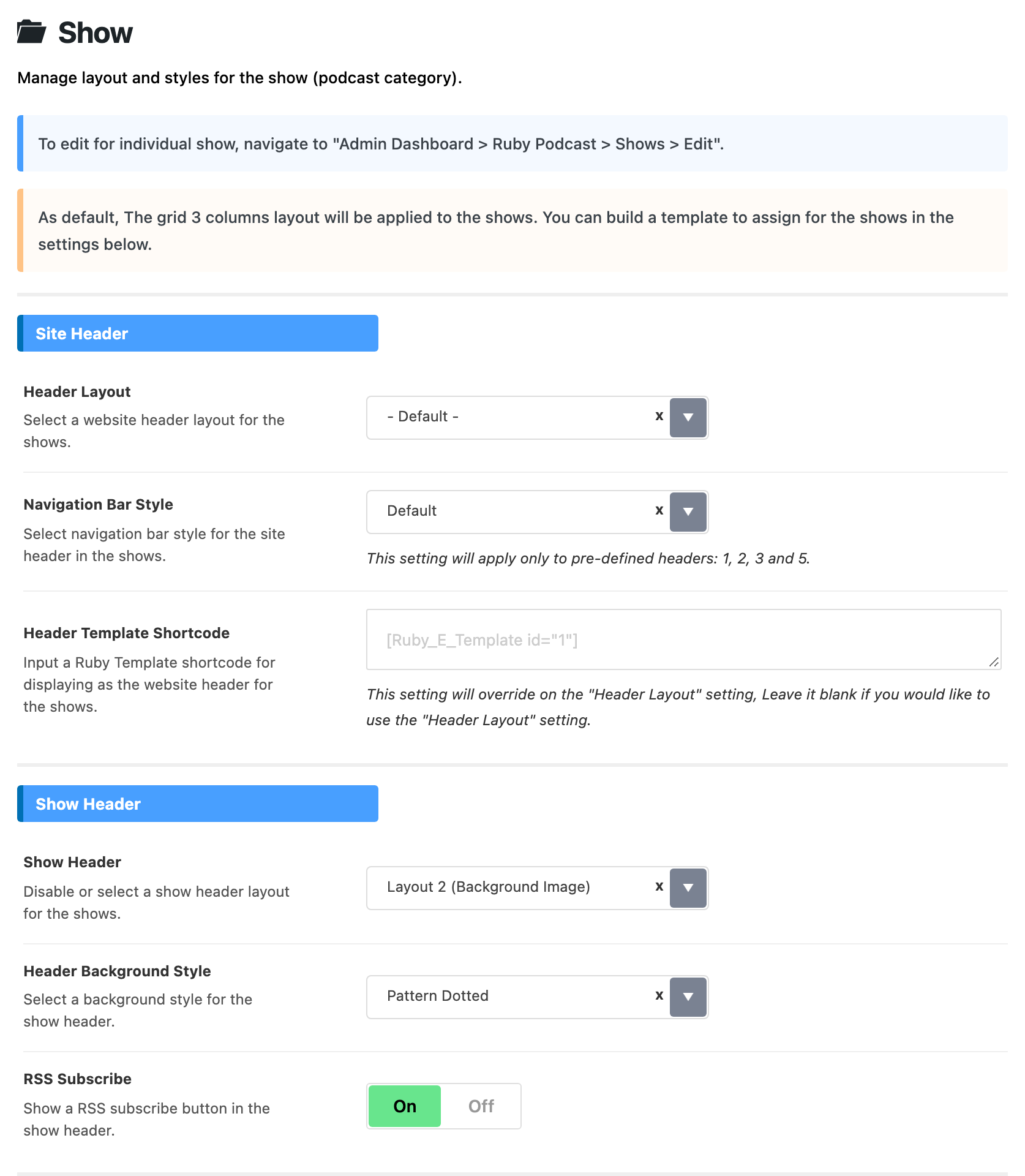
- Header Layout: the site header on show pages. - Default -, Layout 1 (Left Menu) to Layout 5 (Center Logo), or Transparent - Layout 1 to Transparent - Layout 3. Default: - Default -, which uses Header Layout in Theme Options > Header > Header Layout.
- Navigation Bar Style: Default, Shadow, Bottom Border, Dark Bottom Border or None. It applies to the predefined headers 1, 2, 3 and 5 only. Default: Default, which keeps the Navigation Style that header has in its own header settings.
- Header Template Shortcode: a Ruby Template shortcode to use as the header instead. While it is filled, it overrides Header Layout. Empty by default.
Show Header
The banner at the top of a show page, with the show's title and description. The Layout 1 and Layout 2 headers also carry the show's listen on buttons.
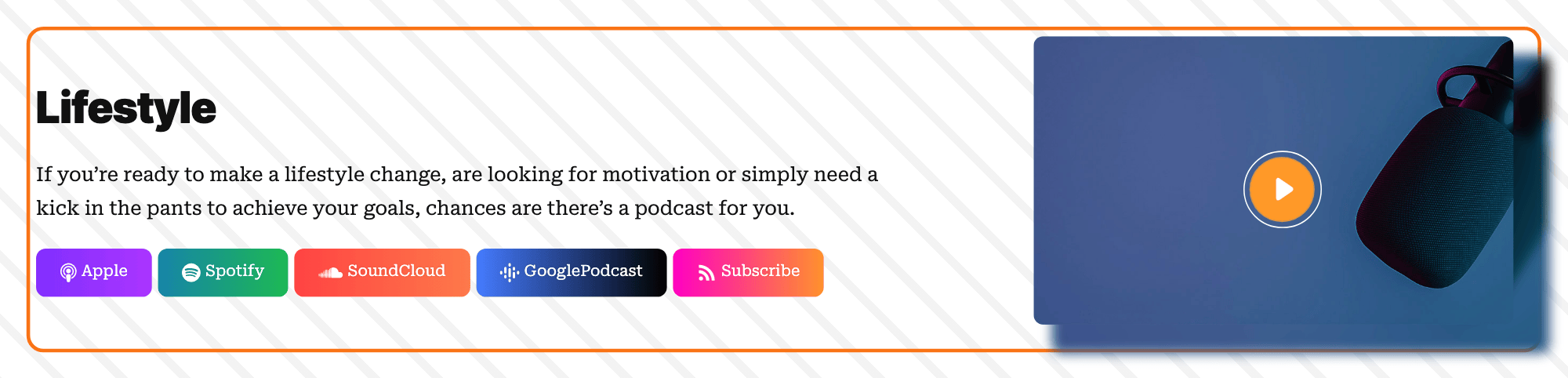
- Show Header: Layout 1 (Right Featured Image), Layout 2 (Background Image), Layout 3 (Minimalist), Layout 4 (Minimalist Center) or Disable. Default: Layout 2 (Background Image).
- Header Background Style: what fills the banner behind the text: Pattern Dotted, Pattern Dotted 2, Pattern Diagonal, Pattern Diagonal 2 or Solid Light Gray. Default: Pattern Dotted.
- RSS Subscribe: adds a Subscribe button that links to the show's own RSS feed, next to the listen on buttons in the Layout 1 and Layout 2 headers. On by default.
Global Listing Template
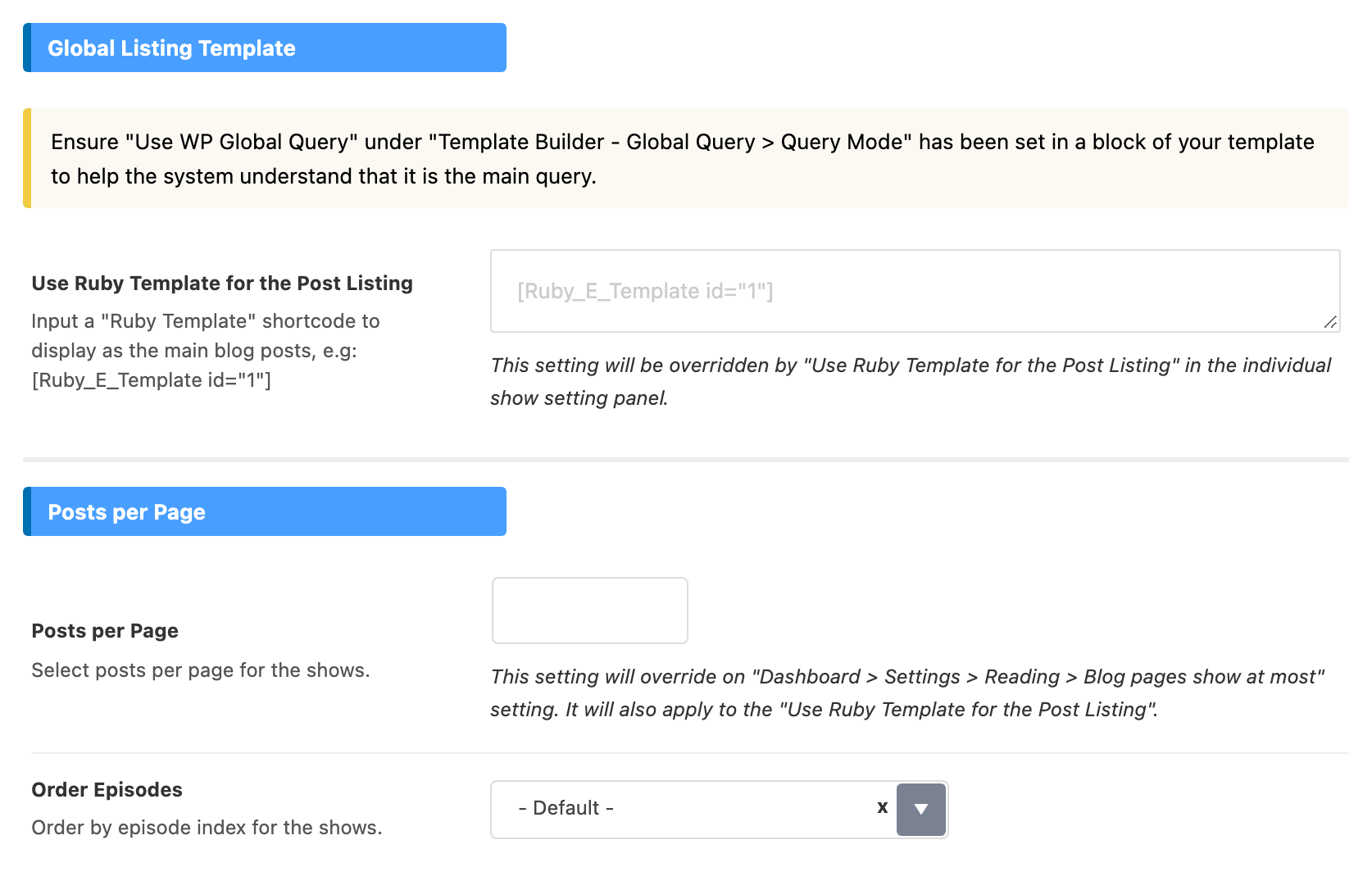
- Use Ruby Template for the Post Listing: a Ruby Template shortcode that replaces the episode grid. Empty by default. In that template, set one block's Query Mode to Use WP Global Query, as the group's note says, so the block lists the show's own episodes.
Posts per Page
- Posts per Page: how many episodes a show page lists. Empty by default, which uses Settings > Reading > Blog pages show at most. It also applies when a Ruby Template lists the episodes.
- Order Episodes: - Default -, Episode Index ASC or Episode Index DESC. Default: - Default -, newest first by publish date. The two index choices sort by each episode's Episode Index, lowest or highest first; podcast settings and layouts explains where episodes without an index go.
Archives
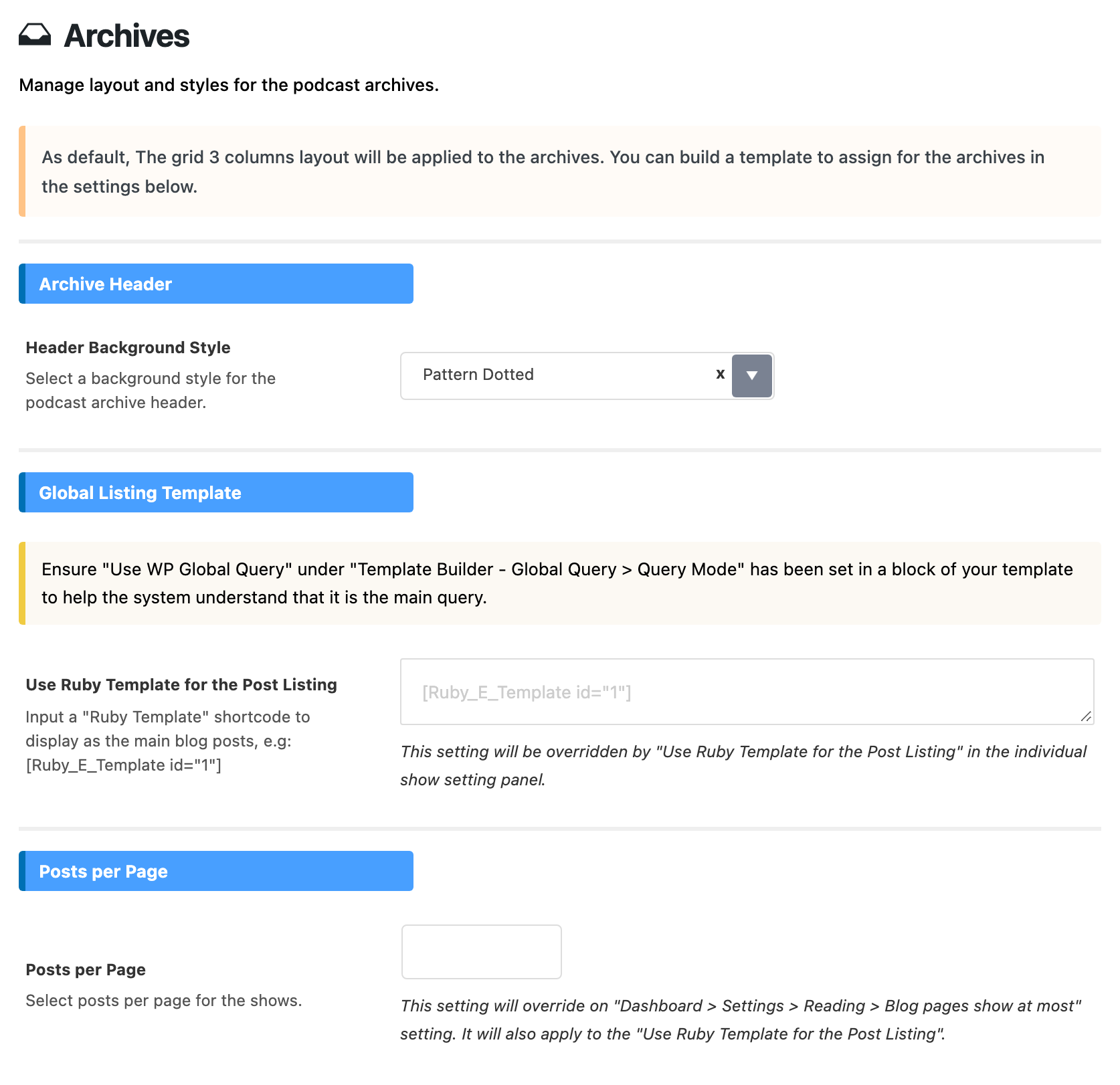
The podcast archive is the page that lists every episode, at your podcast slug, such as yoursite.com/podcast/. It uses the same three column grid as show pages until you assign a Ruby Template.
Archive Header
- Header Background Style: what fills the archive's title banner, with the same five choices as the show header. Default: Pattern Dotted.
Global Listing Template
- Use Ruby Template for the Post Listing: a Ruby Template shortcode that replaces the episode grid. Empty by default. As for shows, one block in the template needs Query Mode on Use WP Global Query.
Posts per Page
- Posts per Page: how many episodes the archive lists. Empty by default, which uses Settings > Reading > Blog pages show at most.
Common jobs
- Turn podcasts on and set up their layouts: podcast settings and layouts.
- Publish an episode: how to create a podcast post.
- Show episodes on an Elementor page: adding podcast to the Elementor page.
Good to know
Episodes join your other listings. The blog page, author pages and tag pages show episodes among your posts by default. The three switches under Displays in General decide where.
Show and archive pages use a three column grid until you assign a Ruby Template in Show or Archives.
Changed a slug? Podcast Slug and Show Slug change the URLs. If episodes then return a 404 page, open Settings > Permalinks and save once.
If a change does not show
- Is Support Podcast on? It is off by default, and nothing in this tab works without it.
- Is Foxiz Core active? The plugin creates the podcast post type.
- Did it save? Click Save Changes again and wait for the confirmation.
- Is a cache serving the old page? Clear your caching plugin and any server or CDN cache, then reload the page on the site.
- Was it changed on the episode or show itself? Those settings win over this tab.
Did this answer your question?