AMP
This tab sets how the lighter AMP version of your pages looks and earns: the AMP footer and general settings, single posts, and AMP ads. It changes nothing on your normal pages.
AMP (Accelerated Mobile Pages) is a stripped down copy of a page that the AMP plugin serves beside the normal one. Foxiz runs the plugin in Transitional mode, so your normal pages stay as they are and the AMP copy is an extra version for the platforms that show it.
What decides whether you need it: AMP is optional, and nothing in Foxiz requires it. The AMP copy is plainer than your page. It gets a compact footer to stay under AMP's 75,000 byte CSS limit, and a Ruby Template shortcode prints nothing there while Elementor is switched off for AMP. Install the plugin only if you want AMP copies of your posts; otherwise you can leave this tab alone. AMP: setting up and testing AMP for WordPress walks the setup.
Where to find it
Go to Theme Options > AMP. The tab has no settings of its own. Click it and it opens a list of four subsections; each subsection has its own settings.
After changing anything, click Save Changes. The button is at the bottom of the panel, and also in the bar that stays at the top while you scroll.
Until the AMP plugin by Automattic is installed and active, each of the four subsections opens with a warning that the plugin is missing, with a link to it. The settings below the warning still show, but they only act on AMP pages, and Foxiz only serves AMP pages once the plugin is active.
AMP or another tab?
- The footer, single posts and adverts on AMP pages: AMP, this tab.
- The search icon in the AMP header: AMP Header - Search Icon, in Header > Mobile Header.
- Adverts on your normal pages: Ads & Slide Up. For AMP pages, set the adverts in AMP Ads and AMP Auto Ads here.
- The background and text colour of the AMP footer: Footer, in its Styles section (Background, Gray Dotted, Top Border, Text Color Scheme). The AMP footer reads them from there.
- The copyright text and menu in the AMP footer: Footer, in its Copyright section.
- The social links in the AMP footer: Social Profiles.
General
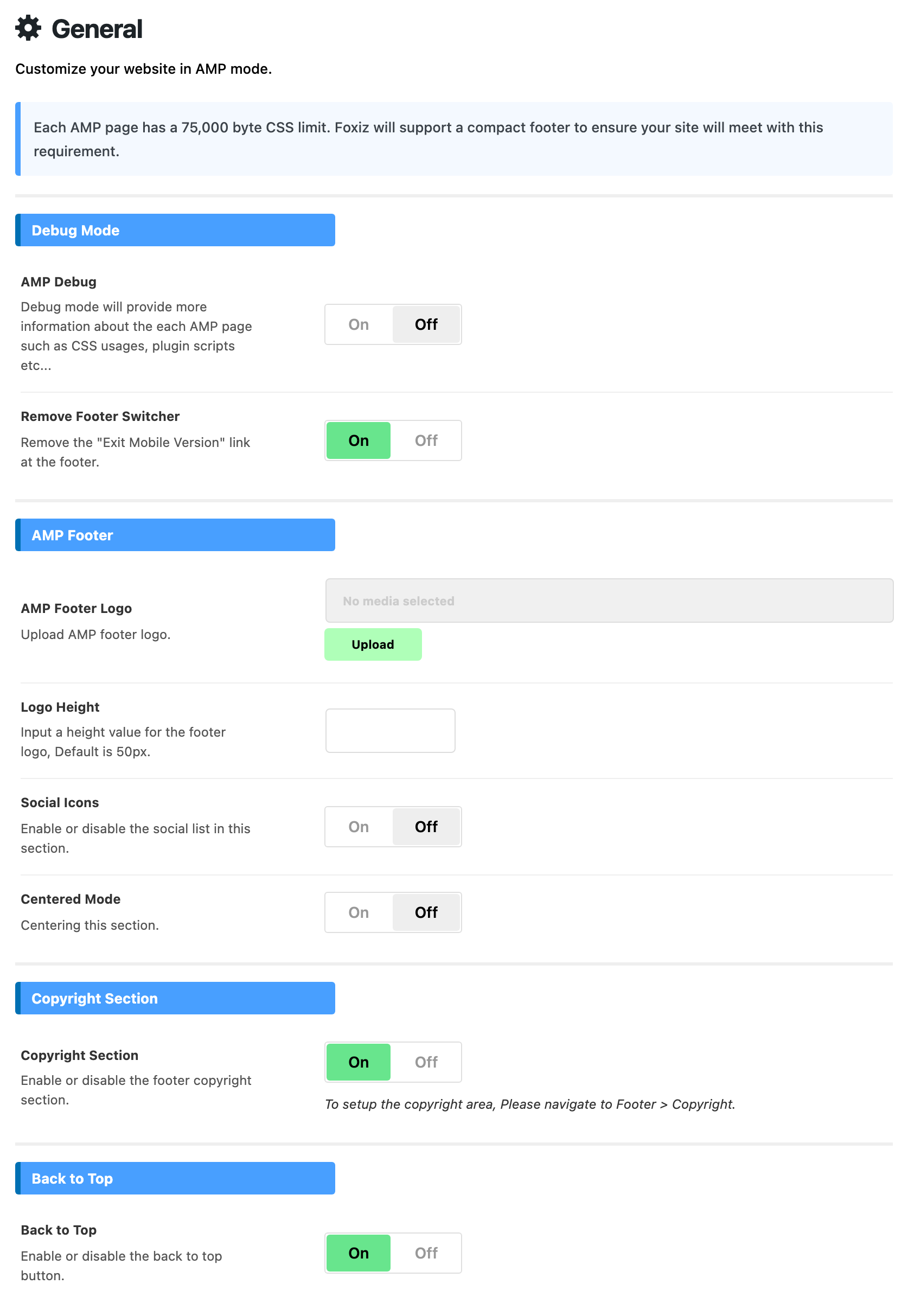
General holds a debug switch and the compact footer AMP pages get in place of yours. AMP: setting up and testing AMP for WordPress walks these settings while you set AMP up.
Debug Mode
- AMP Debug: off by default. While it is off, Foxiz hides the AMP plugin's validation screens, its admin bar items and its notices in the editor. Turn it on when part of a page is missing on AMP and you want the plugin to show you why, including how much CSS each page uses.
- Remove Footer Switcher: on by default. It hides the "Exit Mobile Version" link at the foot of AMP pages. Turn it off to show the link again.
AMP Footer

- AMP Footer Logo: the logo in the AMP footer. Empty by default, and with no logo here the AMP footer shows none. The logo you set in Theme Options > Footer is not used on AMP pages.
- Logo Height: the height of that logo in pixels. Type the number only; Foxiz adds the
px. Left empty, the logo is 50 pixels tall. - Social Icons: off by default. Turn it on to add a Follow US title and your profiles from Theme Options > Social Profiles to the footer.
- Centered Mode: off by default. It centres the logo, the icons and the copyright line.
Centered Mode in Theme Options > Footer > Logo & Socials centres the AMP footer too. If the AMP footer stays centred with this switch off, turn that one off as well.
Copyright Section
- Copyright Section: on by default. It shows the Copyright Text and Copyright Menu you set in Theme Options > Footer > Copyright. Switch it off to drop both from AMP pages only.
Back to Top
- Back to Top: on by default. It adds an arrow button at the foot of AMP pages that jumps back to the top.
Single Post
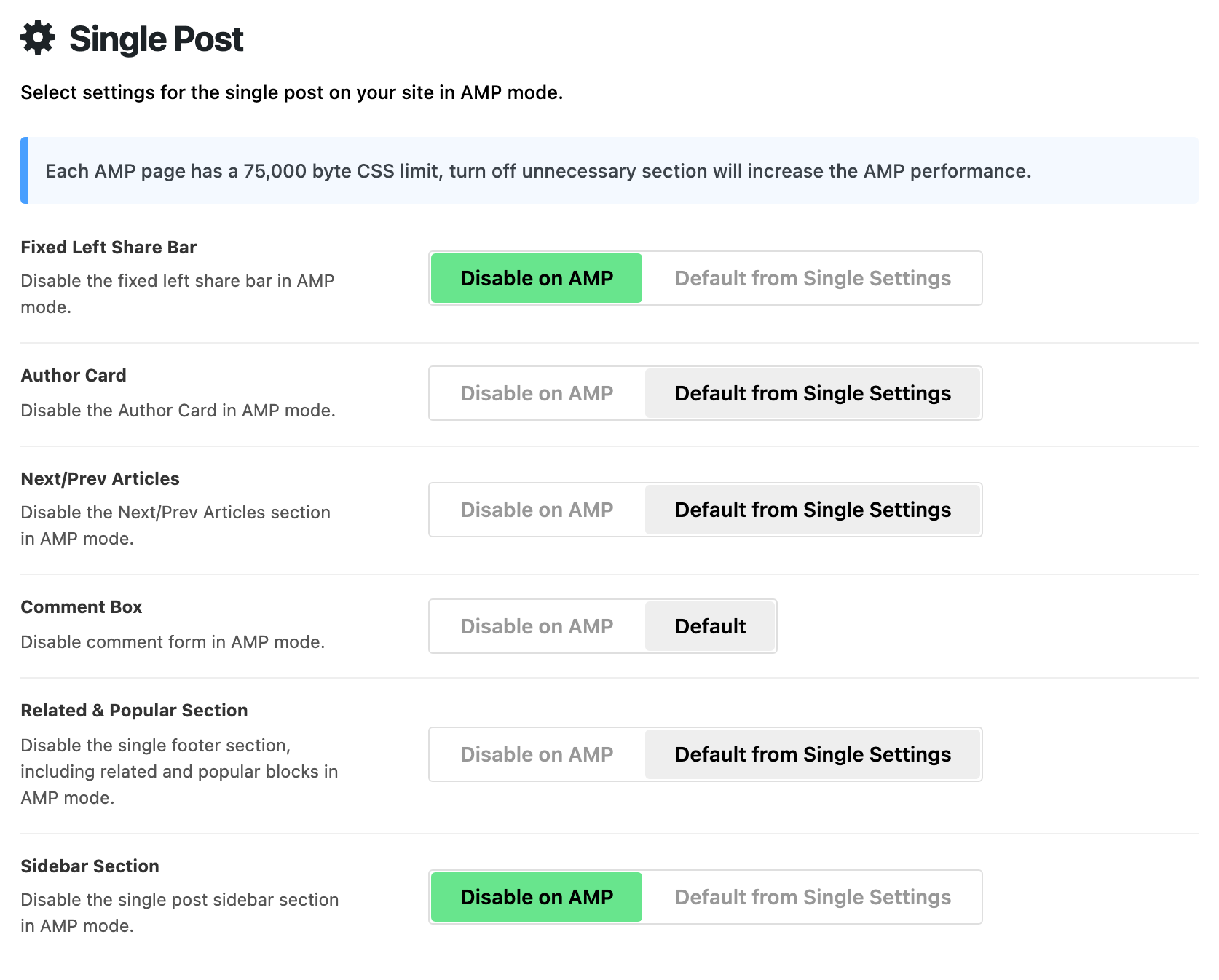
Single Post decides which parts of a post AMP pages leave out. Every switch here has two positions:
- Default from Single Settings (just Default on Comment Box): the AMP post shows that part the way your normal posts do, as set in Theme Options > Single Post.
- Disable on AMP: that part is left off AMP pages only. Your normal posts keep it.
The switches, in panel order:
- Fixed Left Share Bar: the share bar fixed beside the post. Default: Disable on AMP.
- Author Card: the author box under the post. Default: Default from Single Settings.
- Next/Prev Articles: the links to the previous and next post. Default: Default from Single Settings.
- Comment Box: the comments under the post. Default: Default.
- Related & Popular Section: the whole single footer, related and popular blocks together. Default: Default from Single Settings.
- Sidebar Section: the sidebar beside the post. Default: Disable on AMP, so AMP posts show no sidebar.
So two single post sections are left off AMP pages by default, Fixed Left Share Bar and Sidebar Section, and the other four follow Theme Options > Single Post until you set them to Disable on AMP.
If your related or popular section is an Elementor template, Related & Popular Section on Disable on AMP keeps it off AMP pages without touching your normal posts. AMP: setting up and testing AMP for WordPress explains why that matters.
AMP Auto Ads
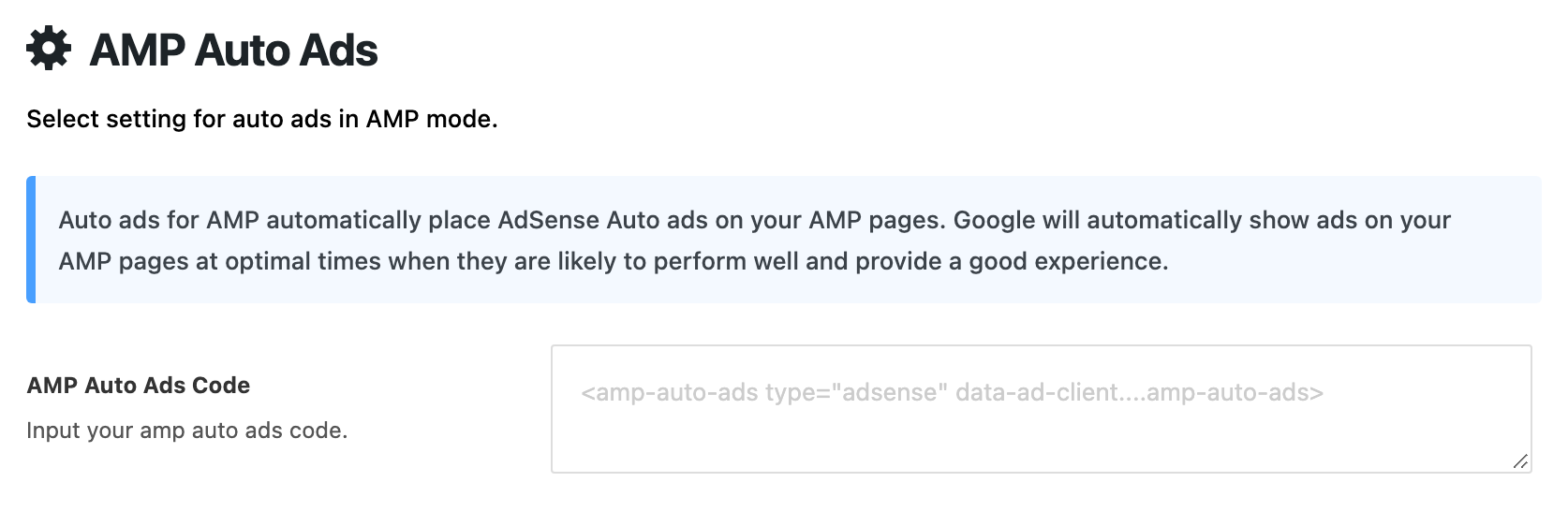
- AMP Auto Ads Code: empty by default. Paste the AMP version of your AdSense Auto ads code here: an
amp-auto-adstag, as the placeholder shows. Google then places adverts across your AMP pages.
It is a different snippet from Auto Adsense Ads Code in Ads & Slide Up > Adsense - Auto Ads. That field is never used on an AMP page, and this one is used only there, so a site that wants auto ads on both kinds of page fills both.
With a code in this field, the five spots in AMP Ads show nothing. To run both, turn on Allow Other Ads Placement in Ads & Slide Up > Adsense - Auto Ads. It is off by default and covers AMP pages and normal pages together.
How to add adverts to AMP pages walks adding the code.
AMP Ads
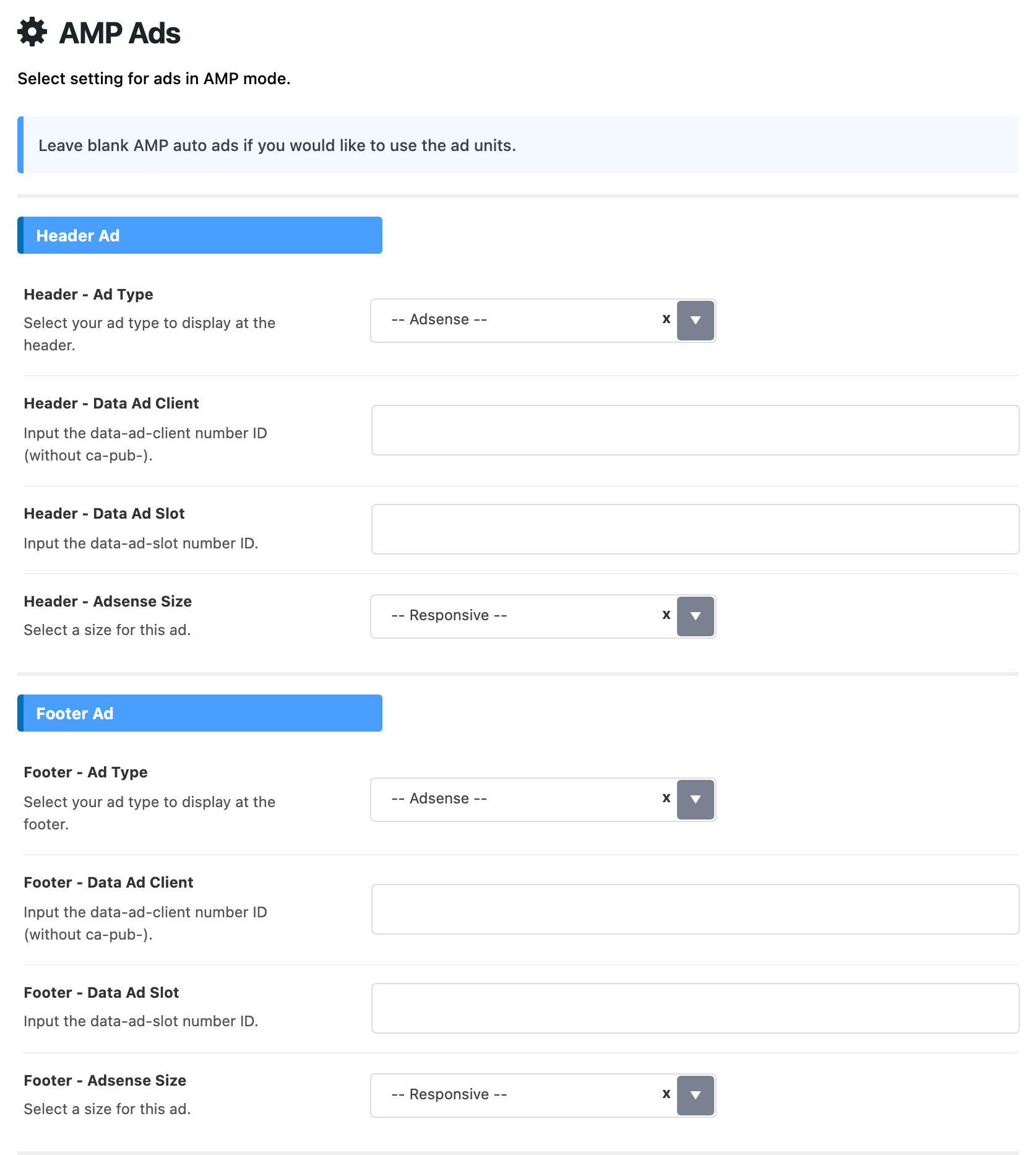
AMP Ads puts an advert in a fixed spot on AMP pages. Your normal ad spots are never drawn on AMP pages, so these are the only ones AMP readers see. Leave AMP Auto Ads Code blank to use them.
The five ad spots
Each spot is a group in the panel, and every field in a group starts with the spot's short name:
- Header Ad, fields starting Header -: below the AMP header, at the top of every AMP page.
- Footer Ad, fields starting Footer -: just above the AMP footer.
- Top Single Content Ad, fields starting Top -: above the body of a post.
- Bottom Single Content Ad, fields starting Bottom -: below the body of a post.
- Inline Single Content Ad, fields starting Inline -: inside the body of a post, after a number of paragraphs.
Each spot is filled on its own. An advert set in the header group does not appear anywhere else.
The fields in each spot
All five groups have the same fields with the same choices and defaults. Here they are as the header group names them:
- Header - Ad Type: -- Adsense -- or AMP Custom Script Ad. Default: -- Adsense --. It decides which of the fields below show, so switch it first if a field you need is missing.
- Header - Data Ad Client: shows on -- Adsense --. Your AdSense publisher ID without
ca-pub-in front; Foxiz adds that part. Empty by default. - Header - Data Ad Slot: shows on -- Adsense --. The slot ID of the AdSense unit. Empty by default.
- Header - Adsense Size: shows on -- Adsense --. -- Responsive -- lets the unit fill the width it gets; Fixed Height (90px) pins it to 90 pixels tall. Default: -- Responsive --.
- Header - AMP Custom Ad Script: shows on AMP Custom Script Ad. Paste the AMP ad tag your ad network gave you; it is printed as you pasted it. Empty by default.
The other four groups name the same fields with their own prefix:
| Header group | Footer group | Top group | Bottom group | Inline group |
|---|---|---|---|---|
| Header - Ad Type | Footer - Ad Type | Top - Ad Type | Bottom - Ad Type | Inline - Ad Type |
| Header - Data Ad Client | Footer - Data Ad Client | Top - Data Ad Client | Bottom - Data Ad Client | Inline - Data Ad Client |
| Header - Data Ad Slot | Footer - Data Ad Slot | Top - Data Ad Slot | Bottom - Data Ad Slot | Inline - Data Ad Slot |
| Header - Adsense Size | Footer - Adsense Size | Top - Adsense Size | Bottom - Adsense Size | Inline - Adsense Size |
| Header - AMP Custom Ad Script | Footer - AMP Custom Ad Script | Top - AMP Custom Ad Script | Bottom - AMP Custom Ad Script | Inline - AMP Custom Ad Script |
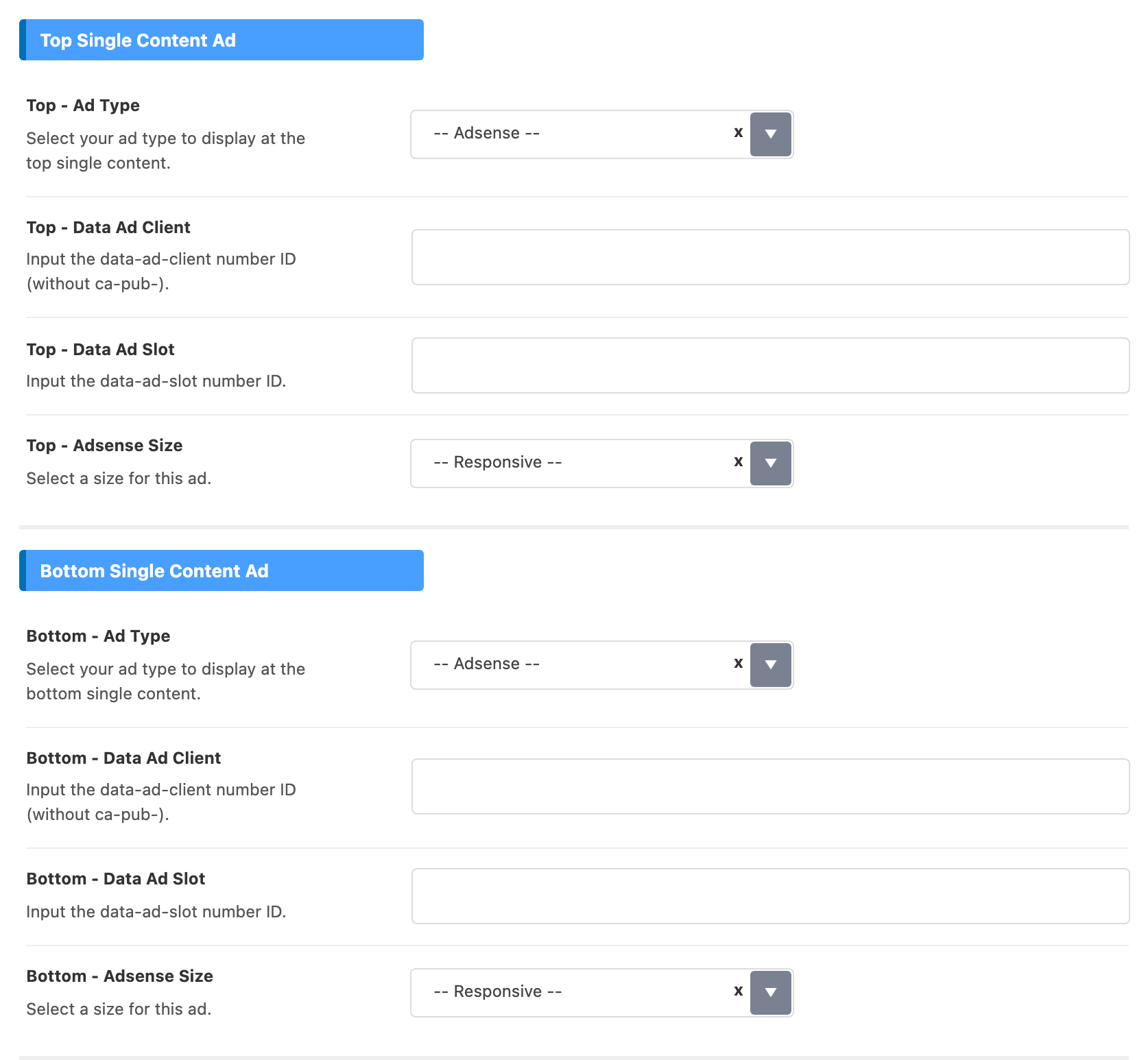
On -- Adsense --, fill both Data Ad Client and Data Ad Slot. With either one empty, the spot shows nothing.
The inline group has one more field at its end:
- Display Positions: the paragraph after which the inline advert appears. Default: 4. Enter several, separated by commas, such as
4,9, for more than one advert. Left empty, it also uses 4. It is separate from the positions in Ads & Slide Up, so AMP readers can meet the advert in a different place.
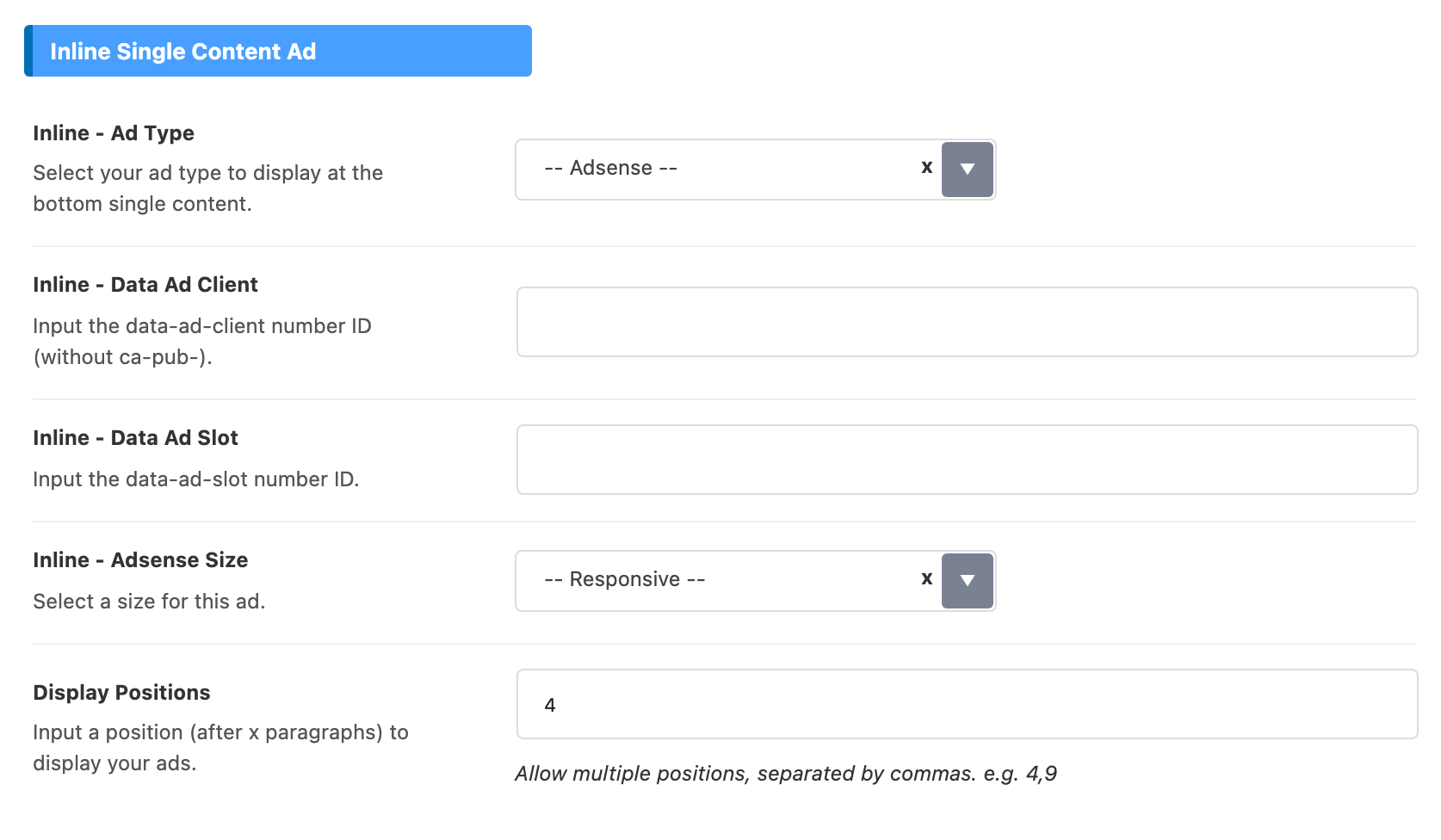
On podcast episodes, the inline advert shows only while Inline Content Ads Supported in Ruby Podcast > General is on. It is on by default.
How to add adverts to AMP pages walks filling a spot and testing it.
Common jobs
- Install AMP and test your pages: AMP: setting up and testing AMP for WordPress.
- Add adverts to AMP pages: how to add adverts to AMP pages.
Good to know
AMP pages have a CSS size limit, 75,000 bytes per page. That is why Foxiz gives AMP a compact footer, and why turning off sections you do not need in Single Post helps.
Auto ads or ad units. To use the five ad spots in AMP Ads, leave the AMP Auto Ads Code blank, or turn on Allow Other Ads Placement as described under AMP Auto Ads.
No advert on the 404 page. AMP spots follow the same rule as your normal ones: nothing shows on the 404 page unless Ads on 404 Page, in the Ads Disabled group of Theme Options > 404 Page, is set to Enable. Its default is - Disable -.
If a change does not show
- Is the AMP plugin active? Without it Foxiz serves no AMP pages, so nothing here shows.
- Are you looking at the AMP version? The settings here change only AMP pages, not the normal page.
- Did it save? Click Save Changes again and wait for the confirmation.
- Is a cache serving the old page? Clear your caching plugin and any server or CDN cache, then reload the AMP page.
- An ad spot stays empty? Check that AMP Auto Ads Code is blank, or Allow Other Ads Placement is on, and that both Data Ad Client and Data Ad Slot are filled for that spot.
Did this answer your question?