Updating Failed When Saving a Post
You click Update or Publish in the block editor and a red notice says Updating failed. or Publishing failed. Often it adds The response is not a valid JSON response.
The editor saves through the WordPress REST API, an address under /wp-json/ on your own site. The notice means the editor asked that address to save and got something back that was not WordPress, such as an error page or a redirect. Your post is not lost: copy its text somewhere safe, then work through the causes below.
1. Check the site address
A site address that does not match how the site opens breaks the save, most often after moving to https.
-
Go to Settings > General.
-
Check WordPress Address (URL) and Site Address (URL). Both should start with the same
https://address you see in the browser bar, with or withoutwwwexactly as your site opens.
-
Correct them and click Save Changes.
Your site has an SSL certificate but the addresses still say http://? See Problems with SSL? before changing them.
2. Save the permalinks again
The /wp-json/ address depends on the site's rewrite rules. A site move or a plugin can leave them out of date.
- Go to Settings > Permalinks.
- Change nothing. Click Save Changes at the bottom.
WordPress writes the rules again. Go back to the post and click Update.
3. Check the REST API in Site Health
-
Go to Tools > Site Health.
-
On the Status tab, look for The REST API encountered an error or The REST API encountered an unexpected result. Open it: the details name the error your server returned.
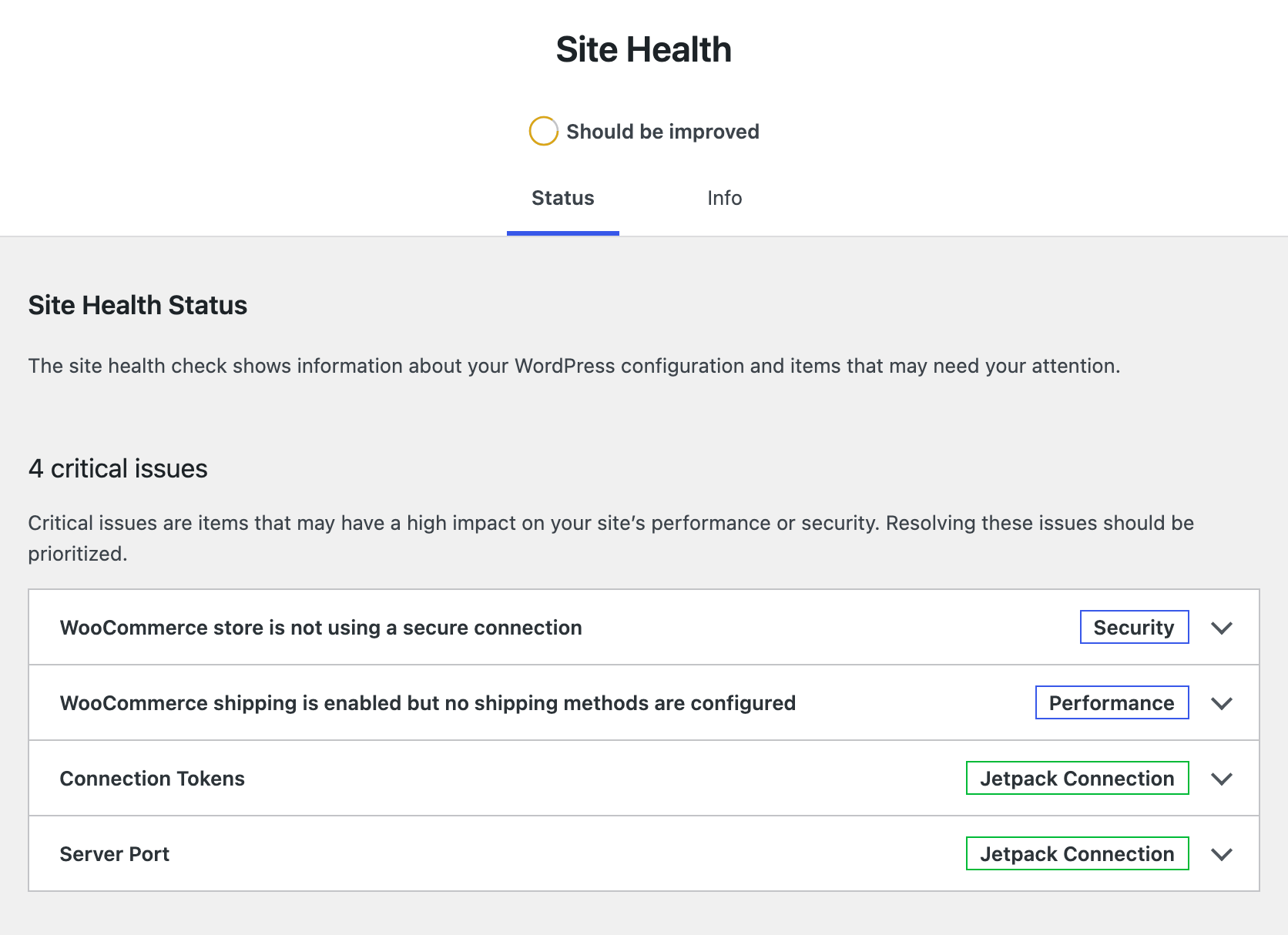
No REST API item in the list? Site Health found it working, so go to step 4.
4. Turn off security and firewall plugins for a minute
Security plugins (Wordfence, iThemes Security, All In One WP Security and the like) and host firewalls sometimes block /wp-json/, or block a post whose text contains code.
- Deactivate the security plugin on Plugins > Installed Plugins.
- Try Update again.
- If it saves, reactivate the plugin and look in its settings for a REST API or firewall rule to relax, or ask the plugin's support.
Pasting ad codes, <script> tags or iframes into a post often trips a host firewall (ModSecurity). If the failure only happens on posts with code in them, ask your host to whitelist the block. In Foxiz, ad codes belong in the ad settings rather than in post text: see Single Post Adverts.
5. Find a plugin conflict
Still failing? Deactivate all plugins except Foxiz Core and Elementor, try saving, then activate the others one at a time and save after each. The one that brings the notice back is the cause.
The notice says you were offline
Updating failed because you were offline means your own connection dropped. Wait until you are back online and click Update again. The editor keeps your changes while the page stays open.
Still stuck? Open a ticket with the full notice text and what Site Health says about the REST API.
Did this answer your question?