Image Upload Errors
You drop an image into Media > Add Media File or a post, and WordPress shows an error instead of the picture. Find the message you see.
"exceeds the maximum upload size for this site"
The file is bigger than your server accepts. The limit is shown under the upload box as Maximum upload file size.
Two ways out, and the first is better for your visitors anyway:
-
Make the file smaller. A photo straight from a phone or camera is often 5 to 10 MB. Resize it to about 2000 pixels wide and save it as JPEG or WebP: it drops to a few hundred KB and looks the same on screen.
-
Raise the limit. Set
upload_max_filesizeandpost_max_sizeto 32M or more, as shown in Configuring Server Settings. Foxiz > System Info shows both values and flags one below 32M.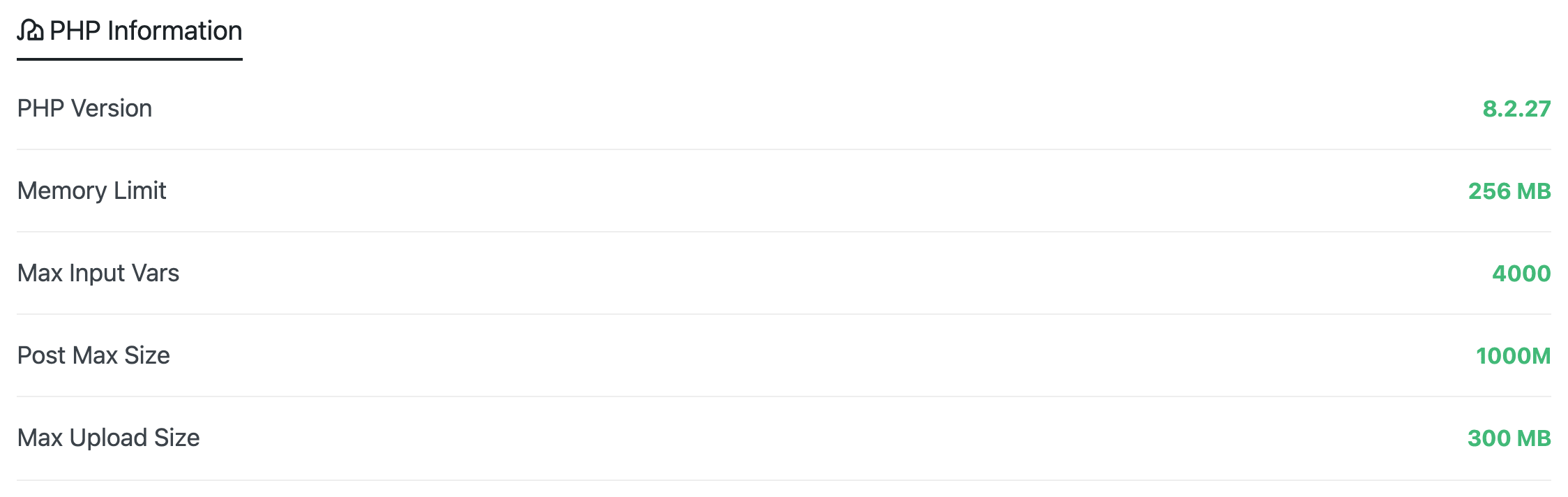
"The server cannot process the image"
The file uploaded, but the server ran out of memory or time while making the smaller copies WordPress creates of each image. WordPress itself suggests keeping images to 2560 pixels, and it scales down anything bigger after upload.
- Resize the image to 2560 pixels on its longest side or less, and upload it again.
- Still failing? Raise
memory_limitto 256M (Configuring Server Settings). - Check Media > Library. The error says the file may have uploaded anyway; if it is there, delete it and upload the smaller version.
Every extra image size costs the server work on each upload. Foxiz makes several sizes for its layouts. If you do not use some layouts, you can turn their sizes off: see How to Create Image Crop Sizes?.
"Memory exceeded. Please try another smaller file."
Same cause as above, caught earlier. Resize the image, or raise memory_limit.
"Sorry, you are not allowed to upload this file type."
WordPress only accepts certain file types.
- An SVG logo or icon: Foxiz lets the media library accept SVG while Theme Options > Theme Design > SVG Upload > SVG Supported is on. It is on by default. Check it has not been switched off. See SVG Upload.
- A font file or a zip: these do not belong in the media library. Fonts go in Local Fonts Uploader; the theme zip goes in Appearance > Themes.
Upload works but images look blurry or the wrong size
That is a crop size question, not an upload error. See What to do when images are not displaying consistent in size? and How Are Featured Images Cropped?.
Still stuck? Open a ticket with the exact error text, the file's type and size, and the Max Upload Size and Memory Limit values from Foxiz > System Info.
Did this answer your question?