Bookmarklet
The icons a phone or a Windows PC shows when someone saves your site to the home screen or pins it as a tile.
Where: Theme Options > Logo > Bookmarklet.
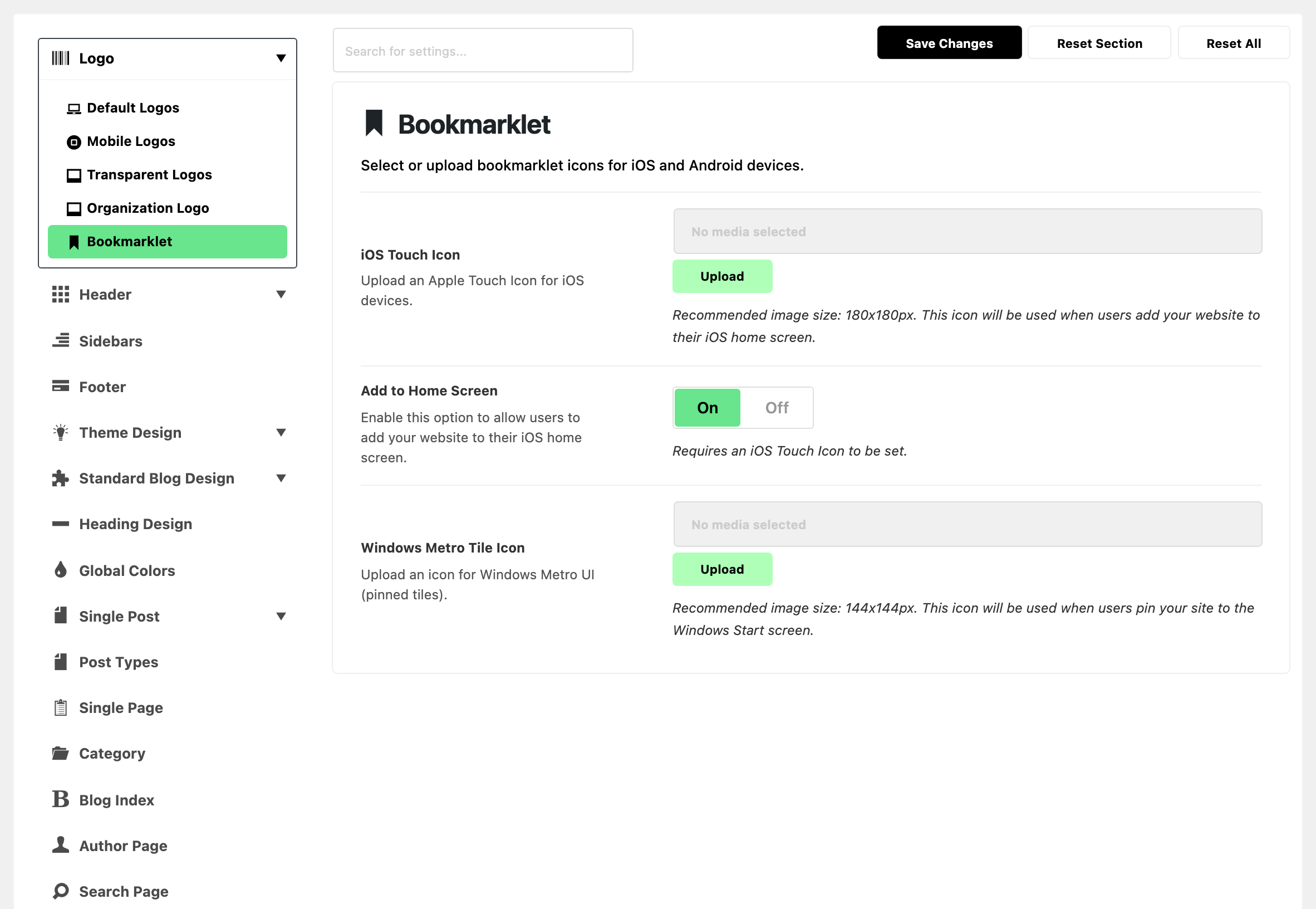
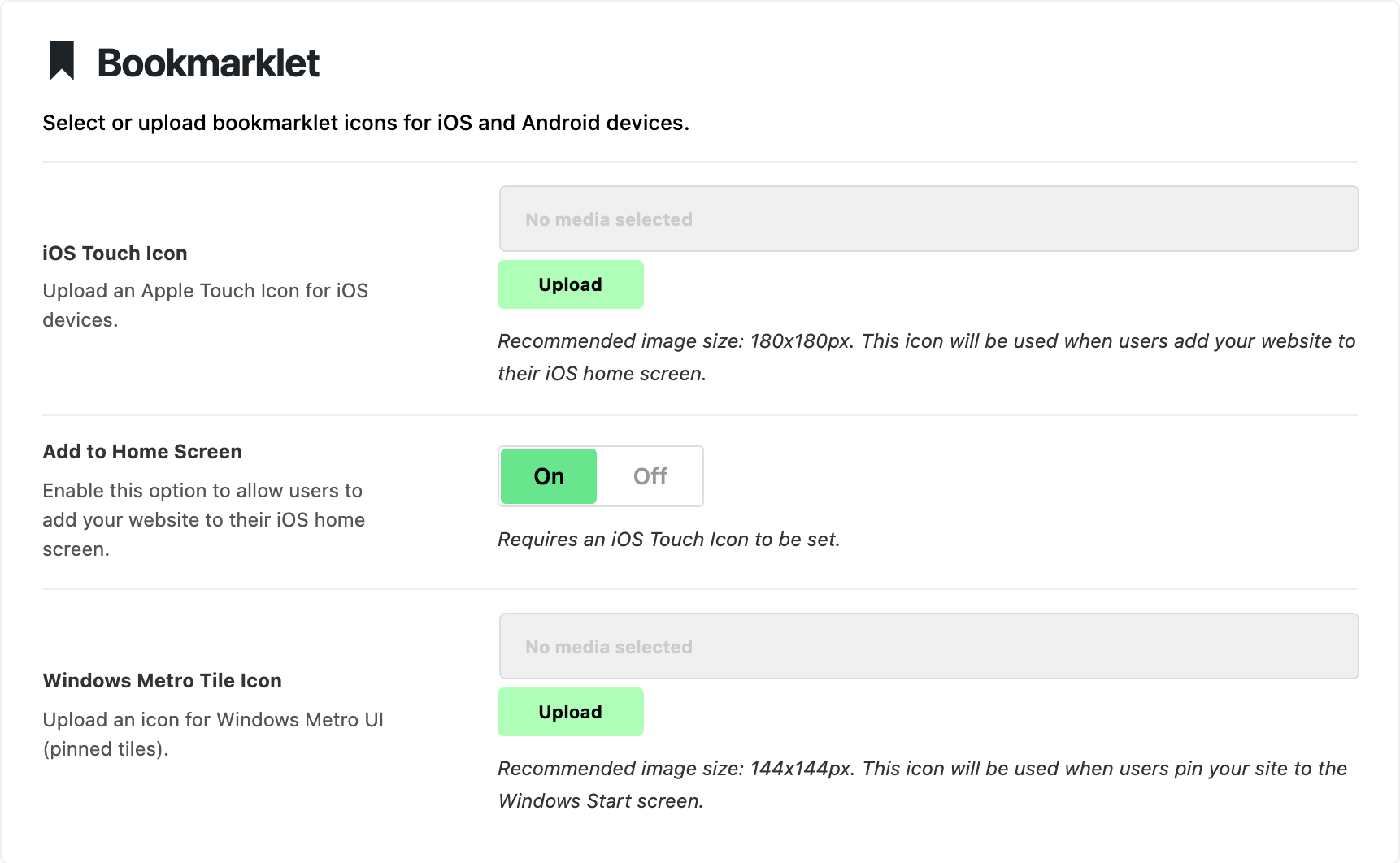
Three fields, in this order:
- iOS Touch Icon: the icon an iPhone or iPad shows when someone adds your site to the home screen. Default: empty.
- Upload a square image, 180x180px.
- It is only used while Add to Home Screen is on.
- Add to Home Screen: sends your iOS Touch Icon and the home screen settings below to iPhones and iPads. On by default.
- It does nothing until iOS Touch Icon is set.
- With both set, a visitor who opens your site from the home screen icon gets it full screen, titled with your site name.
- Turn it off and the theme stops sending the icon and these settings to iOS.
- Windows Metro Tile Icon: the icon on the tile when someone pins your site to the Windows Start screen. Default: empty.
- Upload a square image, 144x144px. The tile behind it is white.
- Add to Home Screen does not affect it.
These icons are not the favicon. The icon in the browser tab is the WordPress Site Icon, under Settings > General. WordPress also sends that icon to phones and Windows tiles, so these fields are optional.
Related
- Adding site favicon: the Site Icon, and how it differs from these icons.
- How to upload logo and favicon: every logo slot and its size, in one walkthrough.
Did this answer your question?